


Configure Comodo Cleaning Essentials
- Click 'Options' in the title bar to configure CCE to your preferences:
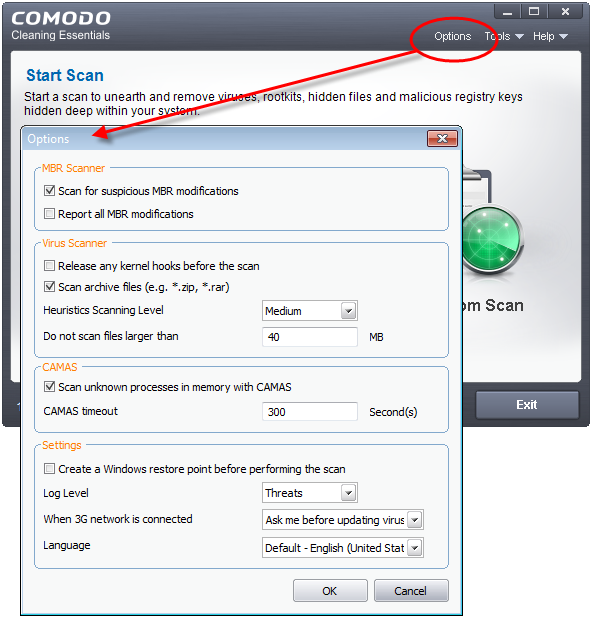
- Scan for suspicious MBR modifications - CCE automatically scans the master boot record (MBR) for malware, unknown files and suspicious changes. The MBR is a favorite target of advanced persistent threats
- Report all MBR modifications- CCE records MBR modifications in a log file
Virus Scanner Settings
- Release any kernel hooks before the scan - Advanced users only.Releasing the kernel hooks will deactivate any other security products installed on your system. This may cause system instability and lead to potential data loss. Select this option only if you are an advanced user and have knowledge on the risks of the process
- Scan archive files (e.g. *zip, *rar) - Comodo Cleaning Essentials scans all types of archive files. These include RAR, WinRAR, ZIP, WinZIP ARJ, WinARJ and CAB archives. (Default = Enabled)
- Heuristics Scanning/Level - CCE employs various heuristic techniques to identify previously unknown viruses and Trojan horses. Heuristics means analyzing a file to see whether it contains code typical of a virus. If it is found to do so then the application recommends it for quarantine. Heuristics detectis virus-like attributes rather than looking for a malware signature that matches a signature on our blacklist
The drop-down menu lets you select from four levels of heuristic sensitivity. The sensitivity determines how likely the scanner is to decide a file is malware based on its code.
- Off – Disable heuristic scanning
- Low - A high level of protection with a low rate of false positives. Comodo recommends this setting for most users
- Medium – Better at detecting previously unknown malware than the 'Low' setting, but has a higher chance of producing false positives
- High - Highest sensitivity to detecting unknown threats, but with a raised level of possible false positives
- Do not scan files larger than - Set the maximum size of files that CCE should scan. CCE will skip files larger than the size specified here. (Default = 40 MB)
CAMAS Settings
- CAMAS (Comodo Automated Malware Analysis System) is our cloud-based file analysis system. Unknown files submitted to CAMAS undergo thorough inspections by our cloud virus and behavior monitoring systems
- Files which behave maliciously are added to the global blacklist. This list is passed to all CCE users via our regular database updates, protecting everyone against the newest threats
You can set the following options regarding CAMAS:
- Scan unknown processes in memory with CAMAS -Unknown processes running in memory will be automatically submitted to CAMAS for testing.(Default=Enabled)
- CAMAS timeout - Set the maximum length of time (in seconds) that CCE should spend submitting files to CAMAS. If the timeout is exceeded then CCE will stop attempting to contact CAMAS, and it is possible that no results will be returned. (Default=300 seconds)
Miscellaneous Settings
- Create a Windows restore point before performing the scan - CCE will create a Windows restore point just before starting a scan. You can revert your system to this previous state if any problems occur after the scan.
- Log level - Select CCE event log options. There are two types of logs - KillSwitch logs and CCE (scan) logs. The following options apply to both:
- Disable - CCE does not create any log files
- Threats- CCE creates a log entry when it detects a malicious file. Default
- All - CCE creates log entries for all scanned files and all events. The log includes system information, cleanup results, file path and file verdict, actions taken on the file, and whether the action has been implemented
Logs are saved in the CCE folder at DataCCELogs:
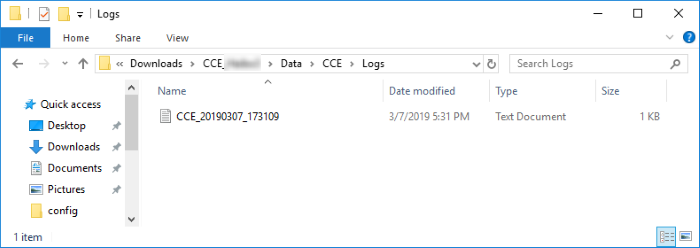
- Click 'Tools' > 'Browse Logs'
- When 3G network is connected - Specify how updates should be handled if CCE detects you are on a 3G connection. 3G networks are slower than regular connections and may incur additional bandwidth charges
- Ask me before updating the virus database - CCE requests your permission before downloading updates over 3G
- Always update virus database - CCE automatically downloads updates even if you are on a 3G connection
- Skip updating virus database - CCE never downloads updates if you are on a 3G connection
- Select Language - CCE is available in several languages with the default being English (US). Use the drop-down menu to change language if required
- Click
'OK' for your changes to take effect