Comodo Help
Find the desired product help
Comodo Cleaning Essentials

Comodo Cleaning Essentials

Version 2.5

English

Print Help Download Help
The Tools Menu
  • Introduction To Comodo Cleaning Essentials
    • System Requirements
    • Downloading Comodo Cleaning Essentials
    • Starting Comodo Cleaning Essentials
    • The Main Interface
  • Scanning Your System
    • Smart Scan
    • Full Scan
    • Custom Scan
    • Comparison Of Scan Types
  • Configuring Comodo Cleaning Essentials
  • The Tools Menu
    • Managing Quarantined Items
    • Managing Trusted Vendors
    • Importing Antivirus Database
    • Checking For Software Updates
  • Introduction To KillSwitch
    • Starting KillSwitch
      • From The Comodo Cleaning Essentials Interface
      • From The Folder Containing Comodo Cleaning Essentials Files
      • Replacing Windows Task Manager With KillSwitch
    • The Main Interface
      • The System Tray Icon
    • Viewing And Handling Processes, Applications And Services
      • Processes
        • Stopping, Starting And Handling The Processes
        • Viewing Properties Of A Process
      • Applications
        • Handling The Applications
      • Services
        • Stopping, Starting And Deleting The Services
        • Viewing The Properties Of A Service
    • Viewing And Handling Network Connections And Usage
      • Network Connections
        • Inspecting And Closing Network Connections
      • Network Utilization
    • Configuring KillSwitch
    • KillSwitch Tools
      • Viewing System Information
      • Repairing Windows Settings And Features
      • Analyzing Program Usage
      • Searching For Handles Or DLLs
      • Verifying Authenticity Of Applications
      • Boot Logging And Handling Loaded Modules
      • Running Programs From Command Line Interface
      • Viewing KillSwitch Logs
      • Finding Process Of The Active Window
    • Managing Currently Logged-in Users
    • Help And About Details
  • Introduction To Autorun Analyzer
    • Starting Autorun Analyzer
      • From The Comodo Cleaning Essentials Interface
      • From The KillSwitch Interface
      • From The Folder Containing Comodo Cleaning Essentials Files
    • The Main Interface
    • Viewing And Handling Autorun Items
      • Handling Autorun Items
      • Filtering Entries Based On Categories
      • Viewing Autorun Items For Other User Accounts
    • Help And About Details
  • Help And About Details
    • Help
    • About
  • Using The Command Line Interface
    • Running A Smart Scan From The Command Line Interface
    • Running A Custom Scan From The Command Line Interface
    • Running A Virus Database Update Task From The Command Line Interface
    • Viewing Help
  • About Comodo

The Tools Menu


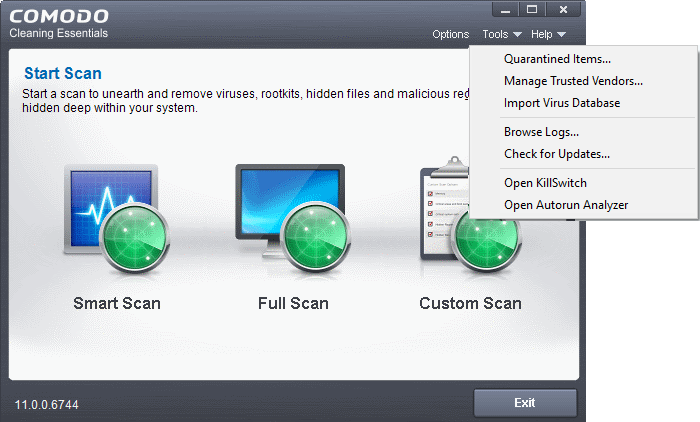
The 'Tools' menu  enables you to manage quarantined items and local trusted vendors list and view logs. It also allows you to configure for importing virus database updates from a local storage or from other computer or a server in your network.


The tools menu contains shortcuts to open KillSwitch and Autorun Analyzer, valuable tools for optimizing your system performance.


It can be accessed by clicking 'Tools' from the title bar.


The 'Tools' menu has the following options:

  • Managing Quarantined Items - Enables to manage the items moved to quarantine by various scans.

  • Managing Trusted Vendors - Enables you to add and manage the vendors in the local Trusted Vendor List.

  • Importing Antivirus Database - Enables you to import virus database from your local storage or a network location.

  • Browsing Logs – Enables you to view the log of events recorded by the application.

  • Check for Updates – Enables you to check whether updated version of the application is available.

  • Open KillSwitch – Starts the KillSwitch utility

  • Open Autorun Analyzer – Starts the Autorun Analyzer utility.

Terms and Conditions Privacy Policy

© Comodo Group, Inc. 2013. All rights reserved.