


The Main Interface
- Open CCE > Click 'Tools' > 'Autorun Analyzer'
OR
- Open the folder containing the CCE files > Run 'autoruns.exe'
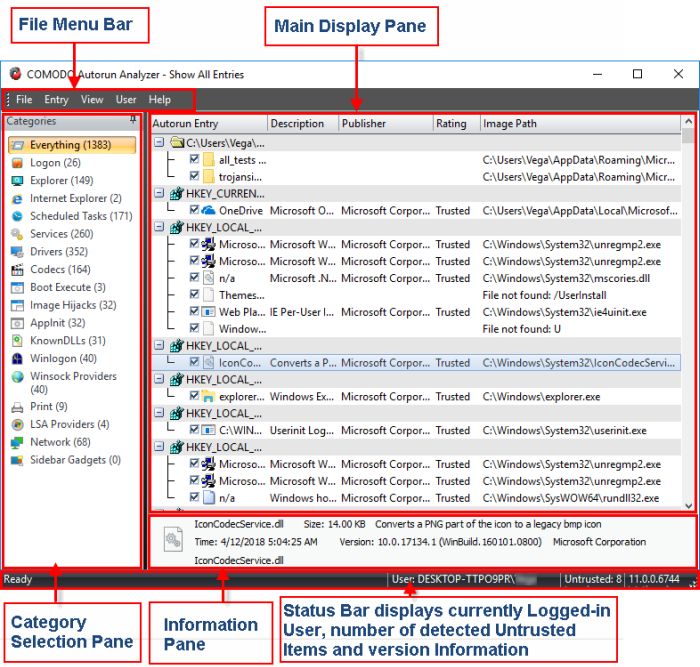
The interface is divided into five main areas:
The file menu bar displays the controls for executing various tasks of the application.
|
Menu |
Option |
Description |
|---|---|---|
|
Contains options related to file operations, enabling/disabling start-up items, and analyzing offline system. |
||
|
Find |
Launches the 'Find' dialog to search for a specific entry by entering a search parameter. |
|
|
Open |
Opens a pre-stored Autorun Analyzer file. Autorun analyzer will identify the autoruns data .ard files extension in the selected folder. |
|
|
Save |
Opens the 'Save as' dialog to save the data in the main display pane in the native file format of Autorun Analyzer. The file is stored with a .ard extension. |
|
|
Enable All Untusted Entries |
An untrusted entry is a startup item with an unknown trust rating. The
item is not definitely bad because it is not on our list of
known-malware. However, it is not definitely safe either because it
is not on our list of safe programs. Activate this setting to allow startup items with an unknown trust rating to run when Windows starts. |
|
|
Disable All Untusted Entries |
See explanation in previous row. Activate this setting to stop startup items with an unknown trust rating to run when Windows starts. |
|
|
Analyze Offline System |
Examine an idle Windows operating system installed in your computer. For example, a virtual machine. |
|
|
Refresh |
Reloads the list of autoruns. |
|
|
Exit |
Closes the autorun analyzer. |
|
|
Entry |
Contains Options to handle the Start-up items |
|
|
Jump to Entry |
Opens the selected entry in Windows Registry Editor |
|
|
Jump to Folder |
Opens the folder containing the selected entry in Windows Explorer |
|
|
Enabled |
Toggles the selected autorun entry between 'Enabled' and 'Disabled' states. |
|
|
Search Online |
Finds your information of selected autorun entry with the default web browser with the search engine specified and searches for information on the selected autorun entry on the web. |
|
|
Properties |
View properties dialog of the selected autorun entry. |
|
|
View |
Contains options related to display nature of the application. |
|
|
Hide Trusted Entries |
Display only untrusted autoruns. |
|
|
Font |
Configure the font style to customize the look and feel of the application. |
|
|
Language |
Autorun Analyzer is available in several languages. The 'Language' option in the 'View' menu enables you to select the language in which the application has to be rendered. |
|
|
Users |
|
Enables to filter the autorun entries displayed depending on the user that started the application. See 'Filtering Entries Based on Users' for more details. |
|
Help |
|
Opens the 'About' dialog of the Autorun Manager application. See About Autorun Analyzer for more details. |
Lists all start-up items. Right-click on an entry to view further options. See View and Handle Autorun Items for more details.
Shows complete details about the item selected in the main display area.
Filter items by category. See Filter Entries Based on Category for more details.
Status Bar
Shows general information, including current user, number of unsafe entries, and the version of the application.