


Services
- Click 'Tools' > 'Open KillSwitch'
- Click the 'System' tab > click the 'Services' bar.
The services area shows all windows services/drivers loaded in your system. You can review, start, stop, restart or delete services as required.
-
 - The services associated with the processes/applications
-
 - The service is associated with driver
- Right-click on a service to start, stop, restart or delete the service. Hold the 'Ctrl' key to select multiple services.
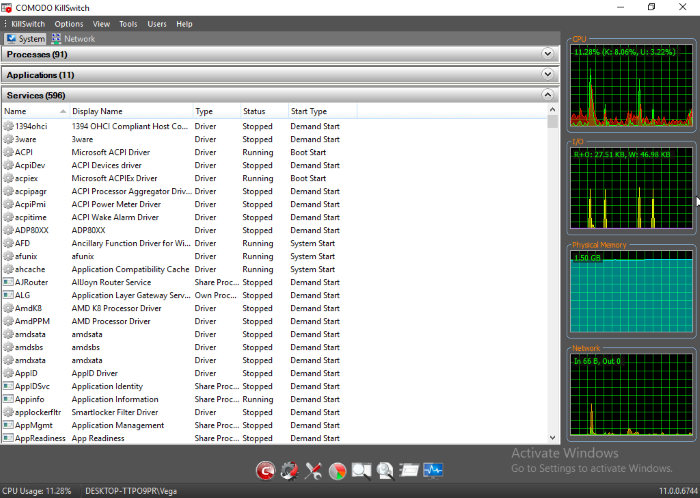
The table below describes the columns that are displayed by default. You can add or remove the columns as per your requirement. Refer to Column Selection for more detailed explanation on this.
|
Services Table - Descriptions of Columns |
|
|---|---|
|
Column |
Description |
|
Name |
|
|
Display Name |
|
|
Type |
|
|
Status |
|
|
Start Type |
|
The services window displays details about each process in five columns. Advanced users can view more details by adding more columns as required.
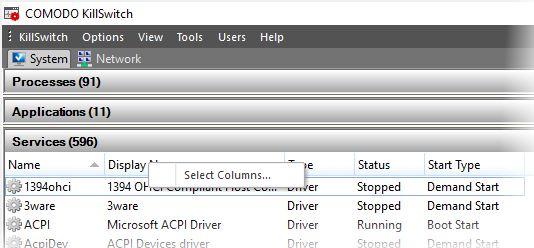
- To add or remove columns in the 'Services' window, right-click on the table header and select 'Select Columns' from the context sensitive menu.
The 'Select Columns' dialog opens.
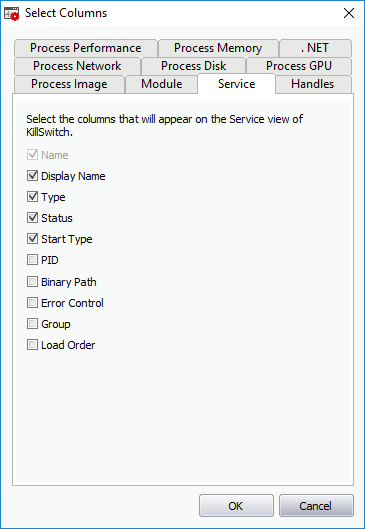
- Enable the columns by choosing the respective check-boxes
-
Click 'OK' for your configuration to take effect.