


Import Antivirus Database
- CCE will periodically check Comodo servers to see whether a virus database update is available for download.
- Alternatively, you can import the updates from local storage, or from any other computer in your network that uses the same database.
- This can accelerate updates across large networks of endpoints and reduce bandwidth costs.
Example Scenarios:
- If you also have Comodo Internet Security (CIS) installed, and it is configured to regularly receive database updates, then you can configure CCE to collect it’s updates from your CIS folder. To do this, you just need to point CCE to the CIS folder that contains the (updated) bases.cav file. See instructions below.
- Similarly, if you are connected to a local network, you can import the updated database from any network folder that contains the latest bases.cav. For example, from another computer that has CCE or CIS installed.
Import a virus database
-
Click 'Tools' > 'Import Virus Database'.
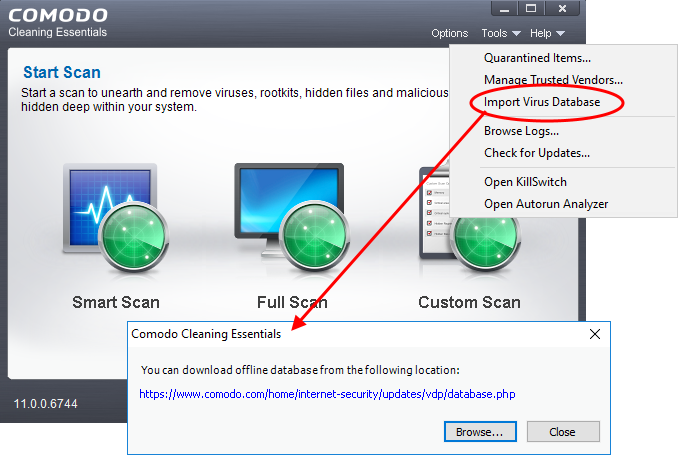
The dialog containing the last updated database will be displayed.
- If required, click the link to download the latest database from the Comodo web site. Save the file to a local or network location.
- Click 'Browse' to select and open a local/network copy of the database.
|
Tip: If you are importing the database from your CIS installation, the bases.cav will be available in the folder |
- Click 'Open'.
The database file will be immediately imported to CCE.