


Outgoing
To send outgoing email, you need to add a valid user to the filter cluster. This can be done in the web interface.
The following ports are available for the outgoing service:
- SMTP AUTH: Port 25 or 587
- SMTP StartTLS Port 587
- SMTP SSL Port 465
Comodo recommends port 587. The outgoing service listens by default on all IPv4 addresses activated on the server.
- Create a
separate outgoing user on the filtering cluster for each end-user to
relay outgoing email. Use automatic user locking to
close the account if abuse is detected.
- There are two methods you can for per-user authentication:
When using per-user authentication for outgoing mail, ensure you set usage limits correctly and enable automatic locking.
- The first is to instruct all end-users to authenticate directly to the filter cluster for their outgoing emails.
- The second is to configure your SMTP server to authenticate each user separately to the filter cluster for all outgoing mail.
- If you find per-user authentication too cumbersome, you can use smarthost setup as an alternative.
- You add a single outgoing account to the filtering server and point all outgoing emails to this server, thus using the filter cluster as smarthost.
- Most
email servers have a 'smart host setting' feature
which lets you easily accomplish the task of configuring outgoing
email filtering.
- Make sure to disable automatic locking setting to prevent the full server account getting locked because a single user sent out spam. Also enable block spam so that individual spam messages will be stopped and the administrator notified.
The 'Outgoing' area lets you:
- Set up spam checks on outgoing mail.
- Clear the outgoing mail server cache.
- Search for outgoing email messages.
- Integrate Office 365 with CASG.
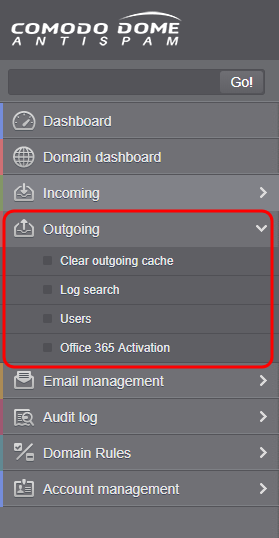
Click the following links for more details: