


Tag Rules
Tag Rules are where you manage the asset tags in CTEM.
Tags enable you to group assets by creating user-defined names. You control the names and can use as many tags as you want on any asset.
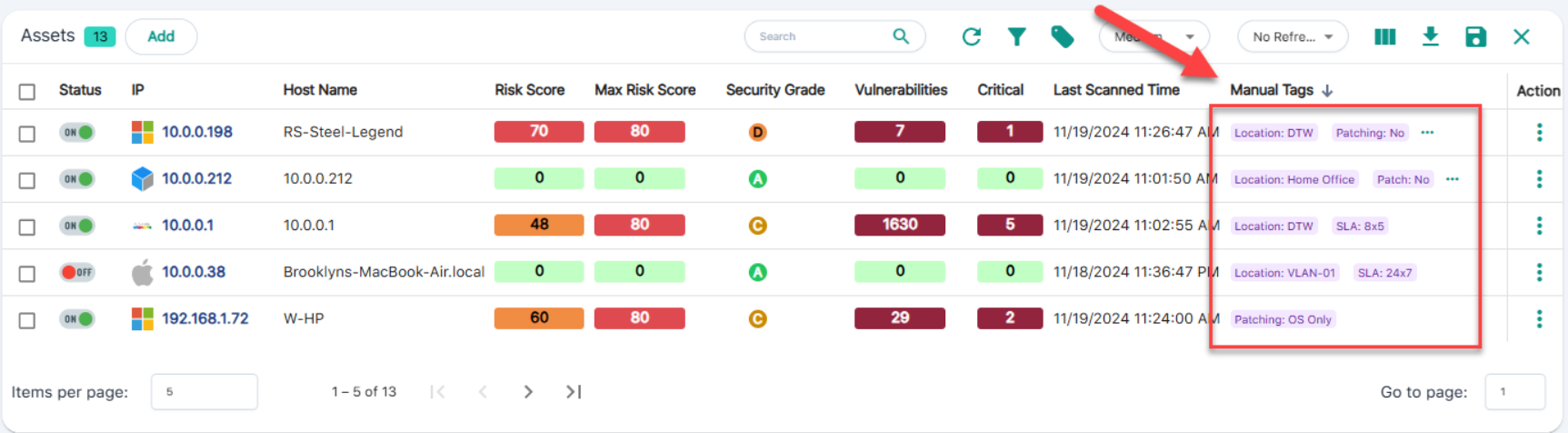
Here are some examples of how you might use tags on an asset.
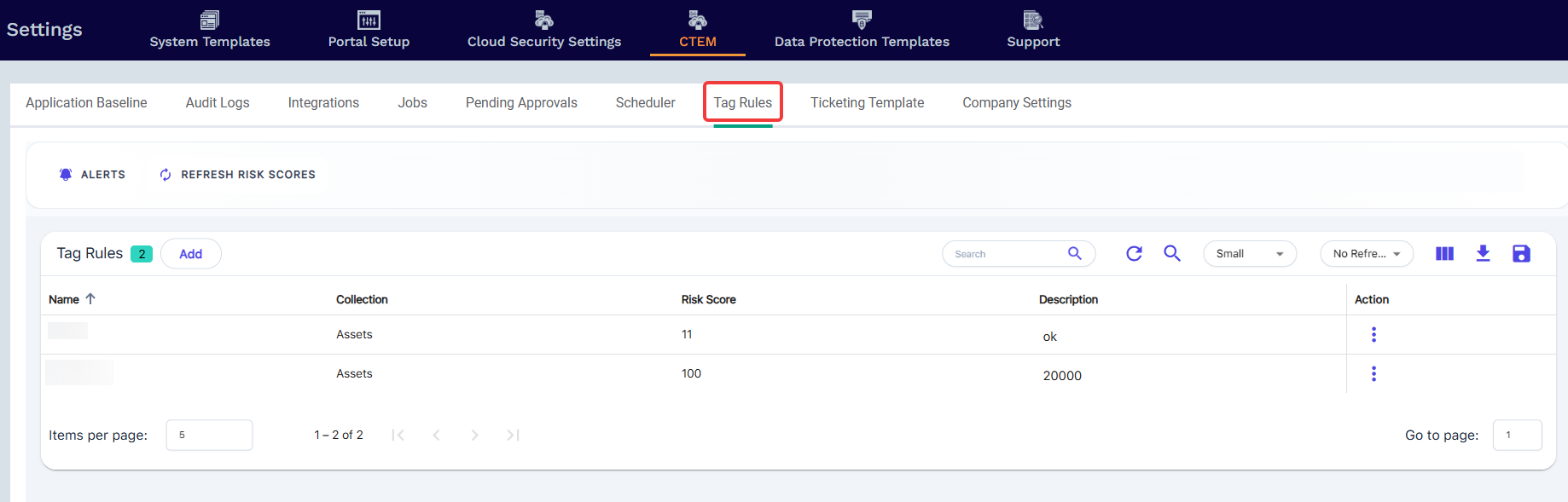
- Settings < CTEM < 'Tag Rules'
Tag Rules allow you to automatically apply tags to assets based on a set of search criteria you define using the built-in rules section.
Complete the required fields and tap Save to finish.
The Name and Value fields become the tag on the assets.
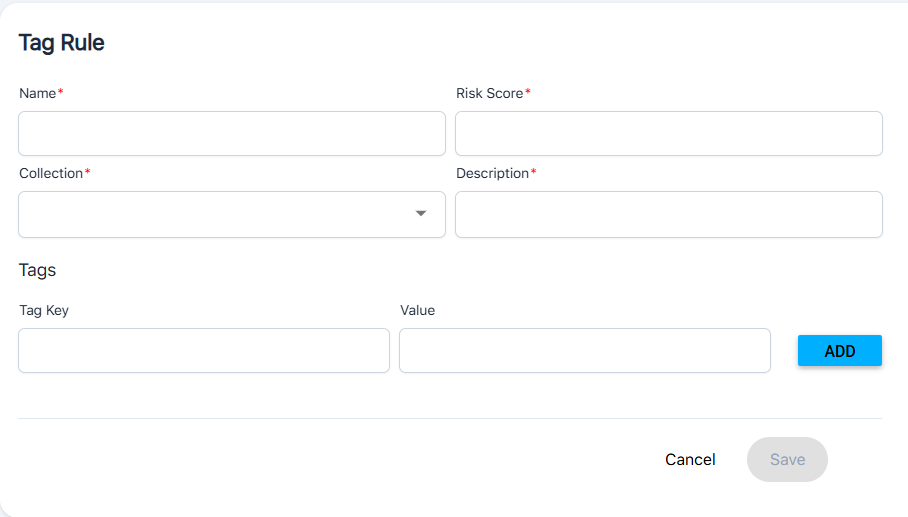
| Field | Description |
| Name | Give the tag rule a name of your choice |
| Risk Score | Enter a risk score if you want to modify the risk score of any asset where this rule matches. If you do not want to change the risk score, enter zero (0). |
| Collection | Select the Collection which organizes the tags by Assets, Ports, and Problems |
| Description | Give the tag rule a description of your choice |
| Rules | Used to build a search query with specific search criteria; the rule will check all assets for a match and apply the specified tag(s) |
| Tags: Name | Give the tag a name of your choice |
| Tags: Value | Give the tag a value of your choice |
Tag Rules will be checked during the lightweight agent or probe full scans complete.
Auto Tags created by CTEM include the following:
- Asset Type: Workstation
- Asset Type: Server
- Asset Type: Firewall
- Scanned Status: Scanned
- Scanned Status: Not Scanned
- Windows 11 Compatible: True
- Windows 11 Compatible: False
Risk Score Behavior During Tag Rule Creation/Update
- If the provided risk score is 0, the risk score of the associated assets should remain unchanged.
- If the provided risk score is lower than the asset’s current risk score, it should not update the asset’s risk score.
- If the provided risk score is higher than the asset’s current risk score, the asset’s risk score should be updated to the new value.
Tag Rules Example
Here is an example of how you might use the tag rules function.
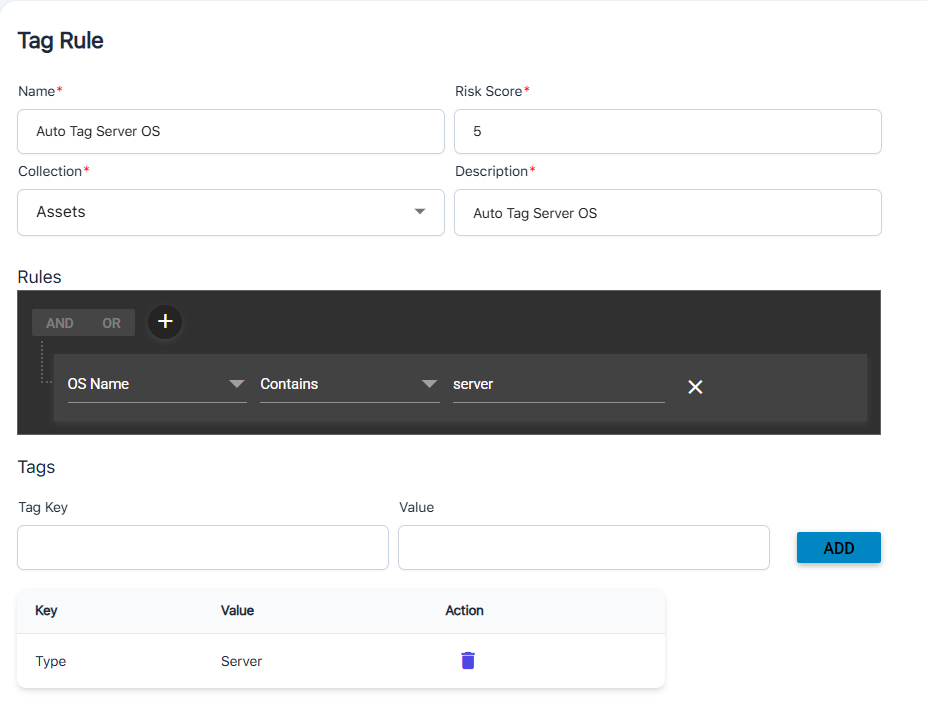
Use Case: I want to identify any asset where the operating system (OS Name) contains the word ‘server’ and then apply the two tags below.
Type: Server
Patch: Do Not Patch
Here is what this rule looks like configured:
Note: For multiple IPs in a tag rule, please make sure to provide them as a comma-separated string, without using the list format.
Correct format:
10.0.0.1, 10.0.0.2, 10.0.0.3,...
Incorrect format:
["10.0.0.1", "10.0.0.2"]