Comodo Help
Find the desired product help
Xcitium Enterprise

Xcitium Enterprise

Xcitium Enterprise Administrator Guide

English

Print Help Download Help
Configure Xcitium Enterprise > CTEM Settings > Company Settings
  • Introduction To Xcitium Enterprise - Endpoint Protection Platform
    • Key Concepts
    • Best Practices
    • Login Into The Admin Console
    • Upgrade To Full Version
  • The Admin Console
  • The Dashboards
    • CTEM Dashboard
    • CTEM Metrics
    • CTEM Reports
      • Report Builder
      • Standard Reports
      • Report Customization
  • CNAPP Dashboard
  • ROI Dashboard
  • Devices And Device Groups
    • Manage Device Groups
      • Create Device Groups
      • Edit A Device Group
      • Assign Configuration Profiles To A Device Group
      • Remove A Device Group
      • Run Procedures On Device Groups
    • Manage Devices
      • Add New Devices
      • Manage Windows Devices
        • View And Edit Device Name
        • View Summary Information
        • View Network Information
        • View And Manage Profiles Associated With A Device
        • View Maintenance Windows Associated With A Device
        • View And Manage Applications Installed On A Device
        • View The Files On A Device
        • View Exported Configurations And Import Profiles
        • View MSI Files Installed On A Device Through Xcitium
        • View And Manage Patches For Windows And 3rd Party Applications
        • View Antivirus Scan History
        • View And Manage Device Group Memberships
        • View Device Logs
      • Manage Mac OS Devices
        • View And Edit Mac OS Device Name
        • Summary Information Of Mac Device
        • View Installed Applications
        • View Quarantined Files On Mac OS Device
        • View And Manage Profiles Associated With A Device
        • View Packages Installed On A Device Through Xcitium
        • View And Manage Device Group Memberships
        • View Mac Device Logs
      • Manage Linux Devices
        • View And Edit Linux Device Name
        • Summary Information Of Linux Device
        • View Network Information Of A Linux Device
        • View And Manage Profiles Associated With A Linux Device
        • View Linux Packages Installed On A Device Through Dragon
        • View And Manage Device Group Memberships
      • Manage Android Devices
        • View And Edit Device Name
        • View Summary Information
        • Manage Installed Applications
        • View And Manage Profiles Associated With A Device
        • View Sneak Peek Pictures To Locate Lost Devices
        • View The Location Of The Device
        • View And Manage Device Group Memberships
      • Manage IOS Devices
        • View And Edit Device Name Of An IOS Device
        • View Summary Information Of An IOS Device
        • View Applications Installed On An IOS Device
        • View And Manage Profiles Associated With An IOS Device
        • View The Location Of An IOS Device
        • View And Manage Group Memberships Of An IOS Device
      • View User Information
      • Remote Management Of Windows And Mac OS Devices
        • Transfer Items To / From The Remote Computer
      • Remotely Manage Folders And Files On Windows Devices
      • Manage Processes On Remote Windows Devices
      • Manage Services On Remote Windows Devices
      • Use The Command Prompt On Remote Windows Devices
      • View Event Logs On Remote Windows Devices
      • Apply Procedures To Windows And Mac Devices
      • Remotely Install And Manage Packages On Windows Devices
      • Remotely Install Packages On Mac OS Devices
      • Remotely Install Packages On Linux Devices
      • Send Enrollment Link To IOS Devices
      • Generate An Alarm On Android Devices
      • Remotely Lock Mobile And Mac OS Devices
      • Wipe Selected Mobile And Mac Devices
      • Assign Configuration Profiles To Selected Devices
      • Set / Reset Screen Lock Password For Mobile Devices
      • Update Device Information
      • Send Text Messages To Mobile Devices
      • Restart Selected Windows Devices
      • Change A Device's Owner
      • Change The Ownership Status Of A Device
      • Add Custom Notes And Tags On Devices
      • Remove A Device
      • Generate Device List Report
      • Manage Isolate And Release From Isolation
    • Bulk Enrollment Of Devices
      • Enroll Windows, Mac OS And Linux Devices By Installing The Communication Client
        • Enroll Windows Devices Via AD Group Policy
        • Enroll Windows, Mac OS And Linux Devices By Offline Installation Of Agent
        • Enroll Windows Devices Using Auto Discovery And Deployment Tool
      • Enroll Android And IOS Devices Of AD Users
    • Download And Install The Remote Control Tool
  • Cloud Workloads
  • Cloud Assets
  • Cloud Security
    • View Vulnerabilities Findings
    • Registry Scan
    • CSPM Executive Dashboard
    • Compliance Summary
    • CWPP Dashboard
    • App Behavior
    • Manage Policies
    • Remediation
    • View Alerts
    • Manage Triggers
    • View Reports
  • Continuous Threat Exposure Management(CTEM) Security
    • CTEM Agents
    • View All Assets
    • Other Assets
    • View Problems
    • View Solutions
    • Pending OS Patches
    • View Ports
    • View Deprecated Assets
    • Patch Management
    • Application Baseline Results
    • View Certificates
    • Vulnerabilities
    • Application Vulnerabilities
    • Vulnerability By OS
    • OS Vulnerabilities
    • Network Scan Findings
    • Compliance Standards
    • COMPLIANCE ASSESSMENT
    • Compliance Check Master
  • Users And User Groups
    • Manage Users
      • Create New User Accounts
        • Manually Add Users
        • Import Users From A CSV File
      • Enroll User Devices For Management
        • Enroll Android Devices
        • Enroll IOS Devices
        • Enroll Windows Endpoints
        • Enroll Mac OS Endpoints
        • Enroll Linux OS Endpoints
      • View User Details
        • Update The Details Of A User
      • Assign Configuration Profiles To User Devices
      • Remove A User
      • Generate New Password For A User
      • Reset Two Factor Authentication Token For A User
      • Run Procedures On User Devices
    • Manage User Groups
      • Create A New User Group
      • Edit A User Group
      • Assign Configuration Profiles To A User Group
      • Remove A User Group
      • Run Procedures On User Group Devices
    • Configure Role Based Access Control For Users
      • Create A New Role
      • Manage Permissions And Users Assigned To A Role
      • Remove A Role
      • Manage Roles Assigned To A User
  • Configuration Templates
    • Create Configuration Profiles
      • Profiles For Android Devices
      • Profiles For IOS Devices
      • Profiles For Windows Devices
        • Create Windows Profiles
          • Associated Devices Settings
          • Antivirus Settings
          • Communication Client And Xcitium Client - Security Application Update Settings
          • File Rating Settings
          • Firewall Settings
          • HIPS Settings
          • Containment Settings
          • Maintenance Window Settings
          • VirusScope Settings
          • Xcitium Verdict Cloud
          • Global Proxy Settings
          • Client Proxy Settings
          • Agent Discovery Settings
          • Communication Client And Xcitium Client - Security Application UI Settings
          • Logging Settings
          • Client Access Control
          • External Devices Control Settings
          • Monitors
          • Procedure Settings
          • Remote Control Settings
          • Remote Tools Settings
          • Miscellaneous Settings
          • Script Analysis Settings
          • Data Loss Prevention Settings
          • Patch Management Settings
          • Performance Settings
          • Thumbnails Settings
          • Chat Settings
          • Applications Settings
        • Import Windows Profiles
      • Profiles For Mac OS Devices
        • Create A Mac OS Profile
          • Antivirus Settings For Mac OS Profile
          • Certificate Settings For Mac OS Profile
          • Restrictions Settings For Mac OS Profile
          • VPN Settings For Mac OS Profile
          • Wi-Fi Settings For Mac OS Profile
          • Remote Control Settings For Mac OS Profile
          • External Device Control Settings For Mac OS Profile
          • Valkyrie Settings For MacOS Profile
          • Procedure Settings For Mac Profiles
          • Monitor Settings For Mac OS Profile
      • Profiles For Linux Devices
        • Create A Linux Profile
          • Antivirus Settings For Linux Profile
          • Communication Client And XcitiumClient - Security Application Update Settings For Linux Profile
          • User Interface Settings For Linux Profile
          • Logging Settings For Linux Profile
          • Clients Access Control Settings For Linux Profile
          • Valkyrie Settings For Linux Profile
    • View And Manage Profiles
      • Export And Import Configuration Profiles
      • Clone A Profile
    • Edit Configuration Profiles
    • Manage Default Profiles
    • Manage Alerts
      • Create A New Alert
      • Edit / Delete An Alert
    • Manage Procedures
      • View And Manage Procedures
      • Create A Custom Procedure
      • Combine Procedures To Build Broader Procedures
      • Review / Approve / Decline New Procedures
      • Add A Procedure To A Profile / Procedure Schedules
      • Import / Export / Clone Procedures
      • Change Alert Settings
      • Apply Procedures To Devices
      • Edit / Delete Procedures
      • View Procedure Results
    • Manage Monitors
      • Create Monitors And Add Them To Profiles
        • Monitors For Windows Devices
        • Monitors For Mac OS Devices
      • View And Edit Monitors
    • Data Loss Prevention Rules
      • Create DLP Discovery Rules And Add Them To Profiles
      • View And Edit DLP Discovery Rules
      • Create DLP Monitoring Rules And Add Them To Profiles
      • View And Edit DLP Monitoring Rules
  • Security Systems
    • View Alerts And Security Events
      • View Alerts And Security Events By Time
      • View Alerts And Security Events By Files
      • View Alerts And Security Events By Device
      • Alert Policy
      • Suppression Rule
    • Investigate Events
      • Search Events By Query
      • Search Events By File
      • Search Events By Device
      • View Android Threat History
      • Process Timeline
    • Endpoint Security Status
      • Run Antivirus And/or File Rating Scans On Devices
      • Handle Malware On Scanned Devices
      • Update Virus Signature Database On Windows, Mac OS And Linux Devices
    • View And Manage Blocked Threats
    • View And Manage Quarantined Items
    • View Contained Threats
    • View And Manage Autorun Items
    • Manage File Trust Ratings On Windows Devices
      • File Ratings Explained
    • View List Of File Verdicts
    • View History Of External Device Connection Attempts
    • Data Loss Prevention Scans
      • DLP Logs
      • DLP Quarantined Files
  • Network Management
    • Create And Run Network Discovery Tasks
    • Manage Profiles For Network SNMP Devices
    • Manage Network Devices
      • Manage SNMP Devices
        • SNMP Device Details Interface
      • Discovered Devices
    • Manage Network Monitors
  • Software Inventory
    • View Applications Installed On Android And IOS Devices
      • Blacklist And Whitelist Applications
    • Basic Patch Management
      • Manage OS Patches On Windows Endpoints
      • Install 3rd Party Application Patches On Windows Endpoints
        • Xcitium Supported 3rd Party Applications
    • View And Manage Applications Installed On Windows Devices
      • Uninstall A Windows Application From Selected Devices
      • Uninstall A Windows Application From All Devices
    • Vulnerability Management
  • Management Settings
    • Account Management
    • License Management
      • Manage Your Licenses
      • License Allocations
      • Bill Forecast
  • Configure Xcitium Enterprise
    • Email Notifications, Templates And Custom Variables
      • Configure Email Templates
      • Configure Email Notifications
      • Create And Manage Custom Variables
      • Create And Manage Registry Groups
      • Create And Manage COM Groups
      • Create And Manage File Groups
      • Create And Manage Tags
    • Xcitium Enterprise Portal Configuration
      • Import User Groups From LDAP
      • Configure Portal Settings
      • Configure Communication And Security Client Settings
        • Configure The Xcitium Android Client
          • Configure Android Client General Settings
          • Configure Android Client Antivirus Settings
          • Add Google Cloud Messaging (GCM) Token
        • Add Apple Push Notification Certificate
        • Configure Windows Clients
          • Configure Communication Client Settings
          • Configure Client Security Settings
      • Manage Xcitium Enterprise Extensions
      • Configure Xcitium Enterprise Reports
      • Device Removal Settings
      • Account Security Settings
      • Set-up Administrator's Time Zone And Language
      • Configure Audit Log Settings
    • Dashboard Settings
    • Cloud Security Settings
      • Manage Cloud Accounts
        • Amazon Web Server (AWS) Account Onboarding
        • Google Cloud Platform (GCP) Account Onboarding
        • Microsoft Azure Account Onboarding
      • Manage Cluster
      • Configure Integrations
        • CWPP
        • CSPM
        • Registry
        • S3 Data Source
      • Create And Manage Labels
      • Create And Manage Tags
      • Create And Manage Groups
      • Configure Ticket Template
    • CTEM Settings
      • Application Baseline
      • Audit Logs
      • Configure Integrations
      • View Jobs
      • Pending Approvals
      • Scheduler
      • Tag Rules
      • Ticketing Templates
      • Company Settings
    • Data Protection Templates
      • View And Manage Pattern Variables
      • View And Manage Keyword Groups
    • View Version And Support Information
    • Alert Notification Settings
  • Appendix 1a - Xcitium Services - IP Nos, Host Names And Port Details - EU Customers
  • Appendix 1b - Xcitium Services - IP Nos, Host Names And Port Details - US Customers
  • Appendix 2 - Pre-configured Profiles
  • Appendix 3 - Default Xcitium Security Policy Details
  • About Xcitium

Company Settings


These are the system settings that will be applied to all companies in the portal and any newly added ones. 

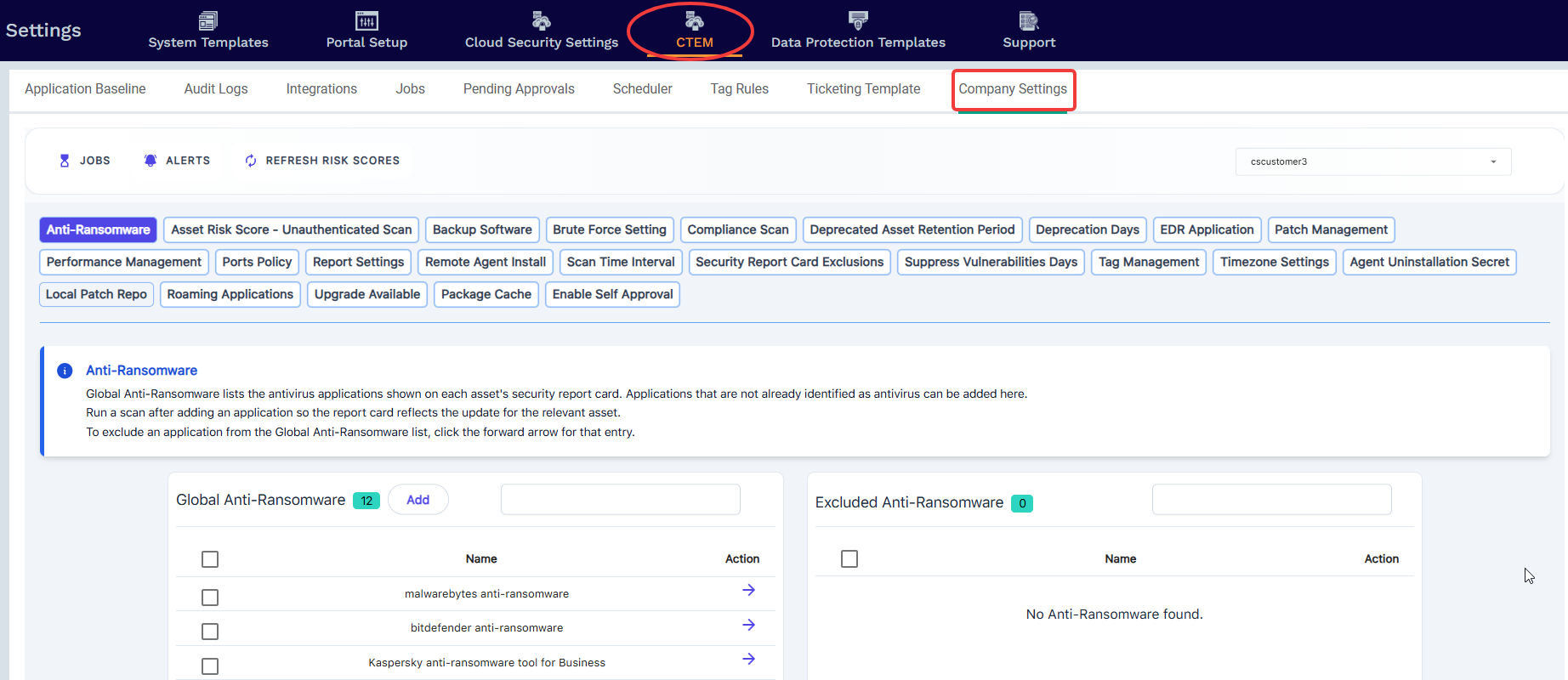
  • Settings < CTEM < 'Company Settings'


The following settings can be configured from here
  • Anti-Ransomware
  • Asset Risk Score - Unauthenticated Scan
  • Backup Software
  • Brute Force Setting
  • Compliance Scan
  • Deprecated Asset Retention Period
  • Deprecation Days
  • EDR Application
  • Patch Management
  • Performance Management
  • Ports Policy
  • Report Settings
  • Remote Agent Install
  • Scan Time Interval
  • Security Report Card Exclusions
  • Suppress Vulnerabilities Days
  • Tag Management
  • Timezone Settings
  • Agent Uninstallation Secret
  • Local Patch Repo
  • Roaming Applications
  • Upgrade Available
  • Package Cache
  • Enable Self Approval


Anti-Ransomware


If Anti-Ransomware detection does not align with what’s installed on the endpoint, it may be due to a name mismatch between the configured entry in CTEM and the actual application or service name running on the device.

This exact application or service name does not appear under the endpoint’s software or services list. Since the names do not match, CTEM is unable to detect it correctly.

We are currently reviewing the exact application or service name as it appears on your devices. To resolve this, we recommend updating the entry under Company Settings → Anti-Ransomware with the precise name used on the endpoint.

Note: Only manually added applications can be removed using the ‘Excluded’ side
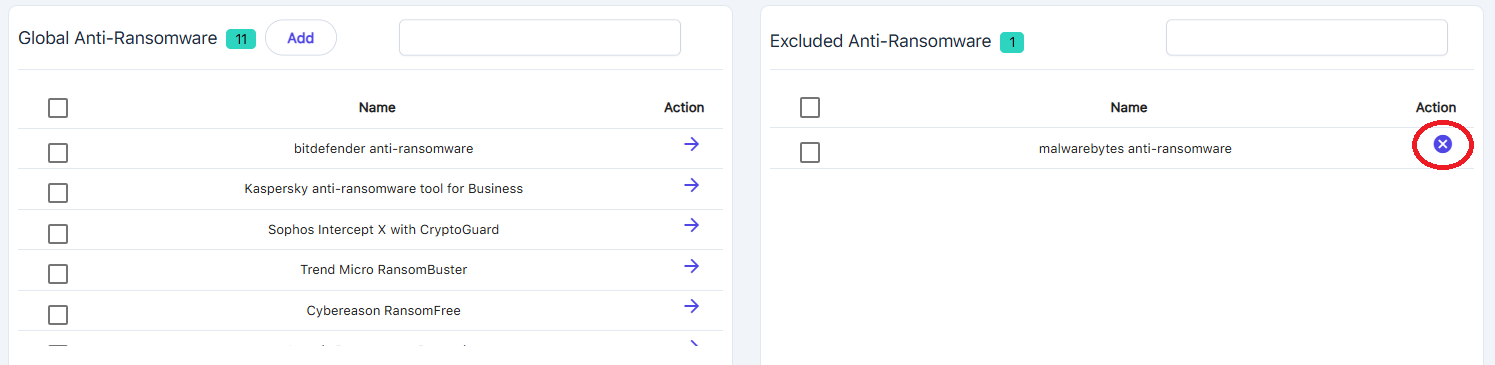


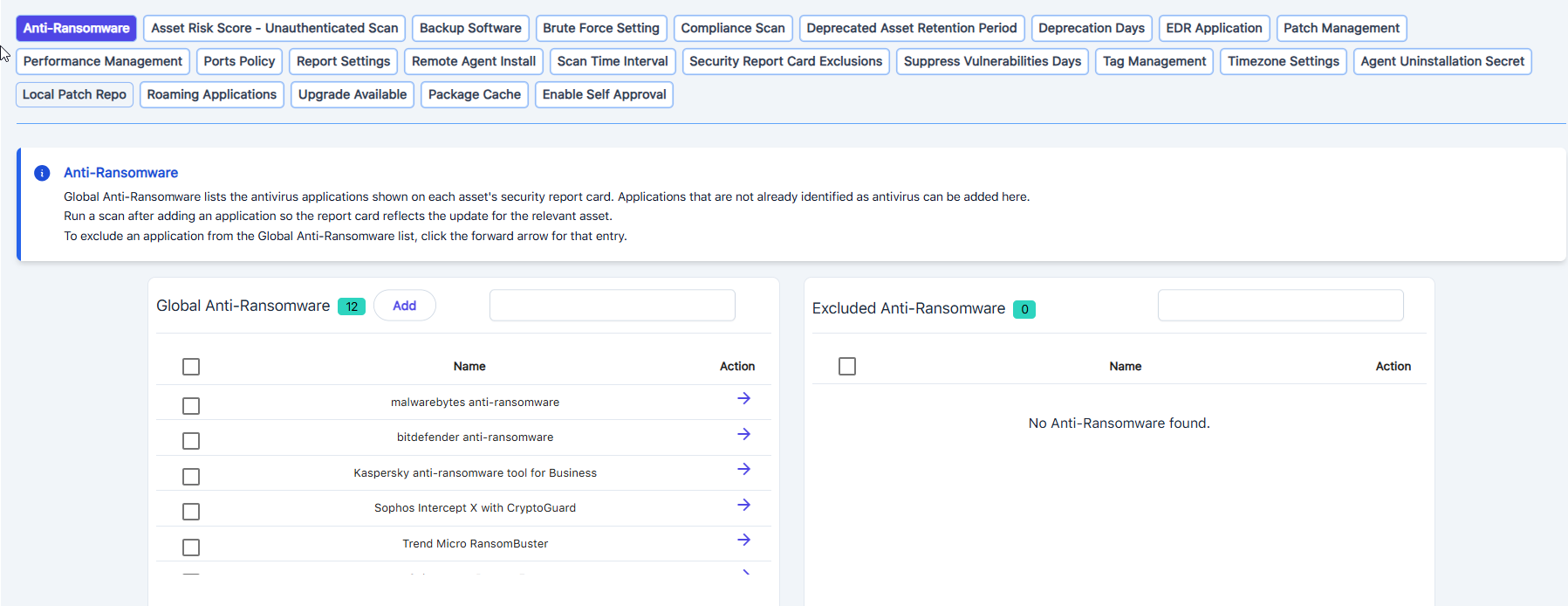
The Global Anti-Ransomware contains the list of antivirus applications shown in the security report card for the respective assets. Any application not listed as antivirus under Global Anti-Ransomware can be added here.

Please run a scan after adding it to ensure that the application name is reflected in the security report card of the respective asset.

To Exclude any application from the Global Anti-Ransomware list, please click on the '->' for the selected application.

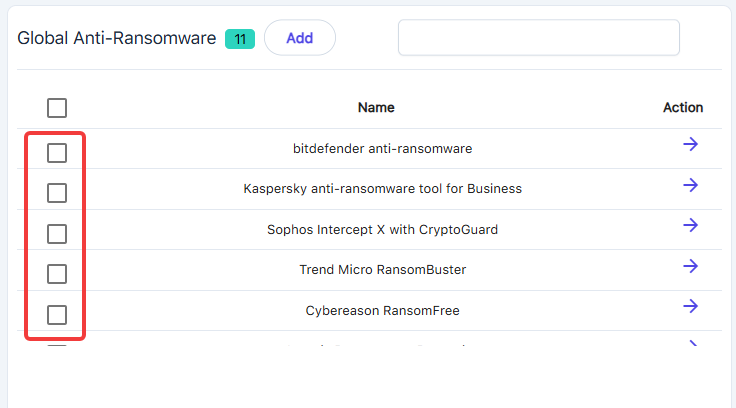
You can mass update these by using the check box options:


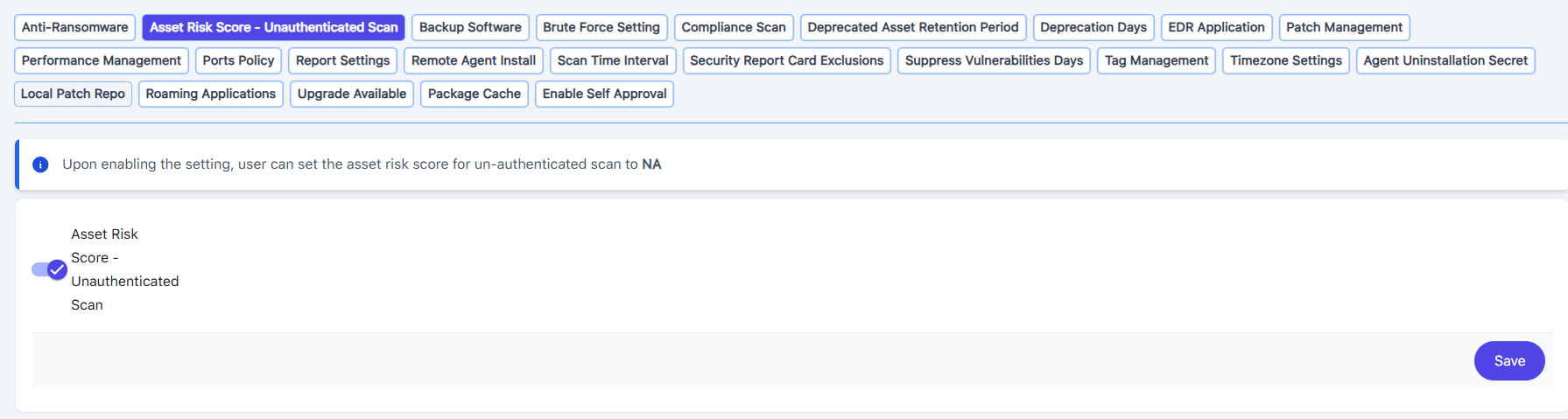
Asset Risk Score - Unauthenticated Scan


Assets where scans fail due to "Credentials not available" and no vulnerabilities are found will now be graded as "N/A" instead of showing an "A" risk grade.
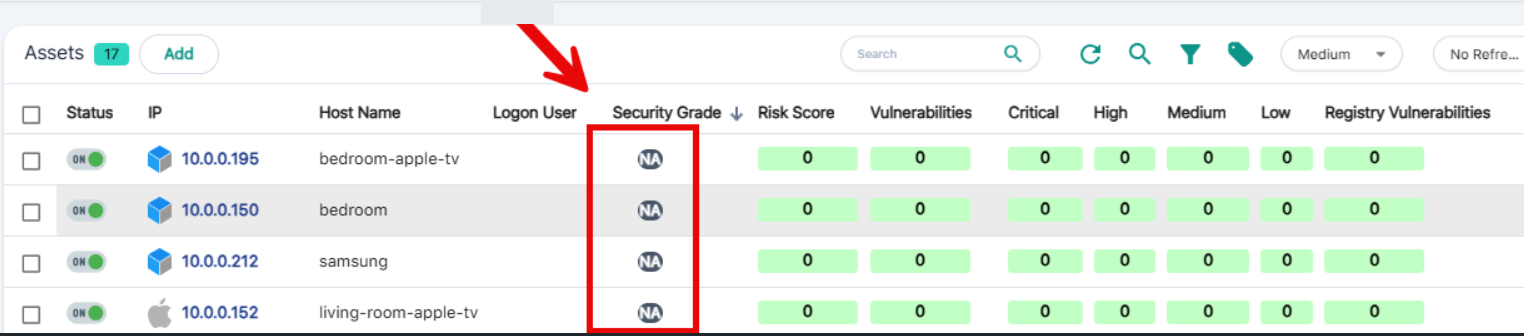


To apply this feature, use the steps below.

  • Please navigate to the Company Settings page and enable the toggle for this feature.
  • When the toggle is enabled, affected assets will be shown with a grade of "N/A".
  • When the toggle is disabled, these assets will continue to show an "A" grade.
Note: This logic only applies to assets discovered via probe.

Backup Software


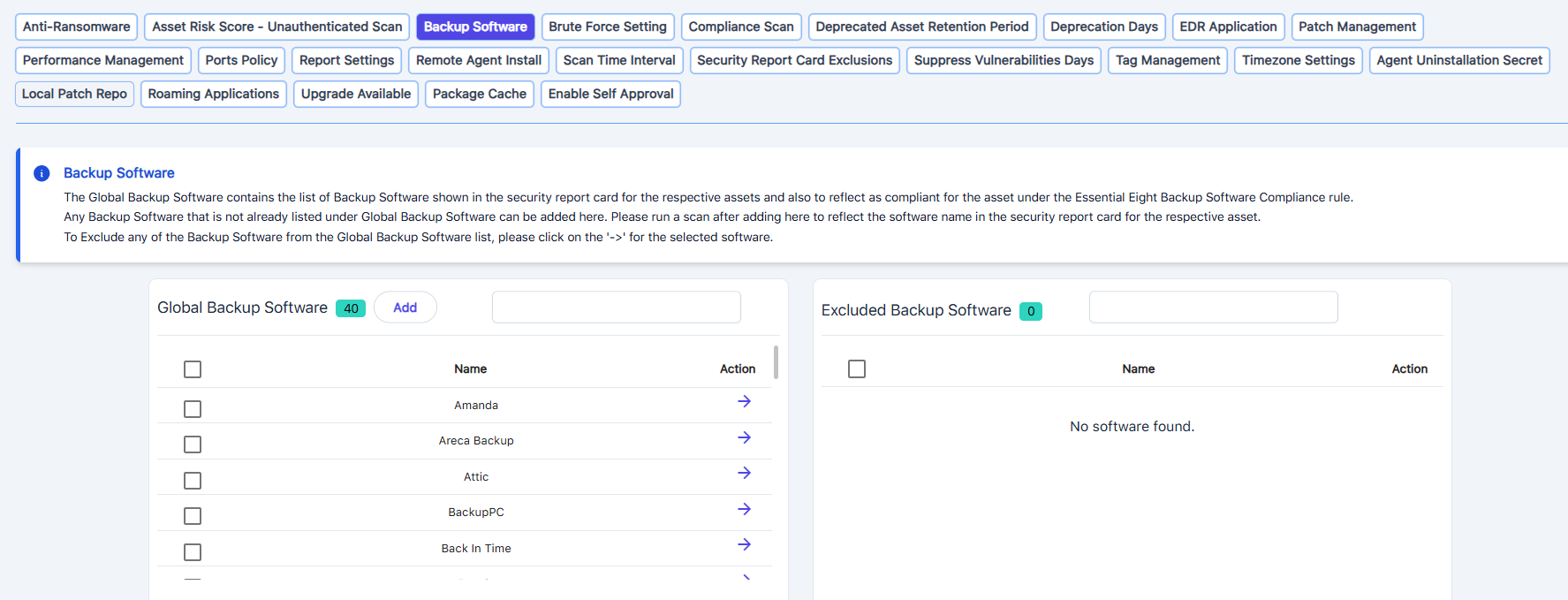
The Global Backup Software contains the list of Backup Software shown in the security report card for the respective assets and also reflects as a complaint for the asset under the Essential Eight Backup Software Compliance rule.

Any Backup Software that is not already listed under Global Backup Software can be added here. Please run a scan after adding it here to reflect the software name in the security report card for the respective asset.

To Exclude any of the Backup Software from the Global Backup Software list, please click on the '->' for the selected software.
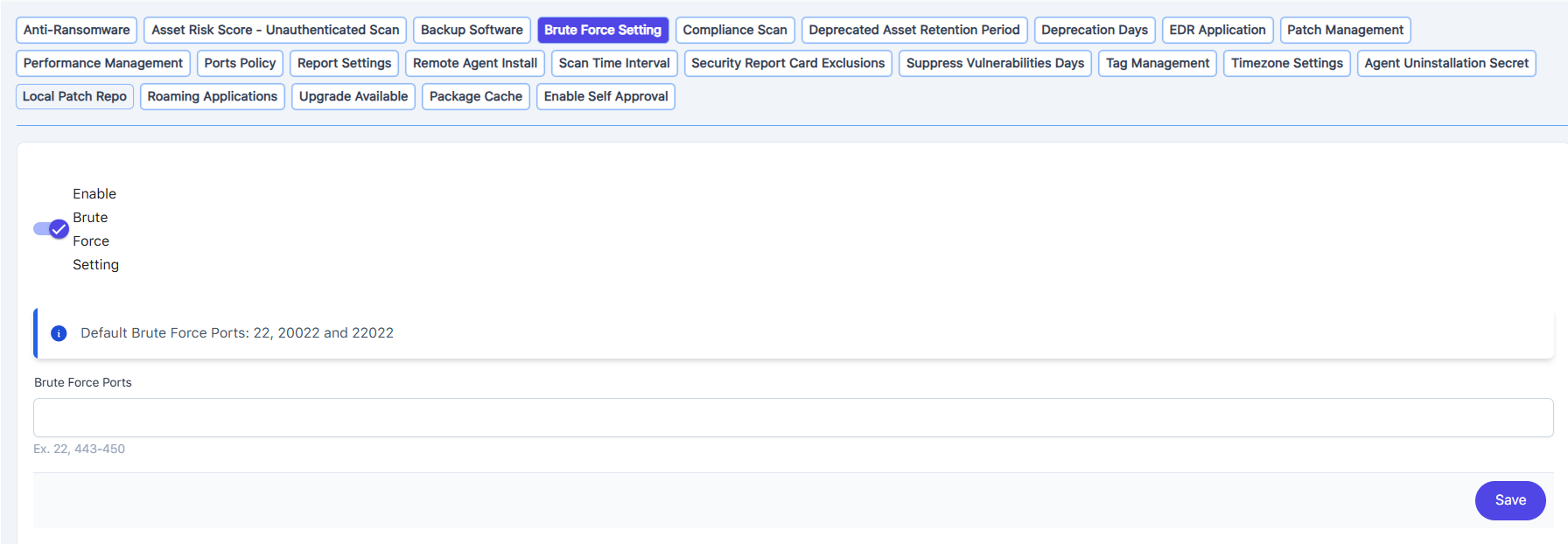

Brute Force Setting


Enabling the brute force setting allows the probe agent to scan for weak username/password enumeration and display the results in the Network Scan Findings section.

SMB and MSSQL username check defaults
  • root
  • admin
  • adminstrator
  • webadmin
  • sysadmin
  • netadmin
  • guest
  • user
  • web
  • test
SNMP String Defaults
  • public
  • private
  • admin


Compliance Scan


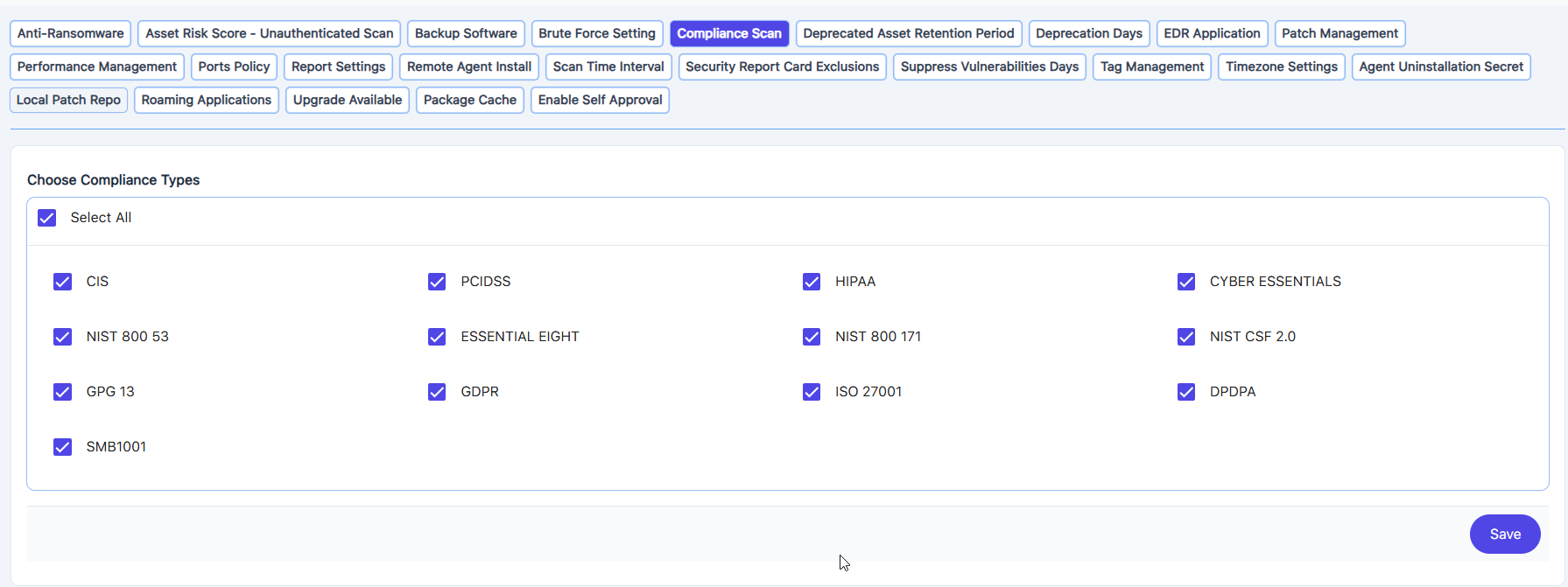
Select which of the Compliance frameworks you want to scan for during the Full or Compliance Scan options.

By default, we only scan for vulnerabilities, so be sure to check your Company Settings for Compliance Scan options based on your client's requirements.
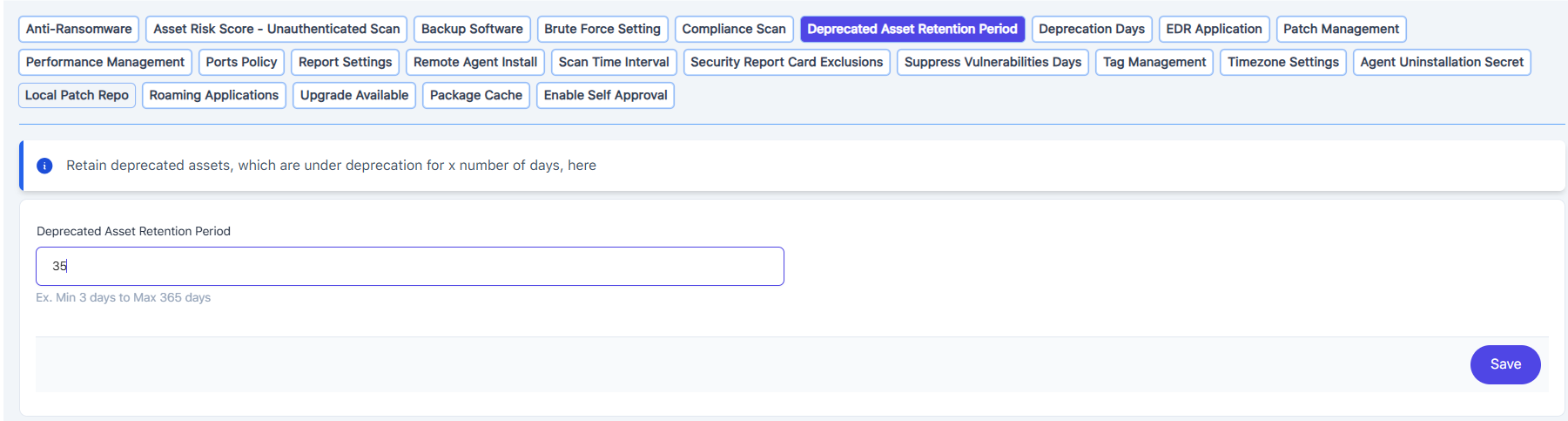

Deprecated Asset Retention Period


Retain deprecated assets that have been under deprecation for x number of days.

When you specify a retention period, assets will be retained from the time they are deprecated until the expiration of the retention period. After this period, all assets will be automatically deleted from the Deprecated Assets and Agents tabs.
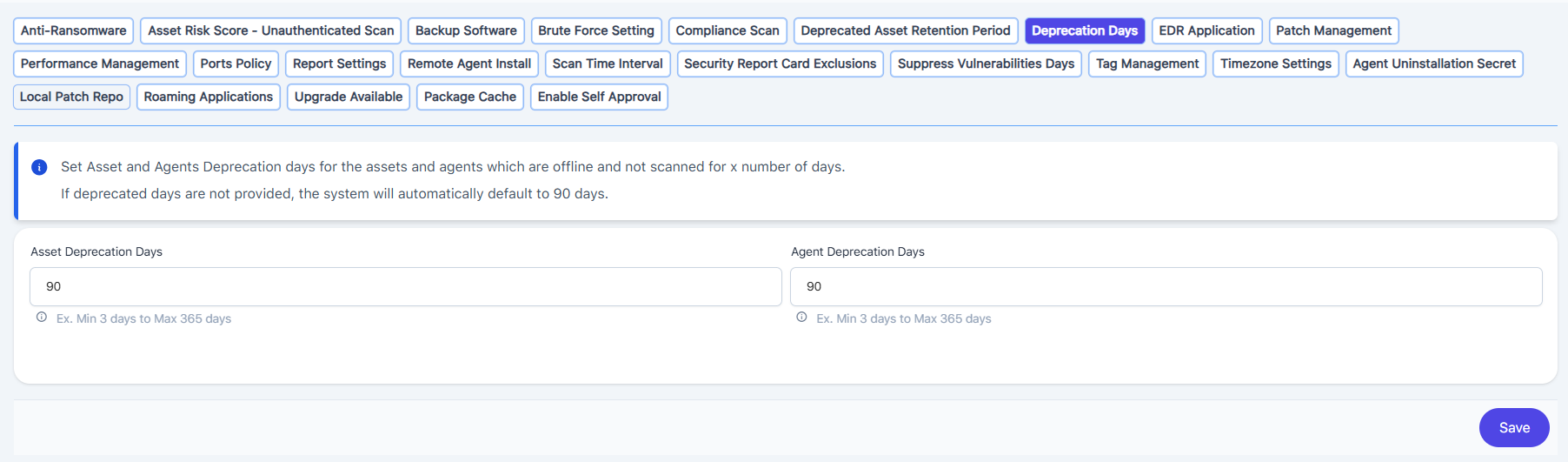


Deprecation Days


Set Asset and Agent Deprecation days for assets and agents that have been offline and not scanned for x number of days.
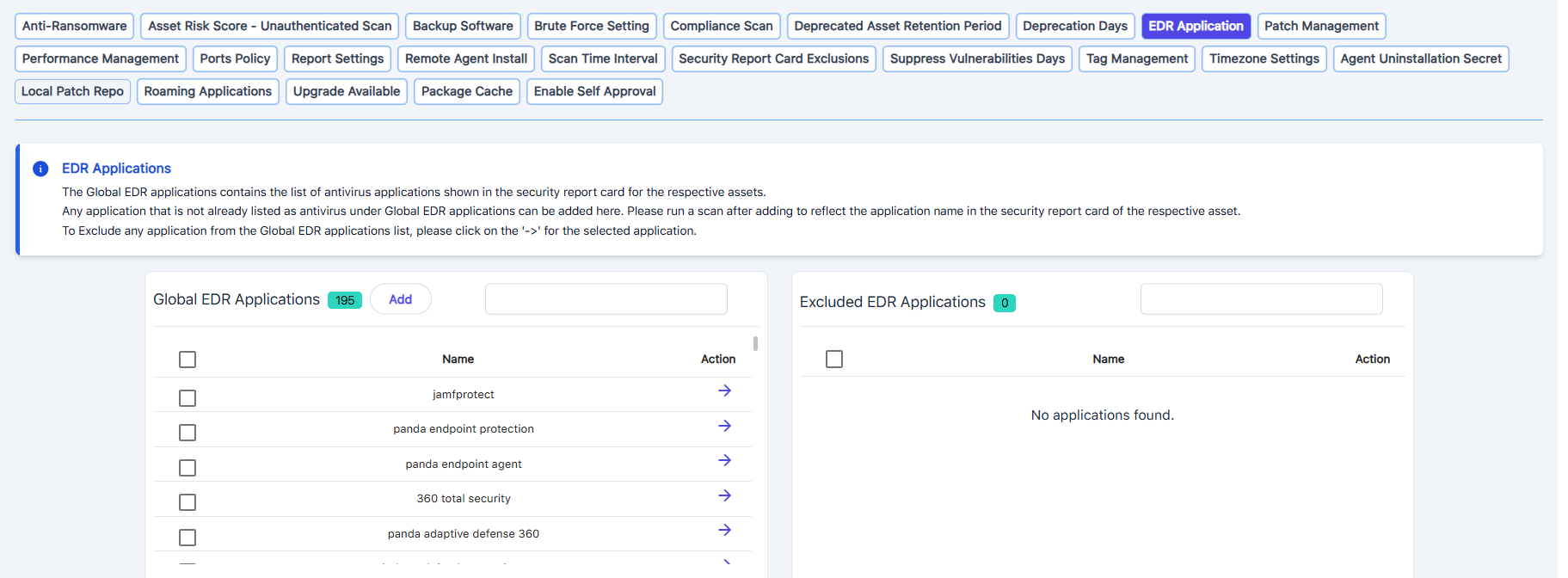


EDR Application 


The Global EDR applications contain the list of antivirus applications shown in the security report card for the respective assets. Any application that is not already listed under Global EDR applications can be added here. Please run a scan after adding it to reflect the application name in the security report card of the respective asset. To Exclude any application from the Global EDR applications list, please click on the '->' for the selected application.

Use the name as it appears in the Add/Remove or Software name of the asset
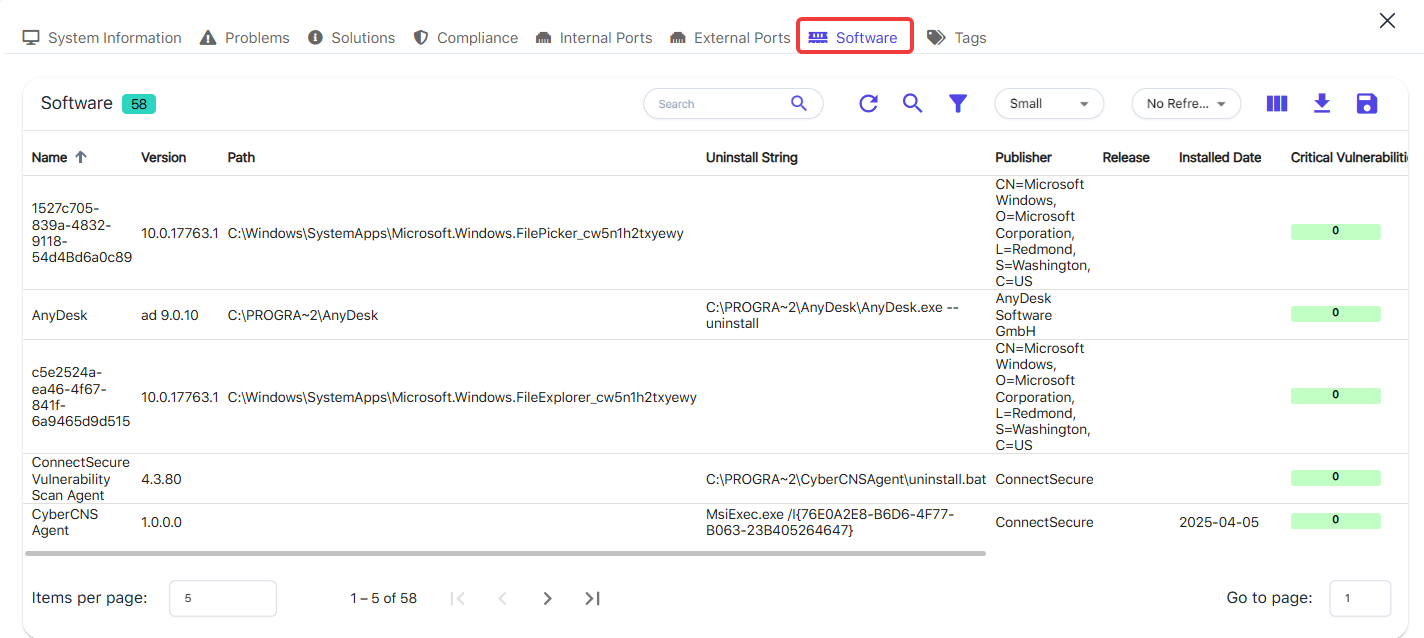


Once you have added the name as it appears in the Add/Remove or Software name of the asset initiate a reset agent scan from the Agents view > Three dot action menu > Reset Agent configuration > Reset Agent

Note: If the software name isn’t available, you can apply the rule using the full service name instead.


Patch Management

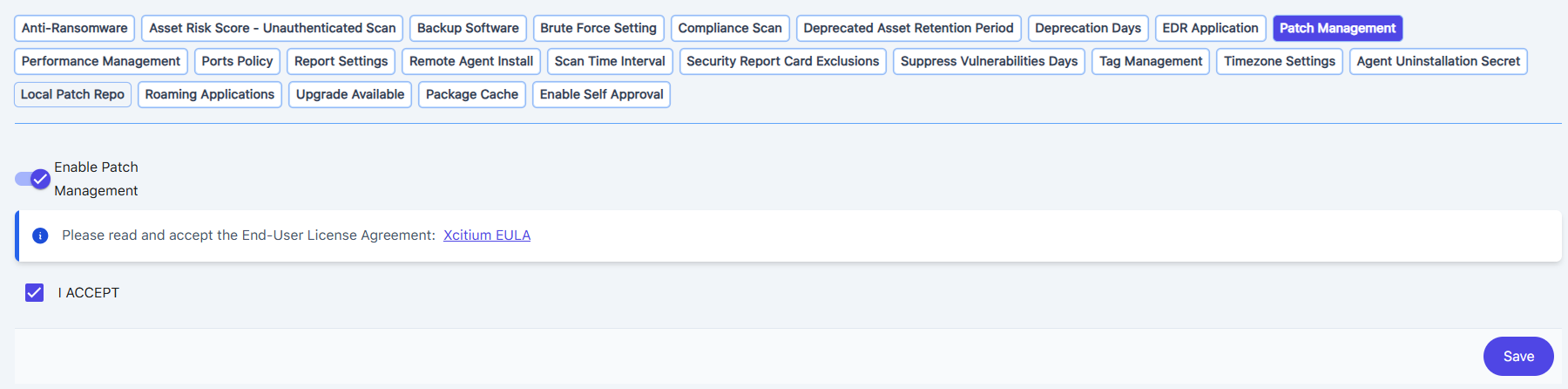
This is where you enable the CTEM Patching Engine. Enabling this feature does not automatically start patching assets unless you have already defined a Patch Scheduler policy.


Performance Management 


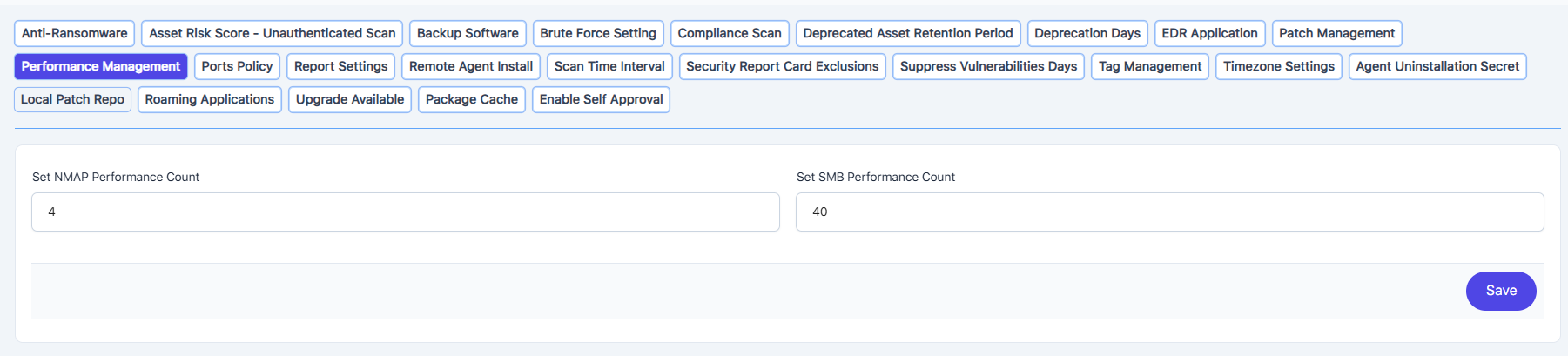
You can control the count of threads running for NMAP and SMB; our defaults are 4 and 40.

  • Set NMAP Performance Count

    This controls the level of threading used when running Nmap scans.
  • Set SMB Performance Count

    This controls the parallel execution count or performance threads for SMB scans.
Note: Increasing the NMAP thread count beyond 8 can lead to inconsistent scan results due to factors such as network congestion, packet loss, firewall interference, and system resource limitations. To ensure accuracy and reliability, we are restricting the thread count to a maximum of 8.

Ports Policy


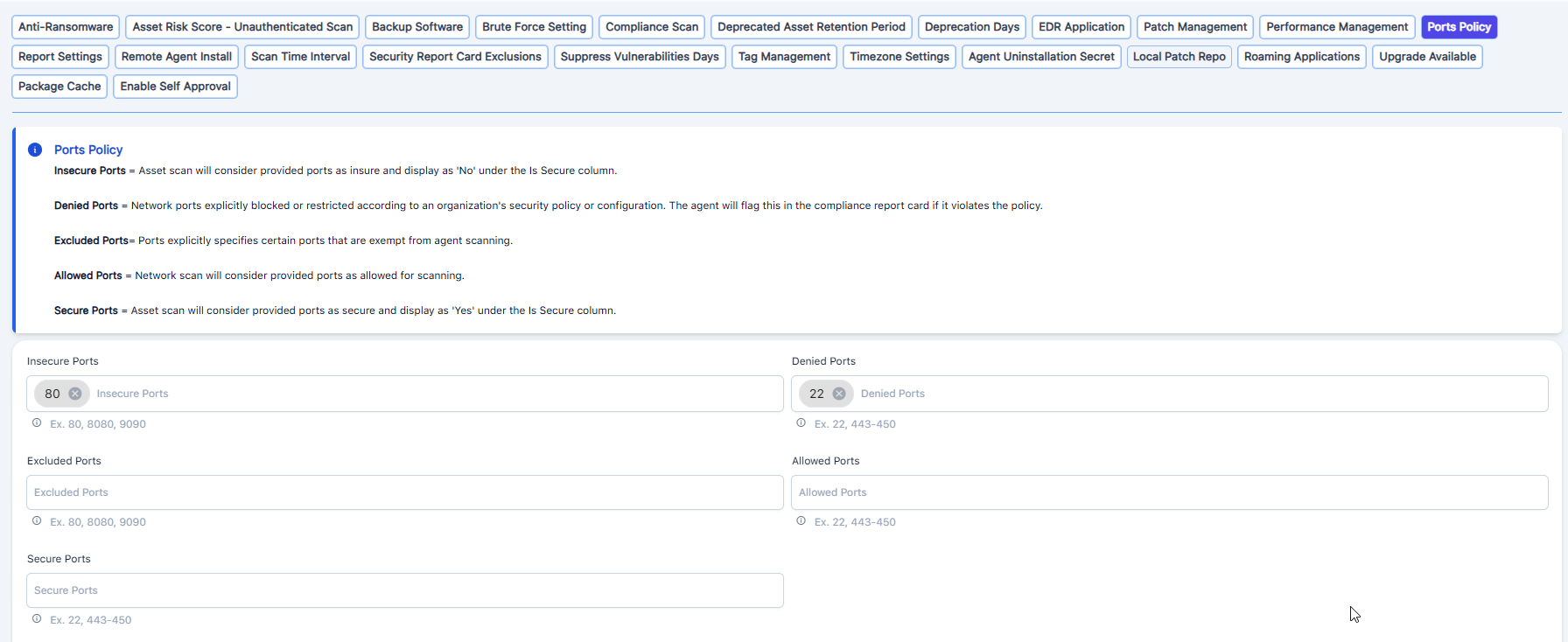
Set Insecure, Excluded, Denied, and/or Allowed Ports for scanning.

  • Insecure Ports = asset scan will consider provided ports as insecure and display as ‘No’ under the Is Secure column
  • Denied Ports = network ports explicitly blocked or restricted according to an organization's security policy or configuration. The agent will flag this in the compliance report card if it violates the policy.
  • Excluded Ports = ports explicitly specifies certain ports that are exempt from agent scanning.
  • Allowed Ports = network scan will consider provided ports as allowed for scanning
  • Secure Ports = asset scan will consider provided ports as secure and display as ‘Yes’ under the Is Secure column

Note: Ports policy settings are applied only for internal scans. These settings do not affect external assets


Report Settings


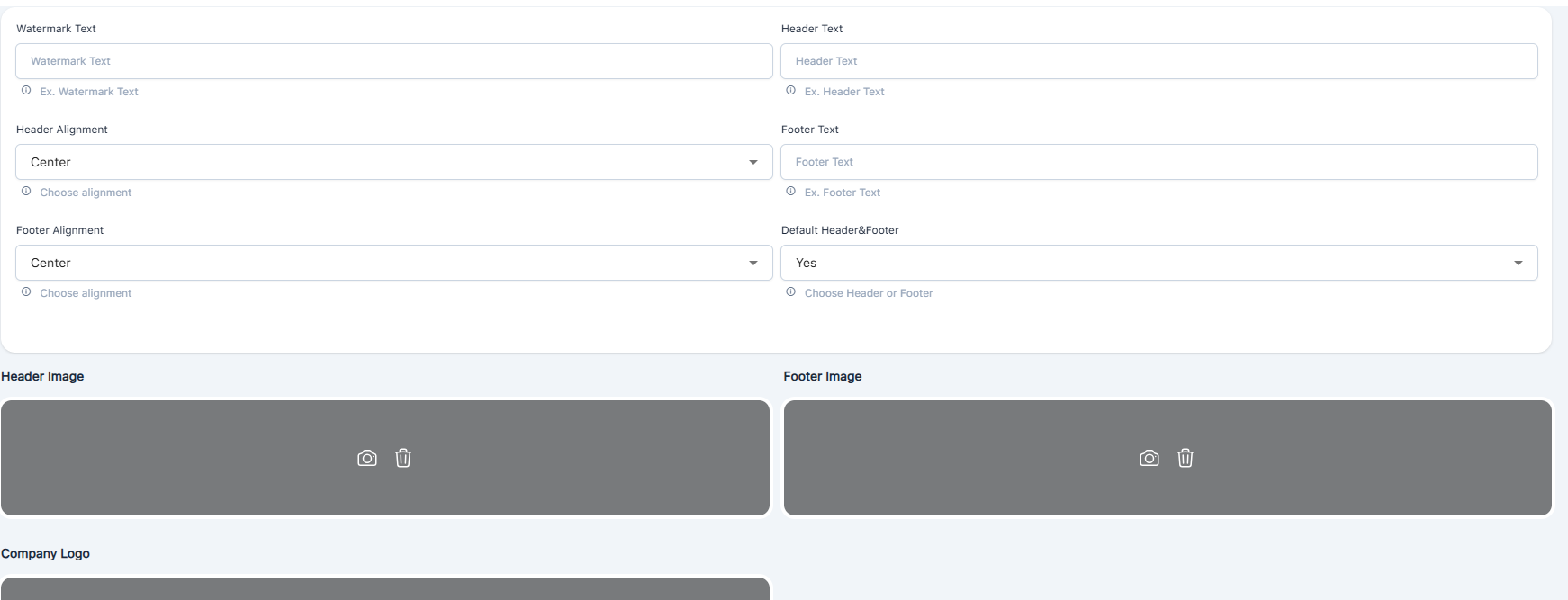
  • DOCX Customization
Changes to this section apply only to the Standard Reports in the Word output option.

  • Adjust header and footer image with text and alignment
  • The max header/footer file format size is limited to 524 kb
  • The image file formats supported here are jpeg, jpg, and png

Use the field options to enter desired text, change drop-down values, or use the image icon to upload/delete images from the header, footer, and company logo options.


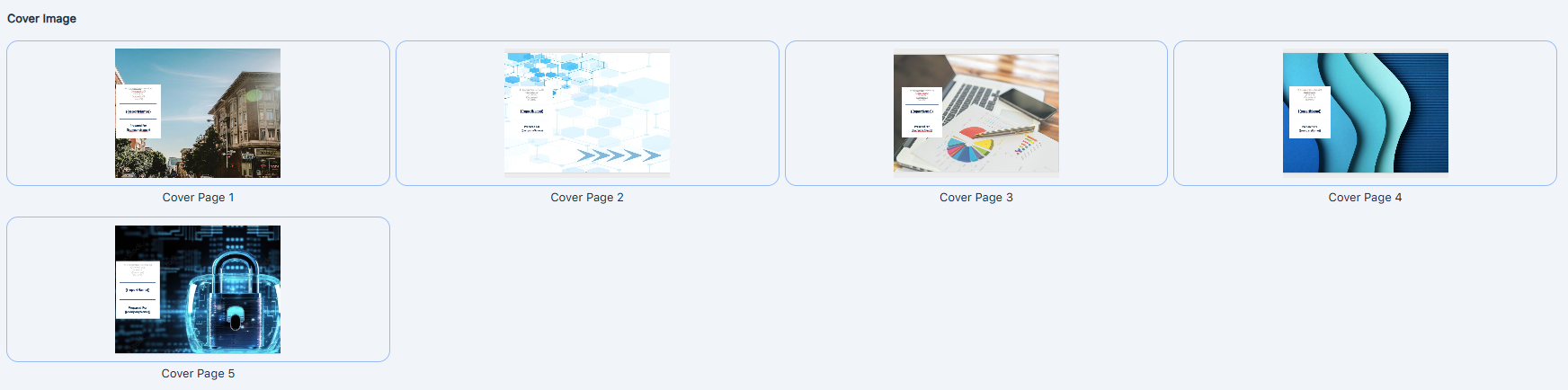
CTEM provides five choices for a Cover Image; tap to select a default. If no custom cover page is added for the company, the default will be used. Docx is only supported for cover pages.

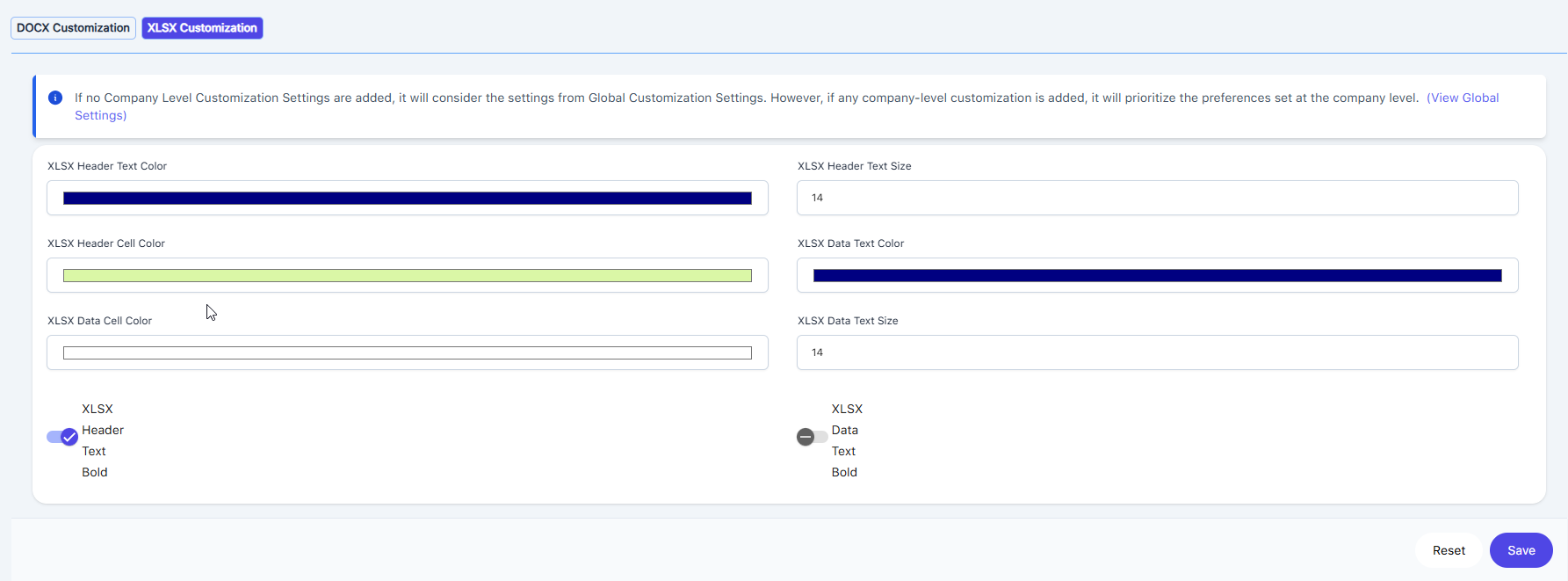
  • XLSX Customization
Changes to this section apply only to the Standard Reports in the Excel output option.

Add your look and feel to the Excel exports, which include the following:
  • Header Text Color
  • Header Text Size
  • Header Cell Color
  • Data Cell Color
  • Data Text Color
  • Data Text Size
Toggle options for making header text bold and data text bold.


Custom Cover Page for Docx Format

  • Only the DOCX file format is supported
  • Cover Page supports only customizing the Report Name and Company Name
    • {{reportname}} and {{companyName}}
Use the Choose Company drop-down to select from the company options that include All Companies or a selection of one or more active companies.

Then tap the Choose File button and upload your desired cover page, in DOCX format.

The Applied Companies table will display any of the cover page(s) currently in use; tap the download button to preview or the trash icon to remove.
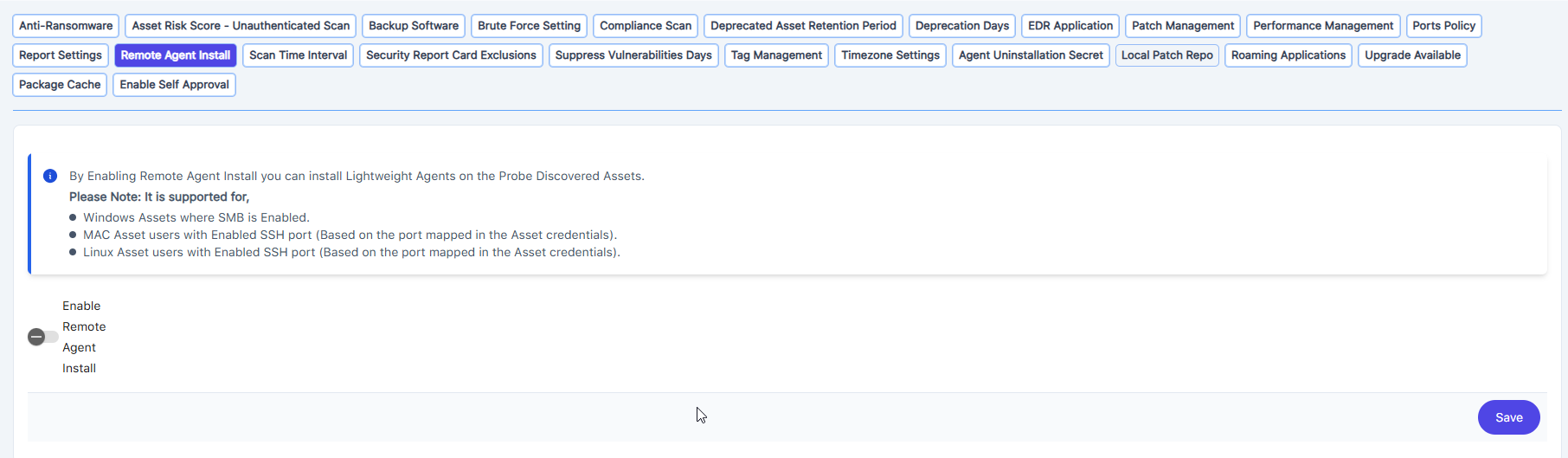

Remote Agent Install


You will need credentials to install remote agents from the probe to any remote assets where you want remote agent installation to succeed. This may require local admin creds or domain creds, depending on setups.

Enabling Remote Agent Install lets you install Lightweight Agents on the Probe Discovered Assets.

  • Windows assets where SMB is enabled
  • MAC assets with SSH enabled (based on port mapping in Discovery Settings and Credentials)
  • Linux assets with SSH enabled (based on port mapping in Discovery Settings and Credentials)
When the lightweight agent is installed using the probe it does inherit or require the -j (user secret) agent variable; the system does have a way to identify an agent that is installed from remote install
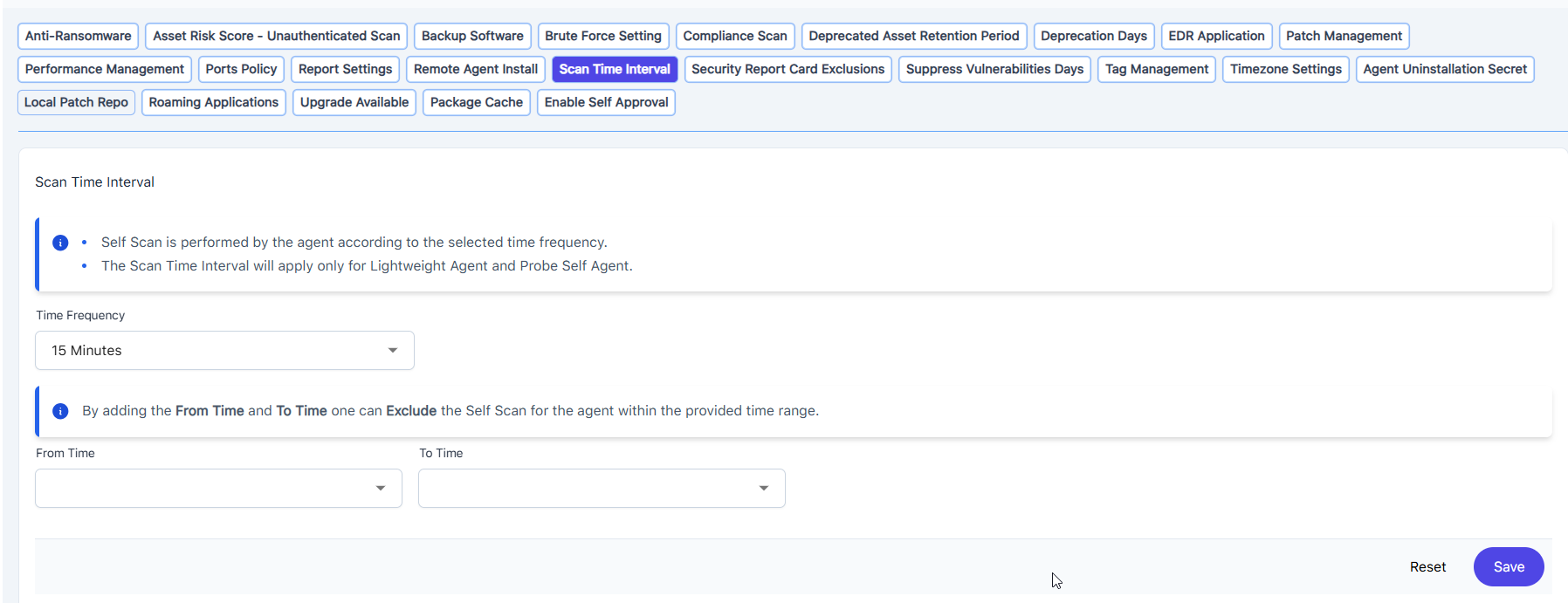

Scan Time Interval


Set the default interval for how often your online Lightweight (LW) agent will scan

Note: You can also use an ‘EXCLUDE’ option by setting the ‘From Time’ and ‘To Time’ to exclude scans from happening during the set times.

Example: From Time - 8:00AM - To Time - 7:00PM

No scans will run between the above times; After 7:00PM the system will check the 4-hour scan interval and initiate a scan ONLY if the machine is online. 

If these conditions are not met, the scan will not occur.

In addition to the scheduled Lightweight scan interval, the agent also performs a full data and assessment scan every 6 hours. This scan collects and updates all the complete data.

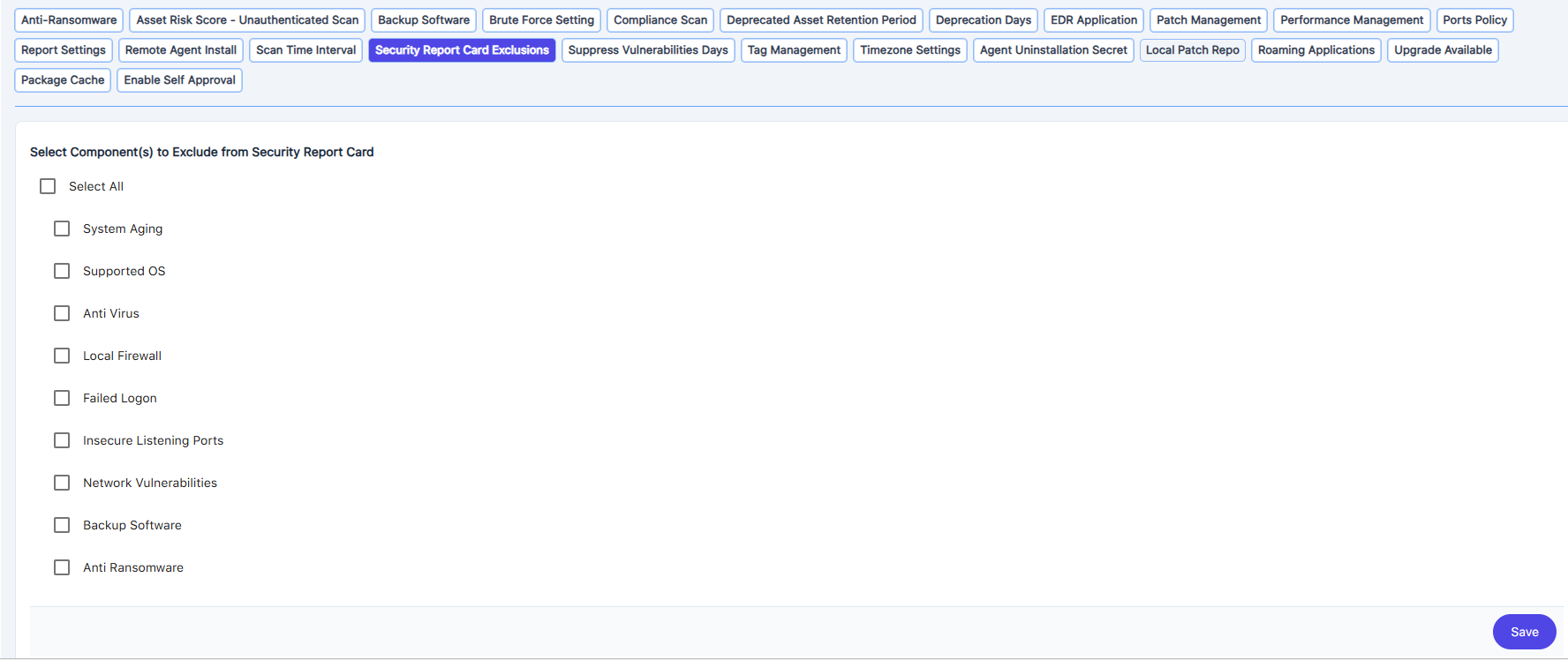

Security Report Card Exclusions


Select your options to exclude the options showing on your security report card.

Security Report Card appears in the Dashboard, Standard Reports, and Agent views.
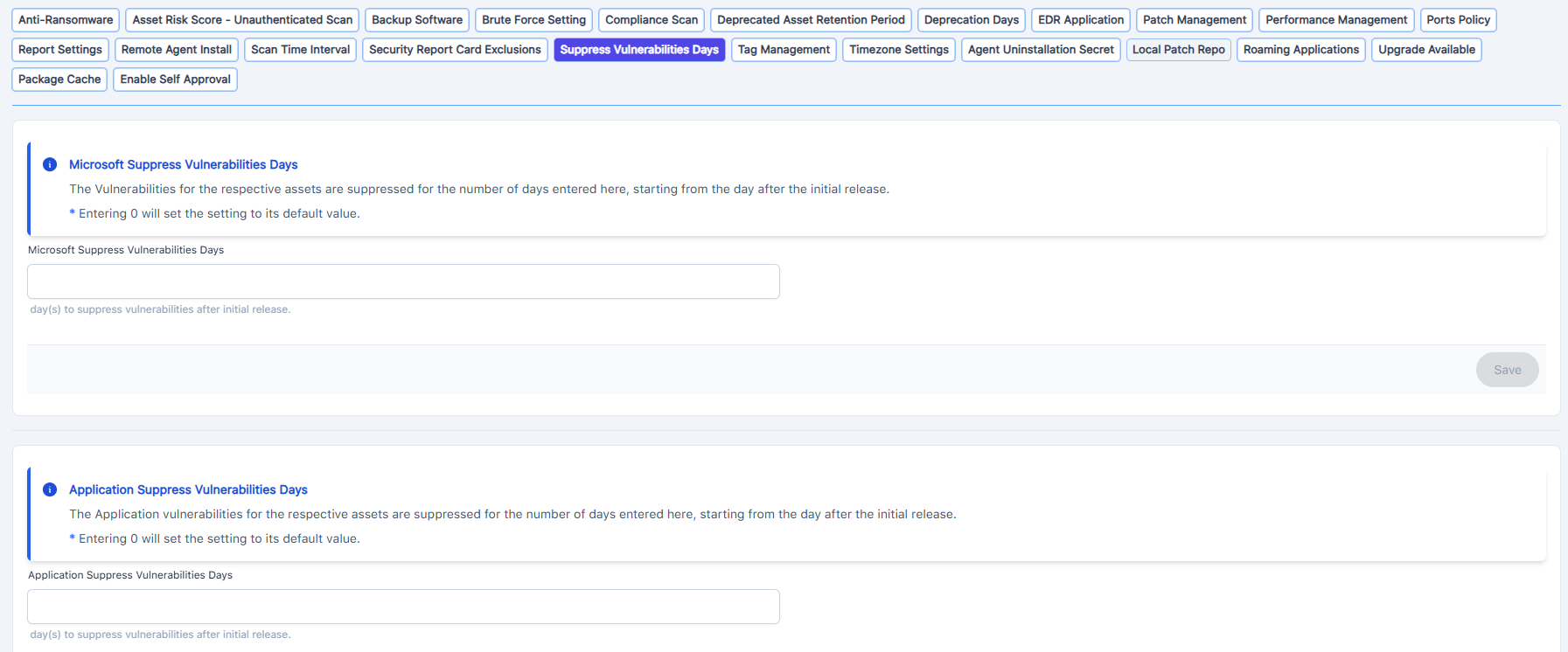


Suppress Vulnerabilities Days


CTEM uses the NVD publish date to determine when a vulnerability becomes active.

Suppression is based on CVE’s published dates and KB patches published dates.

Set the days to suppress the vulnerabilities after the initial release before they are shown as active problems; this includes application and operating system patches.


Suppression Day Example

  • Suppression Delay Applied:

    If a KB release is installed and another release arrives after 10 days, with the suppression setting also set to 10 days, the new KB will not appear immediately in the remediation plan. It is suppressed for 10 days.
  • Suppression Period Ends:

    On the 11th day, the new KB is automatically added to the remediation plan, as the suppression period expires.
  •  No Prior KB Installed:

    If no previous KB release was installed, the new KB appears in the remediation plan right away, even if a suppression setting is active.

Example Timeline:

Day  KB Activity  Appears in Remediation Plan? 
 0  First KB release installed  Yes
 10  Second KB release available  No (suppressed)
 11  Suppression ends  Yes
 -  No earlier KB release exists  Yes (immediate appearance)

Note: If a vulnerability is remediated during the configured Microsoft Suppress Vulnerabilities Days period (e.g., 3, 7, or 14 days), it will be marked as remediated in the console once resolved.
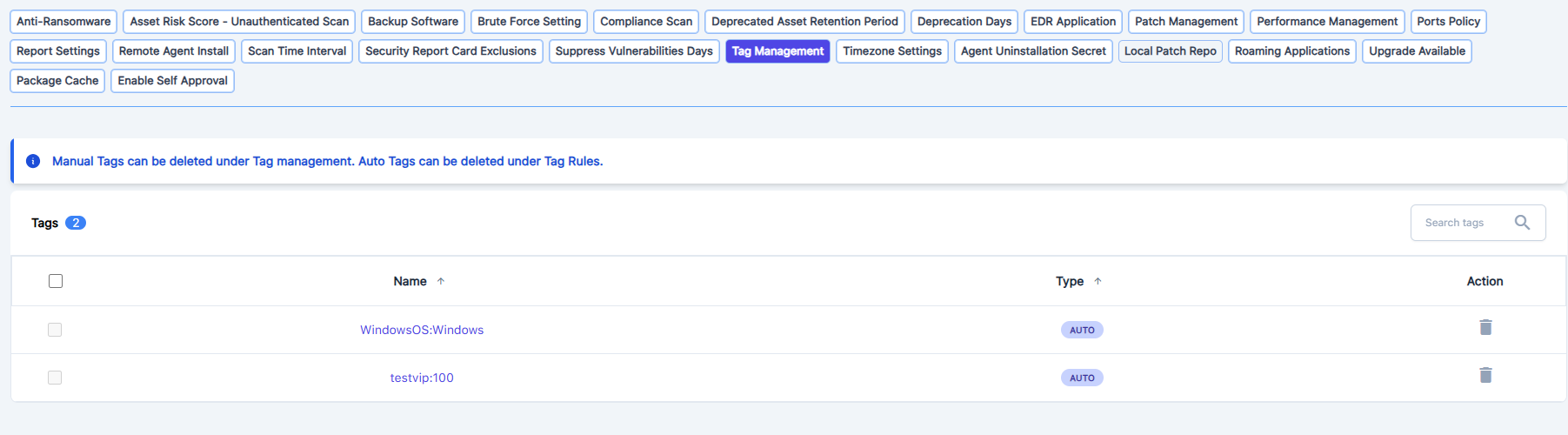

Tag Management


View the Tags applied across all companies; use the Action trash can icon to delete any associated tag rules. Tags can also be managed at the individual asset level under the Tags section.
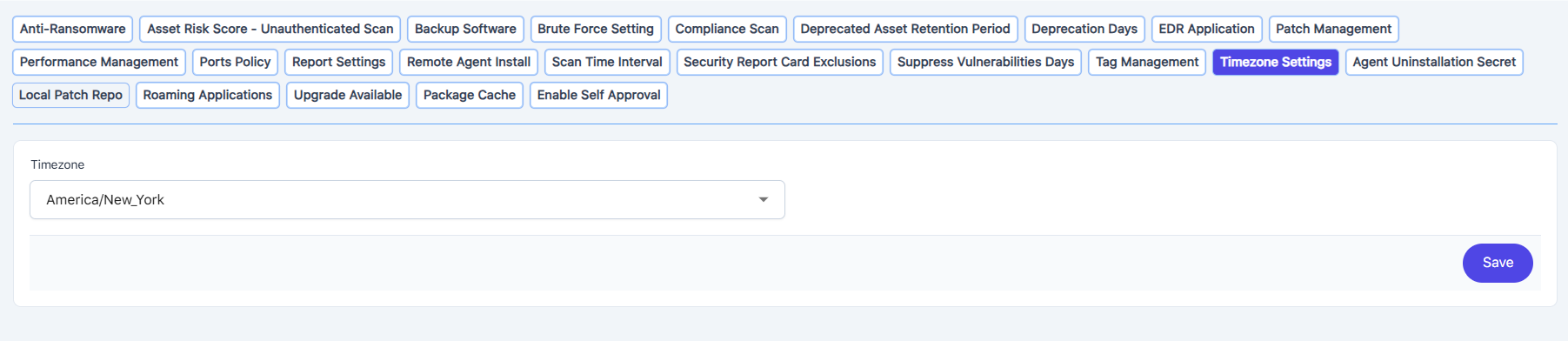


Timezone Settings


Select and set your preferred time zone. This will appear in the date/time stamps and be used when setting up the Scheduler options.
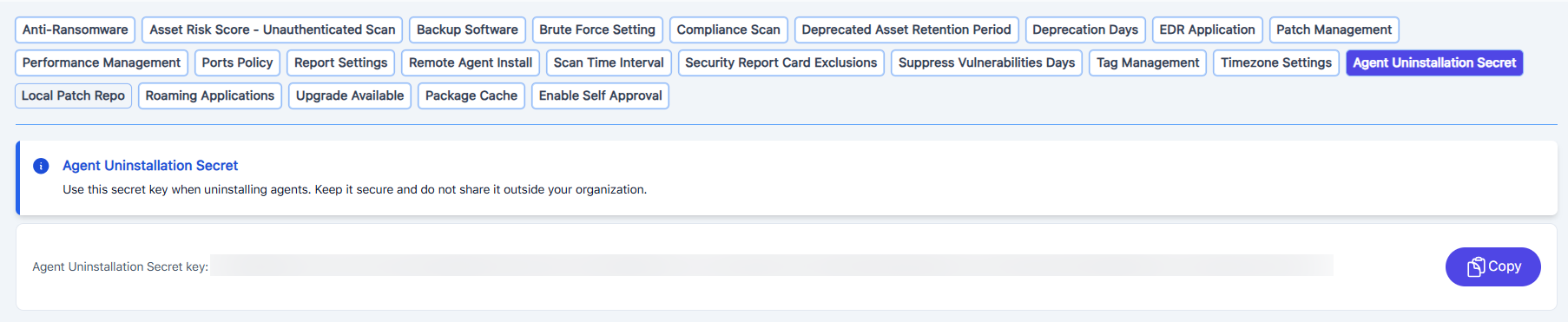

Agent Uninstallation Secret


The Agent Uninstallation Secret is a unique security key required when uninstalling the CTEM agent through command line, RMM scripting, or PowerShell. This key prevents unauthorized removal of agents from managed devices.

Administrators can locate the secret under Settings → Company Settings → Agent Uninstallation Secret  and use the Copy button to retrieve it.
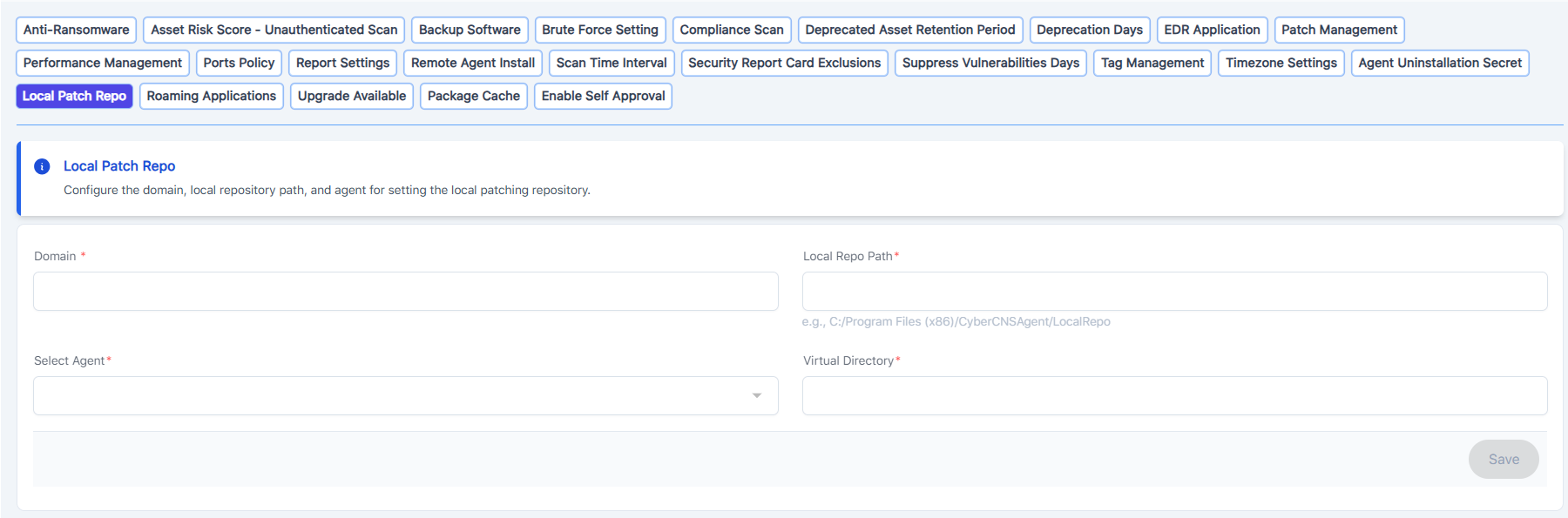


Local Patch Repo


The Local Patch Repo allows one agent inside the customer’s network to host patch files locally. Other agents will download patches from this internal location instead of the internet, improving speed and reducing bandwidth usage.

  • Domain - Enter the internal domain used by the customer’s environment. This ensures that only devices within this domain will use the local patch repository.
  • Local Repo Path - Enter the full folder path on the selected agent where patch files will be stored. This directory must already exist on the agent machine and have proper read/write permissions.
  • Select Agent - Choose the agent that will act as the local patch host. This agent will download each patch once and then distribute it to all other agents in the company.
  • Virtual Directory - Enter the virtual directory used by the agent’s internal web service to share patch files. Other agents will use this path to retrieve patches during update cycles.

Click Save to apply the settings.

  • A green banner will appear showing saved successfully
  • The selected agent becomes the designated local patch host
  • Other agents in the company will begin pulling patches from this internal repository during path operations
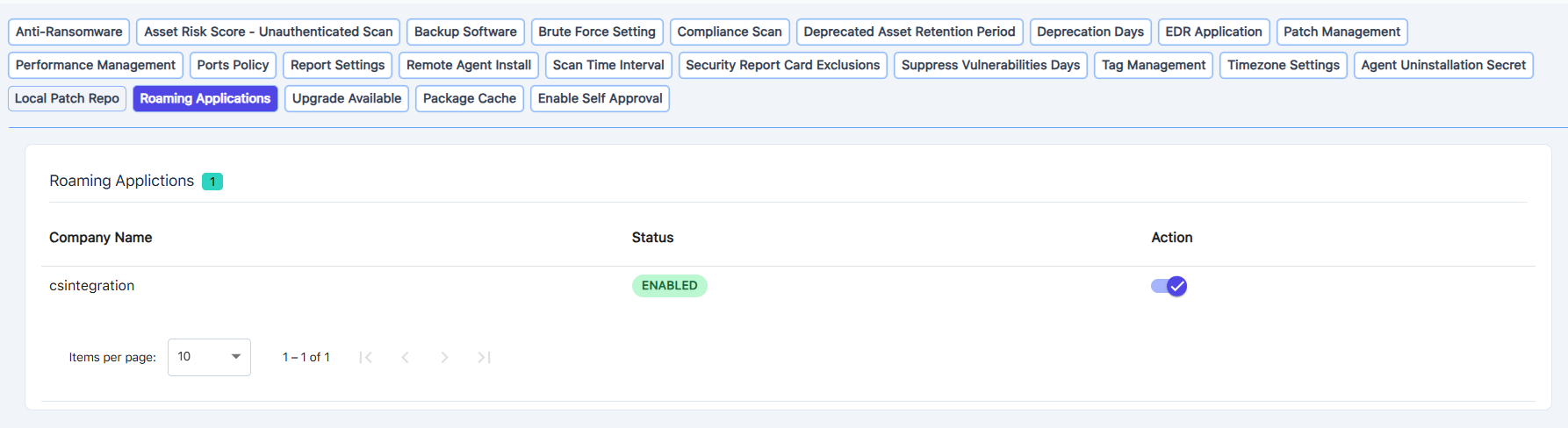

Roaming Applications


By default, we will scan the roaming folder if found in the %appdata% directory for any software/versions that may have vulnerabilites. You can disable the option for any company by using the ‘Action’ toggle.


Upgrade Available


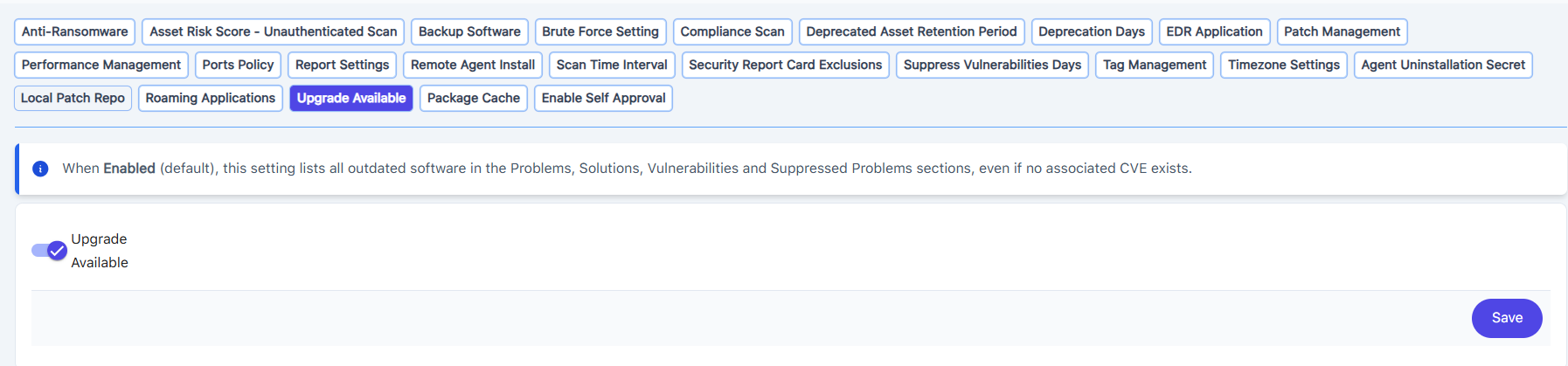
By default this filter will remain enabled, ensuring that all “Upgrade Available” items are visible. Disabling this setting from Global Settings all “Upgrade Available” entries (categorized as low-severity vulnerabilities) will be hidden from the following sections: Problems, Solutions, Vulnerabilities and Suppressed Problems section, even if no associated CVE exist.
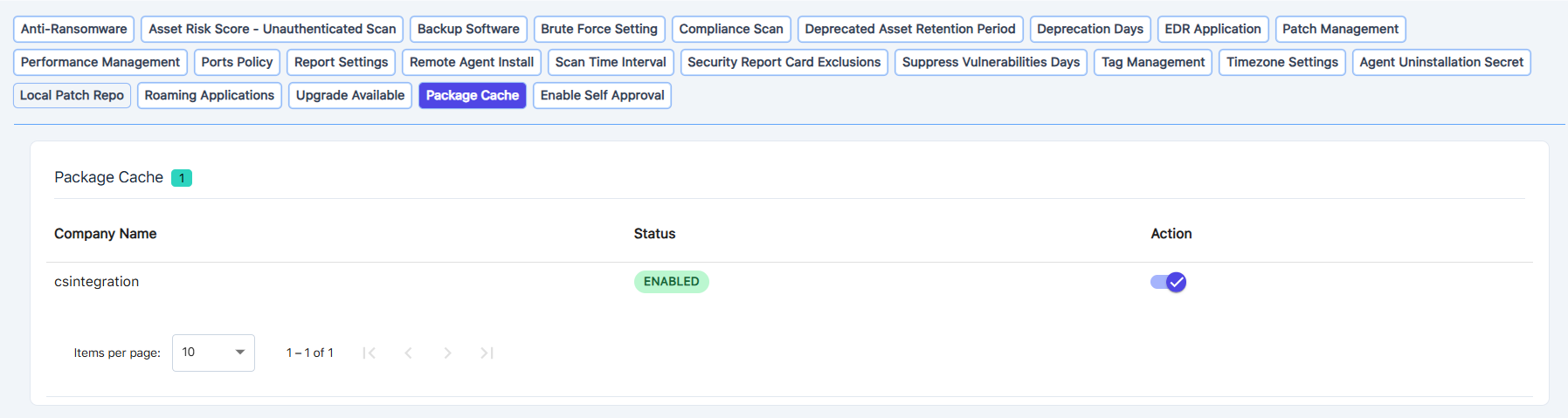


Package Cache


The folder stores installer files used by applications—especially Visual Studio—for repair, updates, and uninstallation. It’s essential for maintaining software integrity and should not be deleted.

Here’s a breakdown of its purpose and implications:

What It Does

  • Installer Source Repository: It contains cached copies of installation packages (mostly  and  files) used by programs like Visual Studio, VMware, iTunes, and others.
  • Supports Repair and Modify Operations: When you choose to repair, update, or uninstall a program, Windows often uses these cached files to avoid re-downloading or prompting for installation media.
  • Offline Reliability: If you're offline and need to modify or repair software, the cache ensures the process can still complete successfully.
By default, CTEM agent will scan the “ProgramDataPackage Cache” directory as shown here:


Enable Self Approval


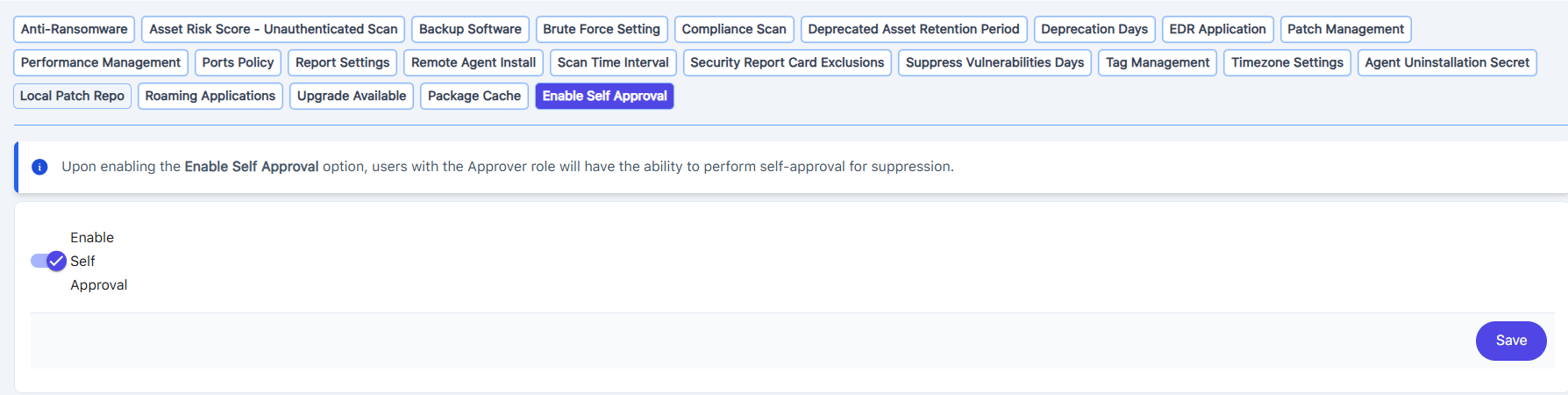
This allows any CTEM User with the Role of ‘Approver’ selected to perform a self-approval on suppressing a problem/vulnerability.

Our Products
  • Free Antivirus
  • Free Internet Security
  • Website Malware Removal
  • Free Anti-Malware
  • Anti-Spam (Free Trial)
  • Windows Antivirus
  • Antivirus for Windows 7
  • Antivirus for Windows 8
  • Antivirus for Windows 10
  • Antivirus for MAC
  • Antivirus for Linux
  • Free Endpoint Security
  • Free ModSecurity
  • Free RMM
  • Free Website Malware Scanner
  • Free Device Manager for Android
  • Free Demo
  • Network Security
  • Endpoint Protection
  • Antivirus for Android
  • Comodo Antivirus
  • Wordpress Security
Cheap CDN
  • Bootstrap CDN
  • Semantic UI CDN
  • Jquery CDN
  • CDN Plans
  • CDN
  • Free CDN
Enterprise
  • Patch Management Software
  • Patch Manager
  • Service Desk
  • Website Down
  • Endpoint Protection Solutions
  • Website Security Check
  • Remote Monitoring and Management
  • Website Security
  • Device Manager
  • ITSM
  • CRM
  • MSP
  • Android Device Manager
  • MDR Services
  • Managed IT Support Services
  • Free EDR
Free SSL Certificate
Support Partners Terms and Conditions Privacy Policy

© Comodo Group, Inc. 2026. All rights reserved.