- Introduction To Xcitium Enterprise - Endpoint Protection Platform
- The Admin Console
- The Dashboards
- CNAPP Dashboard
- ROI Dashboard
- Devices And Device Groups
- Manage Device Groups
- Manage Devices
- Add New Devices
- Manage Windows Devices
- View And Edit Device Name
- View Summary Information
- View Network Information
- View And Manage Profiles Associated With A Device
- View Maintenance Windows Associated With A Device
- View And Manage Applications Installed On A Device
- View The Files On A Device
- View Exported Configurations And Import Profiles
- View MSI Files Installed On A Device Through Xcitium
- View And Manage Patches For Windows And 3rd Party Applications
- View Antivirus Scan History
- View And Manage Device Group Memberships
- View Device Logs
- Manage Mac OS Devices
- Manage Linux Devices
- Manage Android Devices
- Manage IOS Devices
- View User Information
- Remote Management Of Windows And Mac OS Devices
- Remotely Manage Folders And Files On Windows Devices
- Manage Processes On Remote Windows Devices
- Manage Services On Remote Windows Devices
- Use The Command Prompt On Remote Windows Devices
- View Event Logs On Remote Windows Devices
- Apply Procedures To Windows And Mac Devices
- Remotely Install And Manage Packages On Windows Devices
- Remotely Install Packages On Mac OS Devices
- Remotely Install Packages On Linux Devices
- Send Enrollment Link To IOS Devices
- Generate An Alarm On Android Devices
- Remotely Lock Mobile And Mac OS Devices
- Wipe Selected Mobile And Mac Devices
- Assign Configuration Profiles To Selected Devices
- Set / Reset Screen Lock Password For Mobile Devices
- Update Device Information
- Send Text Messages To Mobile Devices
- Restart Selected Windows Devices
- Change A Device's Owner
- Change The Ownership Status Of A Device
- Add Custom Notes And Tags On Devices
- Remove A Device
- Generate Device List Report
- Manage Isolate And Release From Isolation
- Bulk Enrollment Of Devices
- Download And Install The Remote Control Tool
- Cloud Workloads
- Cloud Assets
- Cloud Security
- Continuous Threat Exposure Management(CTEM) Security
- CTEM Agents
- View All Assets
- Other Assets
- View Problems
- View Solutions
- Pending OS Patches
- View Ports
- View Deprecated Assets
- Patch Management
- Application Baseline Results
- View Certificates
- Vulnerabilities
- Application Vulnerabilities
- Vulnerability By OS
- OS Vulnerabilities
- Network Scan Findings
- Compliance Standards
- COMPLIANCE ASSESSMENT
- Compliance Check Master
- Users And User Groups
- Manage Users
- Manage User Groups
- Configure Role Based Access Control For Users
- Configuration Templates
- Create Configuration Profiles
- Profiles For Android Devices
- Profiles For IOS Devices
- Profiles For Windows Devices
- Create Windows Profiles
- Associated Devices Settings
- Antivirus Settings
- Communication Client And Xcitium Client - Security Application Update Settings
- File Rating Settings
- Firewall Settings
- HIPS Settings
- Containment Settings
- Maintenance Window Settings
- VirusScope Settings
- Xcitium Verdict Cloud
- Global Proxy Settings
- Client Proxy Settings
- Agent Discovery Settings
- Communication Client And Xcitium Client - Security Application UI Settings
- Logging Settings
- Client Access Control
- External Devices Control Settings
- Monitors
- Procedure Settings
- Remote Control Settings
- Remote Tools Settings
- Miscellaneous Settings
- Script Analysis Settings
- Data Loss Prevention Settings
- Patch Management Settings
- Performance Settings
- Thumbnails Settings
- Chat Settings
- Applications Settings
- Import Windows Profiles
- Create Windows Profiles
- Profiles For Mac OS Devices
- Create A Mac OS Profile
- Antivirus Settings For Mac OS Profile
- Certificate Settings For Mac OS Profile
- Restrictions Settings For Mac OS Profile
- VPN Settings For Mac OS Profile
- Wi-Fi Settings For Mac OS Profile
- Remote Control Settings For Mac OS Profile
- External Device Control Settings For Mac OS Profile
- Valkyrie Settings For MacOS Profile
- Procedure Settings For Mac Profiles
- Monitor Settings For Mac OS Profile
- Create A Mac OS Profile
- Profiles For Linux Devices
- View And Manage Profiles
- Edit Configuration Profiles
- Manage Default Profiles
- Manage Alerts
- Manage Procedures
- View And Manage Procedures
- Create A Custom Procedure
- Combine Procedures To Build Broader Procedures
- Review / Approve / Decline New Procedures
- Add A Procedure To A Profile / Procedure Schedules
- Import / Export / Clone Procedures
- Change Alert Settings
- Apply Procedures To Devices
- Edit / Delete Procedures
- View Procedure Results
- Manage Monitors
- Data Loss Prevention Rules
- Create Configuration Profiles
- Security Systems
- View Alerts And Security Events
- Investigate Events
- Endpoint Security Status
- View And Manage Blocked Threats
- View And Manage Quarantined Items
- View Contained Threats
- View And Manage Autorun Items
- Manage File Trust Ratings On Windows Devices
- View List Of File Verdicts
- View History Of External Device Connection Attempts
- Data Loss Prevention Scans
- Network Management
- Endpoint Intelligence
- Software Inventory
- Management Settings
- Configure Xcitium Enterprise
- Email Notifications, Templates And Custom Variables
- Xcitium Enterprise Portal Configuration
- Dashboard Settings
- Cloud Security Settings
- CTEM Settings
- Data Protection Templates
- View Version And Support Information
- Alert Notification Settings
- Appendix 1a - Xcitium Services - IP Nos, Host Names And Port Details - EU Customers
- Appendix 1b - Xcitium Services - IP Nos, Host Names And Port Details - US Customers
- Appendix 2 - Pre-configured Profiles
- Appendix 3 - Default Xcitium Security Policy Details
- About Xcitium
View Deprecated Assets
Deprecated assets are inactive (offline) devices that are no longer actively pinging and are not included in your Plan and Billing counts.
Once an asset is deprecated, it will move to the “Deprecated Assets” section and all associated data will be removed from the portal. If the assets returns online, a self-scan will occur on the machine and a new asset entry is created and listed under “All Assets”.
The original (deprecated) asset remains in the "Deprecated Assets" view until it is automatically removed based on the “Deprecated Asset Retention Period”. This retention setting can be found and configured under the Settings.
- Security < Continuous Threat Exposure Management < 'Deprecated Assets'
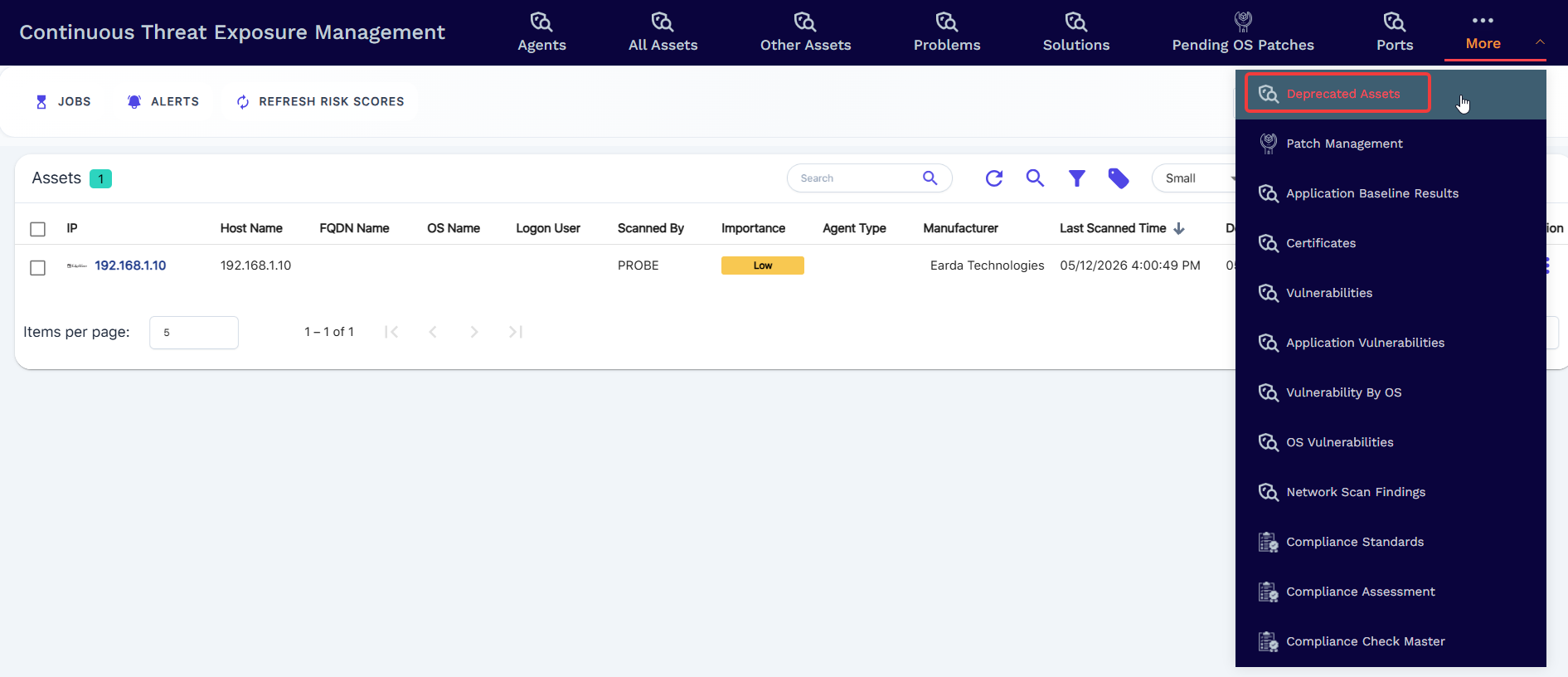
Access the Deprecated Assets from the Security - CTEM category.
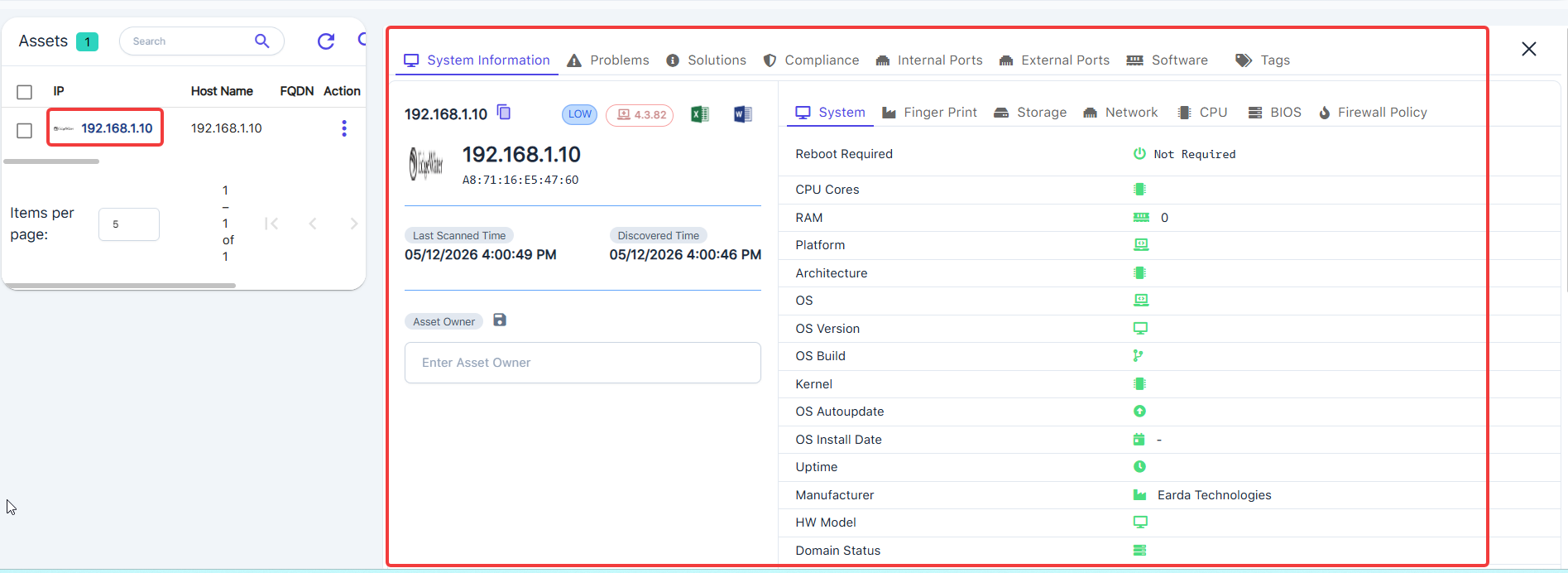
Tap on the IP address of the deprecated asset to see the asset details.
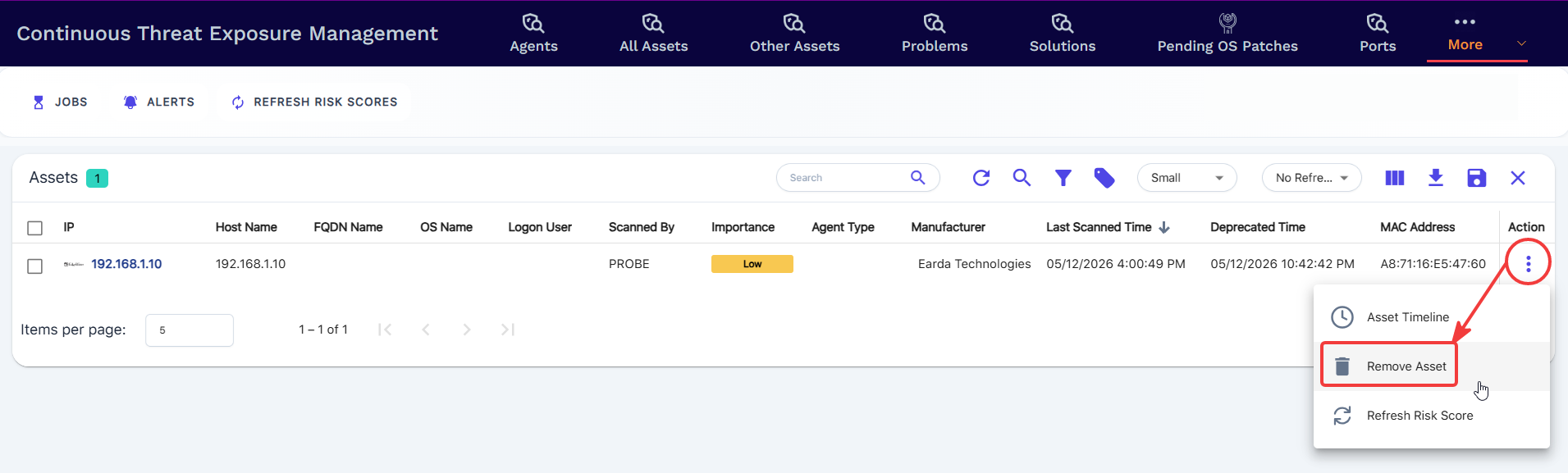
Use the three-dot Action menu to access the Asset Timeline or Remove Asset.
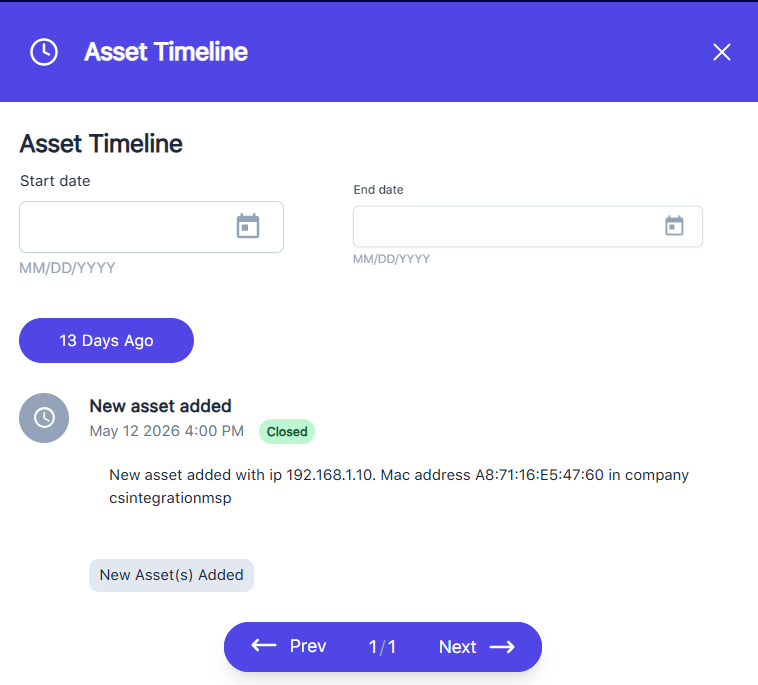
Asset Timeline displays the timeline style and historical system events for the asset.
Remove Asset will permanently remove the asset from the portal along with all data for the asset.