


Monitors
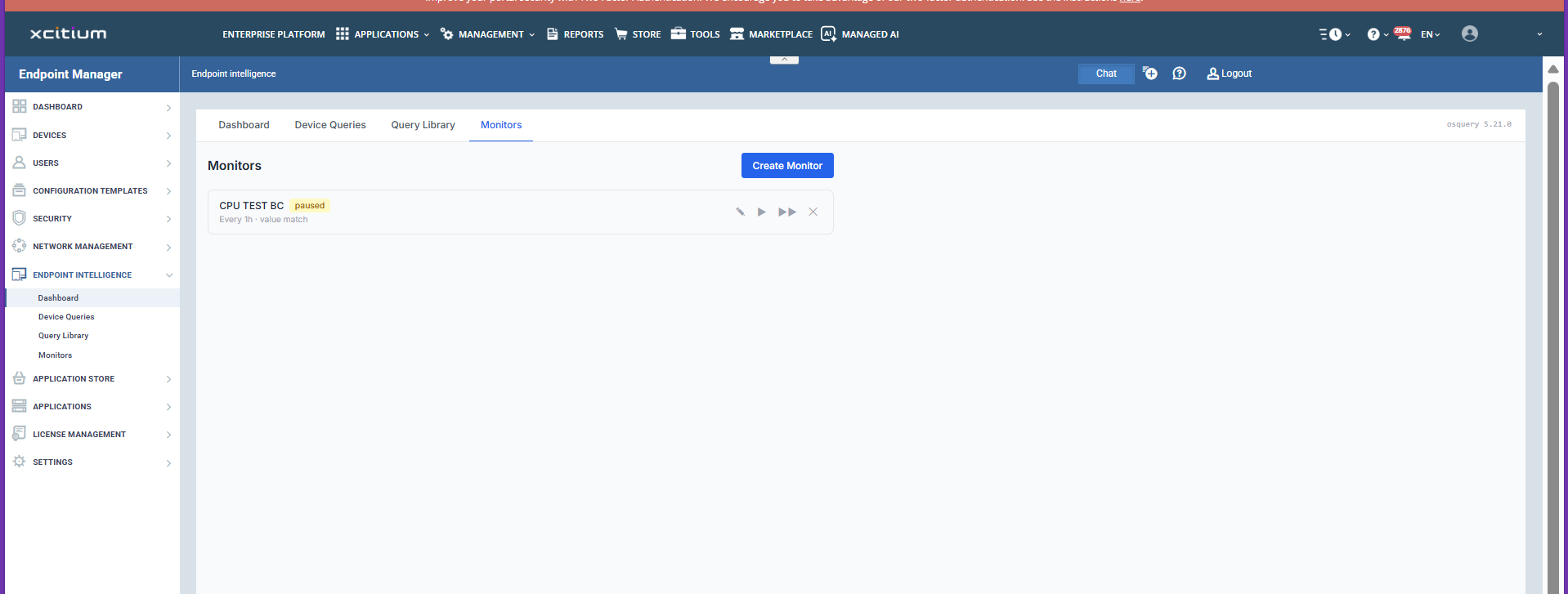
Monitors automate the execution of queries on a defined schedule and generate alerts when query results match a configured pass condition. This eliminates the need for manual, periodic query runs.
Creating a Monitor
To create a monitor, click 'Create Monitor' from the 'Monitors' page, or click 'Create Monitor' on a query card in the Query Library.
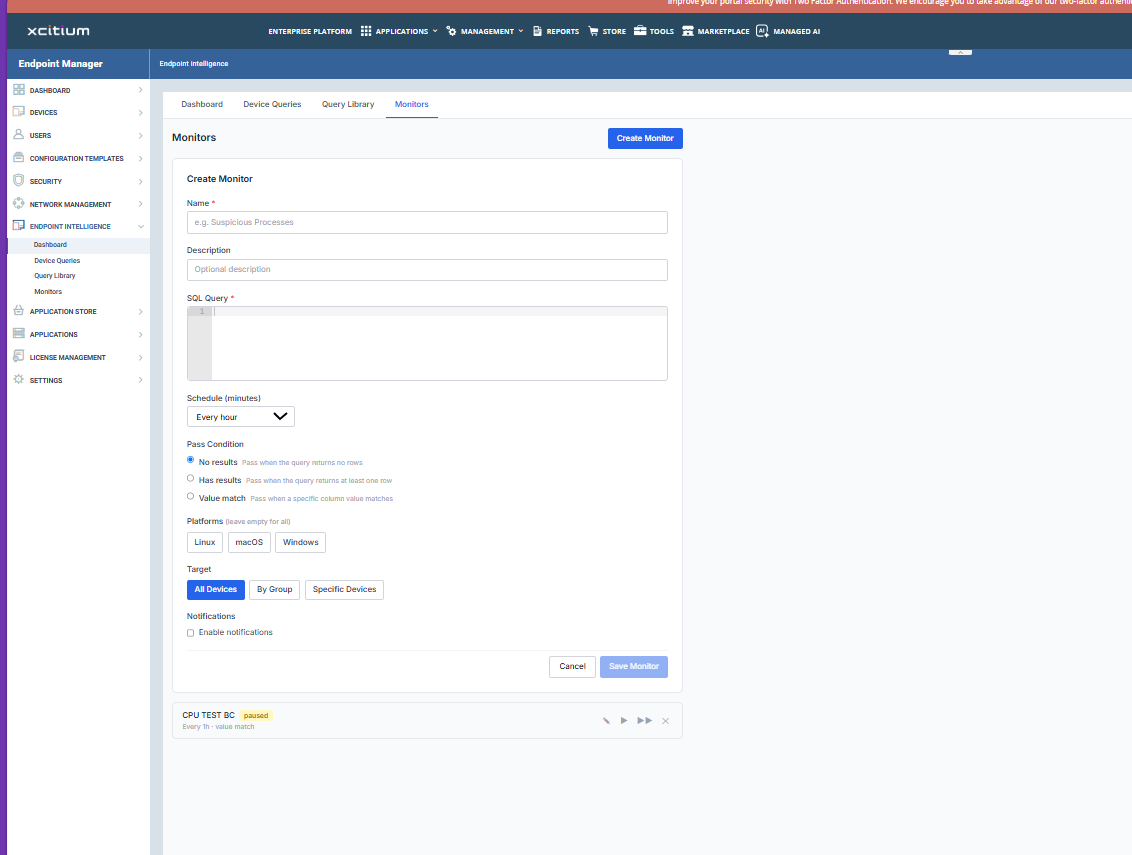
Complete the Create Monitor form as described in the sections below.
Name (required)
Enter a descriptive name for the monitor (for example Suspicious Processes).
Description
Optionally enter a description to help identify the monitor's purpose.
SQL Query (required)
Enter the SQL query this monitor will execute. The query follows the same syntax as Device Queries.
Schedule (minutes)
Select how frequently the monitor runs. Available options range from every 5 minutes to once daily. The default is 'Every hour'.
Pass Condition
Define the result condition under which the monitor is considered passing. When the actual query result does not satisfy the pass condition, the monitor generates an alert (failure). Available options:
- 'No results' - passes when the query returns no rows.
- 'Has results' - passes when the query returns at least one row.
- 'Value match' - passes when a specific column value matches a defined value.
Platforms
Select which operating systems this monitor will run on: Linux, macOS or Windows. Leave all deselected to run on all platforms.
Target
Select the devices the monitor will run against:
- 'All Devices'
- 'By Group'
- 'Specific Devices'
Notifications
Enable notifications to receive alerts based on monitor outcomes. When 'Enable notifications' is checked, two options become available:
- 'Notify on failure' - sends a notification each time the monitor triggers (that is, the pass condition is not met).
- 'Notify on recovery' - sends a notification when a previously triggered alert is resolved (that is, the pass condition is met again on a subsequent run).
Click 'Save Monitor' to activate the monitor. It will appear in the Monitors list with its schedule and current status (active or paused).
Monitor Statuses
Each monitor in the Monitors list displays one of the following statuses:
- 'Active' - the monitor is running on its configured schedule.
- 'Paused' - the monitor has been paused and is not currently running.
Use the action icons on each monitor row to pause, resume, run immediately, or delete the monitor.