Ticketing Templates
Ticketing Templates are used to customize the appearance of tickets by overriding the default template. This includes the ticket subject line and body details. The template applies for any ticket created either manually or automatically through supported Integrations.
To ensure successful rendering, please use only the keys provided in the portal’s supported key list. When unsupported keys are used, the system defaults to fallback values.
Note: There is no way to edit the default ticket template used by CTEM.
- Settings < CTEM < 'Ticketing Templates'
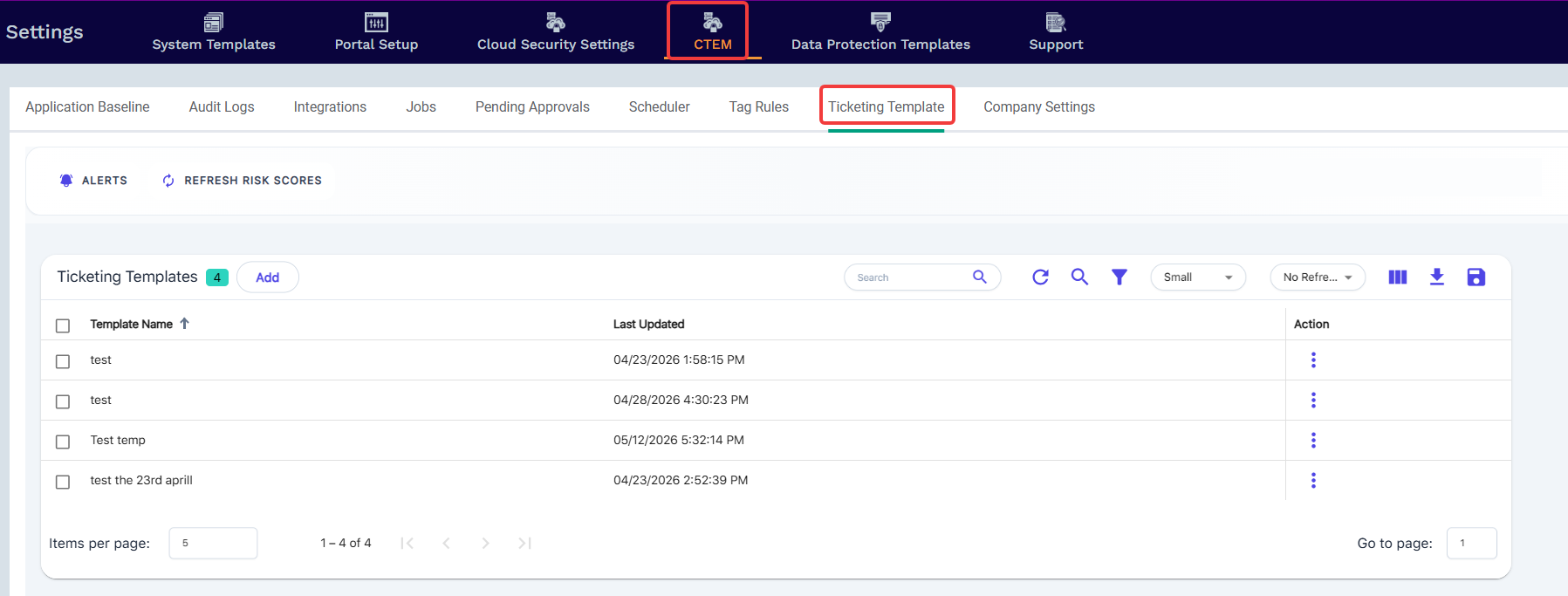
From the table view, you can Add, Edit, or Delete the templates.
If no template is found for a matching Event Set, the default ticket template will be used.
Add
Tap on the Add button
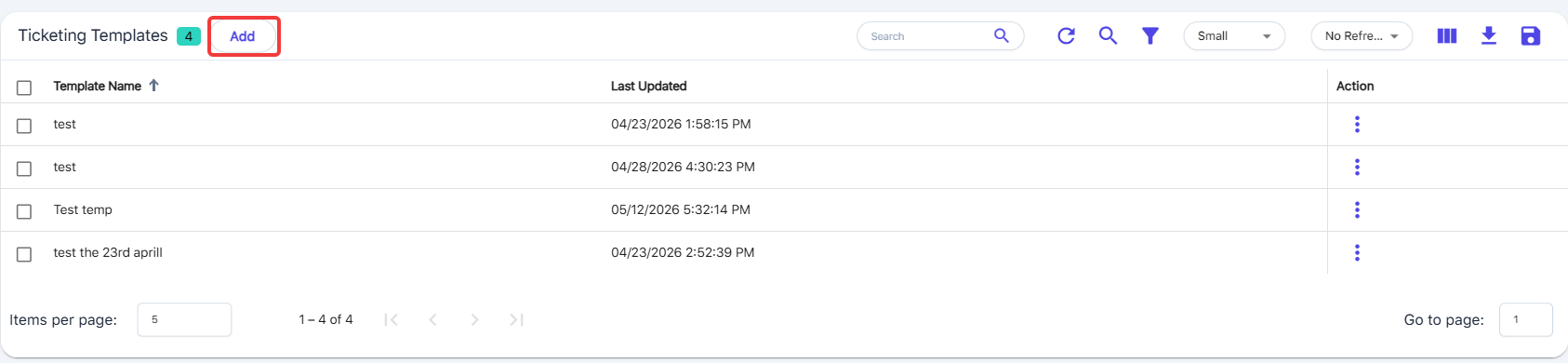
Complete the required fields which include the Template Name, Companies, Integrations, and Event Details.

Select the Event Type
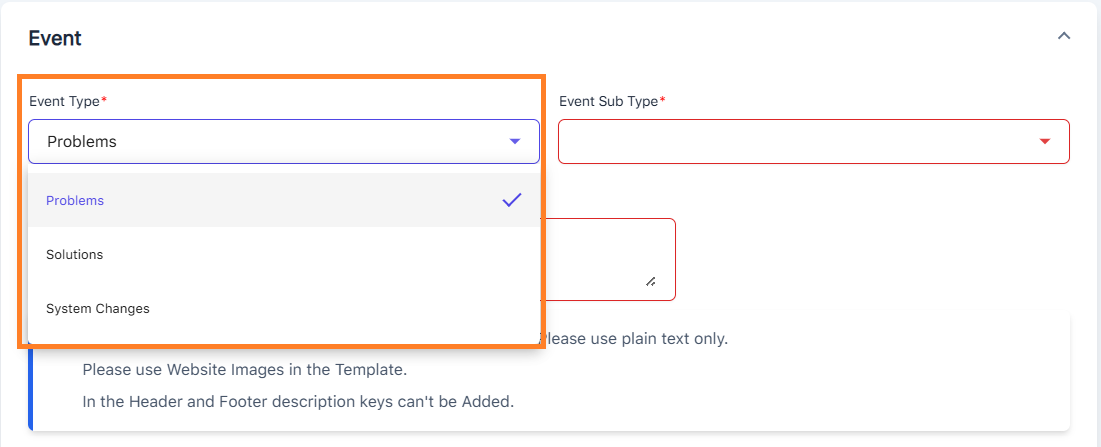
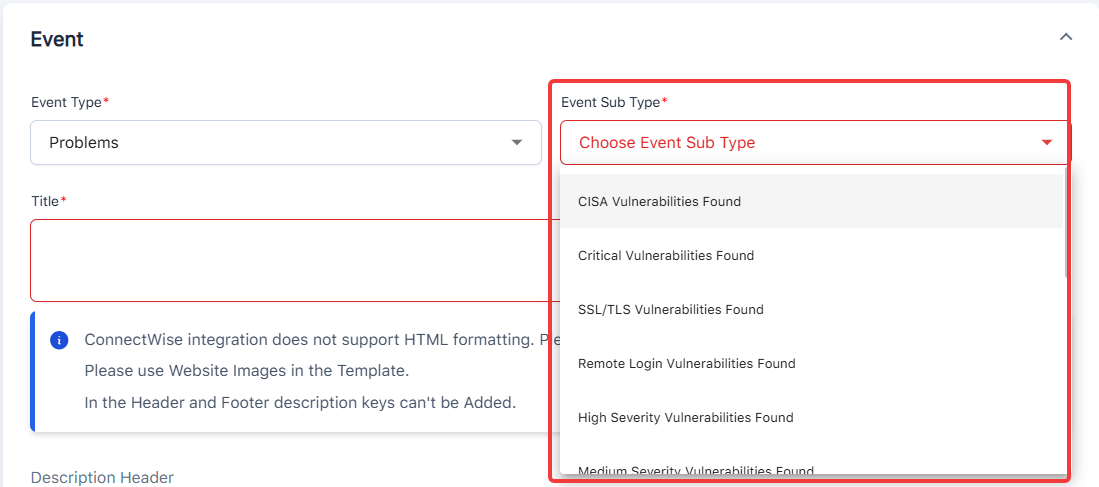
Then select the Event Sub-Type
Note: Event Sub Types will change based on the selected Event Type
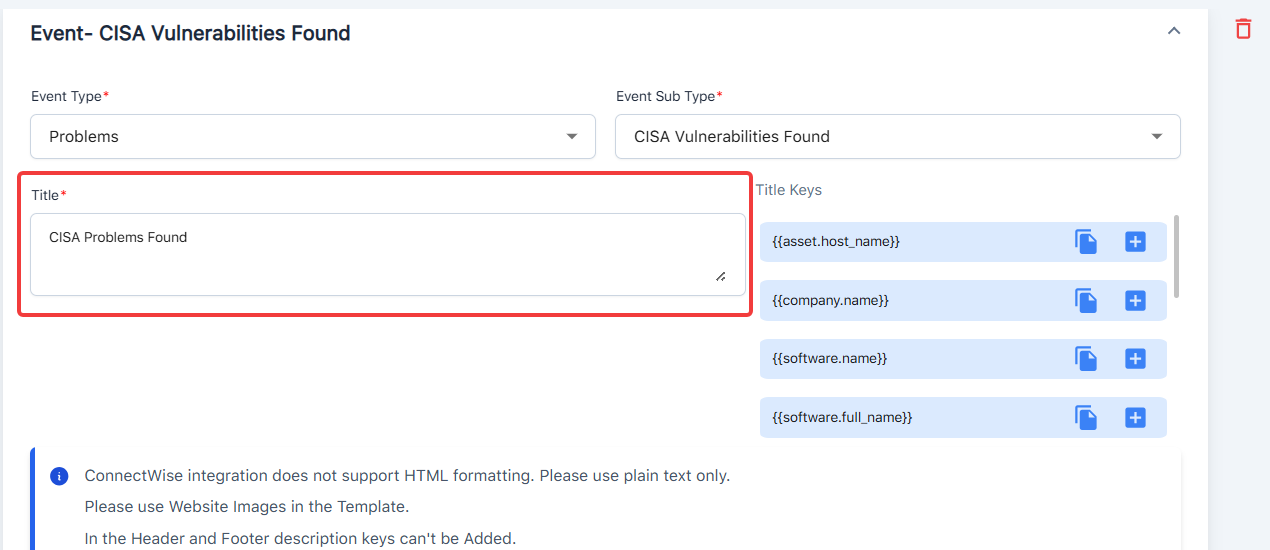
Confirm the default values for the Title
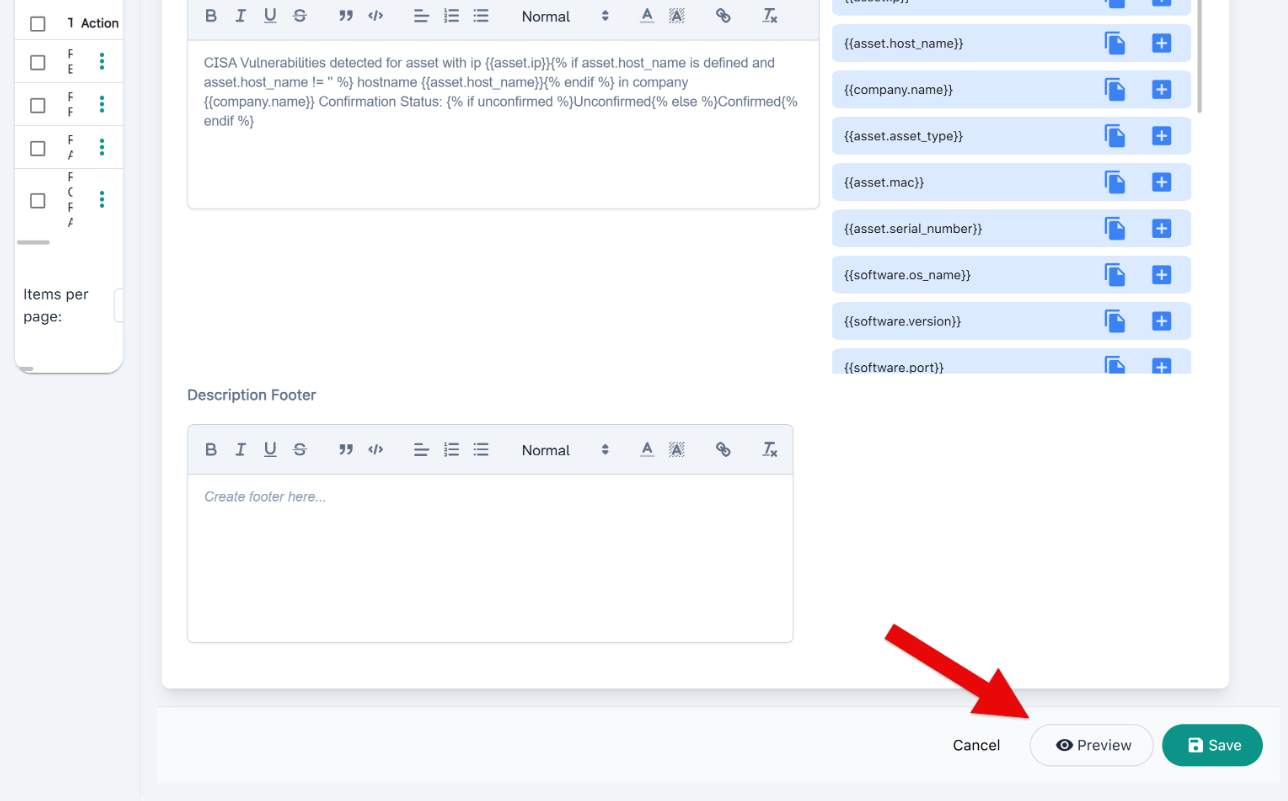
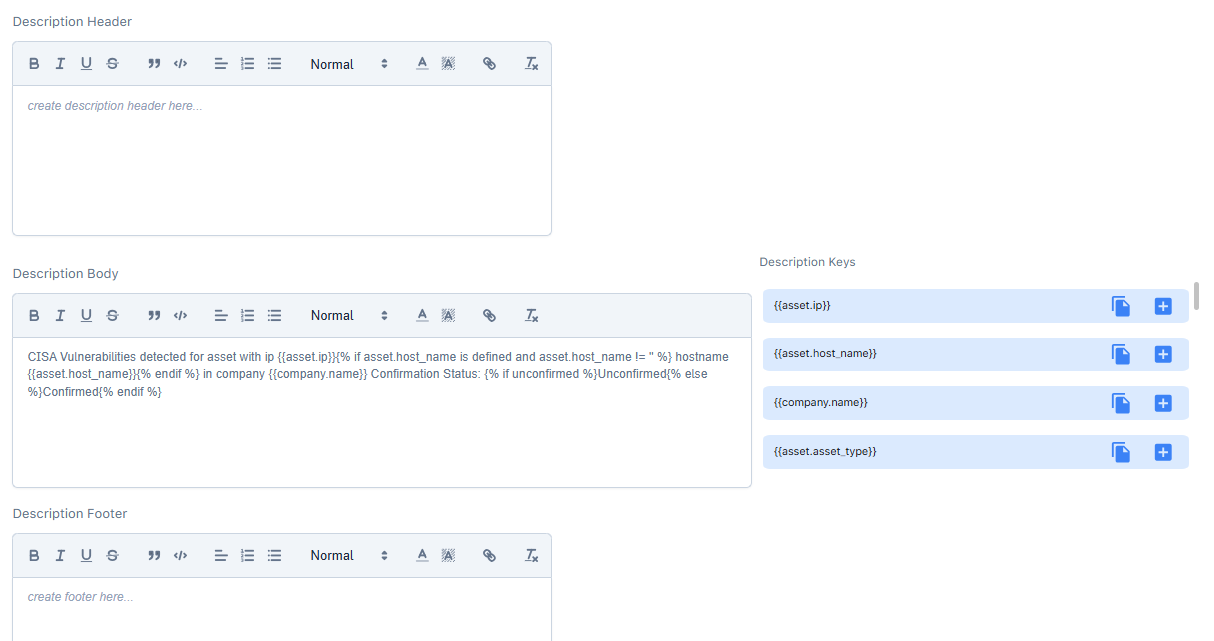
Scroll below to confirm the Header, Body, and Footer details
Tap the Save button once completed
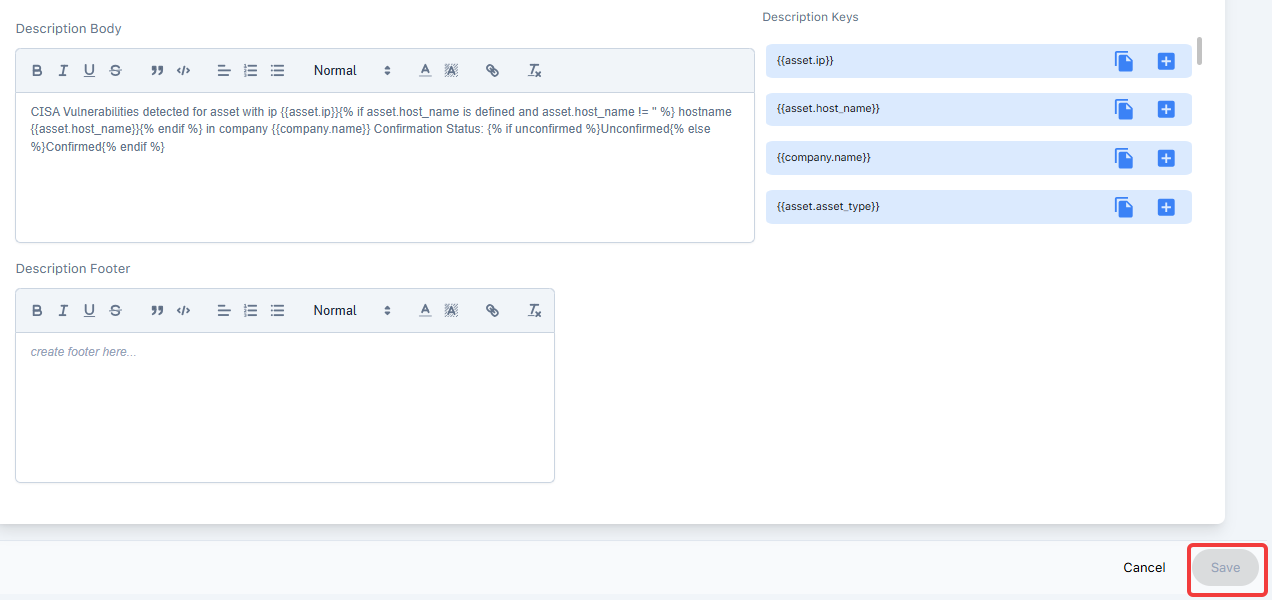
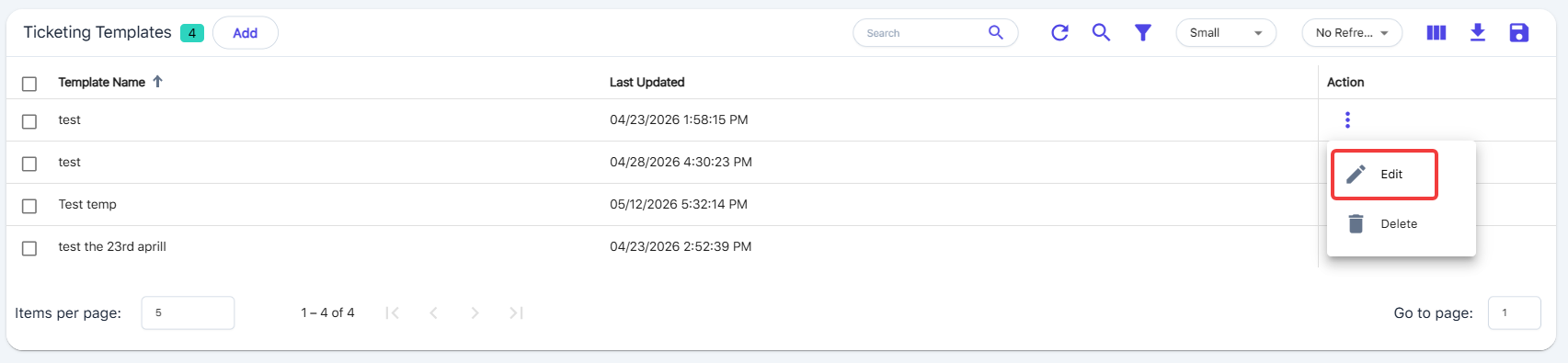
Edit
Tap on the three-dot Action menu next to any template record to edit.
Clone
Tap on the three-dot Action menu next to any template record to clone.

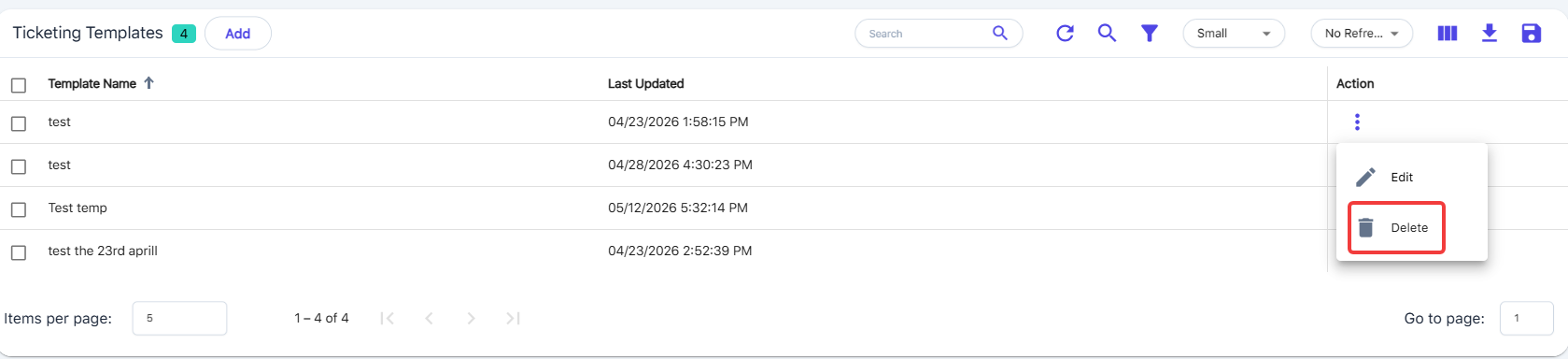
Delete
Tap on the three-dot Action menu next to any template record to delete.
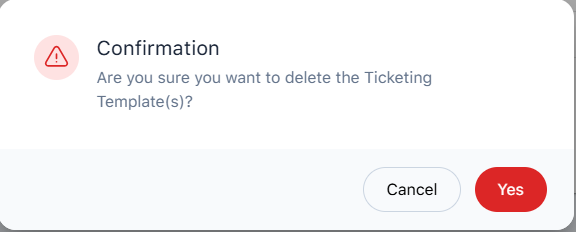
Tap Yes on the delete confirmation to finish.
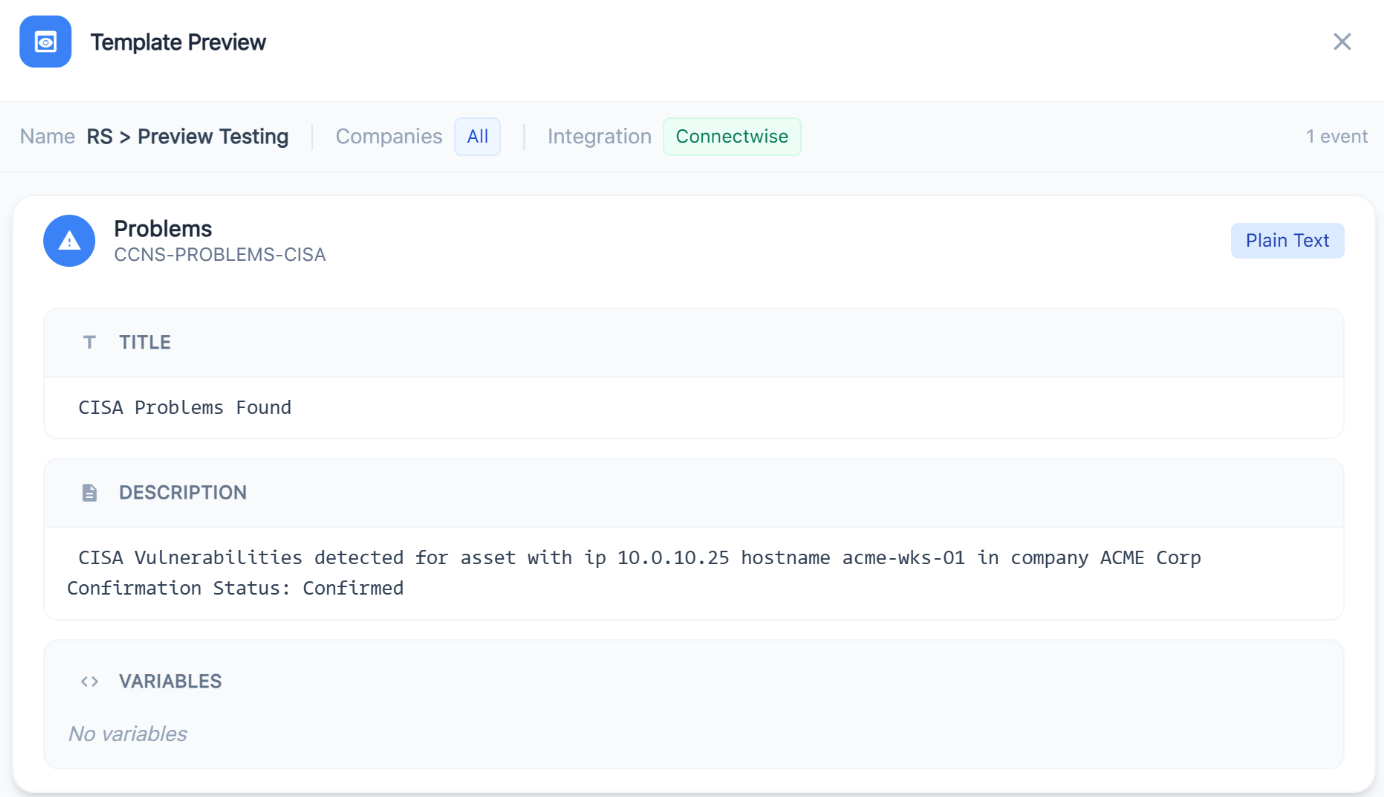
Ticketing Templates - Preview
You can use the Preview button to see a preview of what your ticket will look like before saving or waiting for an actual ticket to create.