


Log in to the Console
Open the console address your account was given in a browser. The sign-in page opens.
The sign-in page is a single card over a dimmed preview of the console. It asks for your email address and your password.
You can sign in, reset a forgotten password, change the language of the page, and switch it between the light and dark themes.
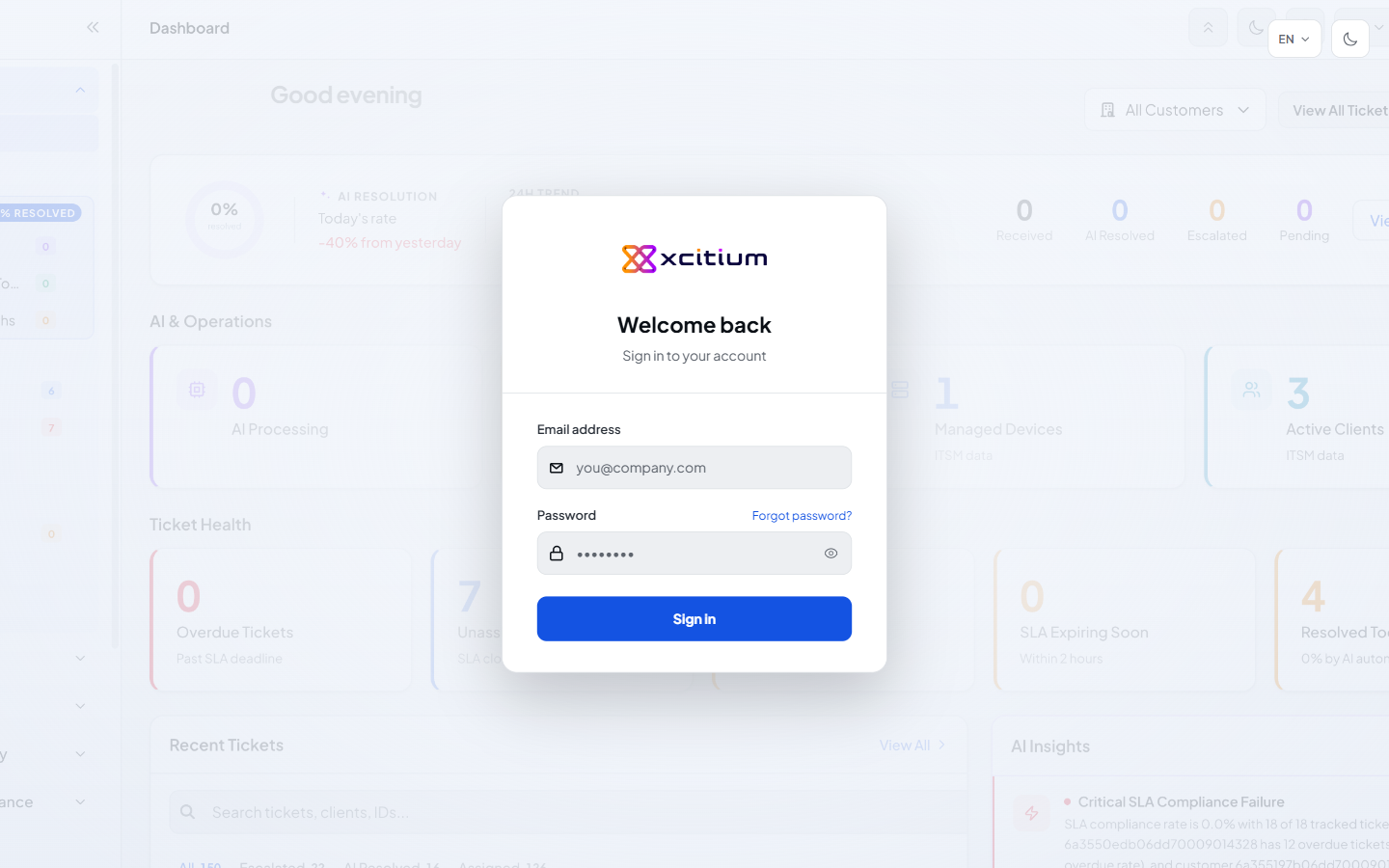
The card is headed 'Welcome back' with the line 'Sign in to your account' beneath it.
The fields
| Field | Type | Options / default | Required |
| Email address | Email box | Empty by default, with the placeholder 'you@company.com' and an envelope icon. | Yes |
| Password | Password box | Empty by default, with a padlock icon and an eye button at its right that shows and hides what you have typed. | Yes |
The controls
| Button | Description |
| Sign in | Signs you in. The button shows ‘Signing in…’ while it works. |
| Forgot password? | Opens the password reset page. See Reset Your Password. |
| EN | The language selector at the top right of the page. See below. |
| Switch to dark | Switches the page to the dark theme. The button then reads 'Switch to light'. |
The language selector
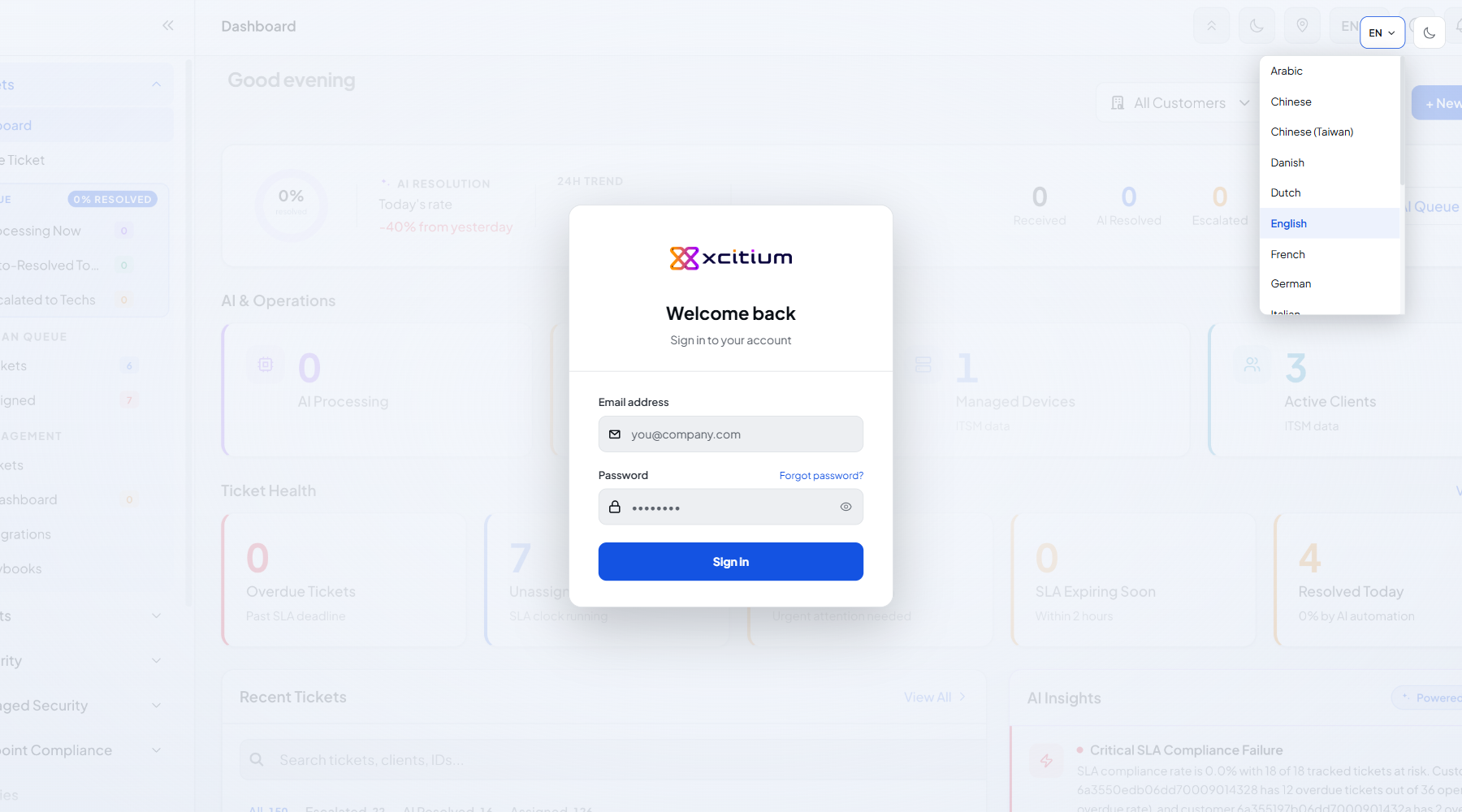
The 'EN' button opens a list of seventeen languages: Arabic, Chinese, Chinese (Taiwan), Danish, Dutch, English, French, German, Italian, Japanese, Korean, Polish, Portuguese, Romanian, Russian, Spanish and Turkish.
The dark theme
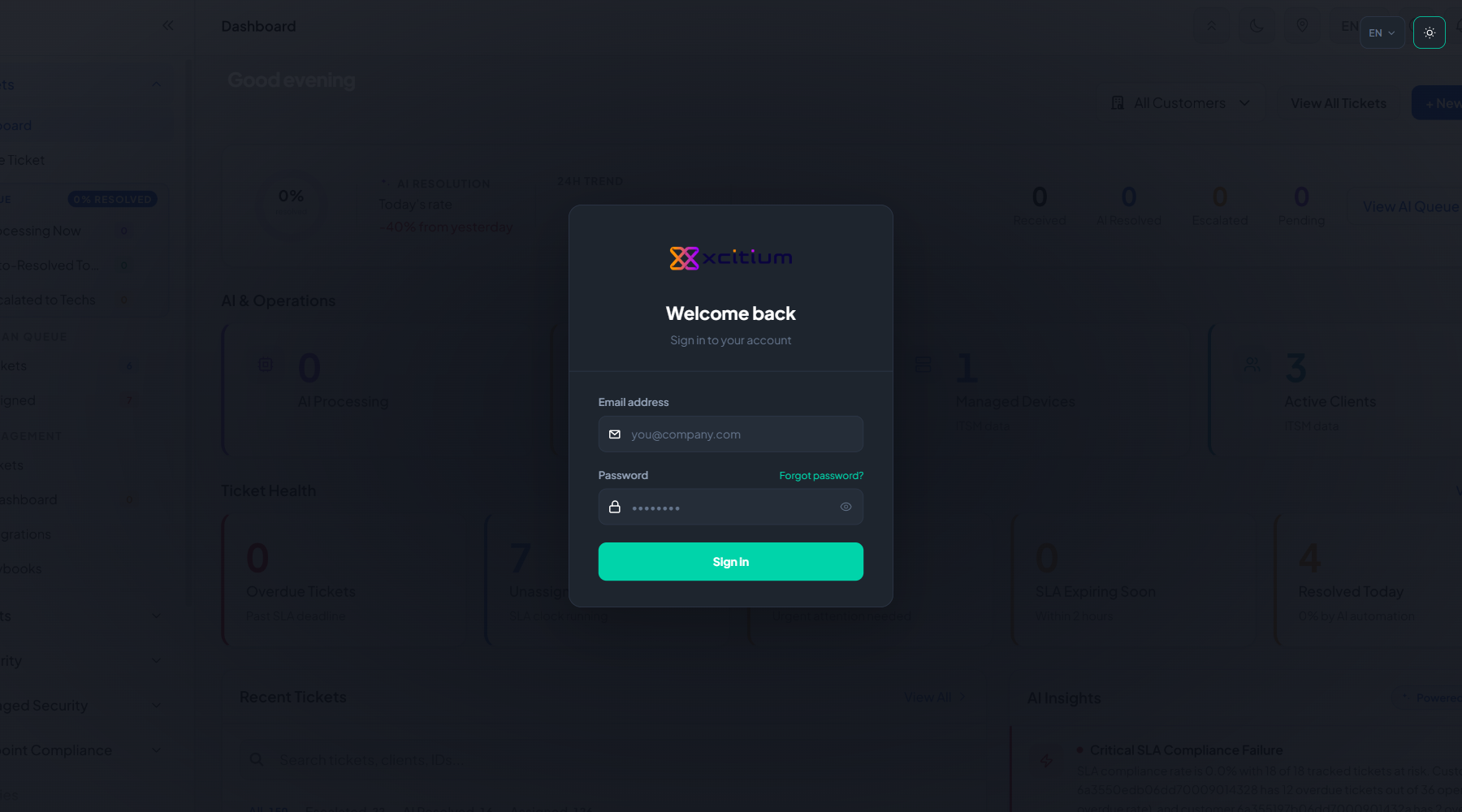
The moon button switches the page between the light and the dark theme. The same control appears in the console's top bar once you are signed in.
Sign in
- Open the console address in a browser.
- Type your email address into 'Email address'.
- Type your password into 'Password'. Click the eye button if you want to check what you typed.
- Click 'Sign in'.
- The console opens on the Dashboard. See The Dashboard.