


AI Assignee Management
- Click 'Tickets' > 'Management' > 'AI Assignee Management' to open this interface.
This screen names the people a ticket falls back to when the AI service agent cannot resolve it. Each person is described in plain language — what they look after and what kinds of ticket they should get — and the AI routes an unresolved ticket to whichever description fits it best.
You can review the fallback assignees, search them, add a new one with the description that drives the routing, and create a user record for someone who does not have one yet.
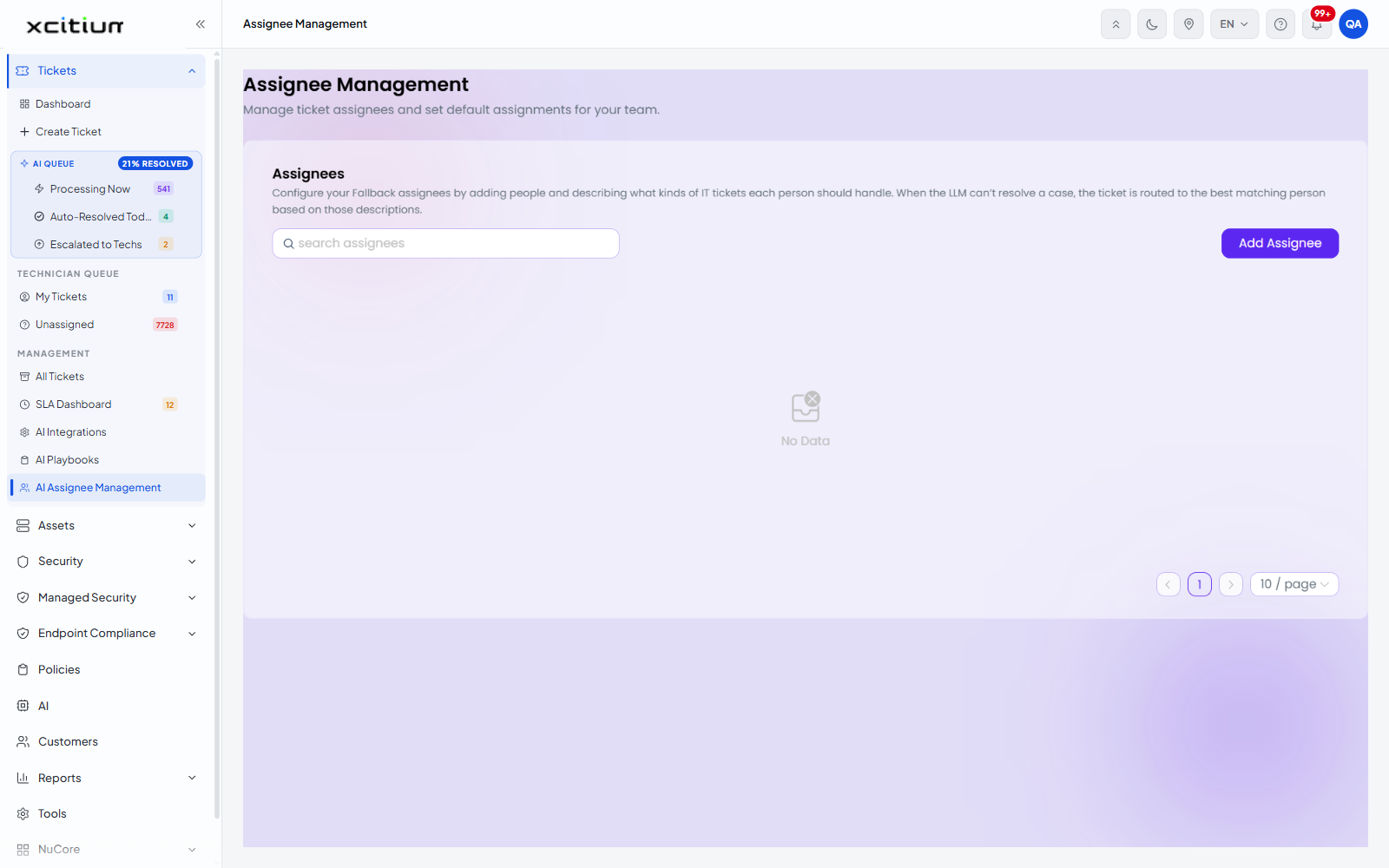
How the screen is laid out
This is an embedded application. It is headed 'Assignee Management' with the line 'Manage ticket assignees and set default assignments for your team.' Below that sits a card headed 'Assignees' carrying the explanation:
'Configure your Fallback assignees by adding people and describing what kinds of IT tickets each person should handle. When the LLM can't resolve a case, the ticket is routed to the best matching person based on those descriptions.'
The controls
| Control | Description |
| search assignees | A search box that filters the assignee list as you type. |
| Add Assignee | Opens the inline form for adding a fallback assignee. |
| Assignee list | The configured fallback assignees. Reads 'No Data' when none have been added. |
| Page control | The page number selector at the foot of the list. |
| Records per page | A dropdown setting how many assignees are listed per page. '10 / page' is the default. |
How routing works
The AI matches the content of the unresolved ticket against the free-text description held against each assignee, and routes the ticket to the closest match. The quality of the routing therefore depends on how precisely each description is written — naming the systems, platforms and task types a person owns gives the AI something concrete to match on.
Review your fallback assignees
- Click 'Tickets' > 'Management' > 'AI Assignee Management'.
- Read the list of assignees and their descriptions.
- Use 'search assignees' to find a particular person.
- Check that between them the descriptions cover every kind of ticket you receive.
Note: if no assignees are configured the list shows 'No Data', and the AI has nobody to fall back to.
See also Unassigned Tickets, where the AI's recommended technician is shown per ticket.