


Asset Inventory Tabs
- Click 'Endpoint Compliance' > 'All Assets' > an asset > 'System Information', then scroll to the bottom of the pane.
Below the 'Security Report Card' sits a second row of tabs holding the detailed inventory the scan collected from the machine. Each tab is its own list with the shared grid toolbar, so you can search, filter, choose columns and export any of them.
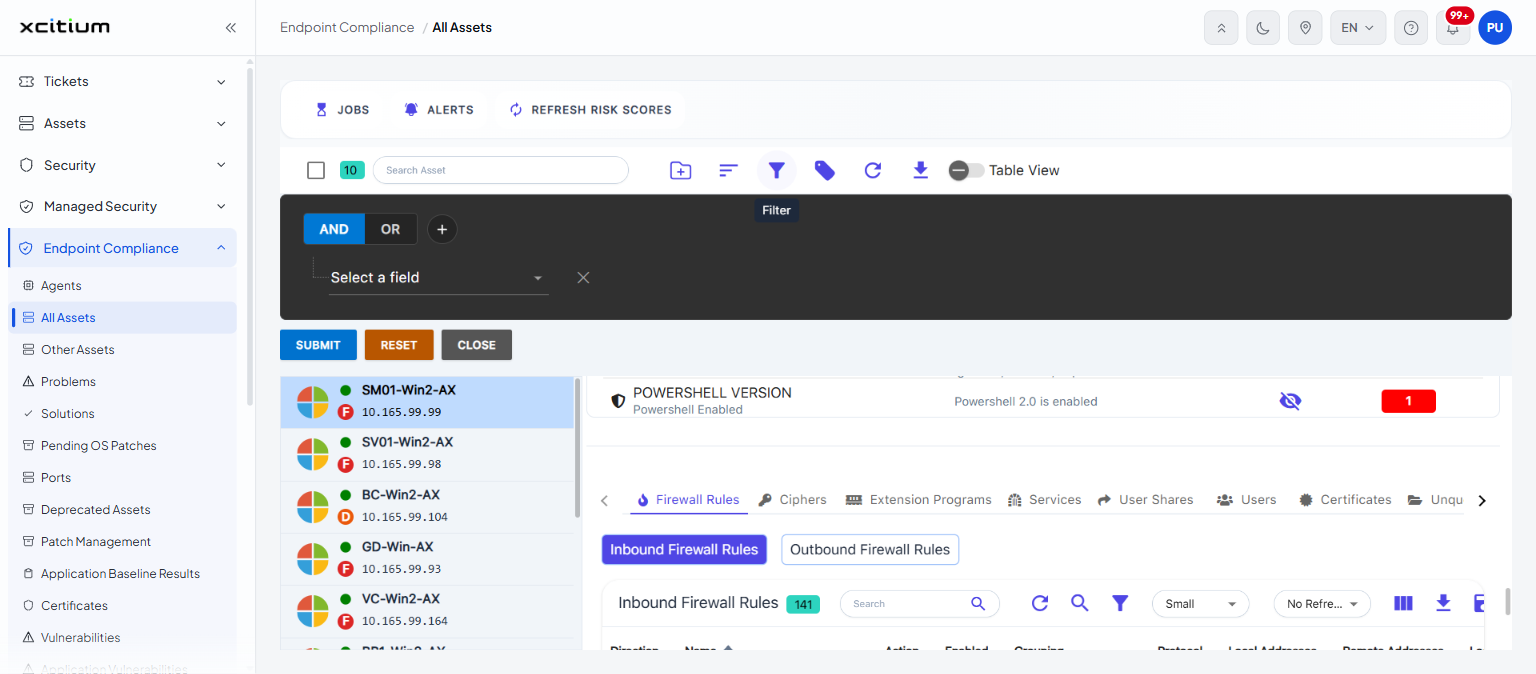
Tabs
There are twelve tabs. Use the arrows at either end of the row to reach the ones that are off screen.
Firewall Rules
Two buttons above the list choose which rules to show: 'Inbound Firewall Rules' and 'Outbound Firewall Rules'.
| Column | Description |
| Direction | Whether the rule applies to inbound or outbound traffic. |
| Name | The rule's name. |
| Action | What the rule does with matching traffic. |
| Enabled | Whether the rule is in force. |
| Grouping | The rule group the rule belongs to. |
| Protocol | The protocol the rule matches. |
| Local Addresses | The local addresses the rule covers. |
| Remote Addresses | The remote addresses the rule covers. |
| Local Ports | The local ports the rule covers. |
| Service Name | The service the rule applies to. |
| App Name | The application the rule applies to. |
| Remote Ports | The remote ports the rule covers. |
| ICMP Type Codes | The ICMP types the rule matches. |
| Profile Domain | Whether the rule applies to the domain profile. |
| Profile Private | Whether it applies to the private profile. |
| Profile Public | Whether it applies to the public profile. |
Ciphers
The cipher suites the machine offers. On an asset where the scan found none the tab shows 'No data available!'.
Extension Programs
| Column | Description |
| Name | The browser extension's name. |
| Version | Its version. |
| Browser Type | The browser it is installed in. |
| Path | Where it is installed. |
Services
| Column | Description |
| Name | The service's short name. |
| Display Name | The name shown to a user. |
| Path | The executable the service runs. |
| Status | Whether the service is running. |
| User Account | The account the service runs as. |
User Shares
A list headed 'Share Name' with one entry per share. Each share expands to a table of its permissions:
| Column | Description |
| Access Control Type | Whether the entry allows or denies access. |
| File System Rights | The rights the entry grants. |
| Groups/Users | Who the entry applies to. |
Users
| Column | Description |
| User Name | The account name. |
| User Group | The group the account belongs to. |
| Logon Time | When the account last signed in. |
| Description | The account's description. |
| Directory | The account's home directory. |
| Shell | The account's shell. |
| UID | The user identifier. |
| GID | The group identifier. |
Certificates
The certificates found on the machine. On an asset where the scan found none the tab shows 'No data available!'.
Unquoted Service Path
| Column | Description |
| Name | The service's short name. |
| Service Type | The kind of service. |
| Display Name | The name shown to a user. |
| Start Type | How the service starts. |
| Path | The unquoted path the service runs. |
Installed Patches
A card headed 'Installed Patches' listing the patches present on the machine under a single 'KB' column, with a search box above it.
Installed Drivers
| Column | Description |
| Name | The driver's name. |
| Version | Its version. |
| Path | Where it is installed. |
| Uninstall String | The command that removes it. |
| Publisher | Who published it. |
| Installed Date | When it was installed. |
| Critical Vulnerabilities | How many critical vulnerabilities are attributed to it. |
| High Vulnerabilities | How many high vulnerabilities. |
| Medium Vulnerabilities | How many medium vulnerabilities. |
| Low Vulnerabilities | How many low vulnerabilities. |
| Vulnerability Count | The total. |
| Confirmed | Whether the finding has been confirmed. |
Running Processes
| Column | Description |
| Name | The process name. |
| Root | The process's root. |
| Path | The executable it runs. |
| State | The process state. |
| Command Line | The command line it was started with. |
Windows 11 Compatible Check
| Column | Description |
| Name | The requirement being checked. |
| Minimum Required | What the requirement asks for. |
| Value | What the machine reports. |
| Status | Whether the machine meets the requirement. |
Note: a tab shows 'No data available!' when the scan found nothing of that kind on the asset.