


Alert Search Filters
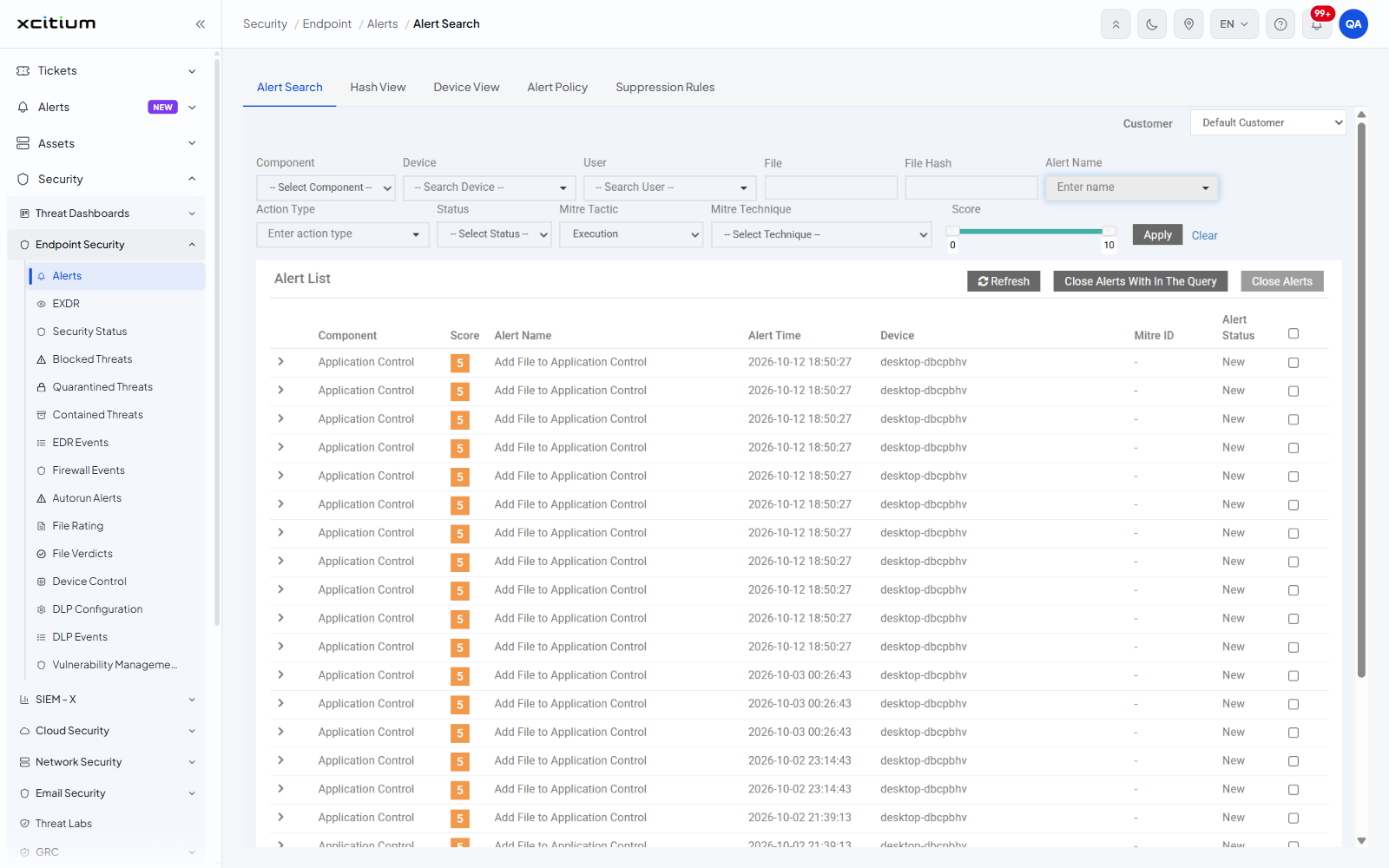
- Click 'Security' > 'Endpoint Security' > 'Alerts' > 'Alert Search' and use the filter bar above the 'Alert List'.
The filter bar narrows the 'Alert List' to the alerts you want to see. It holds twelve controls laid out in two rows, with the 'Customer' control on its own line above them, and the 'Apply' and 'Clear' buttons at the end of the second row.
You can combine any number of filters; the list returns only the alerts that match all of them.
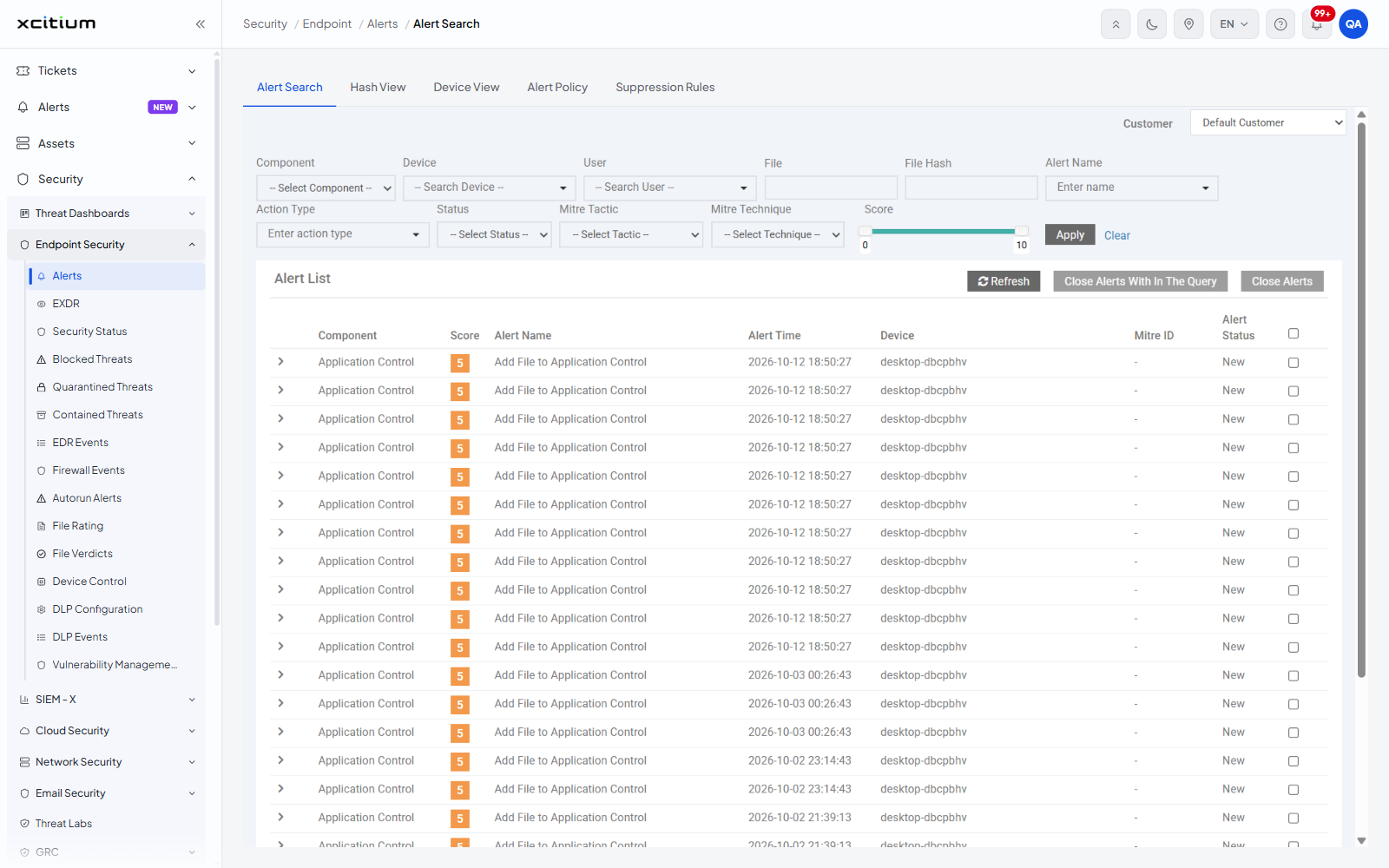
The filters
| Filter | Control | Description |
| Customer | Drop-down list | The customer whose alerts are shown. The list holds one entry per customer in your account and 'Default Customer' is first and selected by default. This control sits above the filter bar, at the top right of the tab, and applies to the whole tab. |
| Component | Drop-down list | The security component that raised the alert. Options are '-- Select Component --' (the default, meaning all components), 'Antivirus', 'Containment', 'Application Control', 'Autoruns Control', 'Virtual Desktop', 'Containment Activity' and 'EXDR'. |
| Device | Search box with suggestions | The managed device the alert came from. The box shows '-- Search Device --' until you type. Type at least one character and the matching devices appear beneath it; click one to select it. The control carries the tooltip 'Choose a device'. |
| User | Search box with suggestions | The user associated with the alert. The box shows '-- Search User --' until you type, and works the same way as 'Device'. The control carries the tooltip 'Choose a user'. |
| File | Text box | A file name to match. Free text, no placeholder. |
| File Hash | Text box | A file hash to match. Free text, no placeholder. |
| Alert Name | Search box with suggestions | The name of the alert, as given by the alert policy that raised it. The box shows 'Enter name' until you type. Opening it lists every alert name defined for the customer, which includes both the names of your own alert policies and the built-in names for each component, for example 'Add File to Application Control', 'Run Virtually in Containment', 'Antivirus Quarantine' and 'Terminate Autorun'. |
| Action Type | Drop-down list | What the alert policy did when it fired. The box shows 'Enter action type' until you open it; the options are 'Terminate and Alert' and 'Alert Only'. |
| Status | Drop-down list | The state of the alert. Options are '-- Select Status --' (the default, meaning both), 'New' and 'Closed'. |
| Mitre Tactic | Drop-down list | The MITRE ATT&CK tactic the alert maps to. Options are '-- Select Tactic --' (the default) plus the fourteen tactics listed below. |
| Mitre Technique | Drop-down list | The MITRE ATT&CK technique the alert maps to. The list is empty apart from '-- Select Technique --' until you choose a tactic, then it fills with the techniques and sub-techniques of that tactic. |
| Score | Range slider | The alert score band to include. The slider has two handles, a lower handle set to 0 and an upper handle set to 10 by default, and shows the current value of each handle above it. Drag the handles to narrow the band. |
The Mitre Tactic options
- Initial Access
- Execution
- Persistence
- Privilege Escalation
- Defense Evasion
- Credential Access
- Discovery
- Lateral Movement
- Collection
- Exfiltration
- Command and Control
- Impact
- Resource Development
- Reconnaissance
The buttons
| Button | Description |
| Apply | Runs the search and reloads the 'Alert List' with the alerts that match the filters you have set. |
| Clear | Resets every filter to its default and reloads the unfiltered list for the selected customer. |
Filter the alert list
- Choose the customer in the 'Customer' drop-down at the top right of the tab.
- Set one or more of the filters in the filter bar.
- Click 'Apply'. The 'Alert List' reloads with the matching alerts.
- Click 'Clear' to drop all the filters and go back to the full list.
Filter by device
- Click the 'Device' box. It turns into a search field.
- Type one or more characters of the device name. The matching devices appear in a list beneath the box, with the characters you typed shown in bold.
- Click the device you want.
- Click 'Apply'.
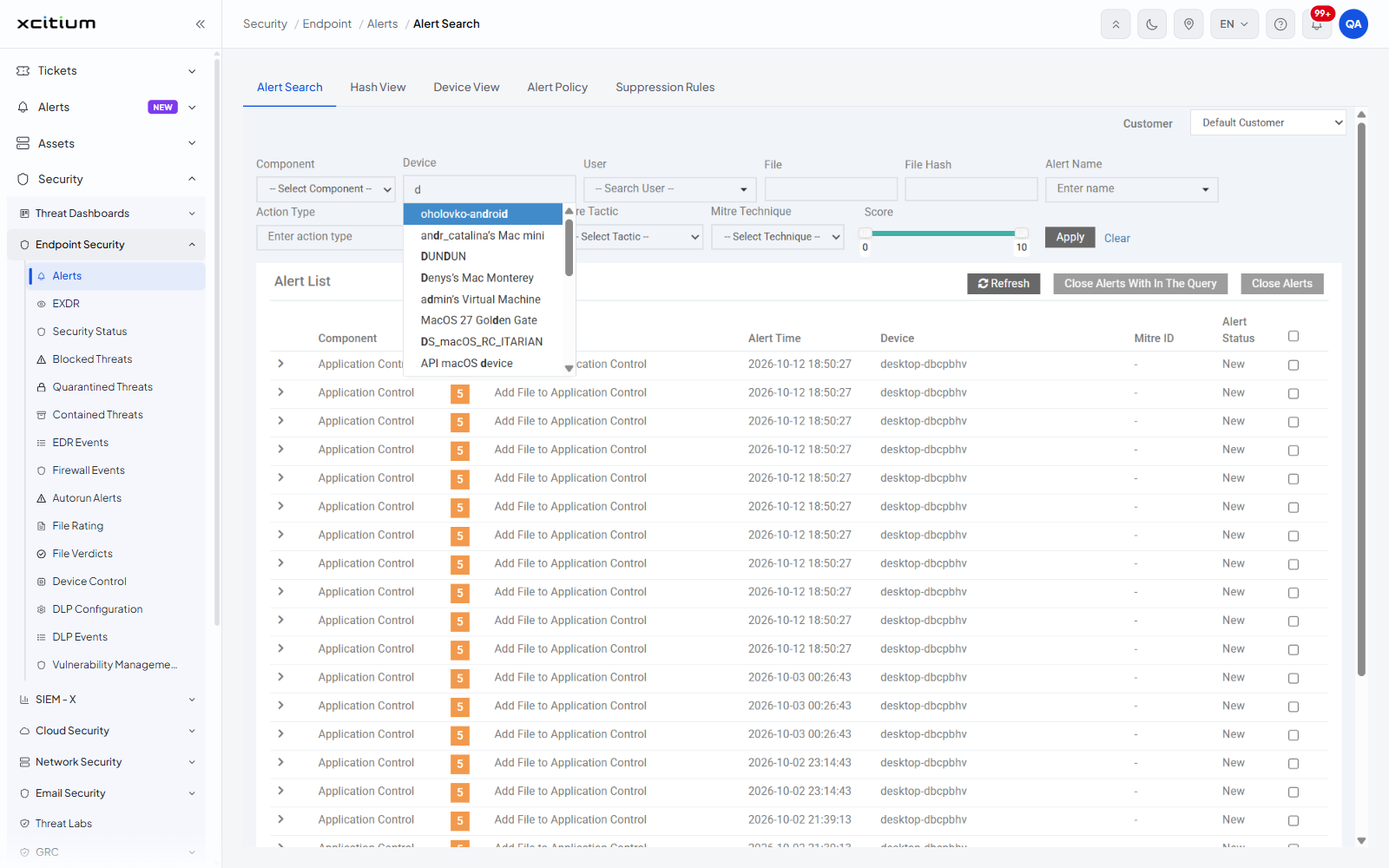
Filter by action type
- Click the 'Action Type' box.
- Click 'Terminate and Alert' to see only the alerts whose policy also stopped the activity, or 'Alert Only' to see the alerts that were recorded without intervening.
- Click 'Apply'.
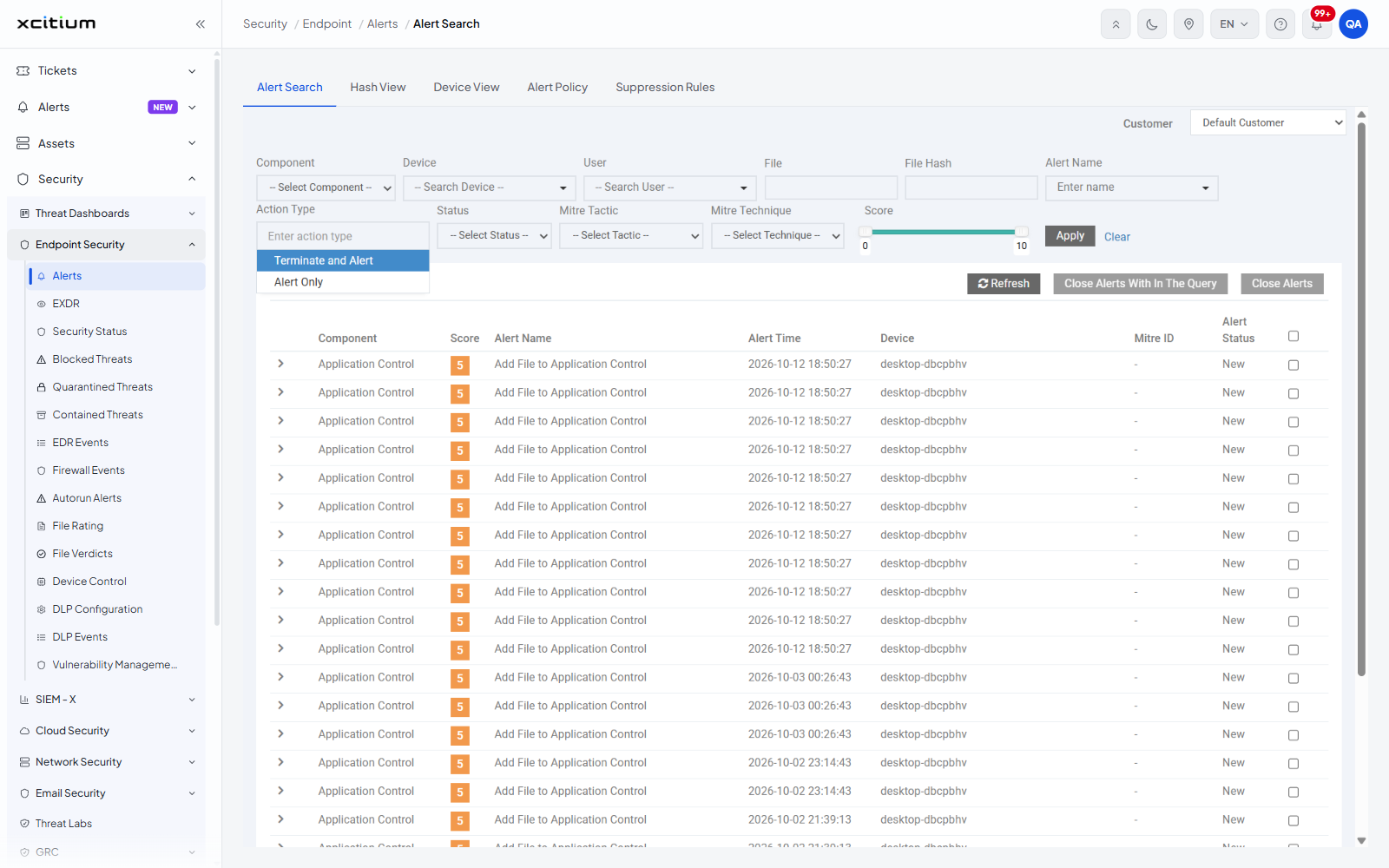
Filter by alert name
- Click the 'Alert Name' box. The full list of alert names for the customer opens.
- Type part of the name to shorten the list, then click the name you want.
- Click 'Apply'.
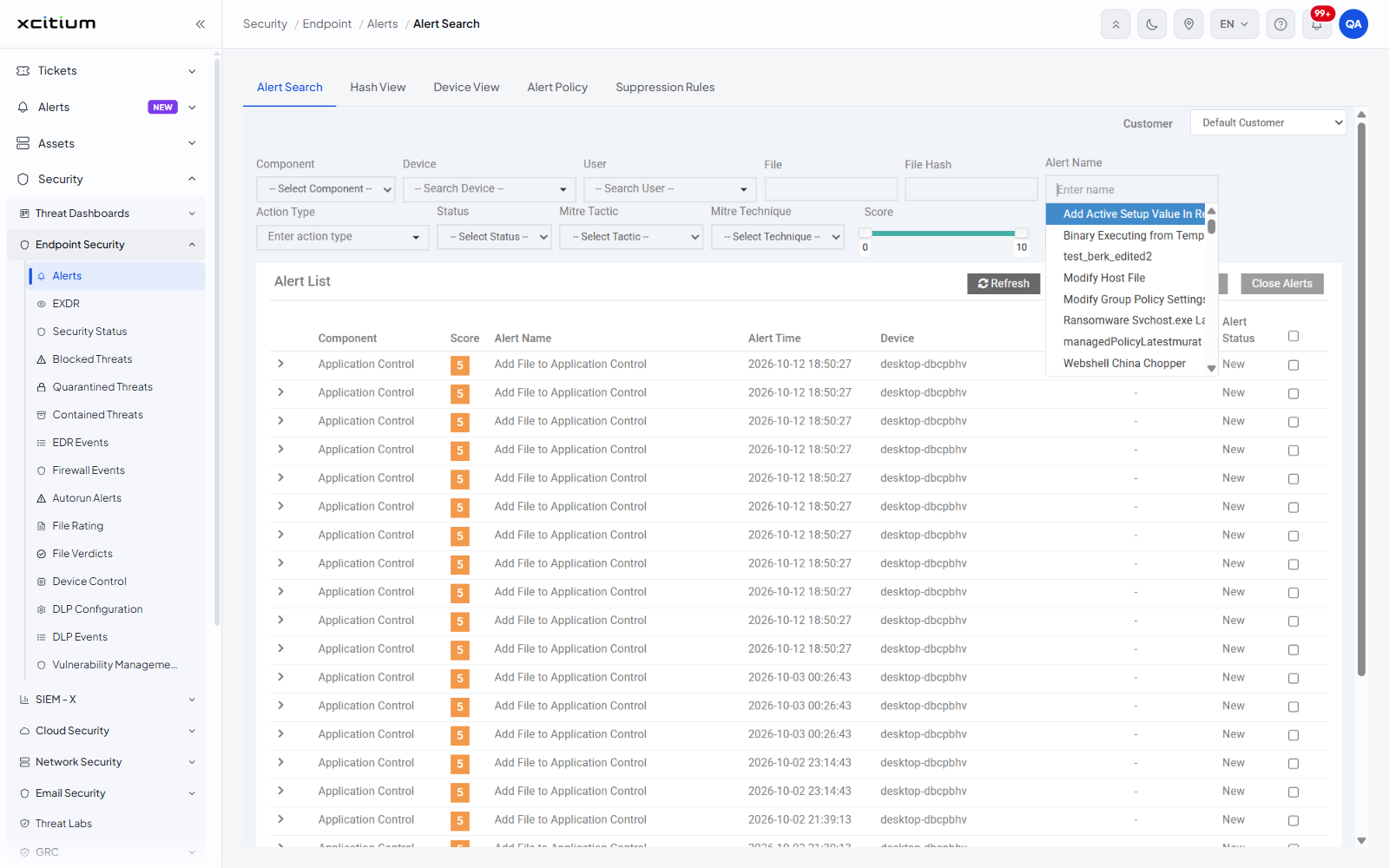
Filter by MITRE tactic and technique
- Choose a tactic in the 'Mitre Tactic' drop-down, for example 'Execution'.
- Open the 'Mitre Technique' drop-down. It now lists the techniques of that tactic — for 'Execution' these are 'Windows Management Instrumentation', 'Scheduled Task/Job', 'At', 'Cron', 'Launchd', 'Scheduled Task', 'Systemd Timers', 'Container Orchestration Job', 'Command and Scripting Interpreter', 'PowerShell', 'AppleScript', 'Windows Command Shell', 'Unix Shell', 'Visual Basic', 'Python', 'JavaScript', 'Network Device CLI', 'Software Deployment Tools', 'Native API', 'Shared Modules', 'Exploitation for Client Execution', 'User Execution', 'Malicious Link', 'Malicious File', 'Malicious Image', 'Inter-Process Communication', 'Component Object Model', 'Dynamic Data Exchange', 'XPC Services', 'System Services', 'Launchctl', 'Service Execution', 'Container Administration Command' and 'Deploy Container'.
- Choose a technique if you want to narrow the search further, then click 'Apply'.
Note: setting a filter also enables the 'Close Alerts With In The Query' button in the 'Alert List' toolbar, because that button acts on whatever the current query returns.