


Query Builder Help
- Click 'Security' > 'Endpoint Security' > 'Alerts' > 'Suppression Rules' > 'Add Suppression Rule', then click 'Query Builder Help' at the right of the 'Available Fields' caption.
'Query Builder Help' is the syntax reference for the conditions box of a suppression rule. It gives the shape of a query, the operators you may use, worked examples and a short list of tips.
You can read the formats, the operators and the examples, and close the panel when you are done.
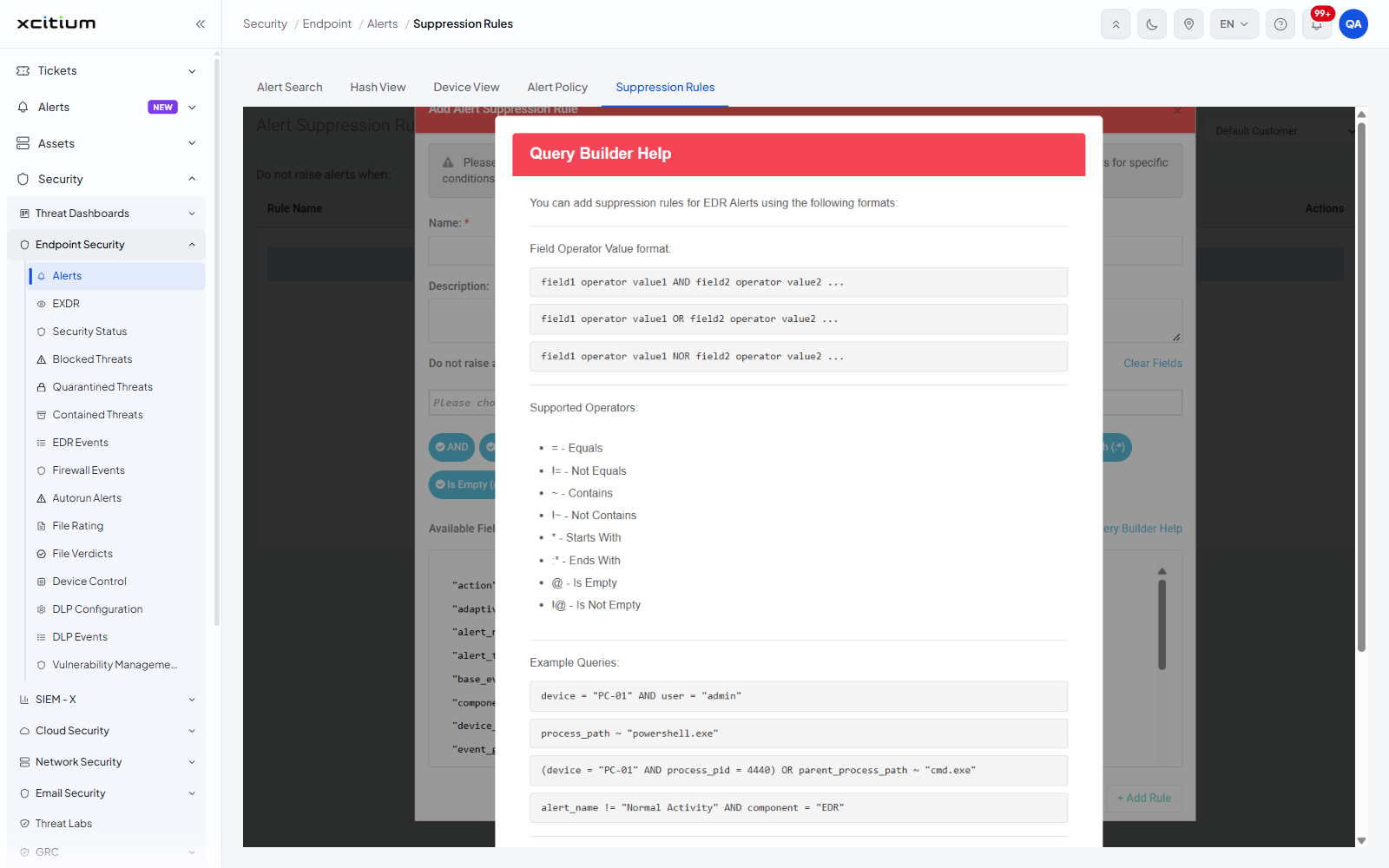
The formats
The panel opens with the line 'You can add suppression rules for EDR Alerts using the following formats:' and then gives three:
- field1 operator value1 AND field2 operator value2 ...
- field1 operator value1 OR field2 operator value2 ...
- field1 operator value1 NOR field2 operator value2 ...
The operators
| Operator | Meaning |
| = | Equals |
| != | Not Equals |
| ~ | Contains |
| !~ | Not Contains |
| * | Starts With |
| :* | Ends With |
| @ | Is Empty |
| !@ | Is Not Empty |
The examples
Four worked queries are given:
- device = "PC-01" AND user = "admin"
- process_path ~ "powershell.exe"
- (device = "PC-01" AND process_pid = 4440) OR parent_process_path ~ "cmd.exe"
- alert_name != "Normal Activity" AND component = "EDR"
The tips
- Text values should be in quotes: "value"
- Numeric values without quotes: 4440
- Use parentheses for grouping conditions
- Click field names to insert them into the query
- Click field values to copy field and value into the query
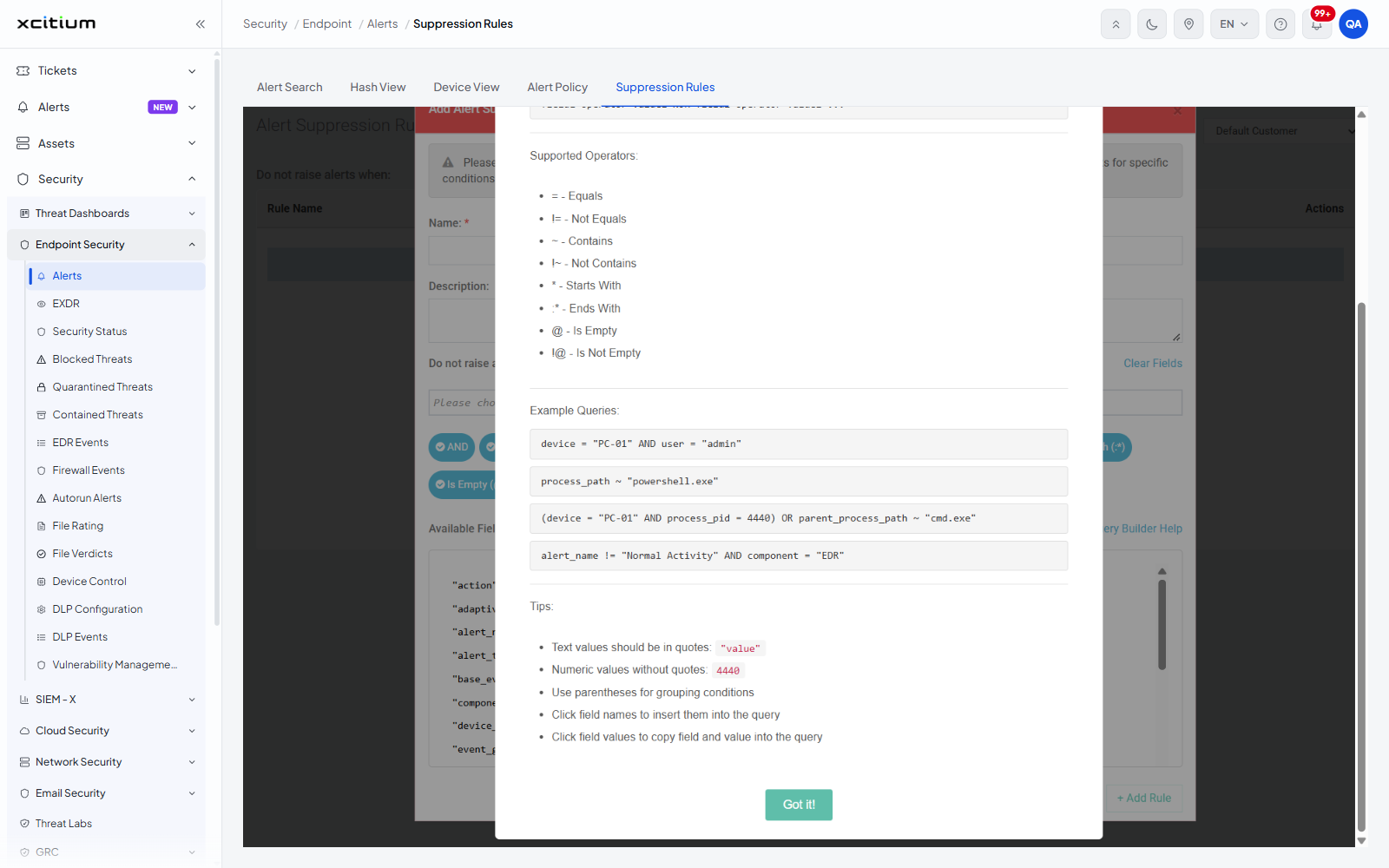
Read the help and go back to the form
- Click 'Query Builder Help' in the 'Add Alert Suppression Rule' form.
- Scroll the panel to read the examples and the tips.
- Click 'Got it!' at the bottom. The panel closes and the form is as you left it.
Note: the last two tips describe how the 'Available Fields' panel works — clicking a field name inserts the name, clicking a value inserts the name and the value together.