


Associated Devices (Windows Profile)
- Open a Windows profile, then click the 'Associated Devices' tab.
'Associated Devices' lists the devices this profile is attached to. The list shows the devices that have the profile, one row for each device. A profile that is not attached to anything shows its headings over the message 'No results found.'
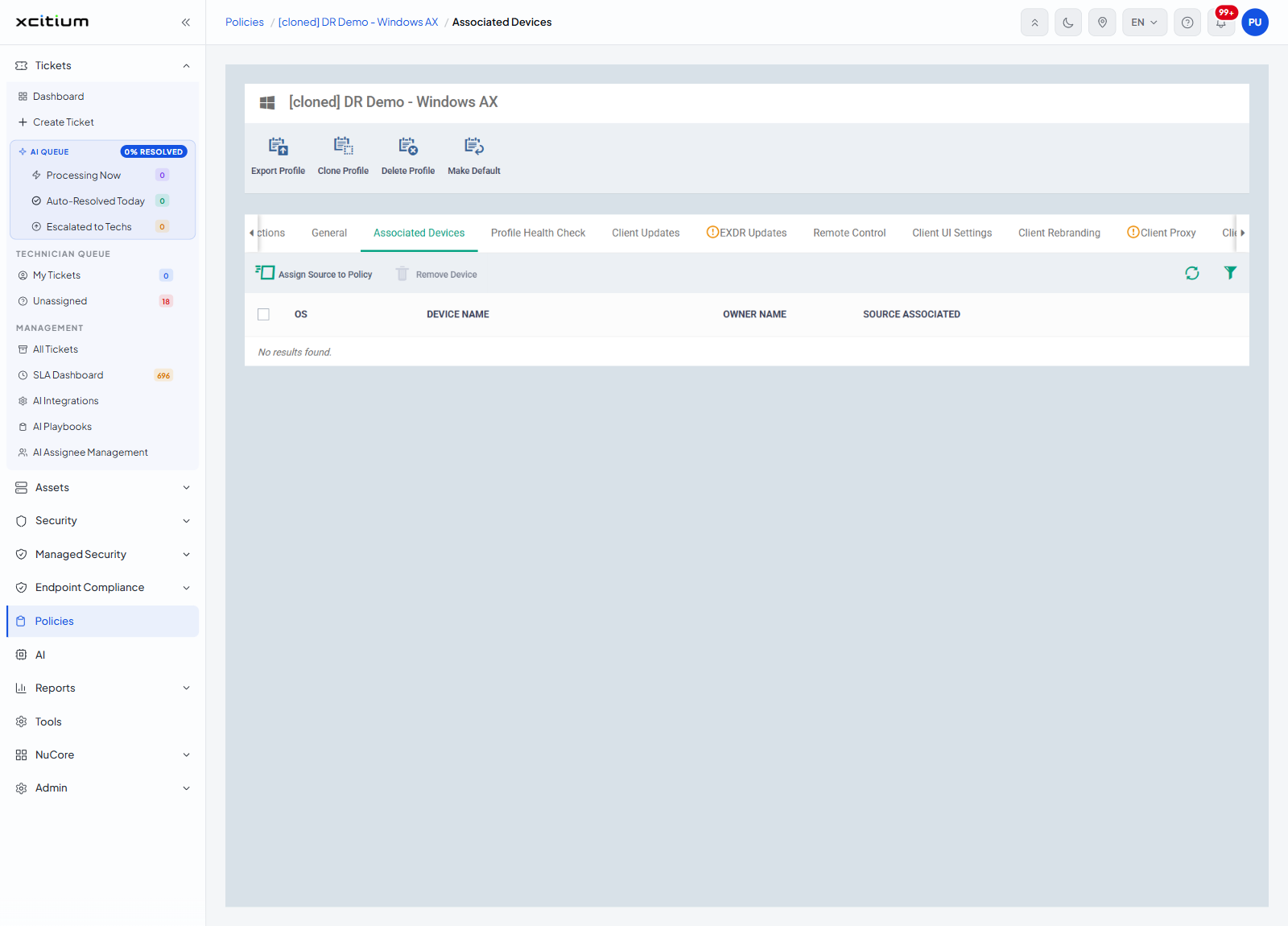
Toolbar
| Button | Description |
| Assign Source to Policy | Opens a dialog where you choose the users, user groups, devices, device groups or customers the profile is assigned to. Available even when the list is empty. |
| Remove Device | Removes the ticked devices from the profile. Greyed out until a row is ticked. |
| Table refresh (circular arrows, right of the list header) | Reloads the list. |
| Table filter (funnel, right of the list header) | Opens the filter controls for the list. |
Assign Source to Policy
Click 'Assign Source to Policy' in the toolbar. The button is available even when the list is empty. The 'Assign Source to Policy' dialog opens.
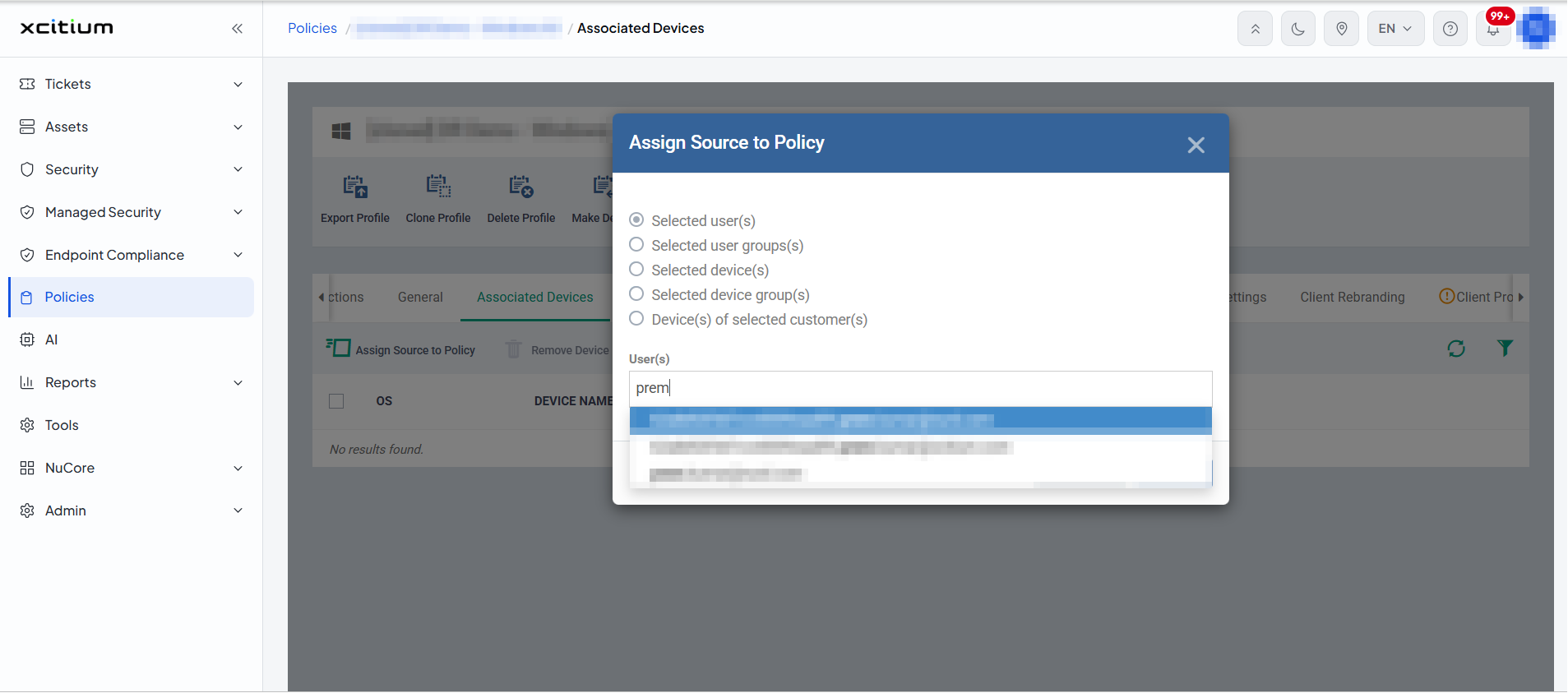
The top of the dialog offers five options, one of which is chosen with a round button. 'Selected user(s)' is chosen when the dialog opens.
| Option | What it covers |
| Selected user(s) | The devices of the users you pick in the 'User(s)' field. |
| Selected user group(s) | Groups of users. |
| Selected device(s) | Individual devices. |
| Selected device group(s) | Groups of devices. |
| Device(s) of selected customer(s) | The devices that belong to the customers you pick. |
Under the options, the 'User(s)' field is a search box. Type part of a name or e-mail address and a drop-down list shows the matching entries; click an entry to select it. Close the dialog with the X at the top right to leave without assigning anything.
Remove Device
Tick one or more devices in the list, then click 'Remove Device'. The button is greyed out until a row is ticked. A 'Remove Device from Policy' dialog opens with a red title bar and asks 'Do you really want to delete the selected device(s) from the profile?'
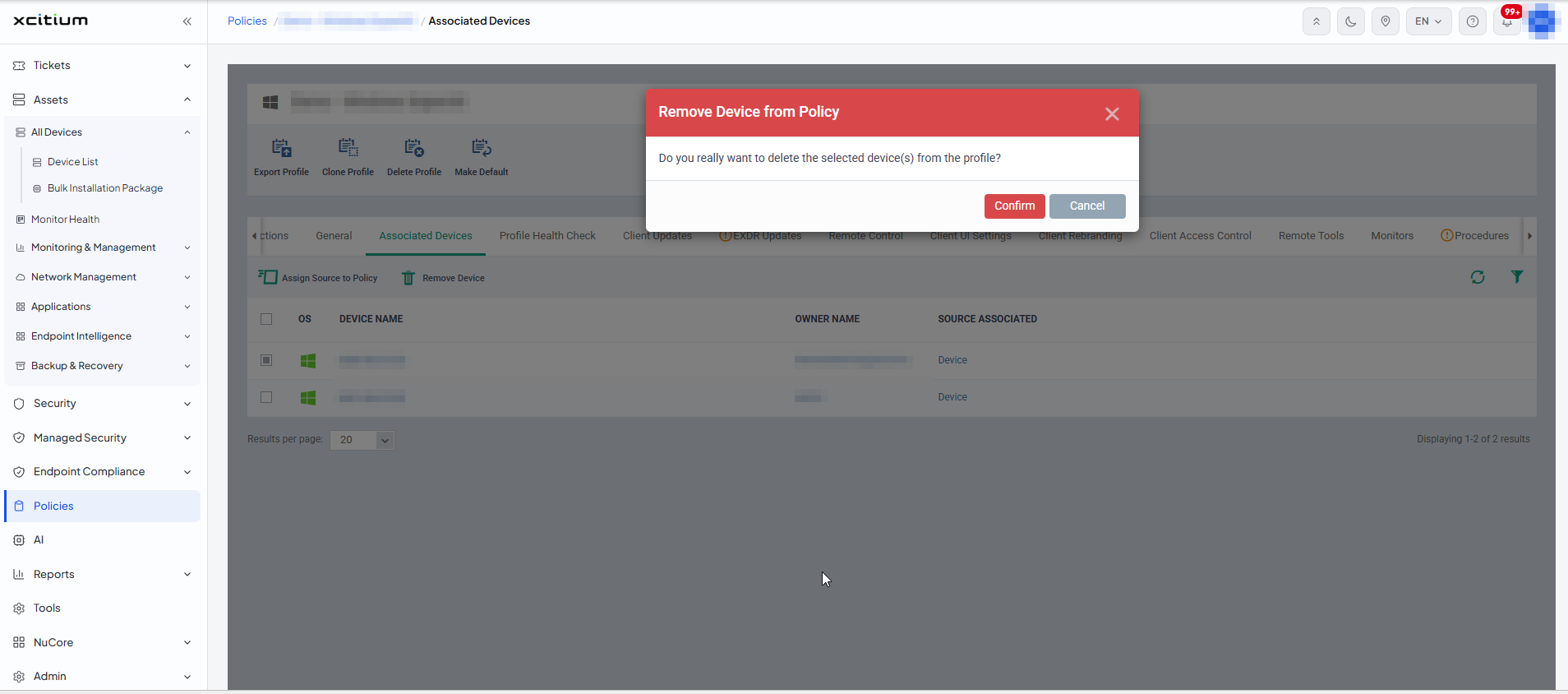
Click 'Confirm' to remove the ticked devices from the profile, or 'Cancel' (or the X) to leave the list as it is.
Note: removing a device changes which devices the profile reaches. Check the ticked rows before you click 'Confirm'.
Columns
| Column | Description |
| Check box (first column) | Ticks the row so the toolbar buttons become available. |
| OS | An icon for the device's operating system. |
| DEVICE NAME | The name of the device. |
| OWNER NAME | The user the device belongs to. |
| SOURCE ASSOCIATED | Why the device has this profile — because the profile is the default, because it was attached to that device, or because the device is in a group that has it. |
See where a profile is in use
- Click 'Policies' in the left navigation bar.
- Click the number in the '# of associated device' column of the profile's row, or open the profile and click 'Associated Devices'.
- Read 'SOURCE ASSOCIATED' to see how each device picked the profile up.