


Issues
- Click 'Security' > 'Cloud Security' > 'Issues' to open this interface.
Issues is the working list of everything wrong in your connected clouds, containers and code. One row is one finding against one asset: a missing patch, a misconfiguration, an exposed resource. The screen runs inside the embedded cloud security console.
You can search and filter the findings, group them, switch between the flat list and the summary, save a filter for next time, and automate what happens to a finding with a rule.
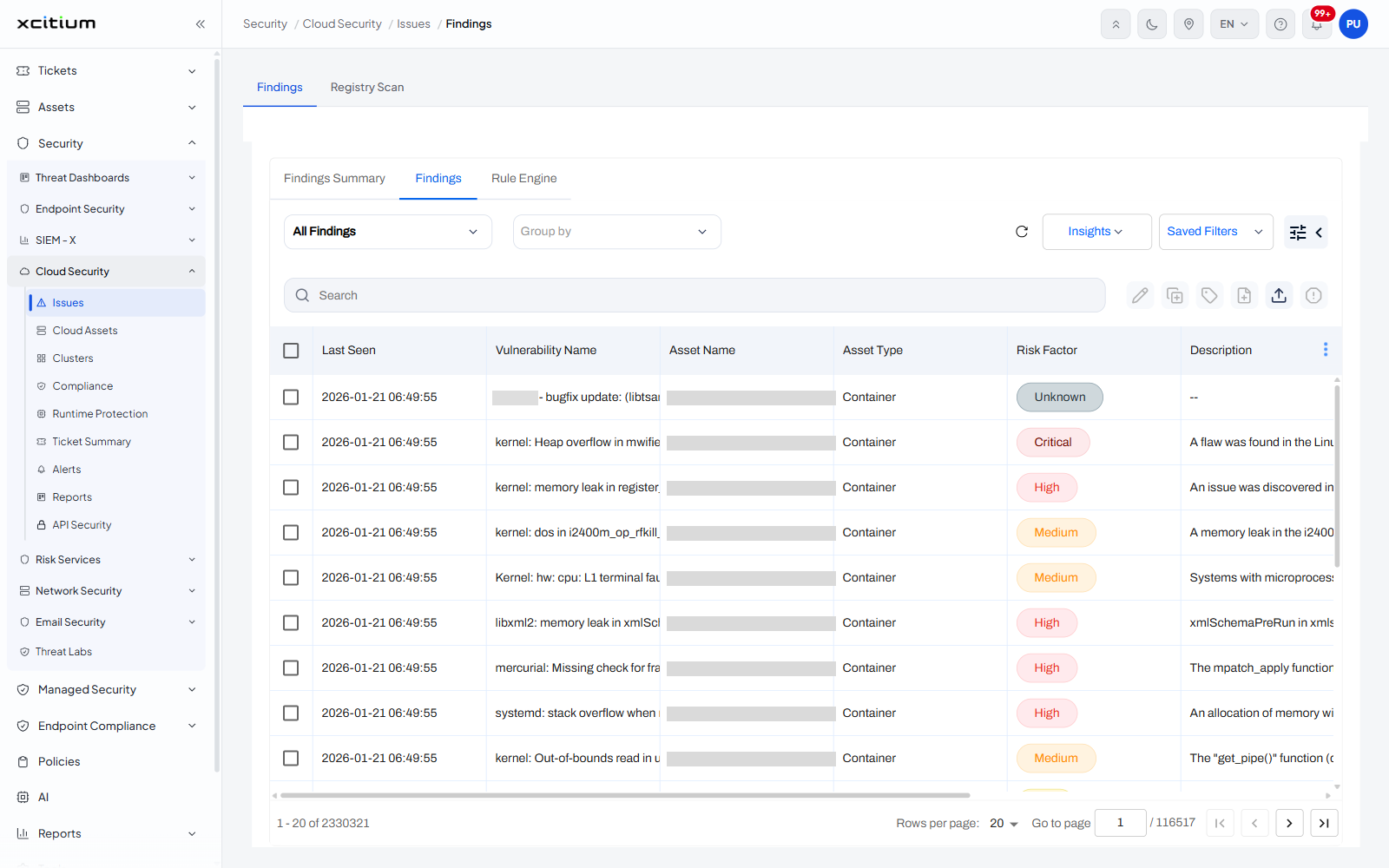
The interface
The portal puts two tabs above the console: 'Findings', the one it opens on, and 'Registry Scan'. Inside the console are three more tabs.
| Tab | Description |
| Findings Summary | The same findings counted by category and severity. See Findings Summary. |
| Findings | The flat list of findings. The tab the console opens on. |
| Rule Engine | Rules that act on findings automatically. See Rule Engine. |
Controls above the list
| Control | Description |
| All Findings | A drop-down that chooses which set of findings the list shows. |
| Group by | A drop-down that groups the rows by a field. Empty by default. |
| Refresh | A circular-arrow icon that reloads the list. |
| Insights | A drop-down of saved views over the findings. |
| Saved Filters | A drop-down of filters that have been saved. The count beside it is the number saved. |
| Filter panel toggle | The two icons at the far right open and collapse the filter panel. |
| Search | A full-width box with the placeholder 'Search'. |
| Row action icons | Six icons at the right of the search row - a pencil, a duplicate, a tag, a document, an upload and an information icon - which act on the findings you have selected. |
Column descriptions
| Column | Description |
| (check box) | Selects the finding. A select-all check box sits in the header row. |
| Last Seen | When the finding was last confirmed, as date and time. |
| Vulnerability Name | The finding itself, usually the advisory or CVE text, for example 'kernel: Heap overflow in mwifiex_uap_parse_tail_ies function ... CVE-2019-10126'. |
| Asset Name | The asset the finding is against - a container image, a repository, a cloud resource. |
| Asset Type | What kind of asset it is. Values seen: 'Container', 'IaC_github-repository'. |
| Risk Factor | The severity, shown as a coloured pill. Values seen: 'Critical', 'High', 'Medium', 'Low', 'Informational', 'Unknown'. |
| Description | The explanation of the finding. Shows '--' where there is none. |
| Status | Where the finding stands. Value seen: 'Active'. |
| Label | The label the asset was onboarded under. |
| Asset Tags | The tags on the asset. Shows '--' where there are none. |
A three-dot icon at the right of the header row chooses which columns are shown.
Work through the findings
- Choose the set you want from the 'All Findings' drop-down.
- Type in the 'Search' box, or open the filter panel with the icon at the right of the toolbar, to narrow the list.
- Use 'Group by' to collapse the rows by a field such as asset or severity.
- Save the filter from 'Saved Filters' if you will want it again.