Comodo Help
Find the desired product help
Xcitium MSP

Xcitium MSP

Xcitium MSP Administrator Guide

English

Print Help
Endpoint Compliance > Work With Endpoint Compliance Lists
  • Introduction
    • Key Concepts
    • Best Practices
    • Log In To The Console
      • Reset Your Password
    • The Admin Console
    • The Dashboard
  • Tickets
    • Dashboard
    • Create Ticket
    • AI Queue
      • Processing Now
      • Auto-Resolved Today
      • Escalated To Technicians
    • Technician Queue
      • My Tickets
      • Unassigned Tickets
      • Assign A Ticket From The Unassigned Queue
    • Management
      • All Tickets
        • Ticket Detail
          • Edit A Ticket
          • Reply To A Ticket Or Add An Internal Note
          • View The Activity Log
          • Reassign A Ticket
          • Change Ticket Priority
          • Manage Ticket Attachments
          • Resolve, Close And Reopen A Ticket
          • Merge Tickets
          • AI Insights On A Ticket
          • SLA Status On A Ticket
      • SLA Dashboard
      • AI Integrations
      • AI Playbooks
        • Create A Playbook
        • Playbook Approvers
        • Playbook Tools
      • AI Assignee Management
        • Add An Assignee
        • Add A New User
  • Assets
    • All Devices
      • Device List
        • Filter The Device List
        • Group Management
          • Create A Device Group
        • Enroll A Device
          • Set The Enrollment Options
          • Send The Enrollment Link
          • Enrollment Reference Pages
        • Device Details
          • View And Edit The Device Name
          • View Device Summary Information
          • View Network Information
          • View Policies Associated With A Device
            • Review Profile Suggestions
          • View Applications Installed On A Device
          • View The Command Queue
          • View MSI Installation State
          • View And Manage Patches On A Device
          • View A Device's Groups
          • View Device Logs
          • Manage A Device's Policies
          • Run A Procedure On A Device
          • Install And Manage Packages On A Device
          • Reboot Or Shut Down A Device
          • Collect Performance Logs
          • Change A Device's Owner
          • Delete A Device
      • Bulk Installation Package
        • Customize A Bulk Package
        • Download Remote Control
    • Monitor Health
      • Customize The Monitor Health Cards
    • Monitoring And Management
      • Alerts
        • Create An Alert
        • Configure Alert Settings
        • Set Alert Recipients
      • Procedures
        • Manage Procedure Folders
        • Filter The Procedures List
        • Create A Procedure
        • A Procedure's General Tab
        • View And Edit A Procedure's Script
        • A Procedure's Schedule Tab
        • A Procedure's Execution Log
          • View Execution Details Of A Run
        • A Procedure's Parameters Tab
        • Run A Procedure
        • Clone, Export And Delete Procedures
      • Monitors
        • Filter The Monitors List
        • Create A Monitor
        • A Monitor's General Tab
        • A Monitor's Conditions Tab
          • Add A Performance Condition
          • Add A File Size Condition
          • Add A Folder Size Condition
          • Add A Disk Condition
          • Add A Service Condition
          • Add A Process Condition
          • Add An Event Condition
          • Add A TCP Condition
          • Add A Ping Condition
          • Add A Web Page Condition
          • Add A Device Status Condition
          • Add A Custom Script Condition
          • Add A Security Events Condition
          • Add A Security Client Events Condition
          • Add An OS Patches Event Condition
        • A Monitor's Policies Tab
        • A Monitor's Logs Tab
        • Clone, Import, Export And Delete Monitors
      • Maintenance Windows
        • Add A Maintenance Window
        • Maintenance Window Settings
        • View A Maintenance Window
        • Filter The Maintenance Windows List
    • Network Management
      • Discoveries
        • Filter The Discoveries List
        • Create A Discovery
        • A Discovery's General Tab
        • Discovery Auto Enrollment
        • Discovery Notifications
        • Schedule A Discovery
        • Discovery Logs
        • Clone And Delete Discoveries
      • Network Profiles
        • A Network Profile's Tabs
      • Network Devices
        • Filter The Network Devices List
      • Network Monitors
        • A Network Monitor's Tabs
        • A Network Monitor's Conditions Tab
          • Add A Network Uptime Condition
          • Add A Network Performance Condition
          • Add A Network Disk Condition
          • Add A Network Device Status Condition
          • Add An OID Condition
      • Blueprints
        • A Blueprint's Tabs
          • Add A Blueprint Condition
    • Applications
      • Desktop Application Control
        • Filter The Software Inventory
        • An Application's Pages
        • Create A File Group Variable
        • The Windows Application Store
      • Mobile Application Control
      • Patch Management
        • Filter The Patch List
        • A Patch's Info Pages
        • Create A Windows Patch Procedure
        • Third Party Application Patches
    • Endpoint Intelligence
      • The Endpoint Intelligence Dashboard
      • Device Queries
        • The Schema Reference
      • The Query Library
      • Endpoint Intelligence Monitors
        • Create An Endpoint Intelligence Monitor
  • Security
    • Threat Dashboards
      • Endpoint Threat Dashboard
      • Cloud Threat Dashboard
        • Add A Cloud Account
        • Add A Cluster, Registry Or Code Repository
      • Endpoint Compliance Dashboard
        • Choose The Endpoint Compliance Widgets
      • CTEM Dashboard
      • CTEM Metrics
      • Xcitium Verdict Cloud Dashboard
        • Choose The Xcitium Verdict Cloud Widgets
    • Endpoint Security
      • Alerts
        • Alert Search
          • Alert Search Filters
          • The Alert List
          • Alert Detail
            • Alert Detail For An EDR Alert
            • Alert Detail For A MITRE-Mapped Alert
        • Hash View
          • File Details
        • Device View
          • Device Detail
        • Alert Policy
          • Alert Policy Detail
            • The Condition Editor
          • Create An Alert Policy
        • Suppression Rules
          • Add A Suppression Rule
            • Query Builder Help
      • EXDR
        • Event Search
        • Choose Aggregation Fields And Result Columns
        • Hash Search
        • Device Search
        • Android Threat History
        • Event View
        • File View
        • Device View
      • Security Status
        • Antivirus Scan History
      • Blocked Threats
      • Quarantined Threats
      • Contained Threats
        • Contained File Details
      • EDR Events
      • Firewall Events
      • Autorun Alerts
      • File Rating
        • Detected Scripts
        • Obsolete Files
      • File Verdicts
      • Device Control
      • DLP Configuration
        • Create A Discovery Rule
        • Create A Monitoring Rule
      • DLP Events
        • DLP Logs
        • DLP Quarantined Files
      • Vulnerability Management
        • Vulnerable Devices
    • SIEM - X
      • Event Collection Summary
      • Event Query
      • Long Term Analysis
      • Report Generation
      • Token Management
        • Network Settings
        • User Settings
        • Sensor Settings
    • Cloud Security
      • Issues
        • Findings Summary
        • Rule Engine
        • Registry Scan
      • Cloud Assets
      • Clusters
      • Compliance
        • Compliance Detailed View
      • Runtime Protection
        • Runtime Policies
      • Ticket Summary
      • Cloud Alerts
        • Alert Triggers
      • Cloud Reports
      • API Security
        • API Specification
        • API Scan
    • Network Security
    • Email Security
      • Email Protection
    • Threat Labs
  • Managed Security
    • Service
      • Alerts, Incidents And Website Vulnerabilities
      • Customer Health
      • Add A New Customer
      • Import Customers
    • Customer Summary
    • Service Summary
    • Incidents
    • Log Collection Summary
    • Reporting
    • Tickets
      • Create A New Ticket
  • Endpoint Compliance
    • Work With Endpoint Compliance Lists
    • Agents
      • LightWeight Agents
      • Probe Agents
      • Deprecated Agents
      • Download And Install An Agent
    • All Assets
      • All Assets - Table View
      • View Asset Details
      • Asset Inventory Tabs
      • Asset Problems, Solutions And Compliance
    • Other Assets
    • Deprecated Assets
    • Problems
    • Solutions
    • Pending OS Patches
    • Ports
    • Patch Management
    • Application Baseline Results
    • Certificates
    • Vulnerabilities
    • Application Vulnerabilities
    • Vulnerability By OS
    • OS Vulnerabilities
    • Network Scan Findings
    • Compliance Standards
    • Compliance Assessment
    • Compliance Check Master
    • Discovery Settings And Credentials
    • Manage Mapping
    • Jobs
    • Alerts
  • Policies
    • The Profile List
      • Create A Profile
      • Import A Profile
      • Export, Clone And Delete Profiles
      • Filter The Profile List
    • Policy Configuration
      • Create A Policy
      • Import A Policy
      • Export And Delete Policies
    • Default Policies
    • Predefined Policies
    • The Policy Editor
      • Policy General Settings
      • Policy Associated Devices
      • Add And Remove Policy Sections
      • Policy Antivirus Settings (Linux)
      • Policy Sections By Operating System
    • The Profile Editor
      • Sections Configuration
      • Add And Remove Profile Sections
      • Profile Sections On Other Operating Systems
      • General (Windows Profile)
      • Associated Devices (Windows Profile)
      • Profile Health Check
      • Client Updates
      • EXDR Updates
      • Remote Control
      • Client UI Settings
      • Client Rebranding
      • Client Proxy
      • Client Access Control
      • Remote Tools
      • Monitors
      • Procedures
      • Patch Management
      • Maintenance Window
      • Global Proxy
      • Client Logging Settings
      • Antivirus
      • Firewall
      • EDR
      • File Rating
      • Containment
      • VirusScope
      • Xcitium Verdict Cloud
      • Agent Discovering Settings
      • External Devices Control
      • Miscellaneous
      • Script Analysis
      • Data Loss Prevention
      • XCS Access Control
      • XCS Proxy
      • XCS Updates
      • XCS UI Settings
      • XCS Logging Settings
      • Performance
      • Applications
      • Chat
      • Thumbnails
  • AI
    • Manage Your AI Agents
      • AI Agent Card Actions
    • Switch Between AI Agents
    • Account Settings
    • Add A New AI Agent
      • Add An AI Agent From The Marketplace
    • Request A Managed AI
    • Manage An AI Agent
      • Agent Dashboard
      • Agent Design
        • Embed The Agent On Your Website
      • Agent Integrations
      • Playbooks
      • Ticket Management
        • Assignee Management
      • Approvers
      • Channels
      • Chat History
      • Agent Repository
      • Try Agent
      • Chat Agent Dashboard
      • Question And Answer
      • AI Cache
      • Candidates
      • Interview Questions
      • Keyword Search
    • AI Training
      • Manage A Training Repository
    • Captured Contacts
      • Custom Contact Fields
      • Email Notification Settings
    • Integrations
      • Webhook Request
  • Customers
    • Add A Customer
    • Edit A Customer
    • Delete A Customer
  • Reports
    • Standard Reports
      • On-Demand Reports
      • Scheduled Reports
      • Create A New Report
      • Edit A Scheduled Report
    • Custom Reports
      • The Report Catalogue
      • Configure And Generate A Custom Report
      • Generated Reports
        • View Generated Report Details
      • Advanced Reports
        • The Advanced Reports Screen
        • Quick Start: Your First Advanced Report
        • Pick The Data For A Report
        • Filter Rows
        • Count And Group Results
        • Change The Chart Or Table
        • Build A Multi-Step Report
          • Sort And Limit Rows
          • Add A Custom Column
          • Combine Two Tables (Join)
        • Save, Open And Manage Reports
        • Download Results And View The SQL
        • Toolbar And Bottom Bar Reference
        • Troubleshooting And Limits
      • Reports Beta
        • Reports Beta: Scheduled Reports
        • Reports Beta: Create A Report
    • SLA Reports
    • Audit Logs
      • Filter The Audit Log
  • Tools
    • The Tool Card And Its Controls
    • Download And Use A Tool
    • Xcitium Cleaning Essentials
    • Threat Hunter Assessment Tool
    • Auto Discovery And Deployment Tool
    • Xcitium Remote Control
    • ITarian Remote Access
    • Agent Removal Tool
  • NuCore
  • Admin
    • Staff
      • Add A Staff Member
      • Edit A Staff Member
    • Users
      • User List
        • View A User
        • Create A User
        • Import Users
      • User Groups
      • Role Management
        • Role Permissions And Scope
    • Integrations
      • Office 365
      • AWS
      • SentinelOne
      • Windows Defender
      • Microsoft Entra
      • Google Workspace
      • CrowdStrike
      • Azure Active Directory
    • Licenses
      • License Details
      • Bill Forecast
      • License Allocations
    • Account
      • Your Account
      • Remote Access Support
    • Settings
      • Ticketing Settings
      • System Templates
      • Portal Setup
      • Dashboard Settings
      • CTEM
      • Data Protection Templates
      • Android EMM
      • Apple Business Manager
      • Support

Work with Endpoint Compliance Lists


  • Click 'Endpoint Compliance' > any page to open a list that uses these controls.

Nearly every page in the 'Endpoint Compliance' section presents its data in the same kind of list. The list sits inside a card whose heading gives the list name and, in a coloured chip beside it, the number of records in the list. The controls described here behave the same way on every one of those lists, so they are documented once.

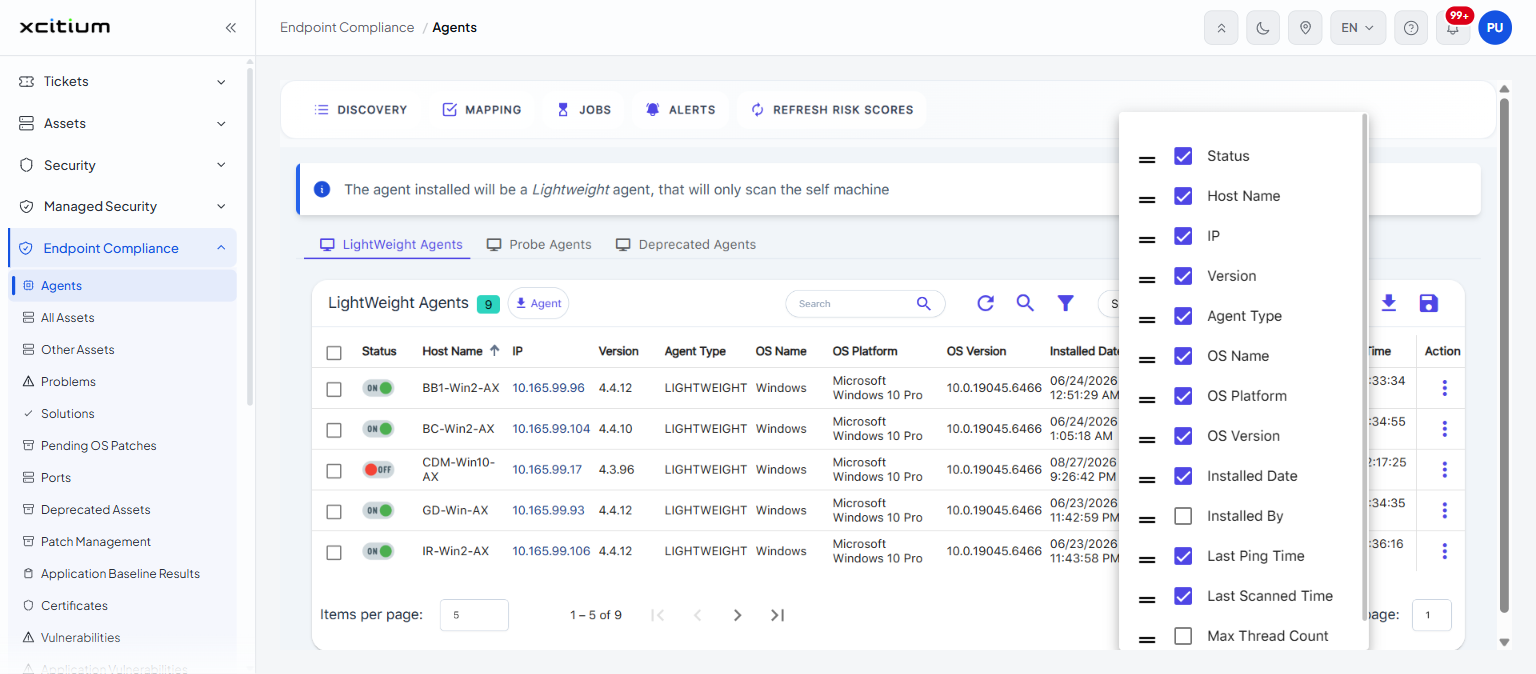
You can search, filter, sort, choose and reorder columns, change the text size, set an automatic refresh interval, export to CSV and save your settings from this toolbar.
Xcitium_MSP_1.png

Toolbar controls

Control Description
Search A text box with a magnifier button. Type a term and the list is reduced to matching rows.
Reload Table Data Fetches the list again from the service.
Global Search A toggle. When it is switched on the button is highlighted and the 'Search' box searches beyond the rows currently loaded.
Filter Table Data Opens the filter builder described below.
Change Font Size A drop-down that sets the text size of the list. The options are 'Small', 'Medium' and 'Large'. The default is 'Small'.
Refresh Interval A drop-down that sets how often the list reloads by itself. The options are 'No Refresh', '1 Min', '5 Min' and '30 Min'. The default is 'No Refresh'.
View Column, Reorder Columns Opens the column chooser described below.
Download as CSV Exports the list to a CSV file. The download starts as soon as you click the button.
Save Settings Stores your current choice of columns, column order, filter and display settings for this list.

Choose and reorder columns

Xcitium_MSP_2.png

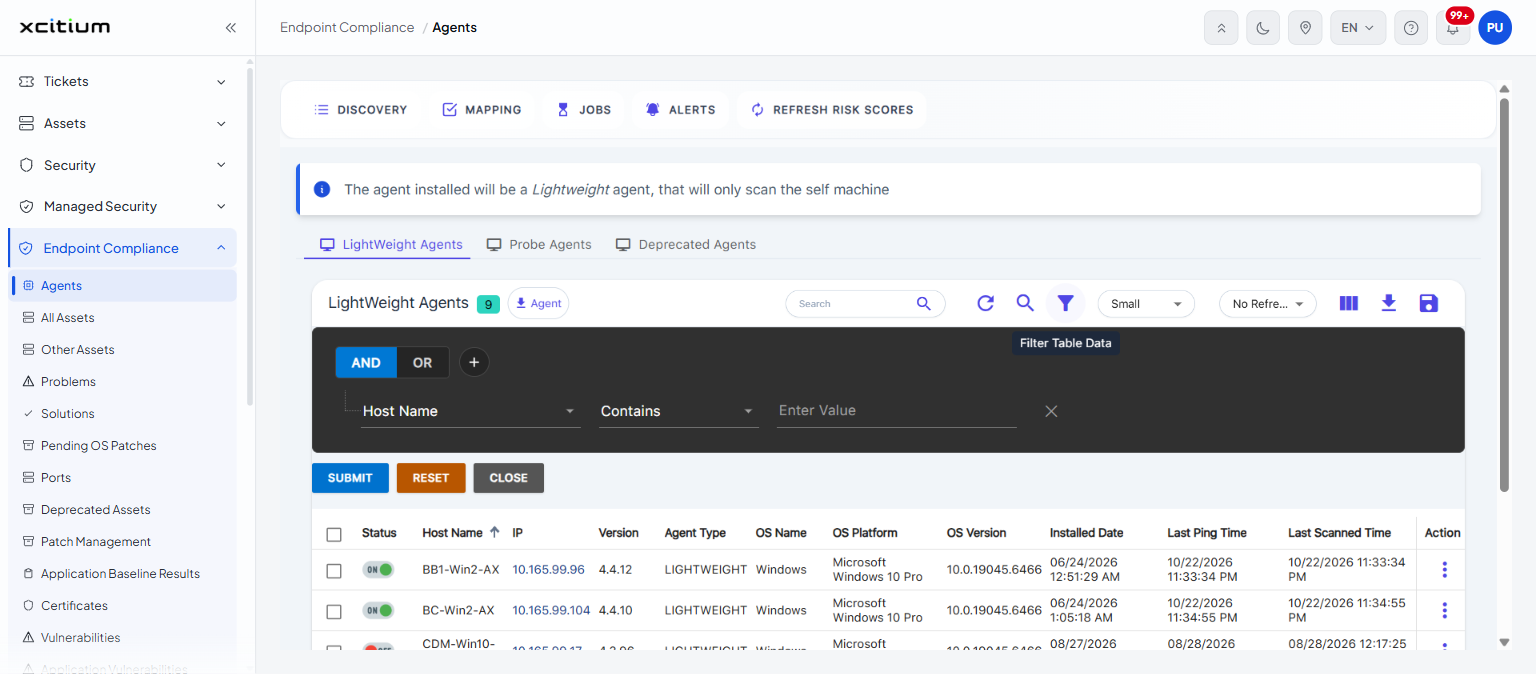
Click the 'View Column, Reorder Columns' button to open the column chooser. It lists every column the list can show, each with a check box and a drag handle.

  1. Clear a check box to hide that column, or tick it to show the column.

  2. Drag a row by its handle to move that column left or right in the list.

  3. Click outside the panel to close it.

Note: columns that are hidden by default still appear in this panel. Tick them to add them to the list.

Filter a list
Xcitium_MSP_3.png

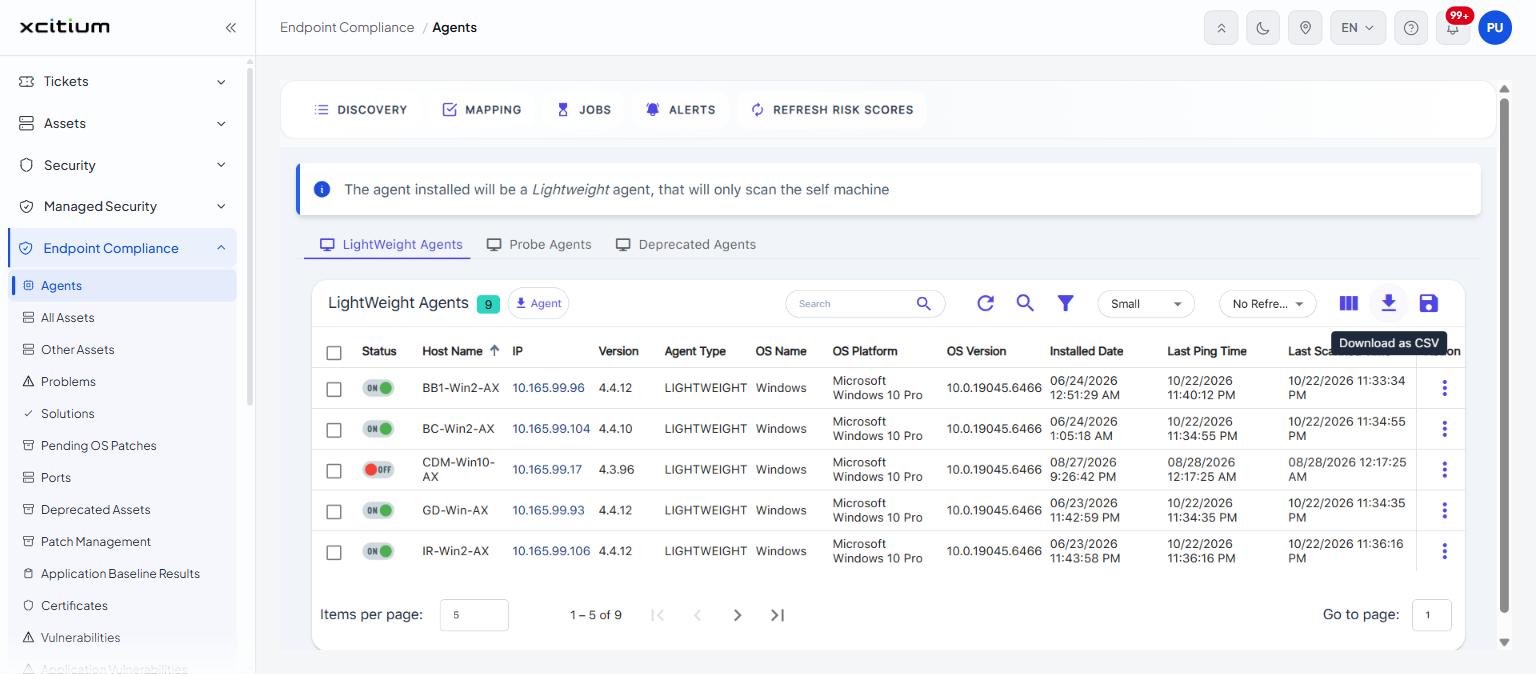
Click the 'Filter Table Data' button to open the filter builder above the list. It builds one or more conditions and applies them together.

Control Description
AND / OR Two buttons that set how multiple conditions are combined. 'AND' is selected by default.
+ Adds another condition row.
Select a field A drop-down listing the fields you can filter on. The fields offered depend on the list.
Operator A drop-down that appears once a field is chosen. For a text field the options are 'Contains', 'Does Not Contain', 'Equal', 'Not Equal', 'Starts With', 'Ends With', 'Is Null' and 'Is Not Null'. 'Contains' is the default.
Value Where you type what to match. For a text field this is a box with the placeholder 'Enter Value'. For a field with a fixed set of values it is a drop-down whose first entry is 'Select Value'.
X Removes that condition row.
SUBMIT Applies the filter to the list.
RESET Clears the conditions.
CLOSE Closes the filter builder.

Xcitium_MSP_4.png


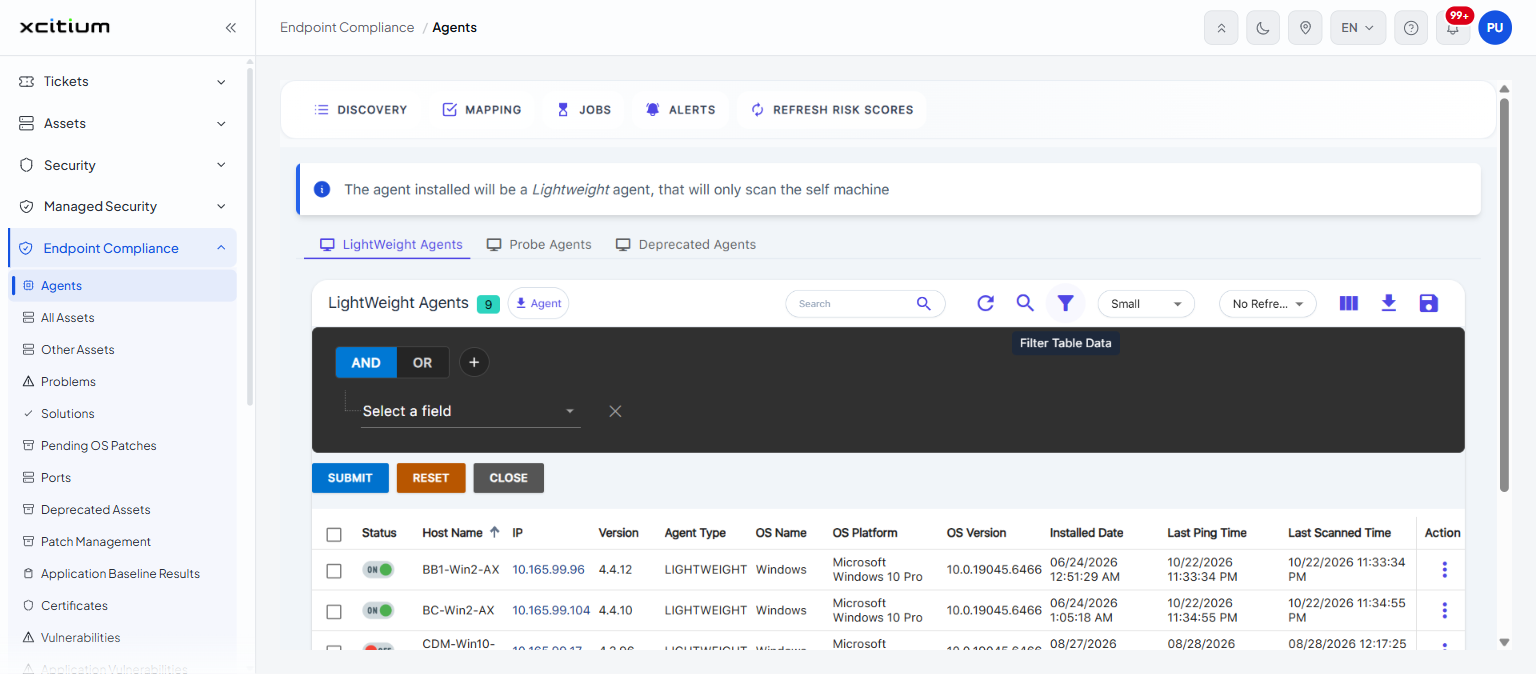
To filter a list:

  1. Click the 'Filter Table Data' button.

  2. Choose a field from the 'Select a field' drop-down.

  3. Choose an operator.

  4. Type or choose the value to match.

  5. Click '+' and repeat if you want more than one condition, then choose 'AND' or 'OR'.

  6. Click 'SUBMIT'.

Note: the operators and the value control change with the field you pick. A status field, for example, offers only 'Equal' and 'Not Equal', and its value is chosen from a list rather than typed.

Page through a list

The controls below the list set how much of it you see at once:

Control Description
Items per page: A number box that sets how many rows are shown on a page. The default is 5; the lowest value accepted is 1 and the highest is 100.
Range Text showing which rows you are looking at and how many there are in total, for example '1 - 5 of 9'.
First page / Previous page / Next page / Last page Four buttons that move between pages. They are greyed out when there is nowhere to move.
Go to page: A number box. Type a page number to jump straight to it.

Sort a list

Click a column heading to sort the list by that column. An arrow appears in the heading to show the direction. Click the heading again to reverse it.

Select rows

Most lists have a check box in the leftmost column of each row, and a check box in the column heading that selects every row on the page.


Our Products
  • Free Antivirus
  • Free Internet Security
  • Website Malware Removal
  • Free Anti-Malware
  • Anti-Spam (Free Trial)
  • Windows Antivirus
  • Antivirus for Windows 7
  • Antivirus for Windows 8
  • Antivirus for Windows 10
  • Antivirus for MAC
  • Antivirus for Linux
  • Free Endpoint Security
  • Free ModSecurity
  • Free RMM
  • Free Website Malware Scanner
  • Free Device Manager for Android
  • Free Demo
  • Network Security
  • Endpoint Protection
  • Antivirus for Android
  • Comodo Antivirus
  • Wordpress Security
Cheap CDN
  • Bootstrap CDN
  • Semantic UI CDN
  • Jquery CDN
  • CDN Plans
  • CDN
  • Free CDN
Enterprise
  • Patch Management Software
  • Patch Manager
  • Service Desk
  • Website Down
  • Endpoint Protection Solutions
  • Website Security Check
  • Remote Monitoring and Management
  • Website Security
  • Device Manager
  • ITSM
  • CRM
  • MSP
  • Android Device Manager
  • MDR Services
  • Managed IT Support Services
  • Free EDR
Free SSL Certificate
Support Partners Terms and Conditions Privacy Policy

© Comodo Group, Inc. 2026. All rights reserved.