


Channels
- Click 'AI' > 'AI Agent' > 'Manage Your AI Agent', then click 'Channels' (under the three-dot button on the tab bar if it is not shown).
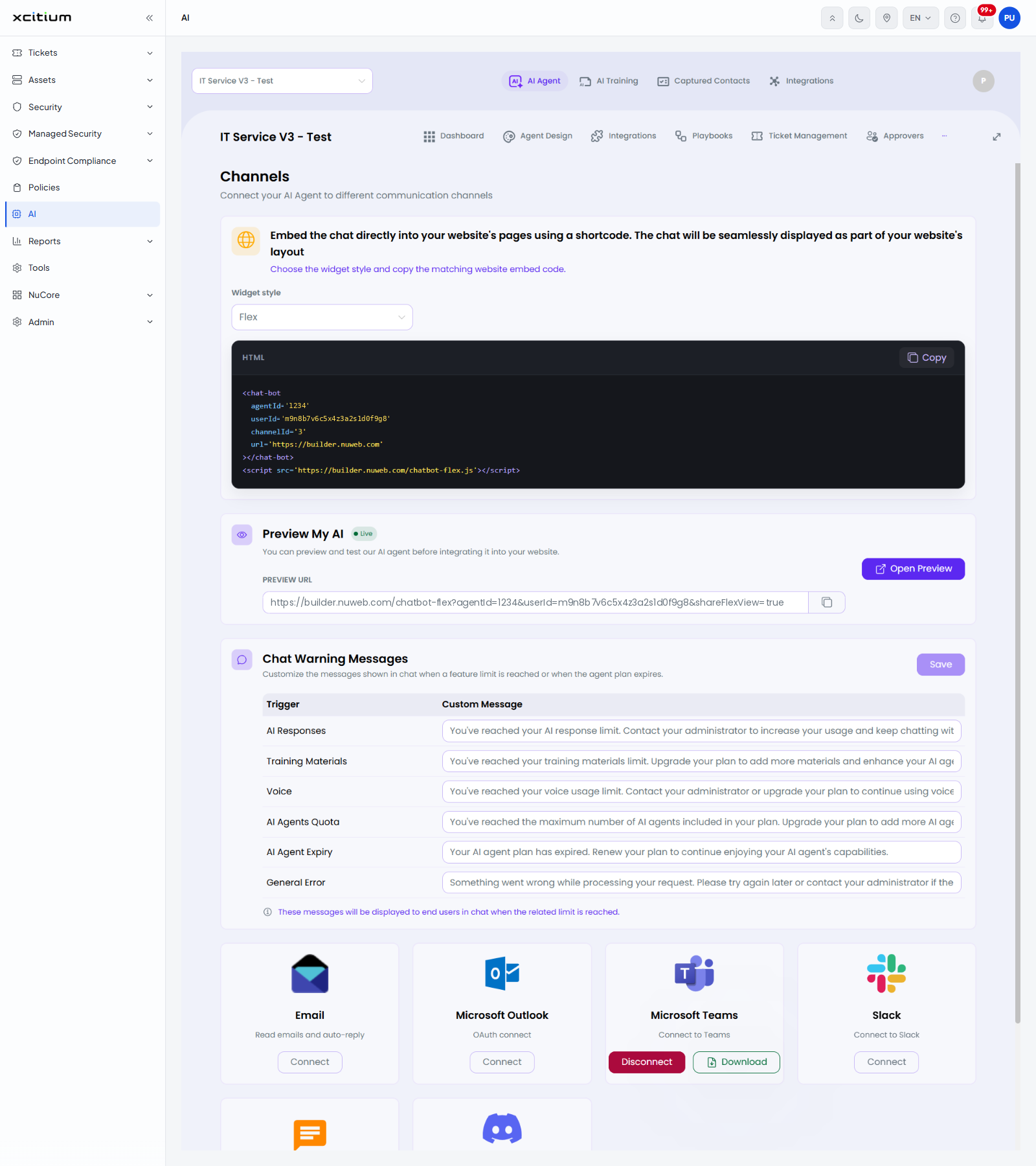
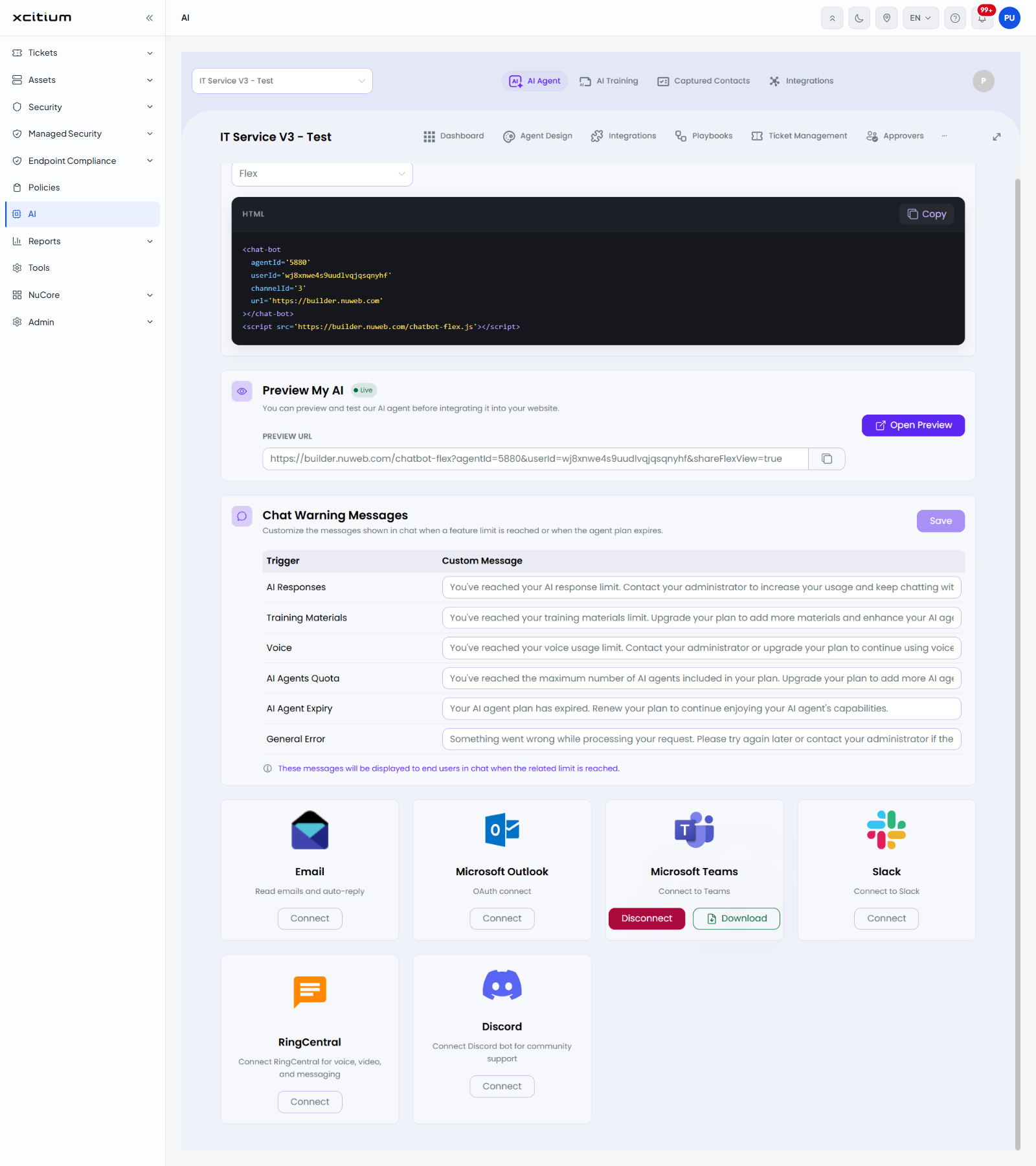
The screen is headed 'Channels' with the line 'Connect your AI Agent to different communication channels'. It holds the website embed code, the preview address, the warning messages the agent shows when a limit is reached, and a card for every other channel.
Website embed
'Embed the chat directly into your website's pages using a shortcode. The chat will be seamlessly displayed as part of your website's layout', followed by 'Choose the widget style and copy the matching website embed code.'
| Control | Description |
| Widget style | Drop-down with the options 'Floating', 'Corner' and 'Flex'. |
| HTML | A read-only code block holding the snippet for the chosen style, with a 'Copy' button. |
Preview My AI
'You can preview and test our AI agent before integrating it into your website.' A marker shows whether the agent is 'Live'. The panel holds a read-only 'PREVIEW URL' with a copy button and an 'Open Preview' button.
Chat Warning Messages
'Customize the messages shown in chat when a feature limit is reached or when the agent plan expires.' Each row has a trigger and the message shown to the person chatting. A 'Save' button sits at the top right of the panel, and a note underneath reads 'These messages will be displayed to end users in chat when the related limit is reached.'
| Trigger | Custom Message |
| AI Responses | Shown when the AI response limit is reached. |
| Training Materials | Shown when the training materials limit is reached. |
| Voice | Shown when the voice usage limit is reached. |
| AI Agents Quota | Shown when the number of AI agents in the plan is reached. |
| AI Agent Expiry | Shown when the AI agent plan has expired. |
| General Error | Shown when a request cannot be processed. |
The channel cards
| Channel | Card text | Buttons |
| Read emails and auto-reply | Connect | |
| Microsoft Outlook | OAuth connect | Connect |
| Microsoft Teams | Connect to Teams | Disconnect, Download |
| Slack | Connect to Slack | Connect |
| RingCentral | Connect RingCentral for voice, video, and messaging | Connect |
| Discord | Connect Discord bot for community support | Connect |
Add the agent to your website
- Click 'AI' > 'AI Agent' > 'Manage Your AI Agent' > 'Channels'.
- Choose 'Floating', 'Corner' or 'Flex' in 'Widget style'.
- Click 'Copy' on the HTML block.
- Paste the snippet into your website.
- Click 'Open Preview' to check it.
Connect another channel
- Scroll to the channel cards.
- Click 'Connect' on the channel and complete the sign-in it asks for.
- On a connected channel the button changes to 'Disconnect'. 'Microsoft Teams' also offers 'Download' for the Teams app package.
Note: The preview address and the embed snippet contain the agent id and a user id. Treat them as confidential.