


A Patch's Info Pages
- Click 'Assets' > 'Applications' > 'Patch Management', then click a patch title, or the count in its 'Installed' column.
The patch opens on two tabs: what the patch is and what it fixes, and which of your devices have it.
You can read the vendor description, see the bulletin and CVE identifiers, and check the state of the patch on each device.
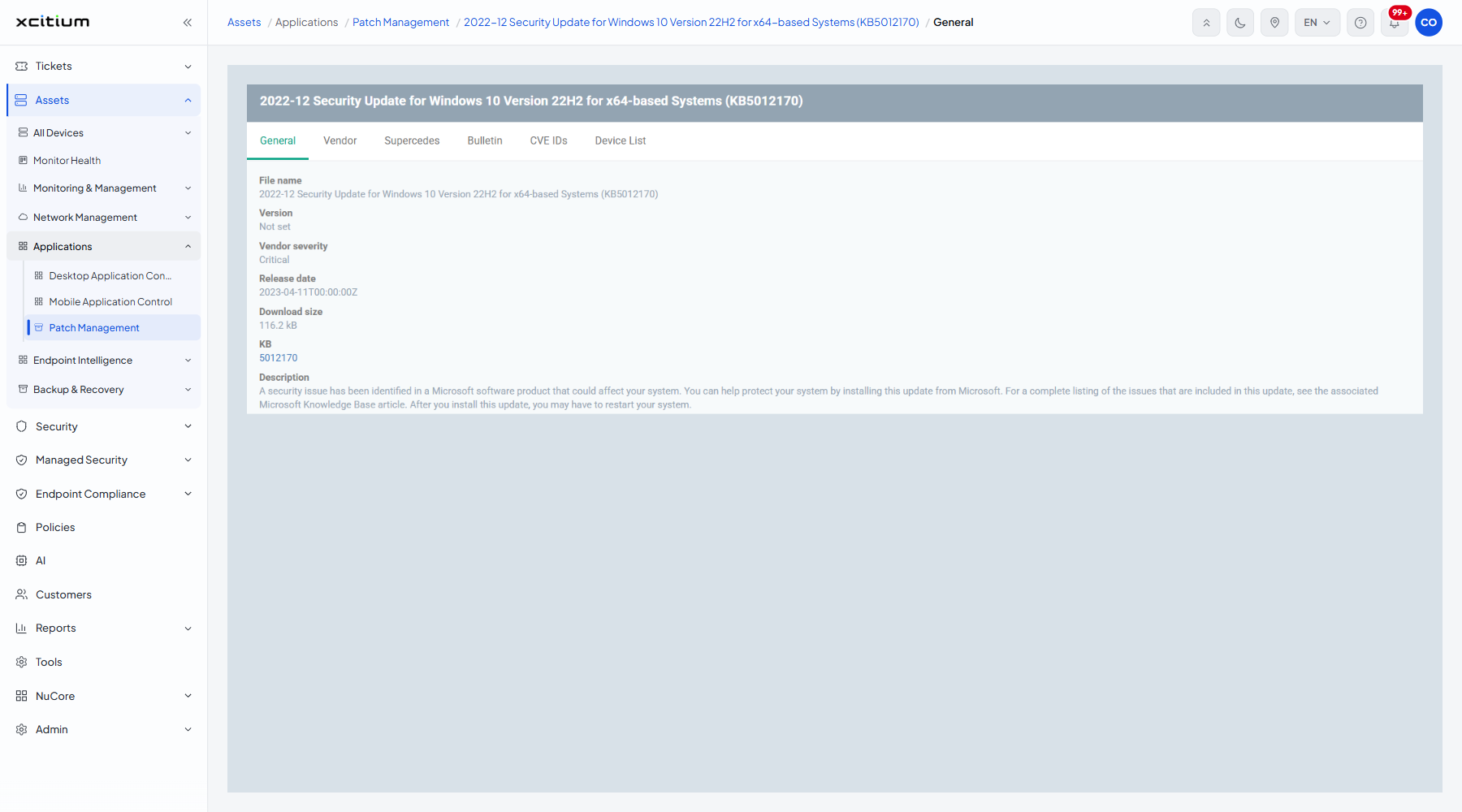
The General tab
The tab is divided into sections: 'General', 'Vendor', 'Supercedes', 'Bulletin' and 'CVE IDs'. The General section carries:
| Column | Description |
| File name | The full name of the patch, matching the Title on the list. |
| Version | The version of the patch. Reads 'Not set' when the vendor supplies none. |
| Vendor severity | How serious the vendor rates the issue, for example 'Critical'. |
| Release date | When the vendor published the patch. |
| Download size | How large the patch is. |
| KB | The knowledge base number. |
| Description | The vendor description of what the patch fixes and whether it needs a restart. |
The remaining sections list the vendor, the patches this one supersedes, the security bulletin it belongs to and the CVE identifiers it addresses.
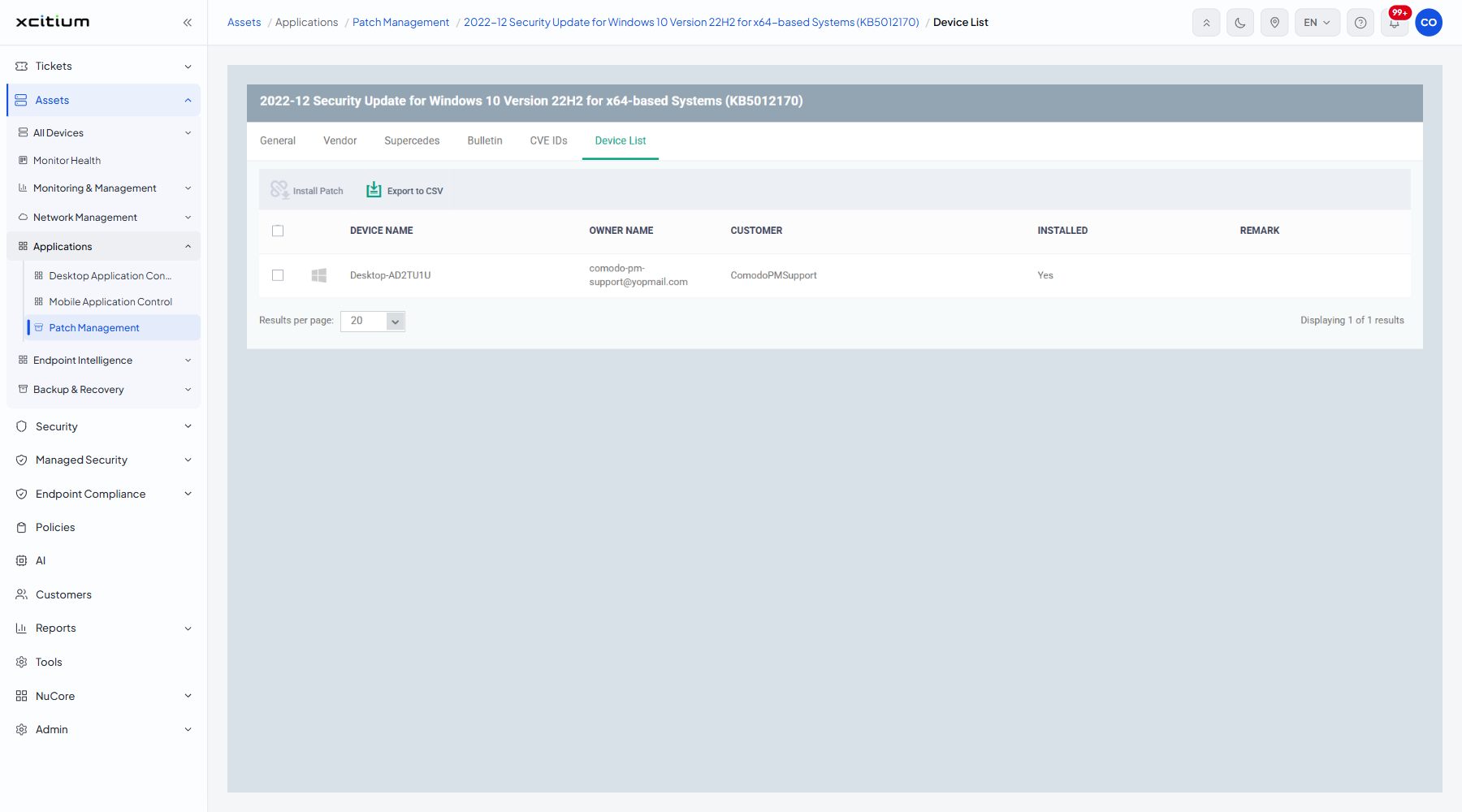
The Device List tab
| Column | Description |
| Device name | The managed device. |
| Owner Name | The user that device is assigned to. |
| Customer | The customer the device belongs to. |
| Installed | Whether the patch is on that device. |
| Remark | Any note about the state of the patch on that device, such as why it failed. |
Find out why a patch is missing from a device
- Click 'Assets' > 'Applications' > 'Patch Management'.
- Click the patch title.
- Open the 'Device List' tab.
- Find the device and read its 'Installed' and 'Remark' values.