


Ticket Management
- Click 'AI' > 'AI Agent' > 'Manage Your AI Agent' > 'Ticket Management' to open this interface.
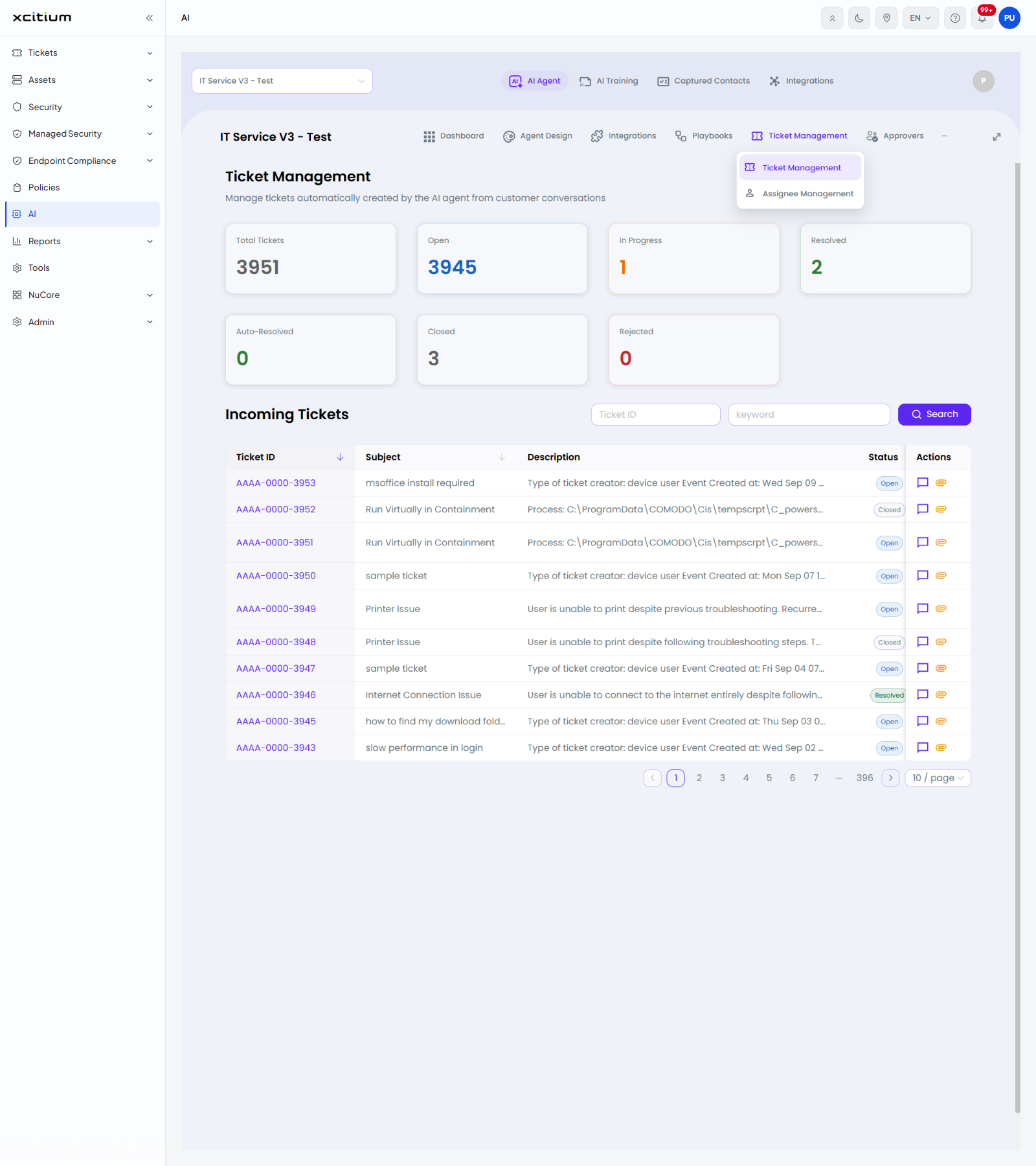
The screen is headed 'Ticket Management' with the line 'Manage tickets automatically created by the AI agent from customer conversations'. It shows a set of counts for the agent's tickets and a searchable list of the tickets themselves.
Hovering the 'Ticket Management' tab opens a short menu with two items, 'Ticket Management' and 'Assignee Management'.
The count cards
| Card | Description |
| Total Tickets | Every ticket the agent has raised. |
| Open | Tickets still open. |
| In Progress | Tickets being worked on. |
| Resolved | Tickets resolved. |
| Auto-Resolved | Tickets the agent resolved without a technician. |
| Closed | Tickets closed. |
| Rejected | Tickets rejected. |
Incoming Tickets
Two boxes and a button filter the list: a 'Ticket ID' box, a 'keyword' box and a 'Search' button.
| Column | Description |
| Ticket ID | The reference of the ticket, shown as a link. The column can be sorted. |
| Subject | The title of the ticket. The column can be sorted. |
| Description | The opening text of the ticket. |
| Status | The state of the ticket, for example 'Open', 'Closed' or 'Resolved'. |
| Actions | Two buttons. The first opens the 'Chat Conversation' dialog for the ticket. The second opens the ticket in the service desk in a new browser tab. |
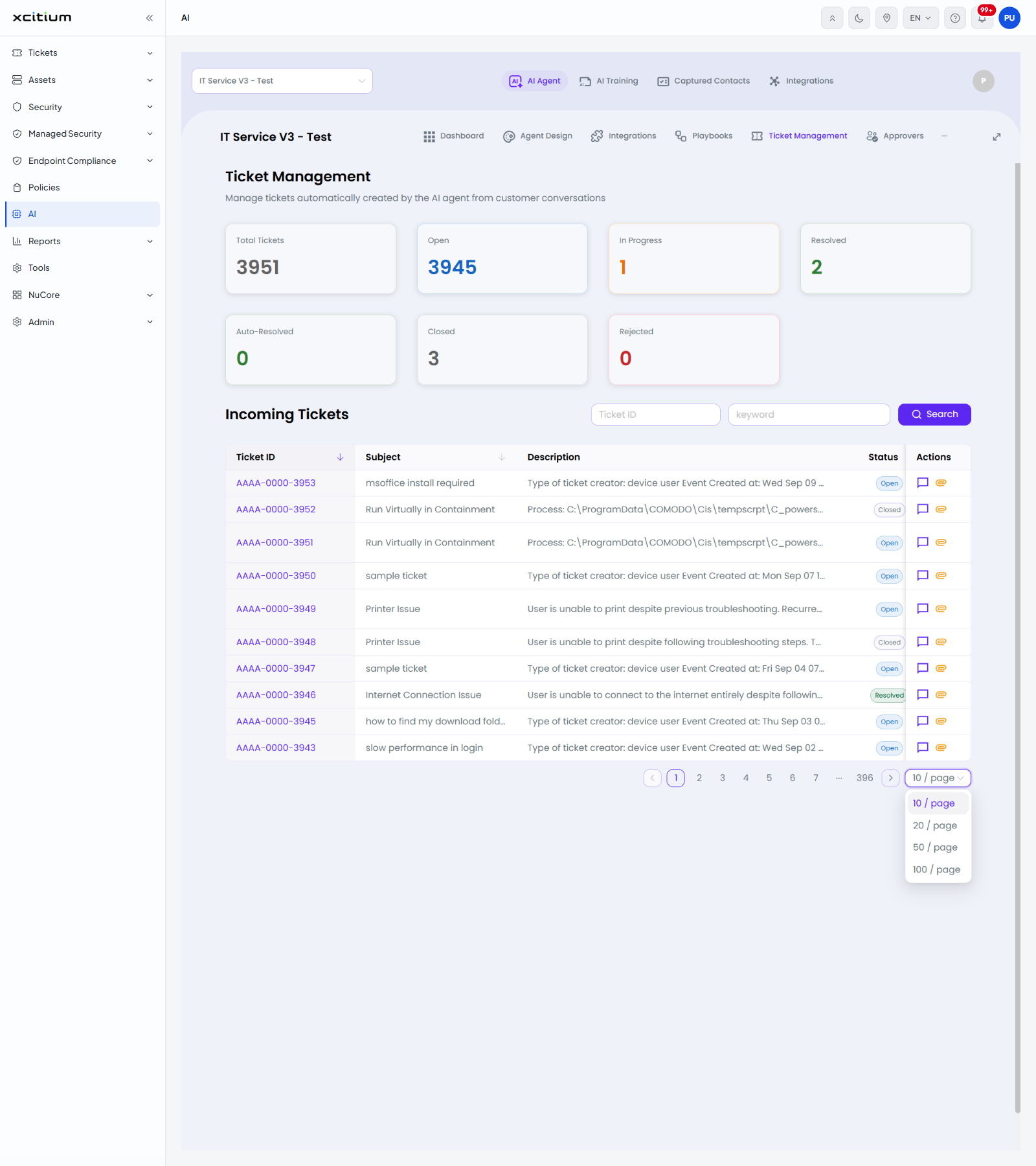
The 'Chat Conversation' dialog
The first action button opens a dialog headed 'Chat Conversation' with the line 'Original conversation that created ticket <ticket id>'. It shows the messages that led to the ticket, and a footer panel with 'Ticket Status' and 'Ticket ID'. Close it with 'Close' or the X button. When the ticket has no conversation the dialog shows 'No Chat History Available - No conversation history found for this ticket.'
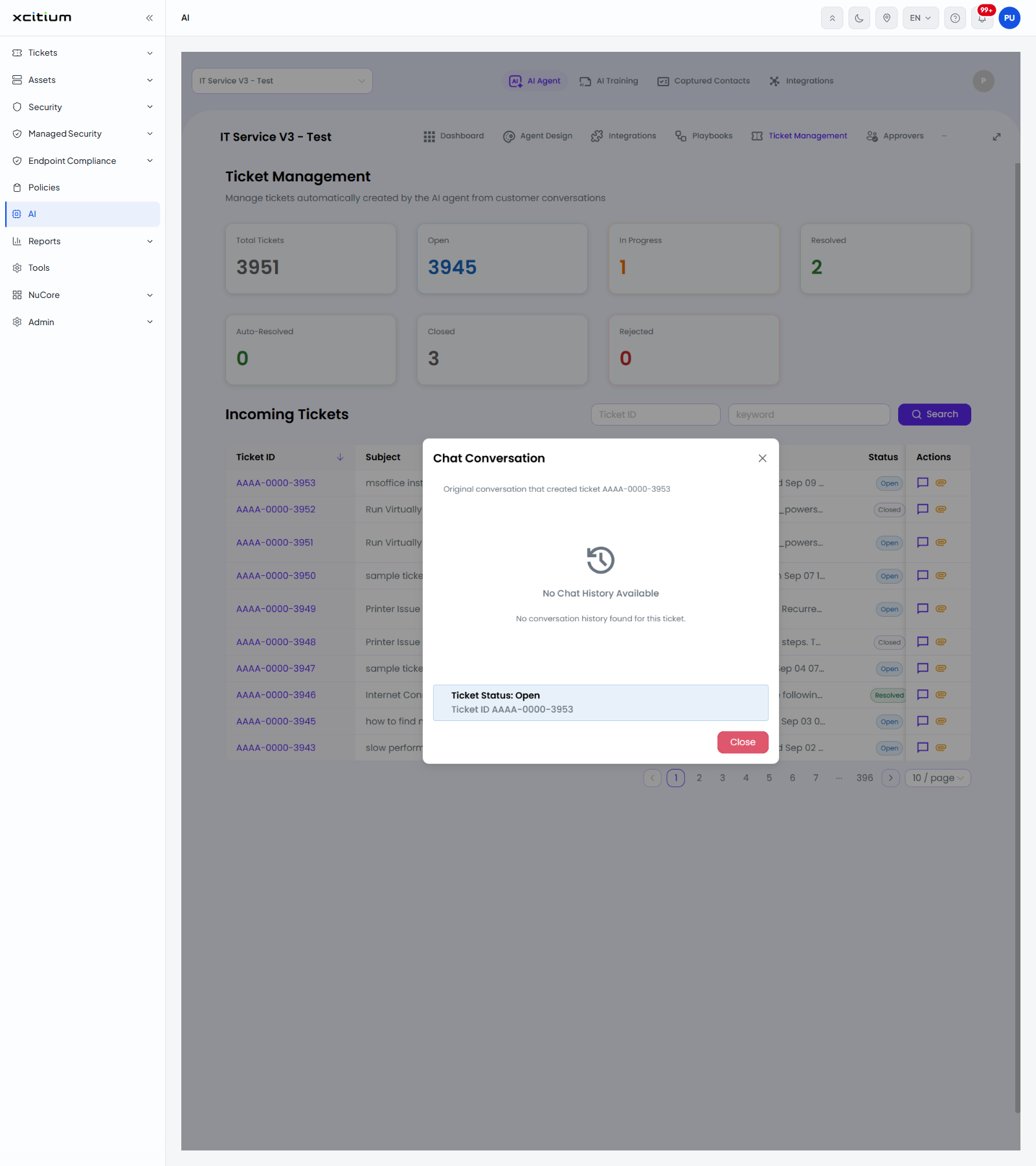
Find a ticket
- Click 'AI' > 'AI Agent' > 'Manage Your AI Agent' > 'Ticket Management'.
- Type the reference in 'Ticket ID', or a word from the ticket in 'keyword'.
- Click 'Search'.
- Click the first action button to read the conversation that created the ticket, or the second to open the ticket in the service desk.