


Add an OID Condition
- Click 'Assets' > 'Network Management' > 'Monitors', open a monitor, click 'Edit', open the 'Conditions' tab, then click 'Add Condition' > 'OID conditions'.
The condition reads an SNMP object identifier from the device and compares its value with one you supply. The entry is badged 'Beta'.
You can watch anything the device exposes over SNMP, including counters no other condition type covers.
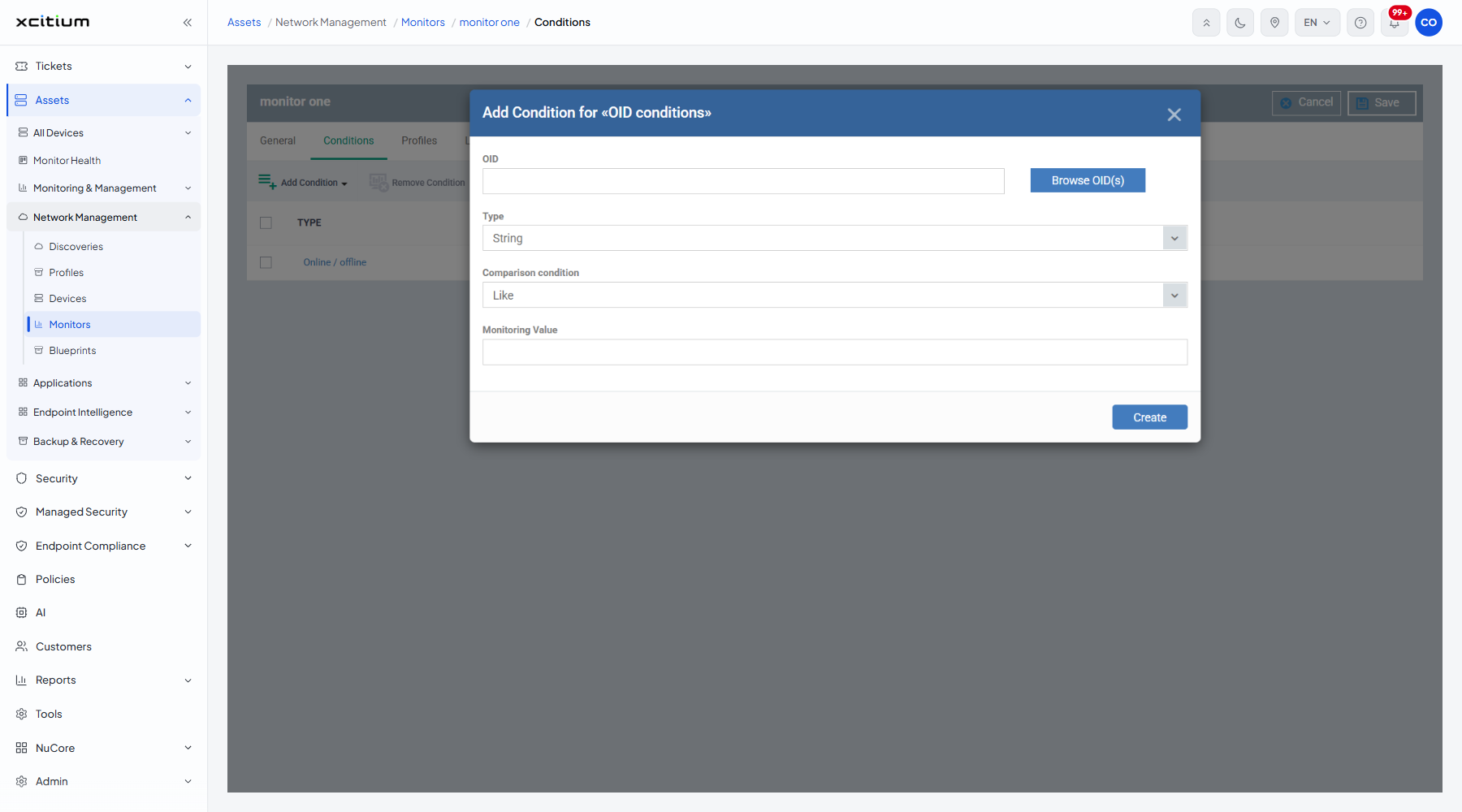
The fields
| Field | Type | Options / default | Required |
| OID | Text box and button | Empty by default. A 'Browse OID(s)' button beside it walks the OIDs the device exposes. | Yes |
| Type | Dropdown | 'Bool', 'Number', 'String' (default). The data type of the value the OID returns. | Yes |
| Comparison condition | Dropdown | 'Like' (default), 'Regex'. | Yes |
| Monitoring Value | Text box | Empty by default. The value or pattern to compare against. | Yes |
Add the condition
- Type the OID into 'OID', or click 'Browse OID(s)' and pick one from the device.
- Choose the data type in 'Type'.
- Choose 'Like' for a plain match or 'Regex' for a pattern in 'Comparison condition'.
- Type the value or pattern into 'Monitoring Value'.
- Click 'Create'.
- Click 'Save' on the monitor header to store the change.
Note: 'Browse OID(s)' only works against a device already managed over SNMP. Without one, type the OID in by hand.