


Chat History
- Click 'AI' > 'AI Agent' > 'Manage Your AI Agent', then click 'Chat History' (under the three-dot button on the tab bar if it is not shown).
The 'Chat History' tab shows every conversation the agent has had. The list of conversations is on the left and the full transcript of the selected one is on the right.
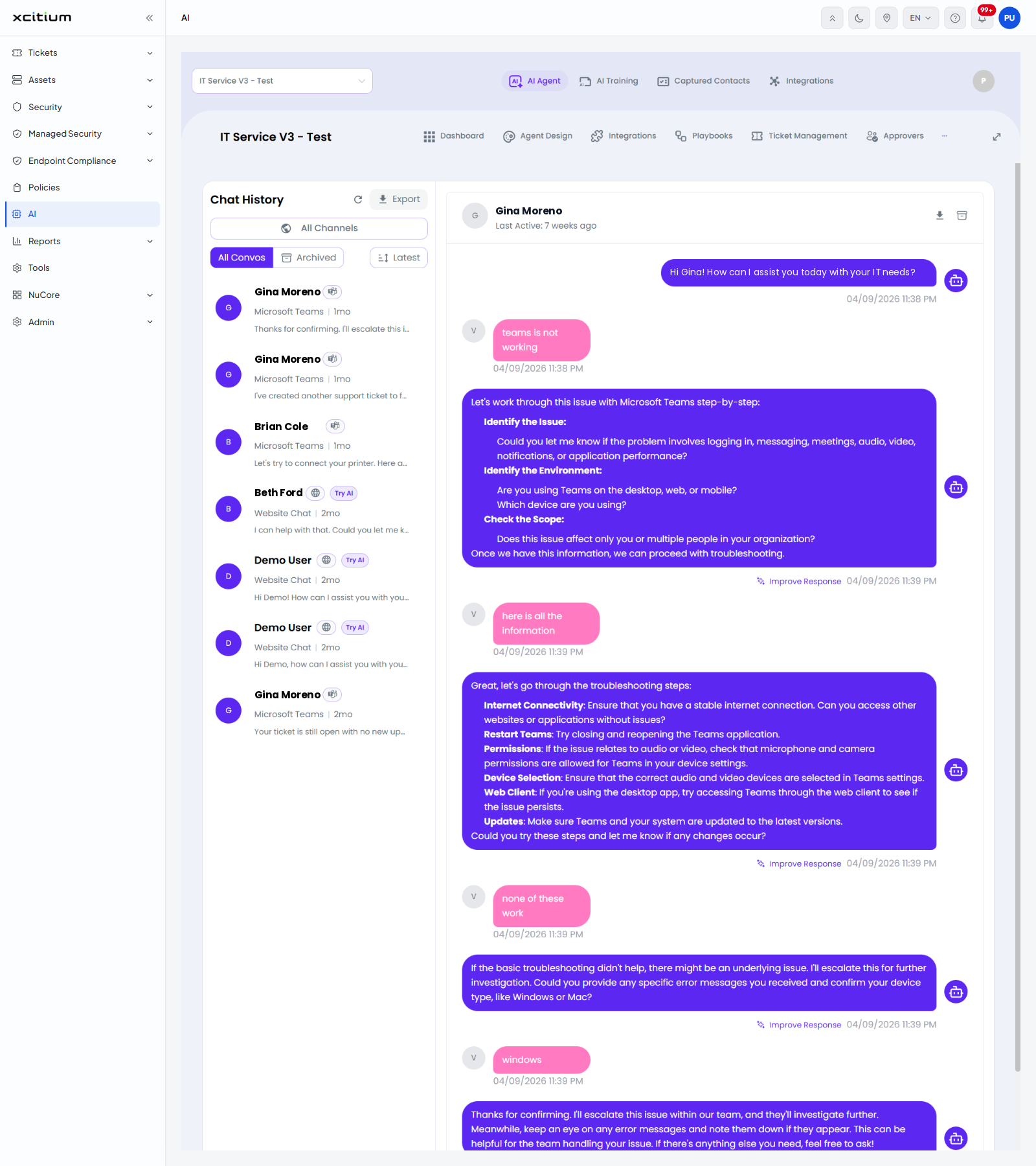
The conversation list
| Control | Description |
| Refresh | The circular-arrow button beside the heading reloads the list. |
| Export | Downloads the conversations. |
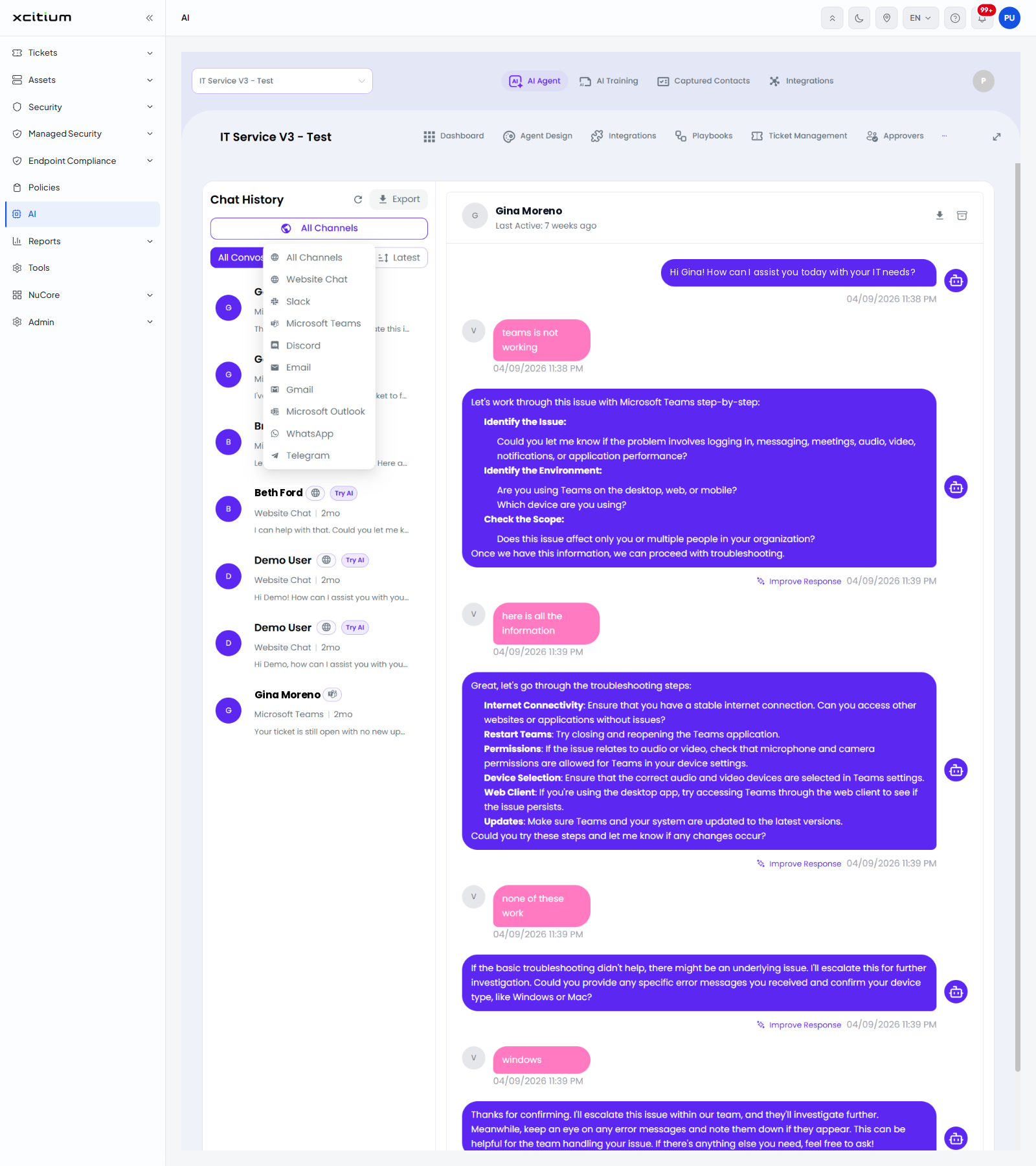
| All Channels | Drop-down that limits the list to one channel. The options are 'All Channels', 'Website Chat', 'Slack', 'Microsoft Teams', 'Discord', 'Email', 'Gmail', 'Microsoft Outlook', 'WhatsApp' and 'Telegram'. |
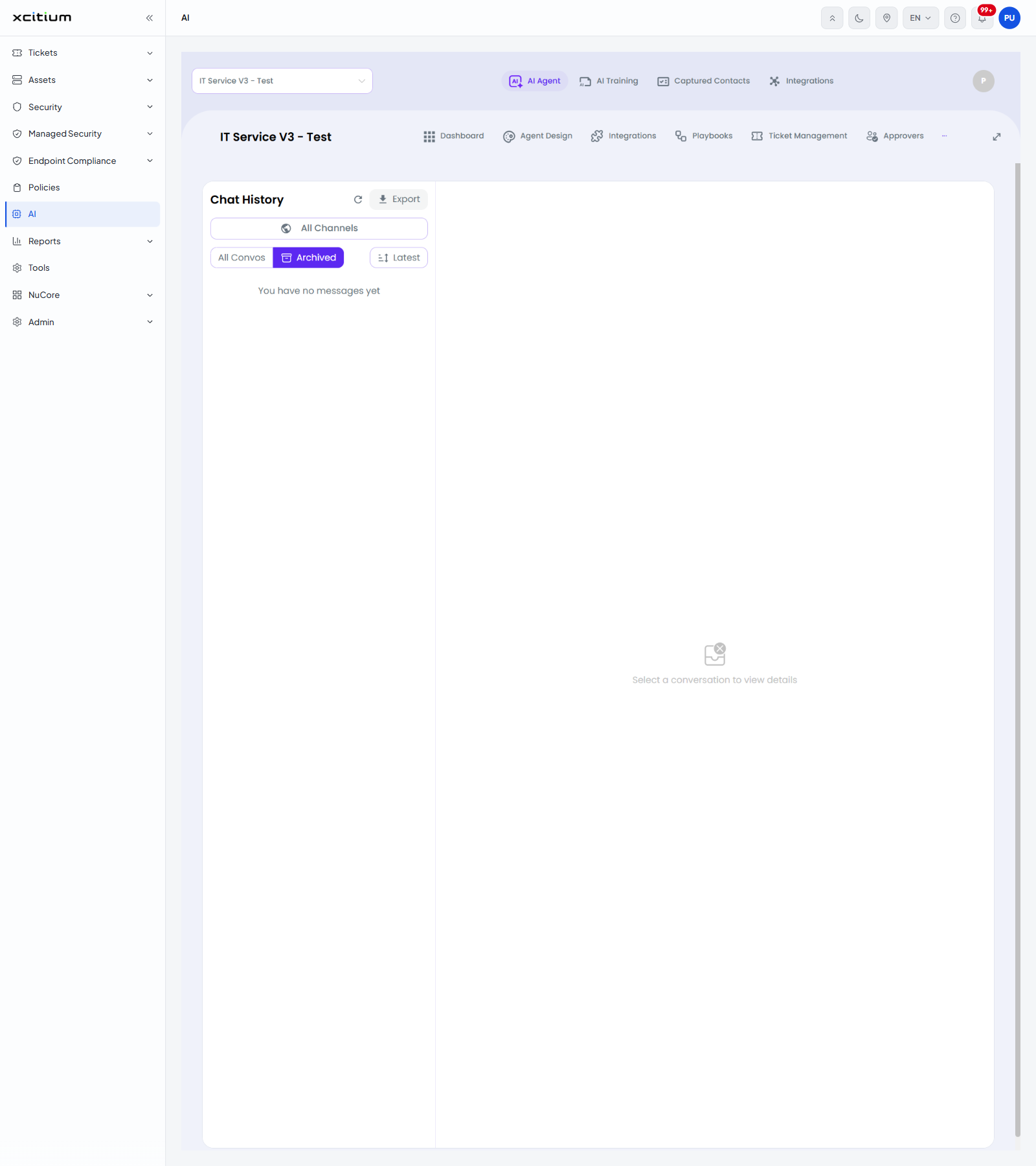
| All Convos / Archived | Two buttons. 'All Convos' is selected by default; 'Archived' shows the conversations you have archived. |
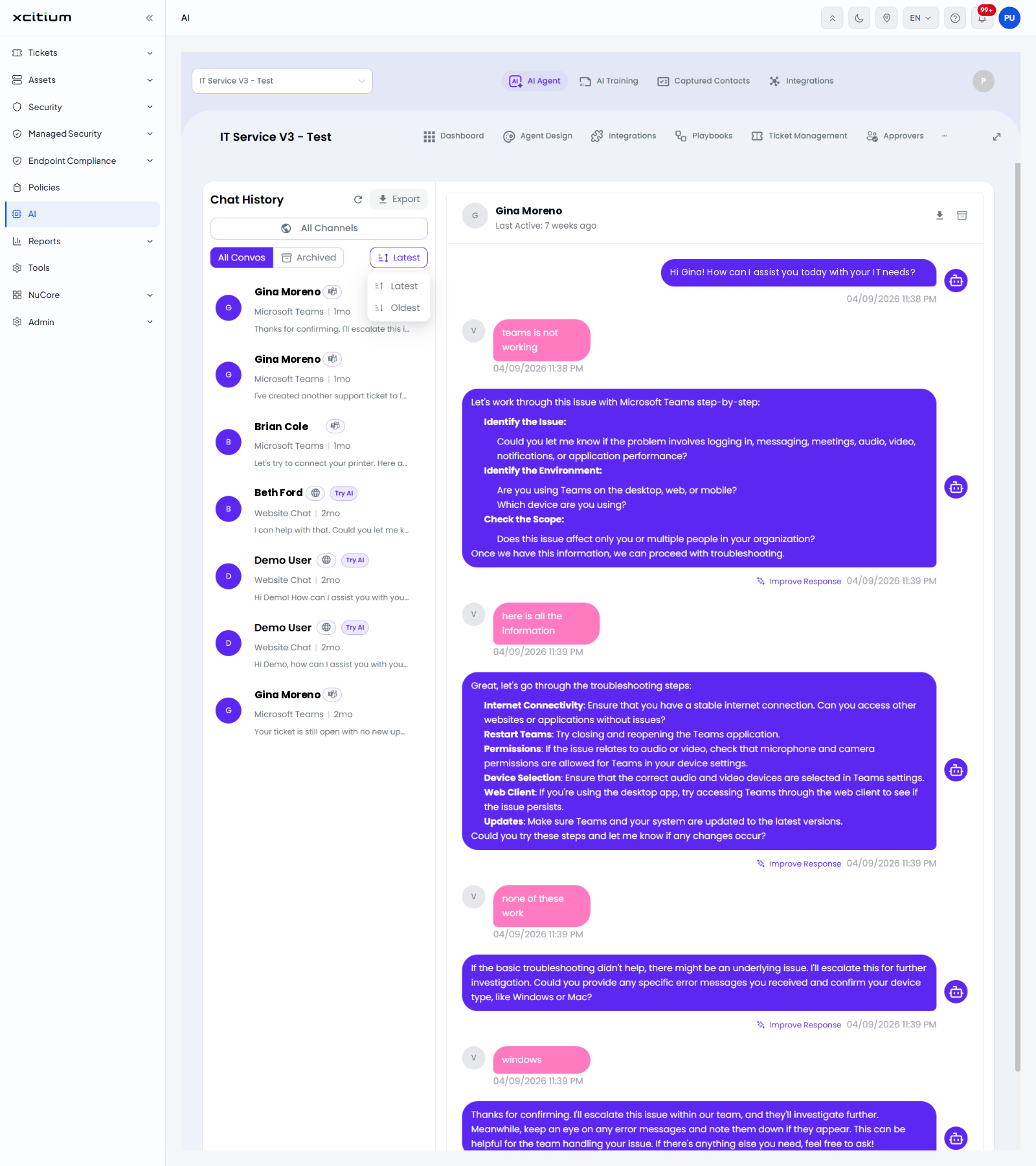
| Latest | Sort order. The options are 'Latest' and 'Oldest'. |
What a list row shows
| Element | Description |
| Initial | A circle with the first letter of the person's name. |
| Name | The person who chatted, with the channel icon beside it. |
| Try AI badge | Marks a conversation that came from a test chat rather than a real visitor. |
| Channel and age | The channel the chat came in on and how long ago it was, for example 'Microsoft Teams | 1mo'. |
| Snippet | The first line of the last message. |
The transcript
The right panel is headed with the person's name and 'Last Active', followed by how long ago they last wrote. Two buttons sit at the top right: one downloads the transcript, the other archives the conversation.
Messages are shown in order with the date and time under each one. The agent's replies carry an 'Improve Response' link, which you use to correct an answer.
Read a conversation
- Click 'AI' > 'AI Agent' > 'Manage Your AI Agent' > 'Chat History'.
- Choose a channel in the 'All Channels' list if you want to narrow the list.
- Choose 'Latest' or 'Oldest' to change the order.
- Click a conversation in the list. The transcript opens on the right.