


Event Query
- Click 'Security' > 'SIEM - X' > 'Event Query' to open this interface.
Event Query is the query workbench for the collected log data. A library of ready-made queries sits on the left, and a query builder with its own tab strip sits on the right, so you can keep several queries open at once.
You can run a supplied query, build your own, choose the result fields, save a query, schedule it and add it to the incident analysis set.
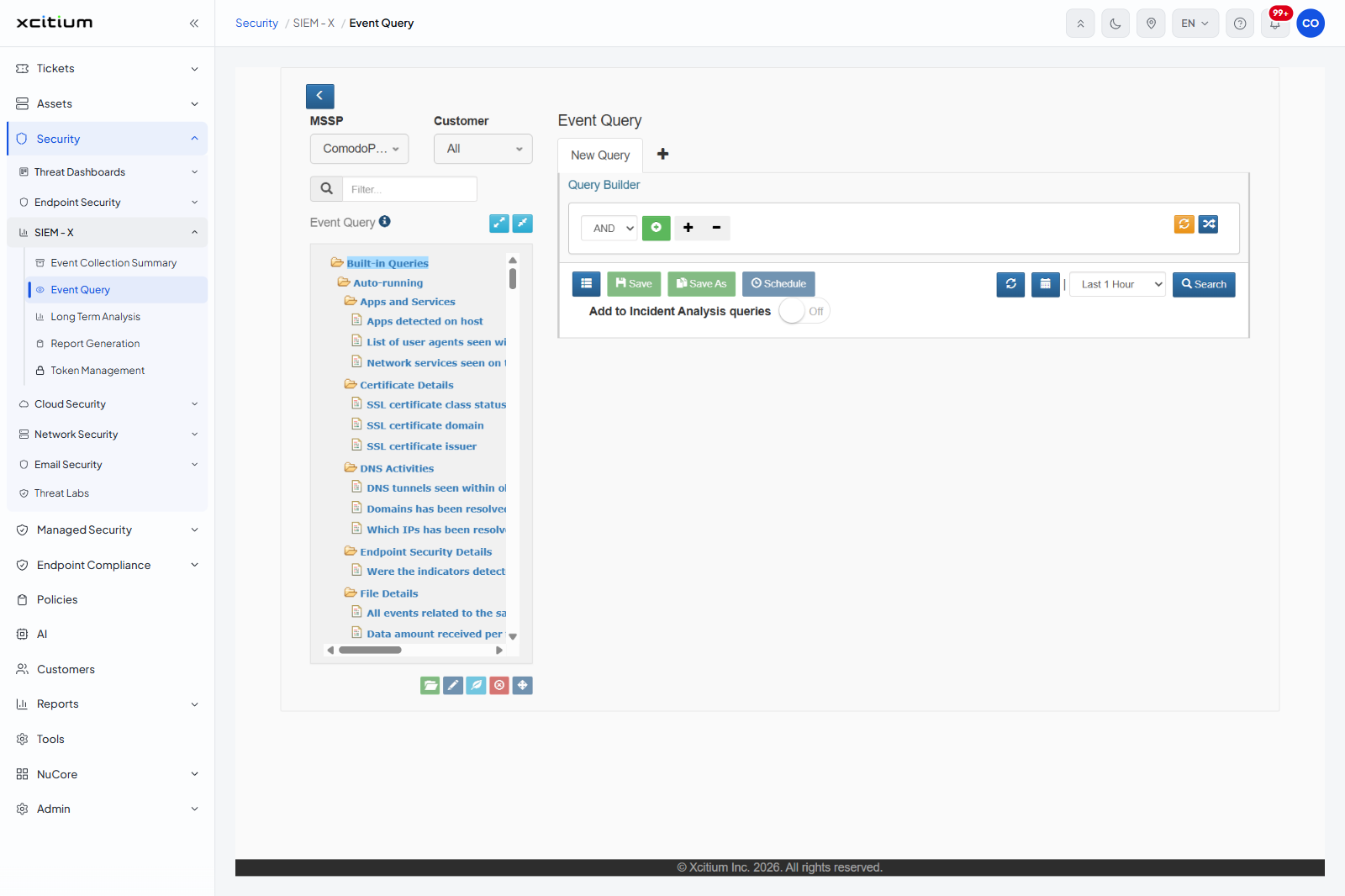
The left pane
| Control | Description |
| MSSP | The provider account the queries run under. |
| Customer | Which customer's data to query. 'All' is selected when the page opens. |
| Filter... | A search box that filters the query tree as you type. |
| Event Query tree | The query library, rooted at 'Built-in Queries'. An information icon sits beside the heading. |
| Collapse/Expand Left Pane | Hides or shows the whole left pane. |
| Show All | Clears the filter and shows the whole tree. |
| Expand All / Collapse All | Opens or closes every folder in the tree. |
| Add Folder | Creates a folder in the tree. |
| Edit Folder | Renames the selected folder. |
| Create New Leaf | Adds a query under the selected folder. |
| Delete | Removes the selected folder or query. |
| Move item to selected folder | Moves the selected item into another folder. |
The query library
'Built-in Queries' holds seven top-level folders, each with its own sub-folders and queries.
| Folder | What it covers |
| Auto-running | Investigation queries, grouped into 'Apps and Services', 'Certificate Details', 'DNS Activities', 'Endpoint Security Details', 'File Details', 'Host Details', 'Lookaround Activities', 'Network Details', 'Session Details' and 'User Details'. |
| Cloud Security | Cloud service activity, grouped by area such as 'Access', 'Application Data', 'Audit', 'Integration', 'Mobile Device Management', 'Network Traffic', 'Password Management', 'Privilege Management', 'Security Alert', 'Security Settings' and 'User Management'. |
| Endpoint Security Events (EP/EDR/HIPS) | Endpoint protection events, including 'Endpoint Security Management'. |
| Incidents Details | Incident queries, including 'Common Incidents Queries'. |
| Microsoft Based Events | Windows and Active Directory events, grouped into 'MS AD Events', 'MS Audit Events' and 'MS File Server Events'. |
| Network Security Events | Firewall, IPS and proxy events, grouped into 'Network Security Device Management', 'Network Security Event Queries', 'File Check Events' and 'Protocol Based Events'. |
| SOC Reports Based Queries | Reporting queries, grouped into 'Authentication Analysis', 'Email Security', 'Endpoint Analysis', 'Microsoft Events Summary Report', 'Operational Reports Queries', 'Traffic Analysis' and 'Web Security'. |
The query builder
| Control | Description |
| Query tabs | One tab per open query, starting with 'New Query'. The '+' beside them opens another tab. |
| Boolean list | How the conditions combine: 'AND' (the default), 'OR' or 'NOT'. |
| Add group | The green button that adds a nested condition group. |
| + and - | Add and remove a condition. |
| Select Result Fields | Chooses the columns the result table shows. |
| Save / Save As | Saves the query, either over the one you opened or as a new one. |
| Schedule | Sets the query to run on a schedule. |
| Reset Time Range Selection | Clears a custom time range. |
| Time range selection | Opens the calendar for a custom range. |
| Period list | 'Last 1 Hour' (the default), 'Last 3 hours', 'Last 8 hours', 'Last 24 hours', 'Last 3 days' and 'Last 7 days'. |
| Search | Runs the query. |
| Add to Incident Analysis queries | A toggle, shown 'Off'. Adds the query to the incident analysis set. |
Run a supplied query
- Pick the customer in the 'Customer' list, or leave it on 'All'.
- Expand 'Built-in Queries' and open the folder you want.
- Click the query. It loads into the query builder.
- Set the period.
- Click 'Search'.
Build your own query
- Click '+' beside the query tabs to open a new tab.
- Set the boolean list to 'AND', 'OR' or 'NOT'.
- Click '+' to add a condition, then fill it in. Use the green button to nest a group.
- Click 'Select Result Fields' and tick the columns you want back.
- Click 'Search'.
- Click 'Save As' to keep the query. It then appears under 'My Queries'.
Note: 'Delete' on the tree removes a saved query for everyone who shares the account.