Antivirus Scan History
- Click 'Security' > 'Endpoint Security' > 'Security Status' > 'Antivirus Scan History' to open this interface.
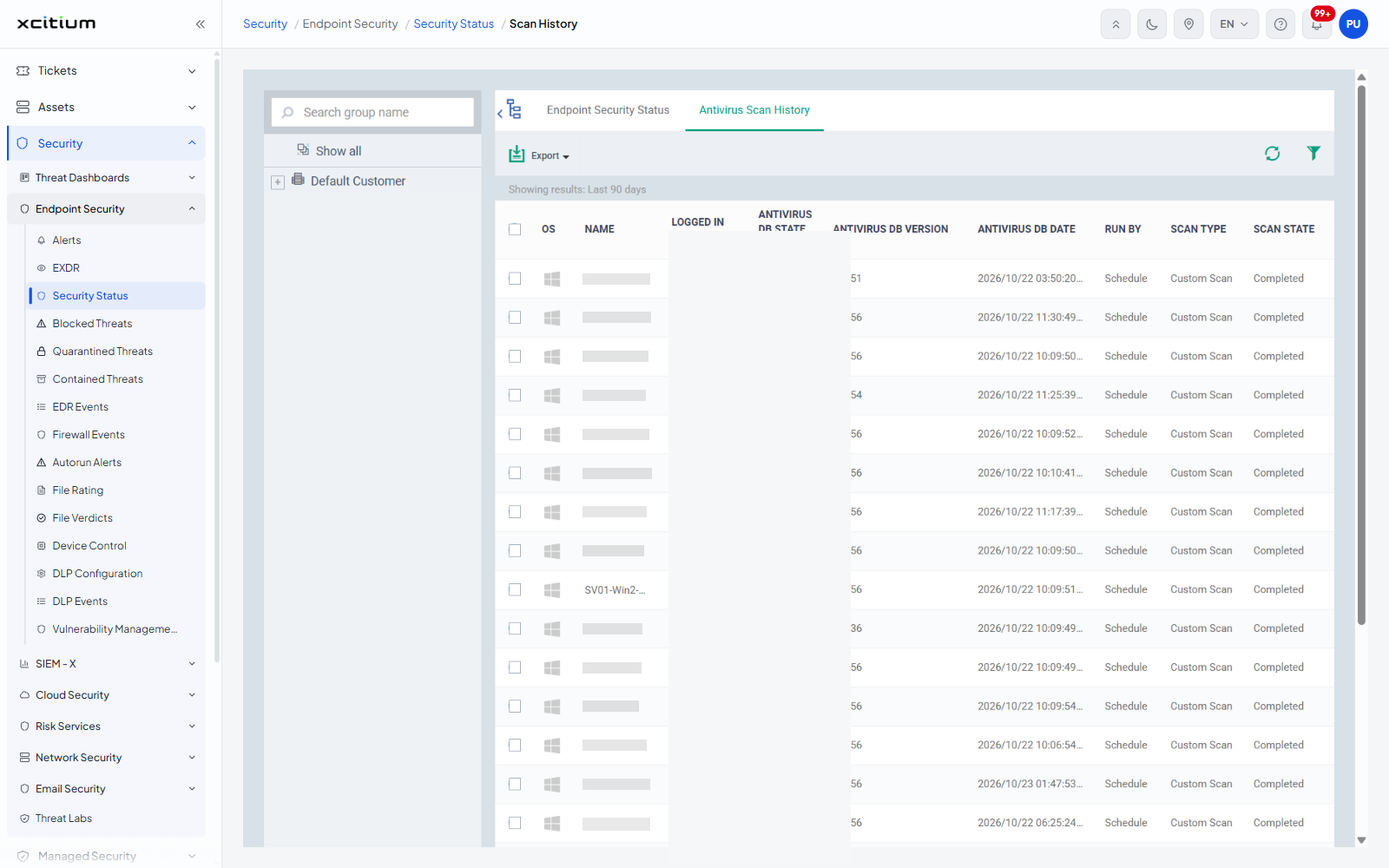
This tab is the record of antivirus scans that have already run. One row per scan tells you which device was scanned, who or what started the scan, which kind of scan it was, whether it finished, and whether anything was found.
You can narrow the history to a device group, filter it by device, user, scan type, state and date, change how many rows appear at once, and export the list.
The panel carries the note 'Showing results: Last 90 days'. Scans older than that are not listed.
The interface
The 'Security Status' screen has two tabs. 'Endpoint Security Status' is the one it opens on and shows the current protection state of each device; 'Antivirus Scan History' is this tab. The group tree on the left, with its 'Search group name' box and 'Show all' entry, filters both.
Column descriptions
| Column | Description |
| OS | The operating system of the device, shown as an icon. |
| NAME | The device name. |
| LOGGED IN USER | The account signed in on the device when the scan ran, in the form 'DEVICEUser'. |
| ANTIVIRUS DB STATE | The state of the virus database on the device. Values seen: 'Updated', 'Canceled'. |
| ANTIVIRUS DB VERSION | The database version number the device holds. |
| ANTIVIRUS DB DATE | When that database version was published. |
| RUN BY | What started the scan. Value seen: 'Schedule'. |
| SCAN TYPE | The kind of scan. Value seen: 'Custom Scan'. |
| SCAN STATE | Whether the scan finished. Value seen: 'Completed'. |
| SCAN DATE | When the scan ran. |
| MALWARE STATUS | What the scan concluded. Value seen: 'Clean'. |
The toolbar
| Control | Description |
| Export | A menu leading to 'Export to CSV'. The only action button on this tab - the scan and protective-action buttons belong to the 'Endpoint Security Status' tab. |
| Table refresh | An icon at the right of the toolbar that reloads the table. |
| Table filter | The funnel icon that opens and closes the filter panel. |
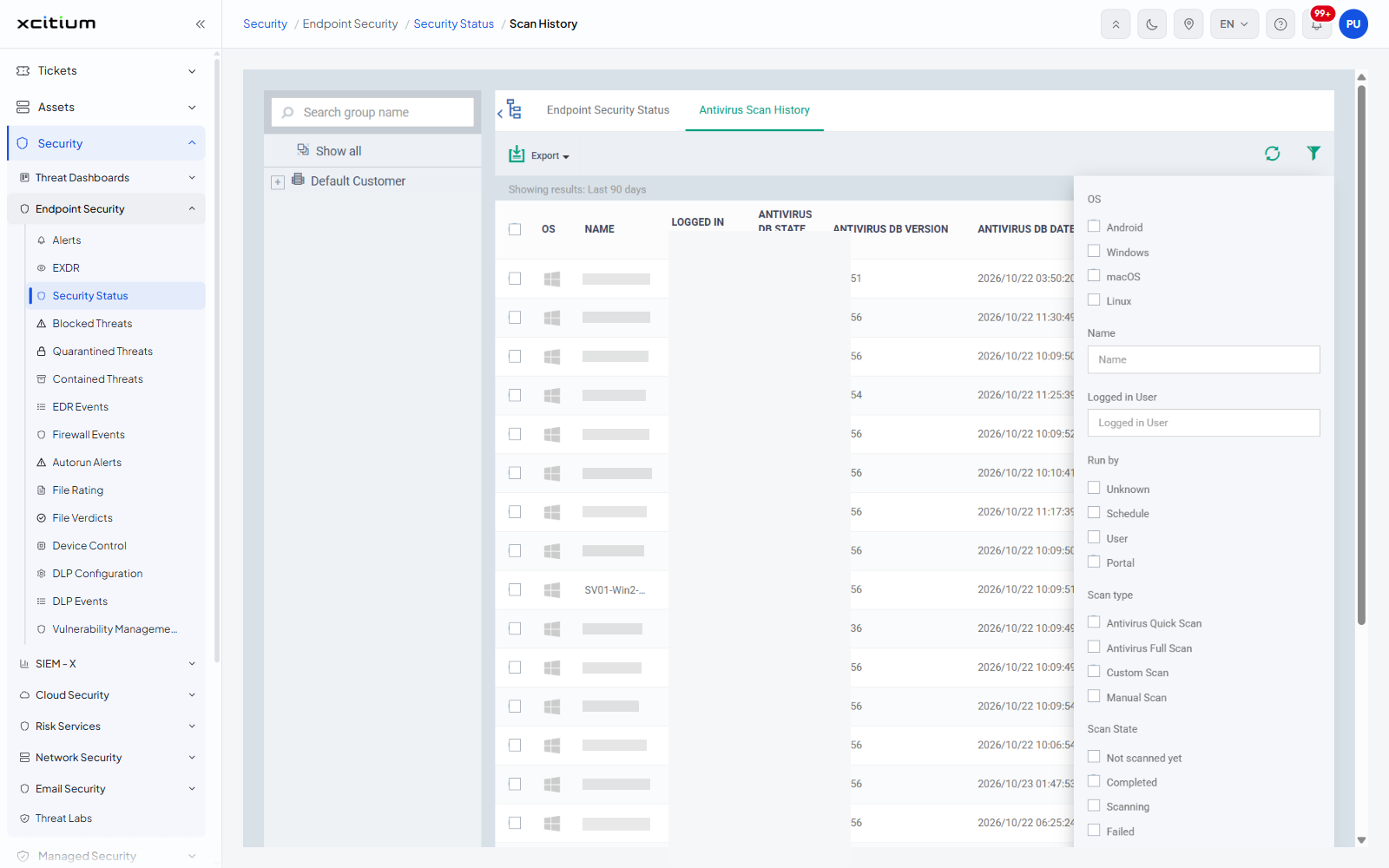
Filter the history
- Click the funnel icon ('Table filter') at the right of the toolbar.
- Set the fields you want.
- Click the funnel again to close the panel.
| Field | Control / options |
| OS | Check boxes: 'Android', 'Windows', 'macOS', 'Linux' |
| Name | Text box |
| Logged in User | Text box |
| Run by | Check boxes: 'Unknown', 'Schedule', 'User', 'Portal' |
| Scan type | Check boxes: 'Antivirus Quick Scan', 'Antivirus Full Scan', 'Custom Scan', 'Manual Scan' |
| Scan State | Check boxes: 'Not scanned yet', 'Completed', 'Scanning', 'Failed', 'Canceled', 'Command sent' |
| Scan Date | A 'From' and a 'To' date box |
| Malware status | Check boxes: 'Require attention', 'Clean' |