


Manage Mapping
- Click 'Endpoint Compliance' > any page > 'MAPPING' to open this interface.
The 'MAPPING' button on the 'Endpoint Compliance' toolbar opens a panel titled 'Manage Mapping'. It shows which discovery settings and which credentials have been attached to which host, so you can see what a given agent is allowed to scan and with what.
Note: The 'MAPPING' button is available once a Probe agent has been installed.
You can review the existing mappings and remove one from this interface.
Tabs
The panel has two tabs:
- Mapped Discovery Settings - discovery settings attached to a host. This tab is open when the panel loads.
- Mapped Credentials - credentials attached to a host.
Mapped Discovery Settings
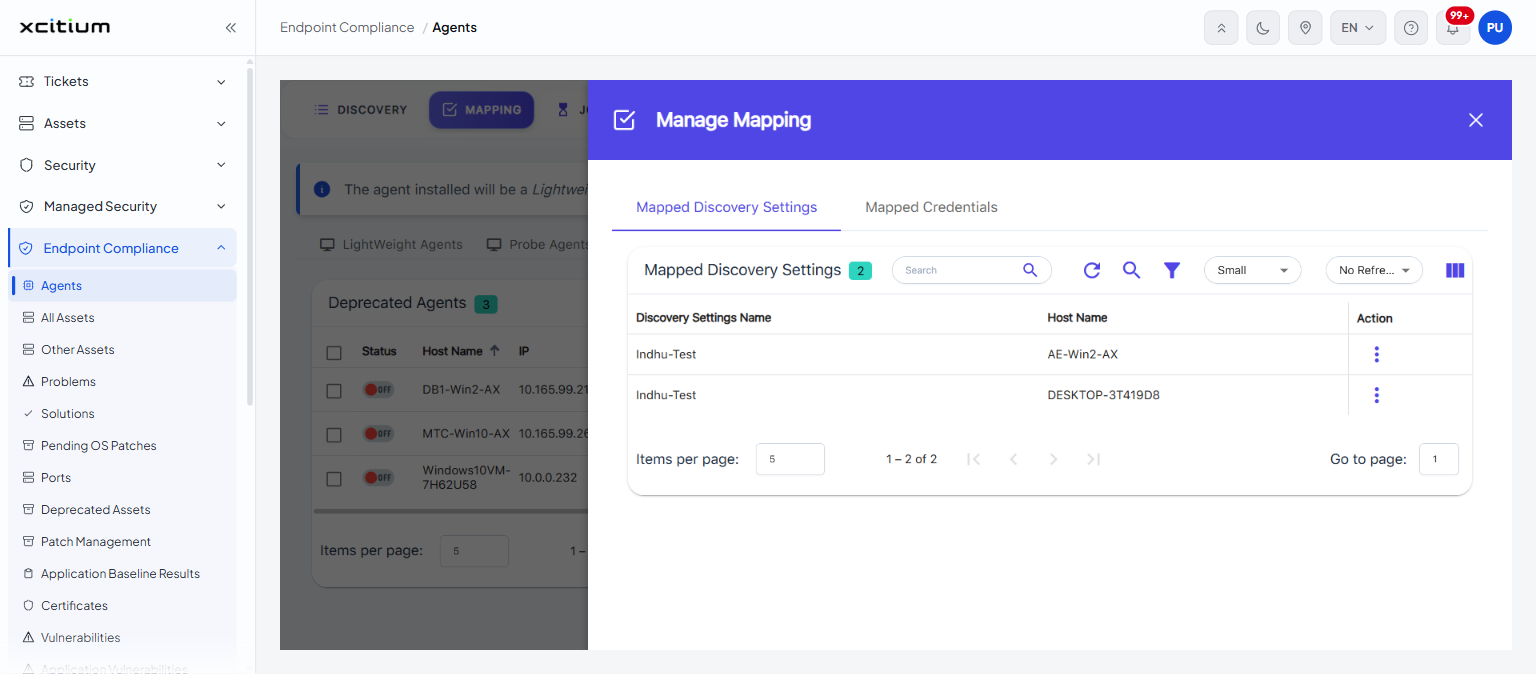
The card heading carries a chip showing the number of mappings.
| Column | Description |
| Discovery Settings Name | The name of the discovery setting that has been mapped. |
| Host Name | The host the setting is mapped to. |
| Action | Opens the row menu, which offers 'Delete'. |
Mapped Credentials
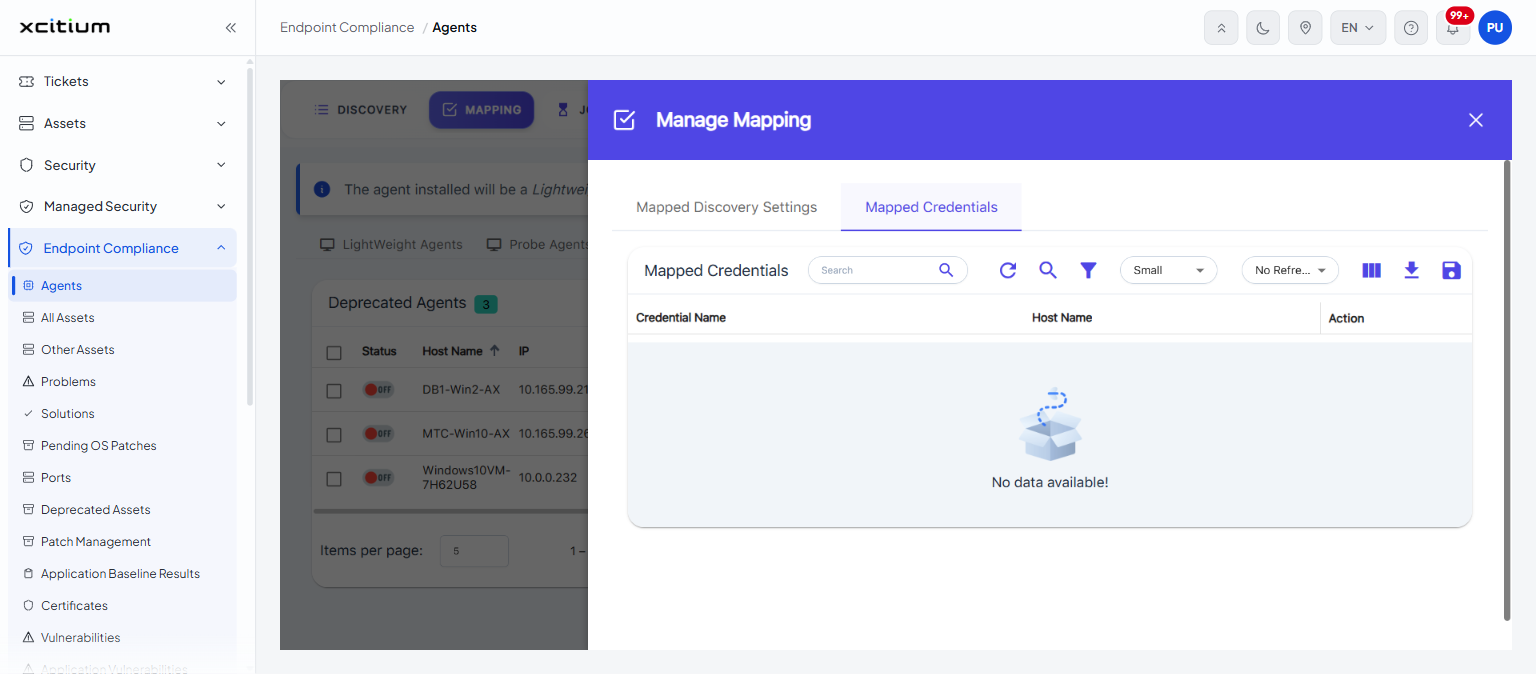
| Column | Description |
| Credential Name | The name of the credential that has been mapped. |
| Host Name | The host the credential is mapped to. |
| Action | Opens the row menu. |
Remove a mapping
- Click 'MAPPING' on the 'Endpoint Compliance' toolbar.
- Click the tab holding the mapping you want to remove.
- Click the three-dot button in the 'Action' column of the row.
- Click 'Delete'.
Note: mappings are created from an agent's row menu with 'Map Discovery & Credentials'.