


Filter the Procedures List
- Click 'Assets' > 'Monitoring & Management' > 'Procedures', then click the filter icon at the right of the toolbar.
The filter panel opens down the right of the screen. It narrows the list to the procedures that match every value you set.
You can filter on the name, the operating system, the type, the approval status, the content type, who created or last changed the procedure, when that happened, the description and even the text of the script.
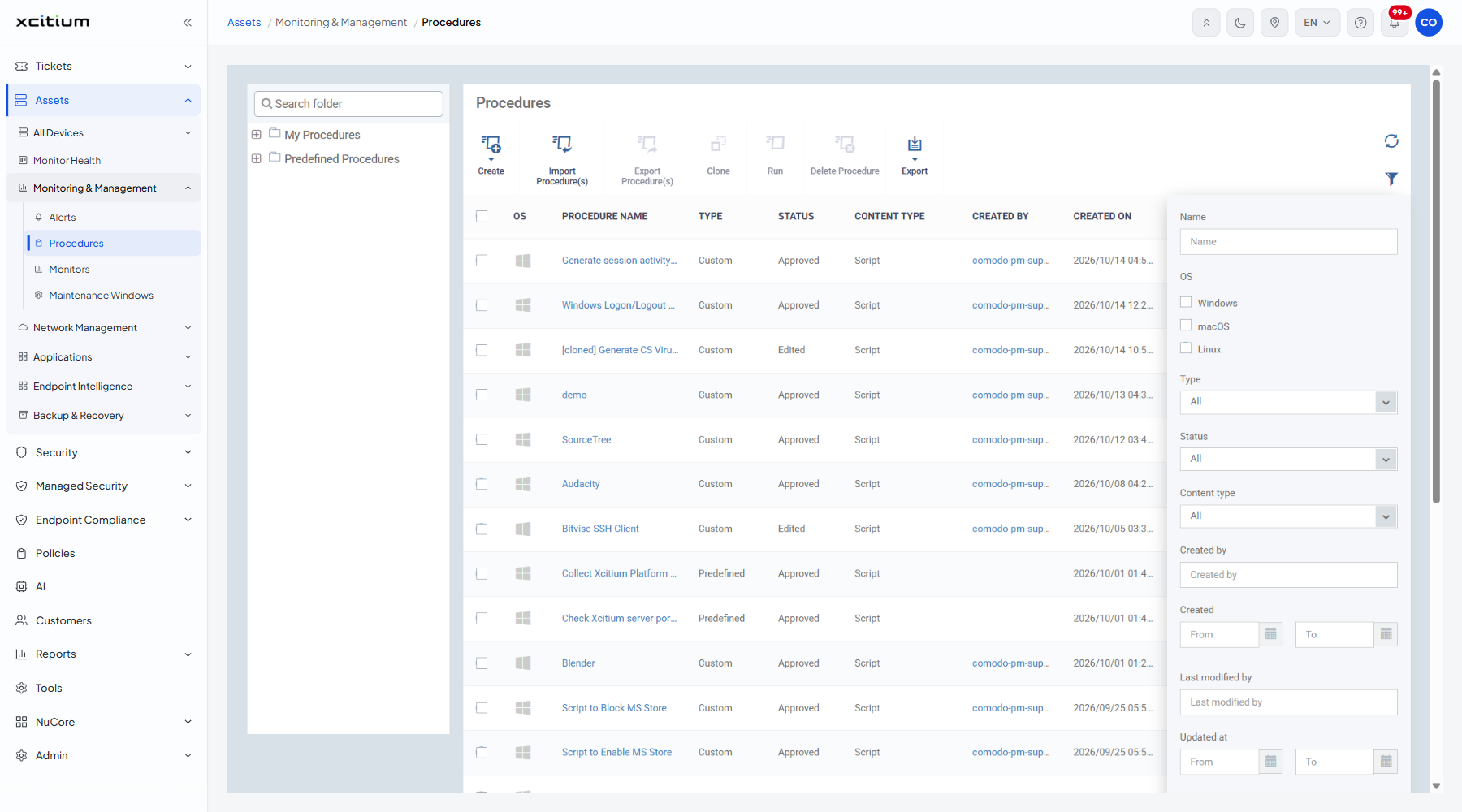
The filter fields
| Field | Type | Options / default | Required |
| Name | Text box | Empty by default. Matches part of a procedure name. | No |
| OS | Checkboxes | 'Windows', 'macOS', 'Linux'. All clear by default, which matches every operating system. | No |
| Type | Dropdown | 'All' (default), 'Custom', 'Predefined'. | No |
| Status | Dropdown | 'All' (default), 'Created', 'Edited', 'Ready to review', 'Approved', 'Declined'. | No |
| Content type | Dropdown | 'All' (default), 'Script', 'Patch', '3rd Party Patch'. | No |
| Created by | Text box | Empty by default. Matches the administrator who added the procedure. | No |
| Created | Date range | A 'From' box and a 'To' box, each with a calendar button. | No |
| Last modified by | Text box | Empty by default. | No |
| Updated at | Date range | A 'From' box and a 'To' box, each with a calendar button. | No |
| Description | Text box | Empty by default. Matches part of a procedure's description. | No |
| Script | Text box | Empty by default. Matches text inside the procedure body. | No |
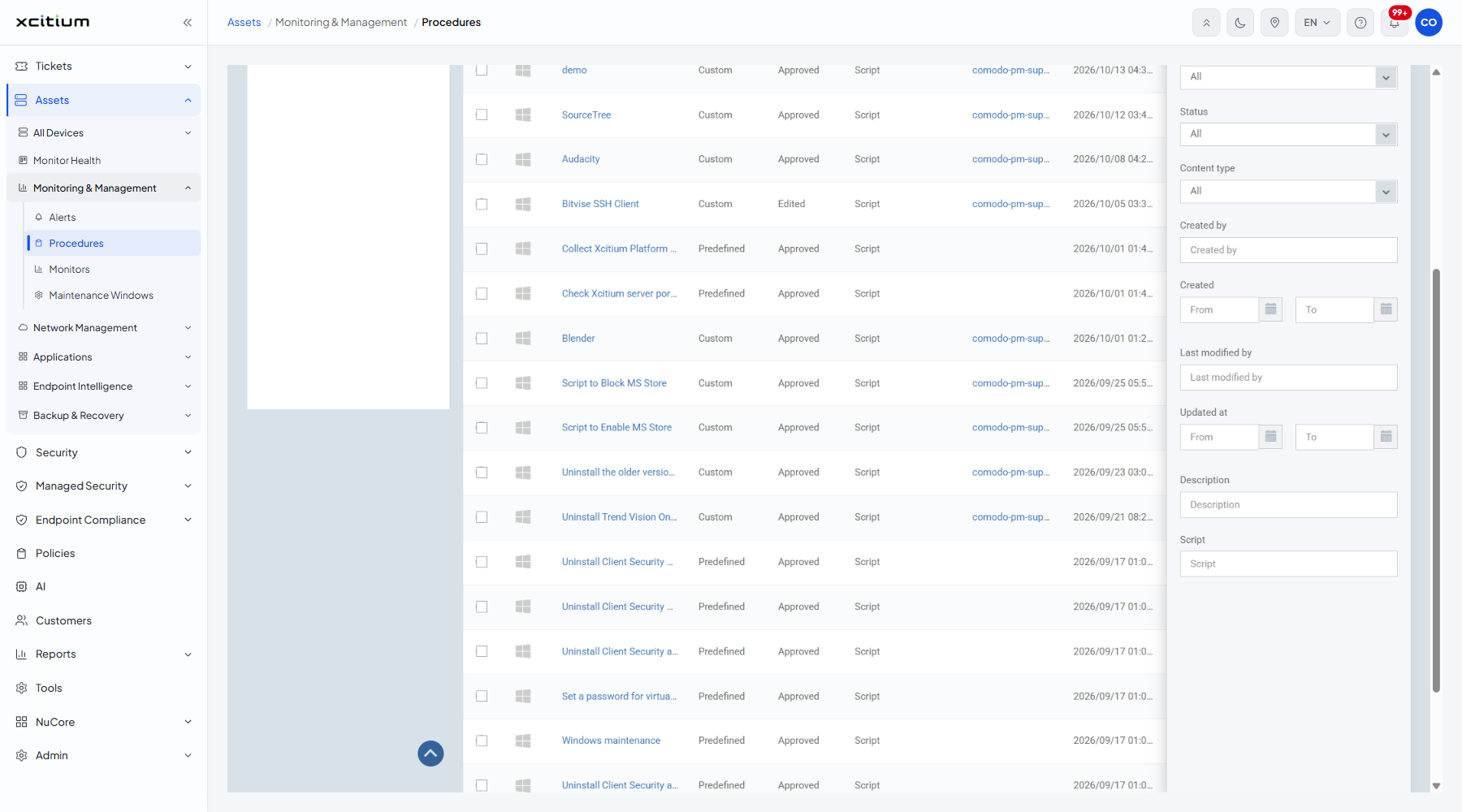
Filter the list
- Click 'Assets' > 'Monitoring & Management' > 'Procedures'.
- Click the filter icon at the right of the toolbar.
- Set the fields you want to filter on.
- Click 'Apply'.
- Click the filter icon again to close the panel.
Note: the 'Script' field searches the body of the procedure, which is the quickest way to find every procedure that touches a particular registry key, service or path.