


File Rating
- Open a Windows profile, then click the 'File Rating' tab.
'File Rating' decides how the security client finds out whether a file is trusted, unknown or malicious. The panel carries 'Edit' and 'Delete' buttons and has two sub-tabs: 'File Rating' and 'Local Verdict Server Settings'.
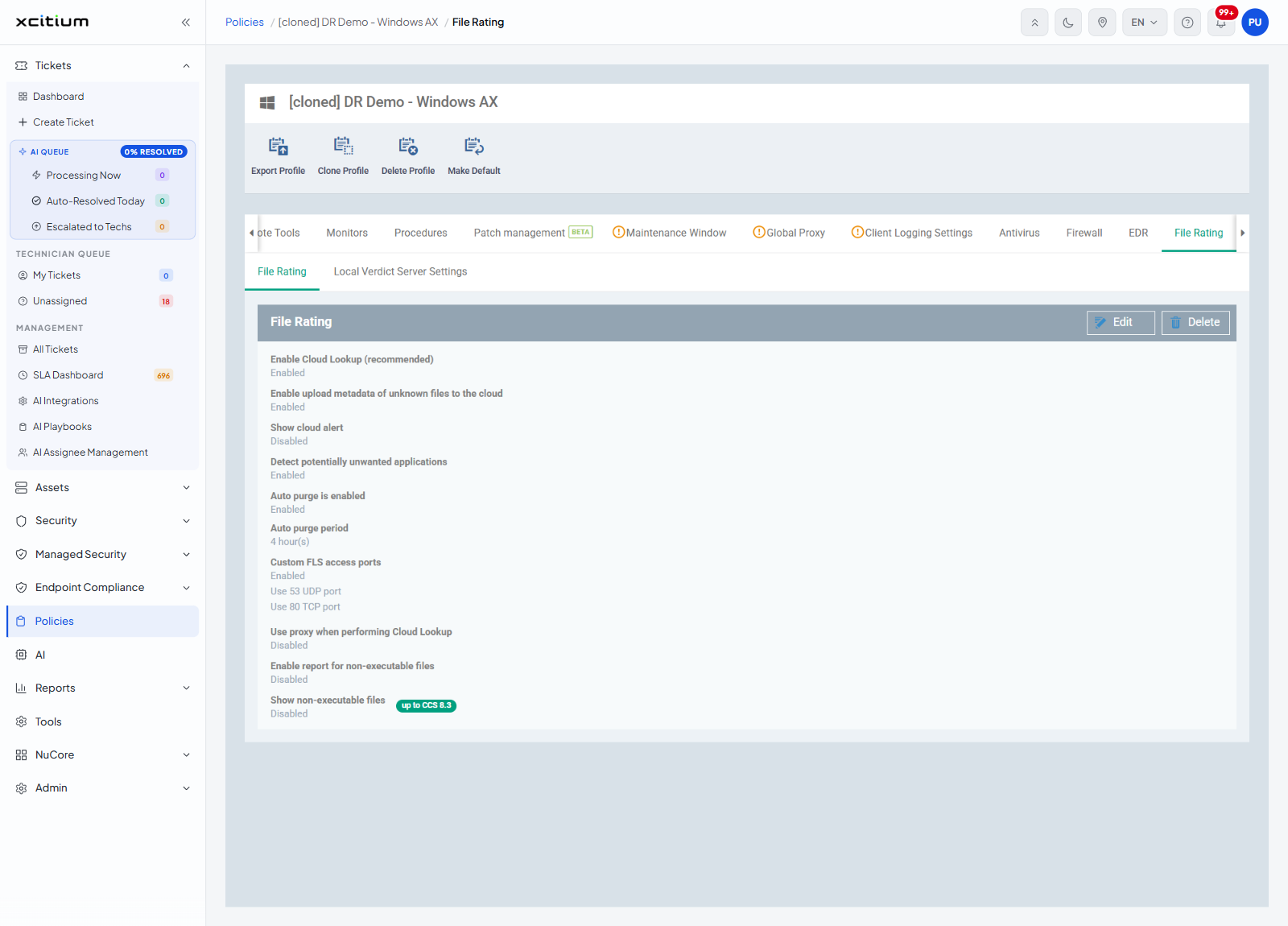
File Rating
| Setting | Badge | Value seen |
| Enable Cloud Lookup (recommended) | — | Enabled |
| Enable upload metadata of unknown files to the cloud | — | Enabled |
| Show cloud alert | — | Disabled |
| Detect potentially unwanted applications | — | Enabled |
| Auto purge is enabled | — | Enabled |
| Auto purge period | — | 4 hour(s) |
| Custom FLS access ports | — | Enabled, with the two options 'Use 53 UDP port' and 'Use 80 TCP port' underneath |
| Use proxy when performing Cloud Lookup | — | Disabled |
| Enable report for non-executable files | — | Disabled |
| Show non-executable files | up to CCS 8.3 | Disabled |
Local Verdict Server Settings
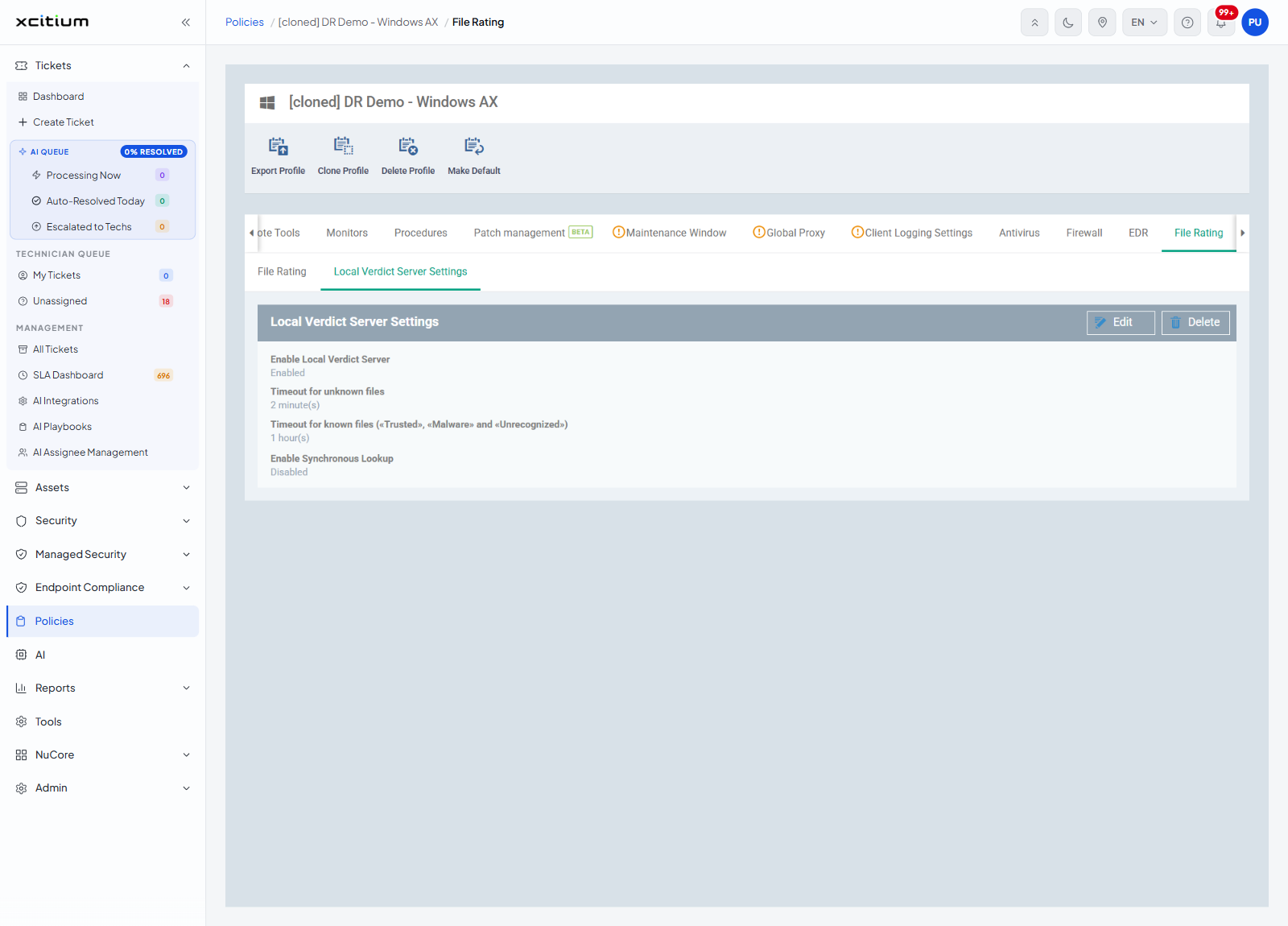
| Setting | Value seen |
| Enable Local Verdict Server | Enabled |
| Timeout for unknown files | 2 minute(s) |
| Timeout for known files («Trusted», «Malware» and «Unrecognized») | 1 hour(s) |
| Enable Synchronous Lookup | Disabled |
Set up file rating
- Click 'Policies' in the left navigation bar and open the profile.
- Click the 'File Rating' tab.
- Click 'Edit'.
- Turn on 'Enable Cloud Lookup (recommended)' and set the upload, alert and purge options.
- Set the access ports and whether lookups go through a proxy.
- Click 'Local Verdict Server Settings' and set the local server options and its timeouts.
- Click 'Save'.
Note: where unknown files are sent for deeper analysis is set separately. See Xcitium Verdict Cloud.