


Firewall
- Open a Windows profile, then click the 'Firewall' tab.
'Firewall' filters the traffic in and out of the device. The panel carries 'Save' and 'Delete' buttons and has six sub-tabs.
A banner across the top of the panel reads: 'Firewall component is not available for endpoints running Windows Server OS. If this profile is associated with an endpoint running Windows Server OS, it will not have any effect.'
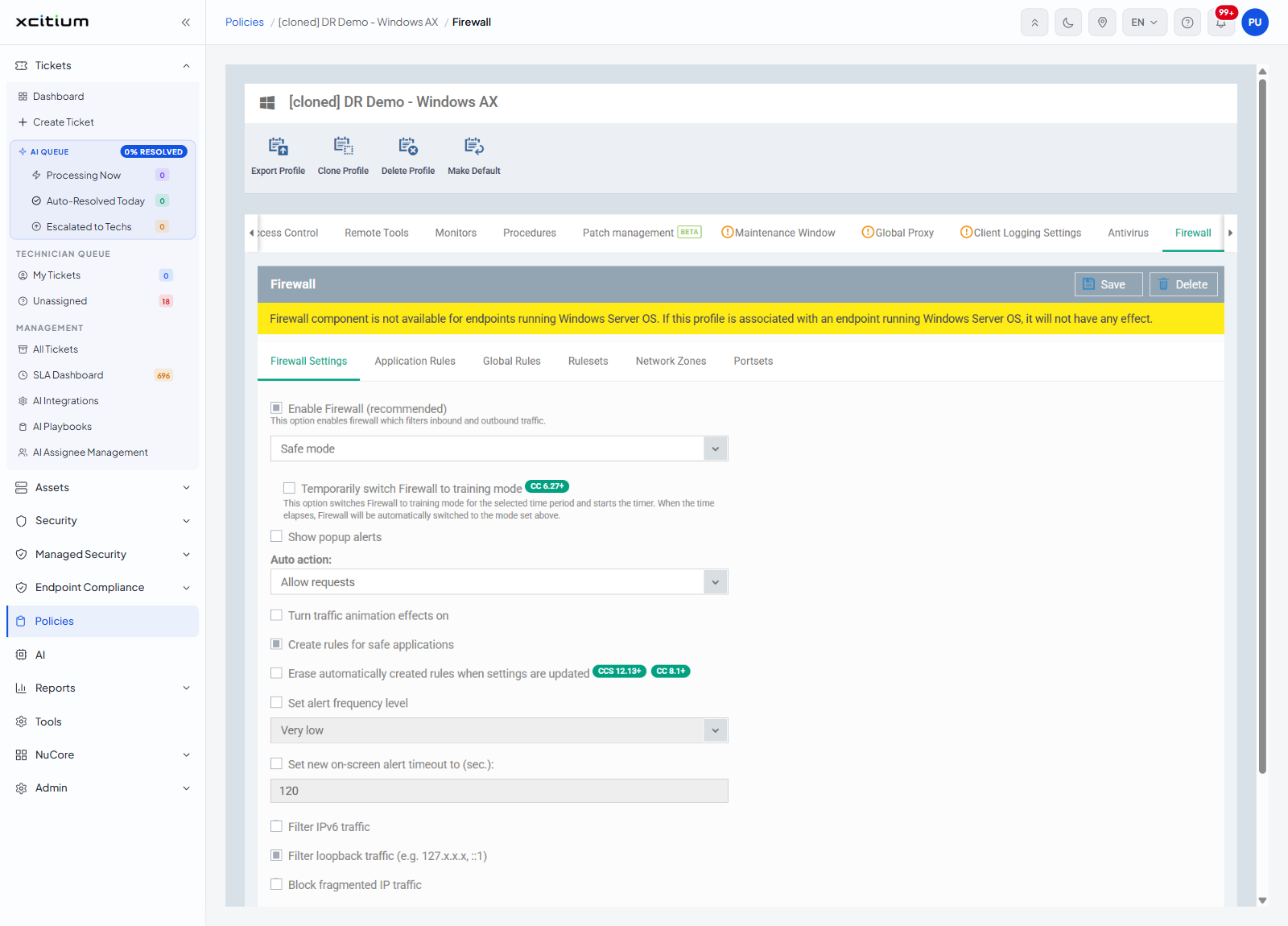
Firewall Settings
| Setting | Badge | Description / options |
| Enable Firewall (recommended) | — | 'This option enables firewall which filters inbound and outbound traffic.' A drop-down offers 'Custom ruleset', 'Safe mode' (the default) and 'Training mode'. |
| Temporarily switch Firewall to training mode | CC 6.27+ | 'This option switches Firewall to training mode for the selected time period and starts the timer. When the time elapses, Firewall will be automatically switched to the mode set above.' |
| Show popup alerts | — | An 'Auto action:' drop-down underneath offers 'Allow requests' (the default) or 'Block requests', which is what happens when alerts are not shown. |
| Turn traffic animation effects on | — | Animates the traffic indicator on the device. |
| Create rules for safe applications | — | Writes rules automatically for applications known to be safe. |
| Erase automatically created rules when settings are updated | CCS 12.13+, CC 8.1+ | Clears those automatic rules whenever the profile changes. |
| Set alert frequency level | — | A drop-down offering 'Very high', 'High', 'Medium', 'Low' and 'Very low' (the default). |
| Set new on-screen alert timeout to (sec.): | — | A number box. |
| Filter IPv6 traffic | — | — |
| Filter loopback traffic (e.g. 127.x.x.x, ::1) | — | — |
| Block fragmented IP traffic | — | — |
| Do protocol analysis | — | — |
| Enable anti-ARP spoofing | — | — |
| Detect disabled firewall driver in network adapter settings and... | — | A drop-down offering 'Log only' or 'Re-enable driver' (the default). |
Application Rules
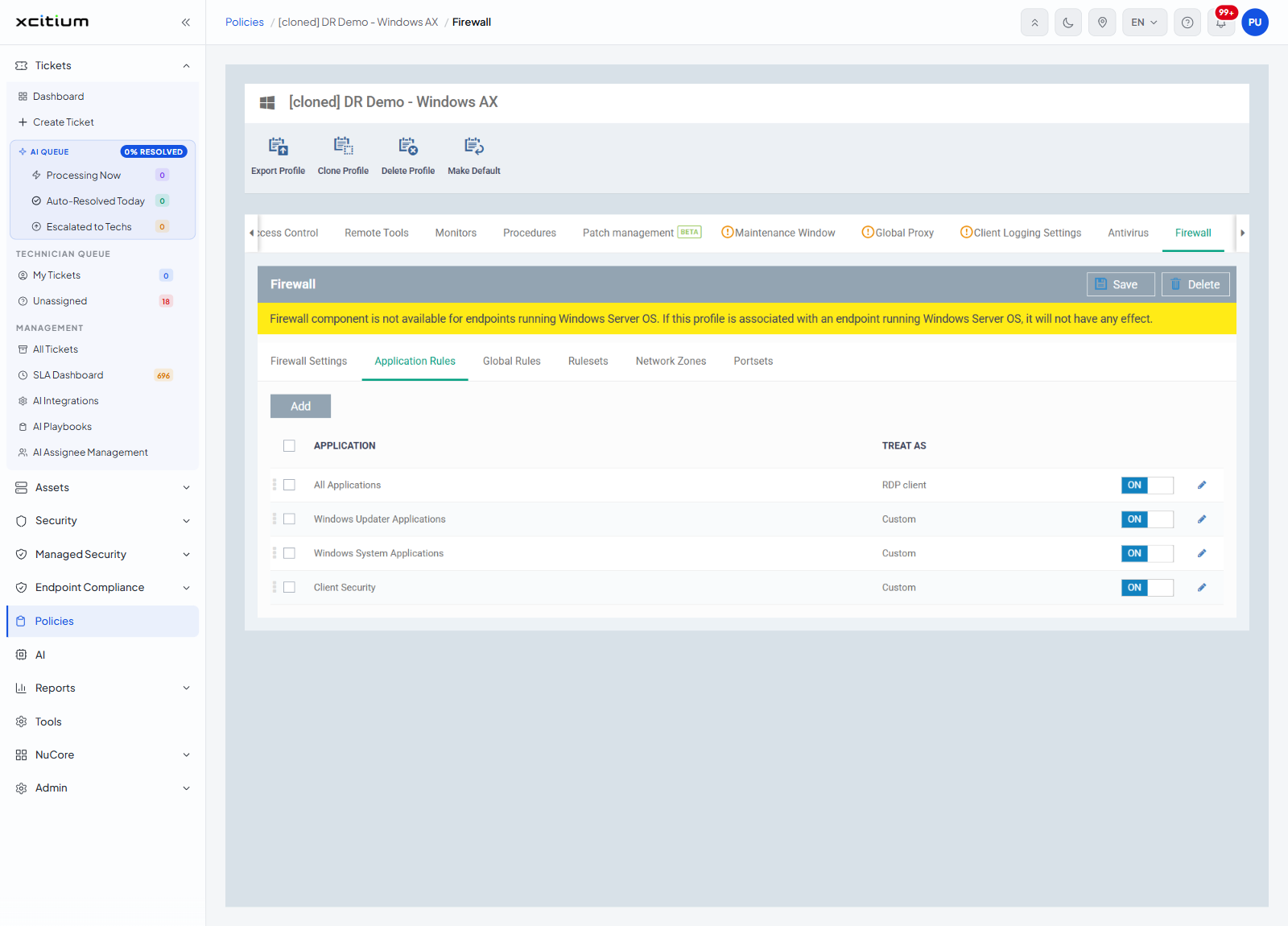
One rule per application, with an 'Add' button above the list.
| Column | Description |
| APPLICATION | The application or application group the rule covers, for example 'All Applications' or 'Windows Updater Applications'. |
| TREAT AS | The ruleset applied to it, for example 'RDP client', or 'Custom' when the rule has its own conditions. |
| (last column) | An ON/OFF toggle that turns the rule on or off. |
Add an application rule
'Add' on 'Application Rules' opens the 'Application Rule' dialog. A rule names the application, then either points at a saved ruleset or carries its own list of rules.
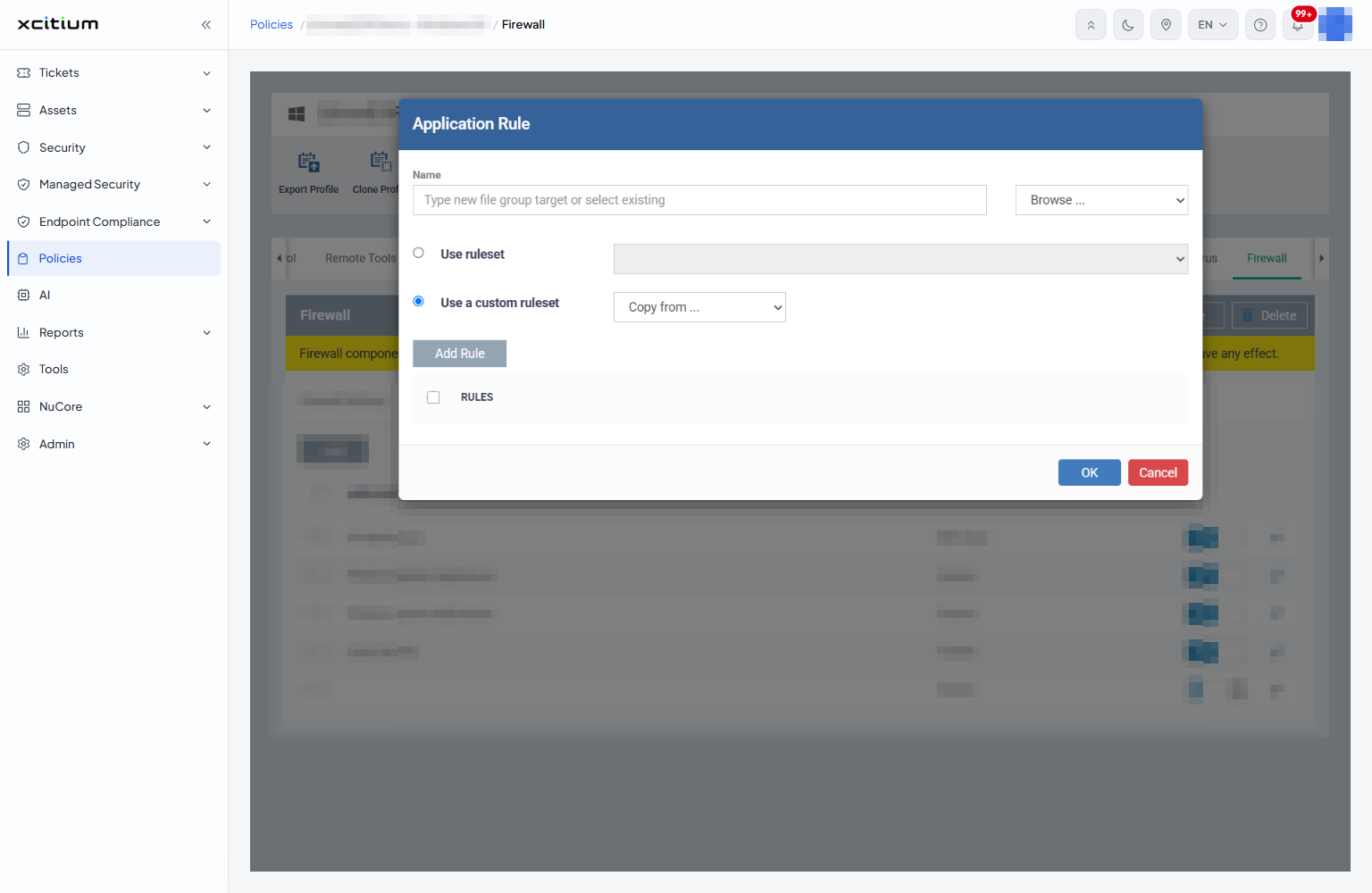
| Field | Description |
| Name | The application the rule covers. The list opens with 'Browse ...', which lets you point at a file, and then lists the file groups: 'Executables', 'All Applications', 'Windows Updater Applications', 'Windows System Applications', 'Client Files/Folders', 'Client Security', 'Startup Folders', 'Windows Management', '3rd Party Protocol Drivers', 'Metro Apps', 'Management and Productivity Applications', 'Web Browsers', 'Email Clients', 'Suspicious Locations', 'Shared Spaces', 'File Downloaders', 'Pseudo File Downloaders', 'File Archivers', 'Containment Folders', 'Important Files/Folders', 'Temporary Files', 'Communication Client', 'Client Security Manager', 'Browser Plugins', 'Media Players', 'VPN Clients', 'RDP', 'Remote Control Software', 'Webserver', 'Mailserver', 'PDF', 'Windows Update Or Automatic Update Related Files', 'Windows Security Files', 'Group Policy-Related Files', 'User Profile Files', 'Global Whitelist', 'SQL Clients', 'Vendor Exclusion', 'Communication Client Update Scripts' and 'Endpoint Detection & Response', followed by any file groups you have created yourself. |
| Use ruleset | Applies one of the saved rulesets to the application. The drop-down beside it offers 'Web Browser', 'Email Client', 'Ftp Client', 'Allowed Application', 'Blocked Application', 'Outgoing Only' and 'RDP client'. |
| Use a custom ruleset | Gives this rule its own list of rules, built in the 'RULES' table below. This is the option selected when the dialog opens. |
| Copy from ... | Fills the 'RULES' table from somewhere else. 'Ruleset' copies a saved ruleset; 'Another application' copies the rules of an application that already has some. |
| RULES | The rules that make up the custom ruleset. 'Add Rule' opens the 'Firewall Rule' dialog described below. |
- Click 'Policies' in the left navigation bar and open the profile.
- Click the 'Firewall' tab, then click 'Application Rules'.
- Click 'Add'.
- Choose the application under 'Name', or pick 'Browse ...' to point at a file.
- Choose 'Use ruleset' and pick a ruleset, or leave 'Use a custom ruleset' selected and click 'Add Rule' for each rule you need.
- Click 'OK', then click 'Save'.
Global Rules
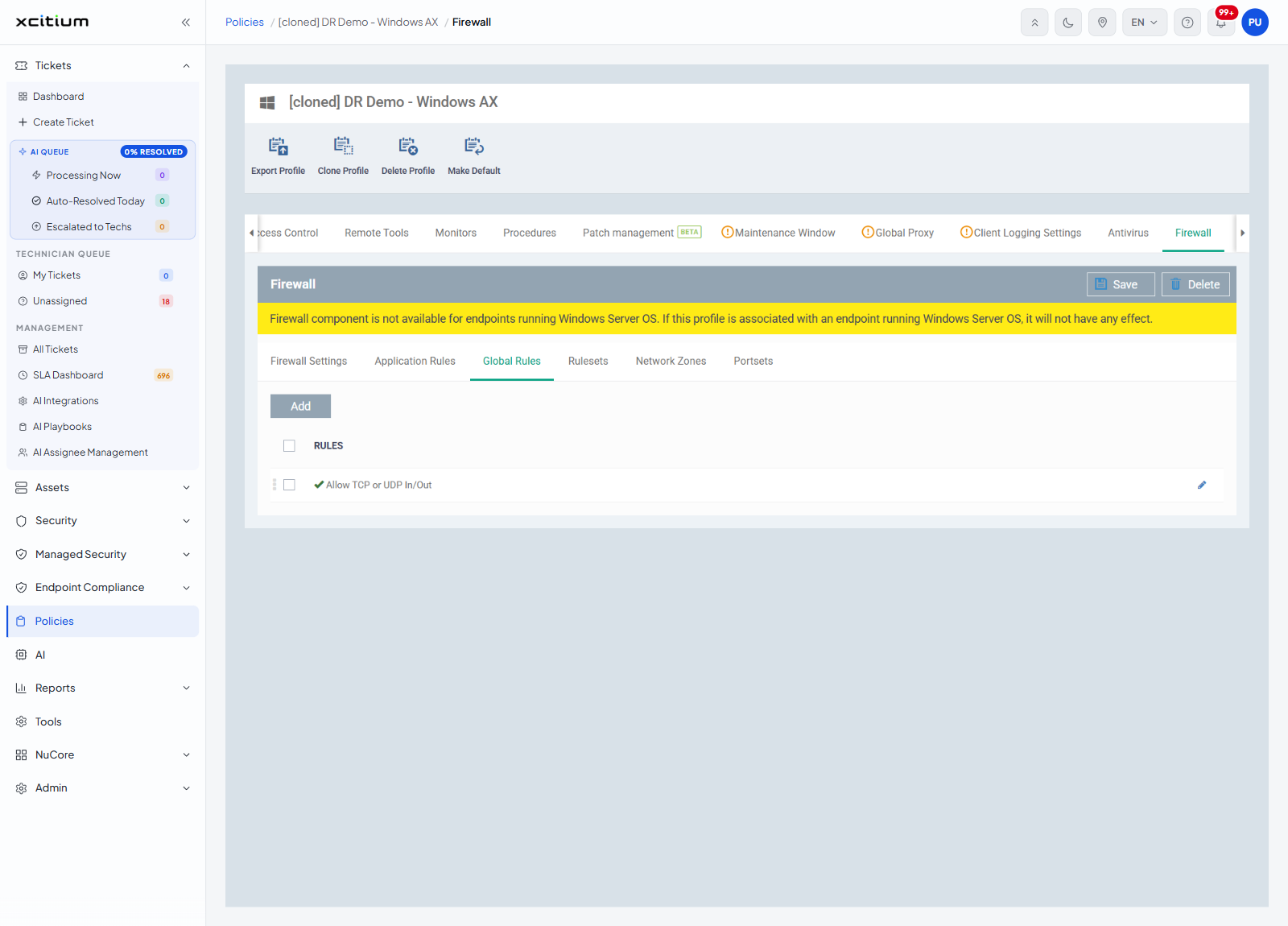
Rules that apply to all traffic, whatever the application, with an 'Add' button above the list and a single 'RULES' column describing each rule, for example 'Allow TCP or UDP In/Out'.
The Firewall Rule dialog
'Add' on 'Global Rules', and 'Add Rule' inside the 'Application Rule' dialog, both open the 'Firewall Rule' dialog. One rule describes one kind of traffic and says what to do with it.
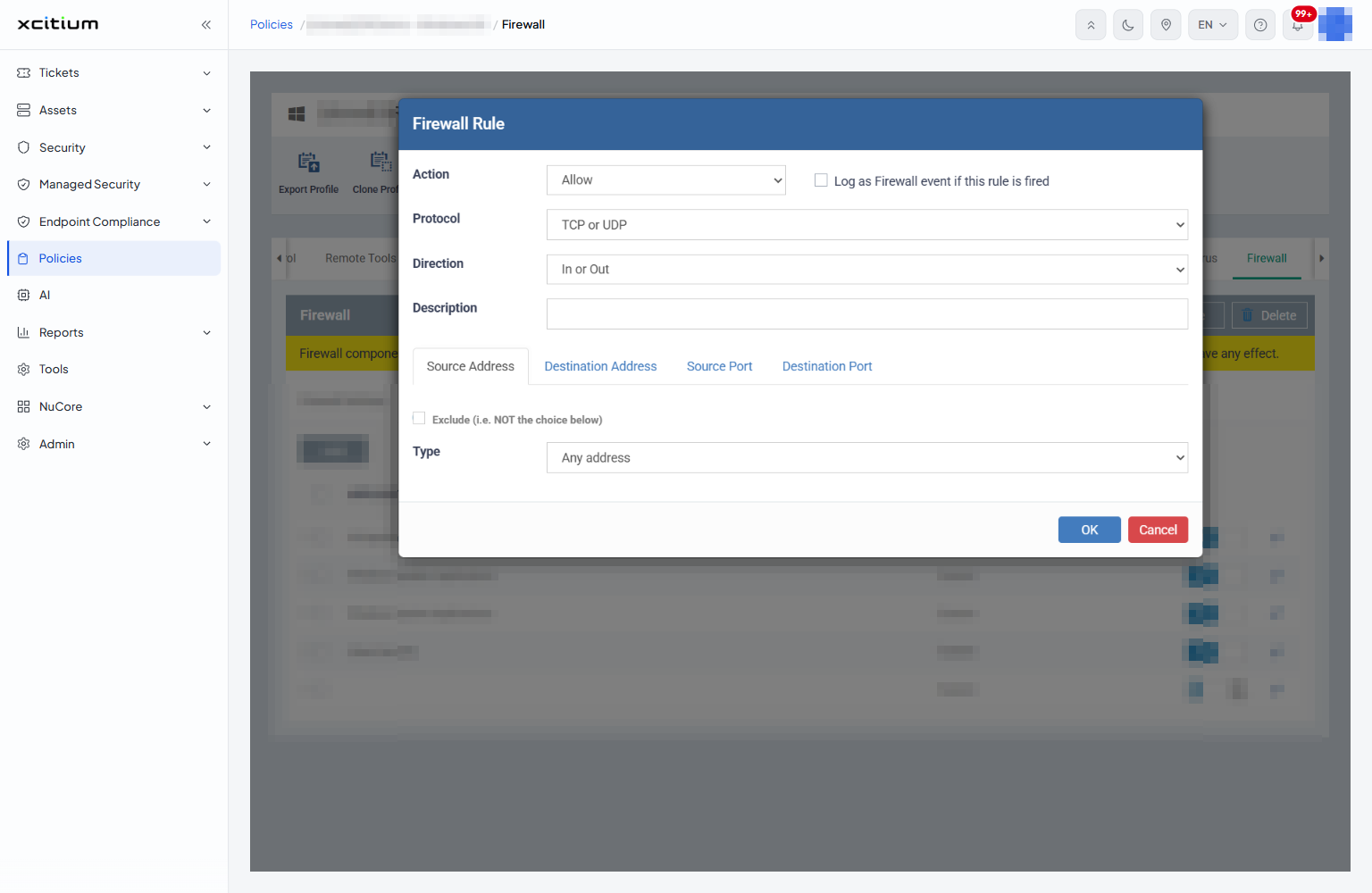
| Field | Description |
| Action | What happens to traffic that matches: 'Allow', 'Block' or 'Ask'. |
| Log as Firewall event if this rule is fired | Records an event each time the rule matches. |
| Protocol | The protocol the rule covers: 'TCP', 'UDP', 'TCP or UDP', 'ICMP' or 'IP'. |
| Direction | Which way the traffic goes: 'Out', 'In' or 'In or Out'. |
| Description | A name for the rule. This is the text that appears in the rule list. |
| Source Address, Destination Address | Two tabs that say which end of the connection the rule matches. 'Type' offers 'Any address', 'Host name', 'IPv4 address range', 'IPv4 single address', 'IPv4 subnet mask', 'IPv6 single address', 'IPv6 subnet mask', 'MAC address' and 'Network zone'. The boxes underneath change with the choice: 'Host', 'Start IP' and 'End IP', 'IP', 'IP' and 'Mask', 'MAC address', or a network zone to pick. |
| Source Port, Destination Port | Two tabs that say which ports the rule matches. 'Type' offers 'Any', 'A single port', 'A port range' and 'A set of ports', with 'Port', or 'Start port' and 'End port', or a portset to pick. |
| Exclude (i.e. NOT the choice below) | Present on each of the four tabs. Matches everything except what you have given. |
Choosing 'ICMP' as the protocol replaces the port tabs with 'Type' ('ICMPv4' or 'ICMPv6') and 'Message', which lists the ICMP messages the rule may match and ends with 'Custom', where you give the 'Type' and 'Code' yourself. Choosing 'IP' gives an 'IP protocol' drop-down of 'Any', 'TCP', 'UDP', 'ICMPv4', 'IGMP', 'Raw IP', 'PUP', 'GGP', 'GRE', 'RSVP', 'ICMPv6' and 'Custom', where you give a 'Custom type'.
Rulesets
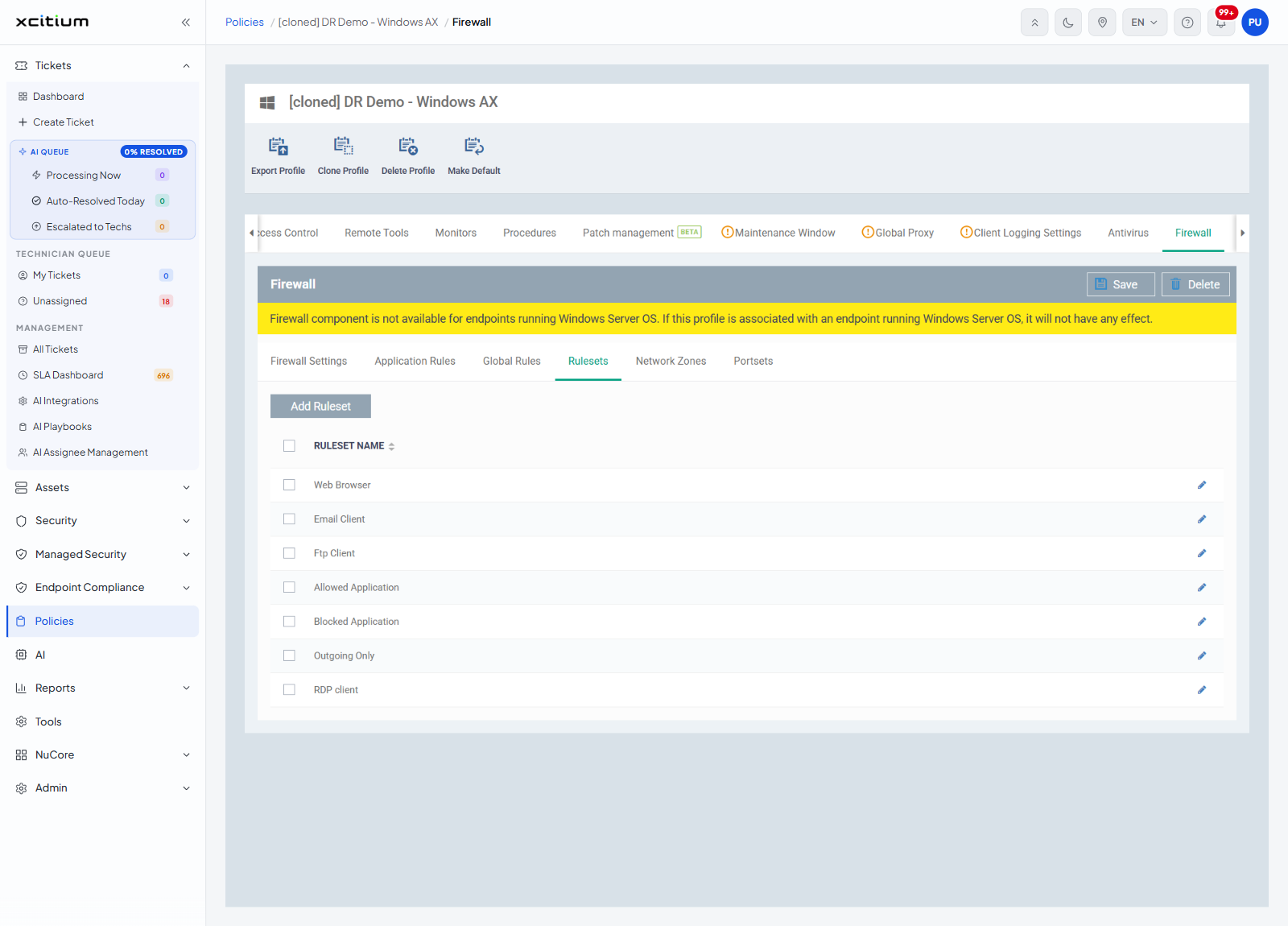
Named sets of rules you can attach to an application. The button above the list reads 'Add Ruleset' and the list has one column, 'RULESET NAME'. The list includes rulesets such as 'Web Browser', 'Email Client', 'Ftp Client', 'Allowed Application', 'Blocked Application' and 'Outgoing Only'.
Add a ruleset
'Add' on 'Rulesets' opens the 'Firewall Ruleset' dialog.
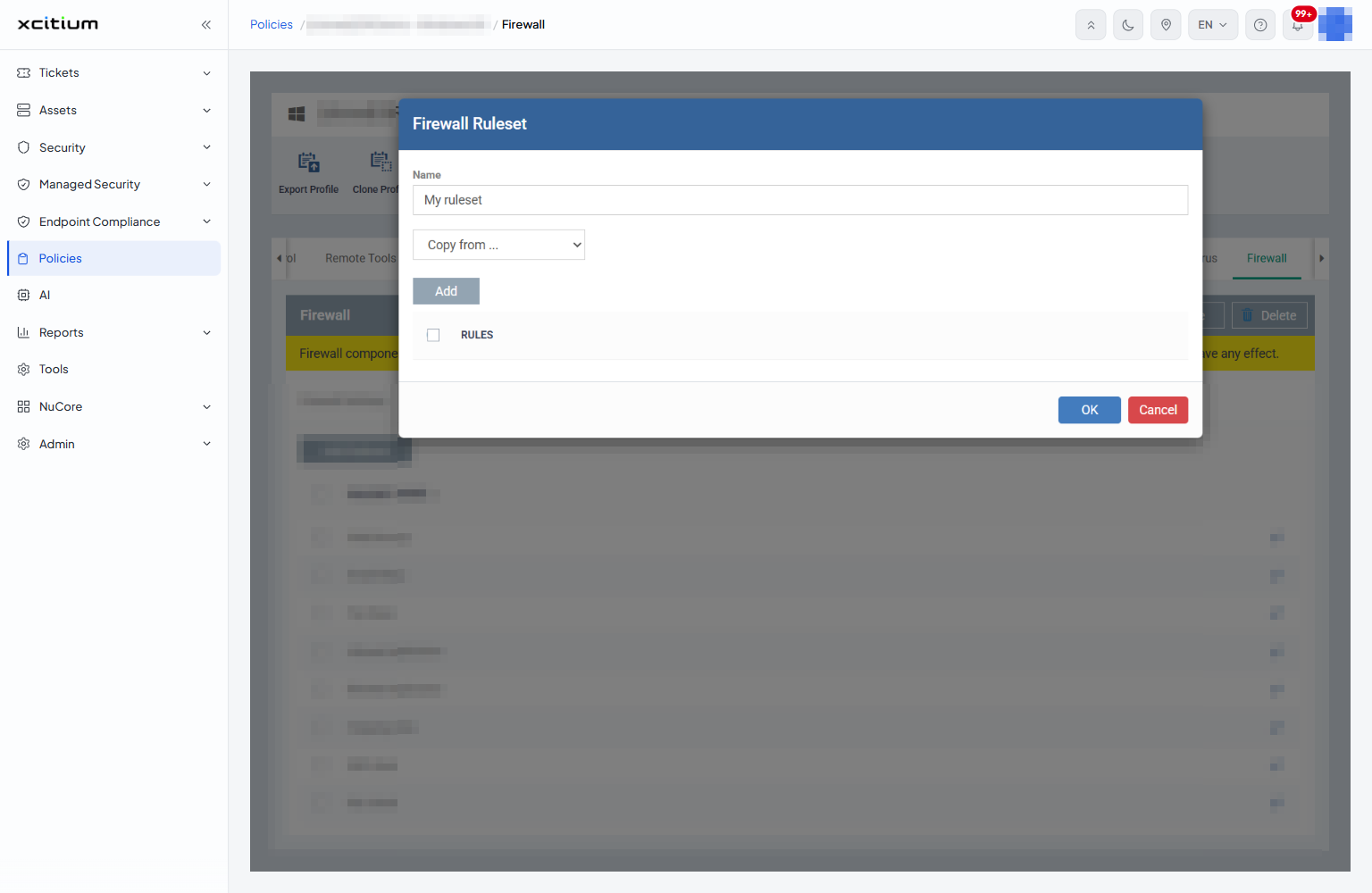
| Field | Description |
| Name | The name of the ruleset. It appears in the 'RULESET NAME' list and in the 'Use ruleset' drop-down on an application rule. |
| Copy from ... | Fills the list from an existing 'Ruleset' or from 'Another Application'. |
| RULES | The rules in the set. 'Add' opens the 'Firewall Rule' dialog. |
- Click 'Policies' in the left navigation bar and open the profile.
- Click the 'Firewall' tab, then click 'Rulesets'.
- Click 'Add' and give the set a name.
- Click 'Add' in the dialog for each rule, or use 'Copy from ...' to start from an existing set.
- Click 'OK', then click 'Save'.
Network Zones
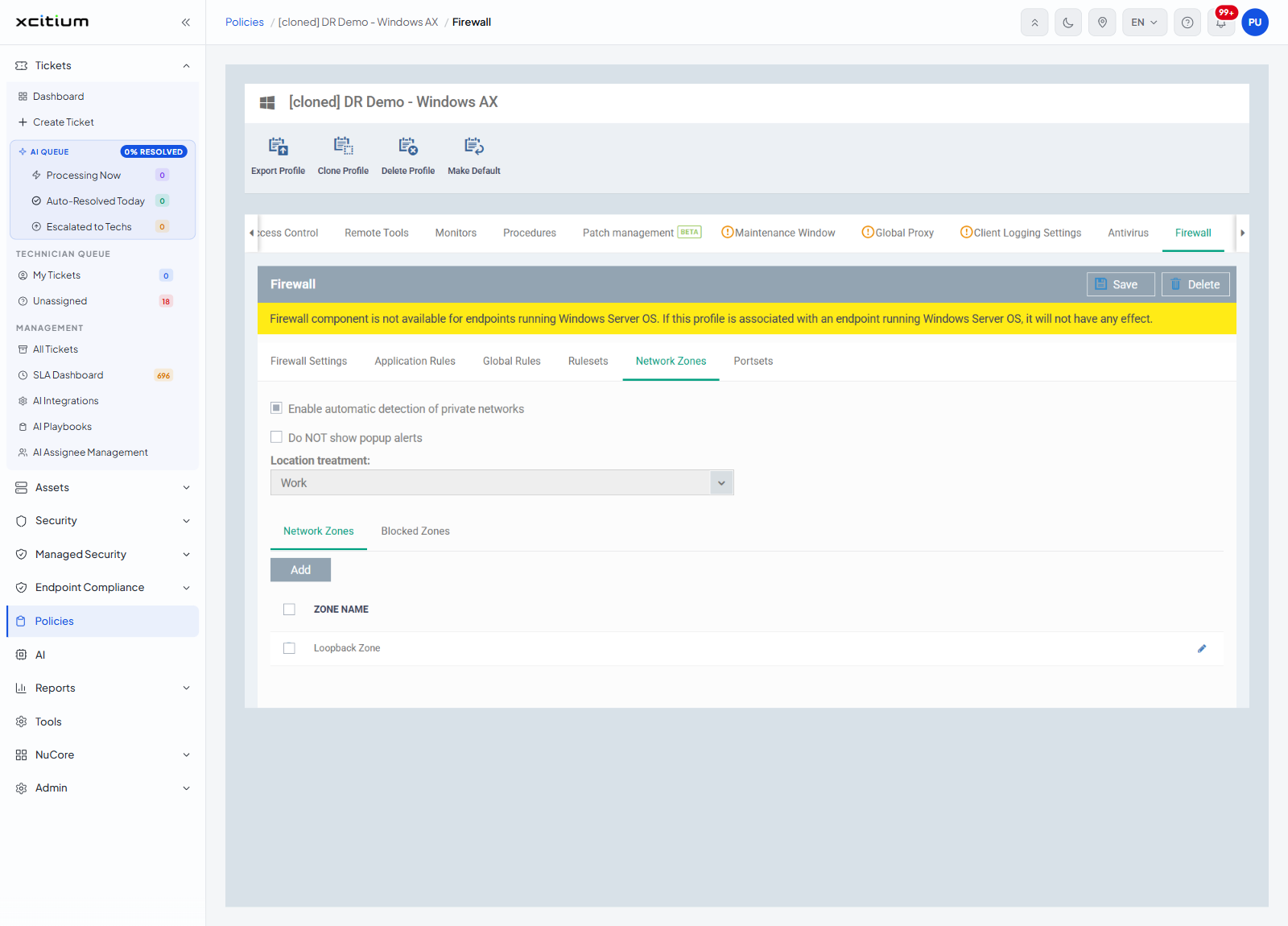
| Setting | Description |
| Enable automatic detection of private networks | Lets the client work out for itself when the device joins a private network. |
| Do NOT show popup alerts | Stops the device user being asked about a new network. |
| Location treatment: | How a newly found network is treated. The choices are 'Work', 'Home' and 'Public'. |
Below the settings the sub-tab splits into 'Network Zones' and 'Blocked Zones'. Each has an 'Add' button and a 'ZONE NAME' column. The product includes a 'Loopback Zone'.
Add a network zone
'Add' opens the 'Network Zone' dialog. A zone is a named set of addresses you can then use in a firewall rule.
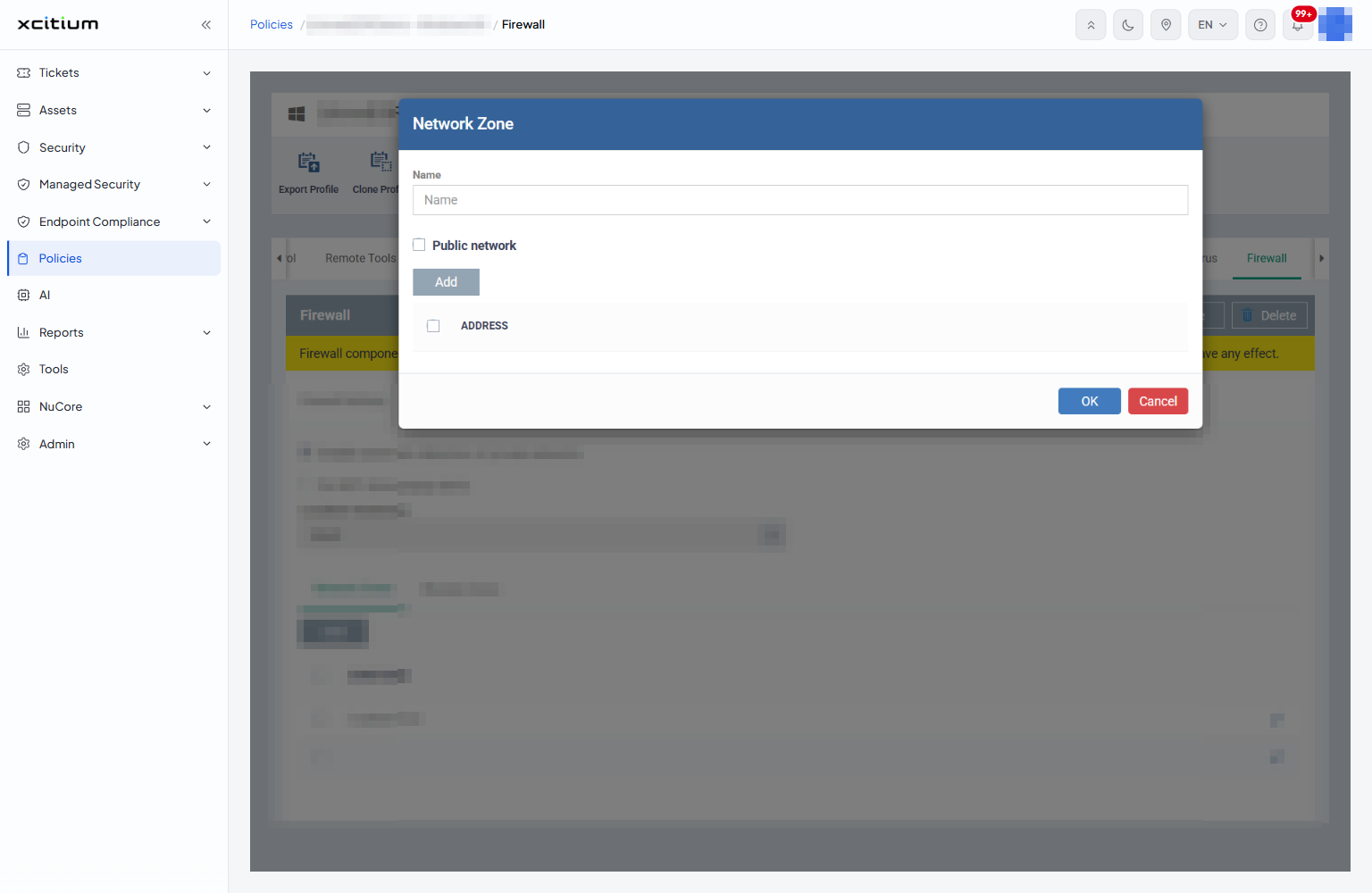
| Field | Description |
| Name | The name of the zone, as it appears in the 'ZONE NAME' list. |
| Public network | Marks the zone as a public network. |
| ADDRESS | The addresses the zone covers. 'Add' adds a row to the list. |
- Click 'Policies' in the left navigation bar and open the profile.
- Click the 'Firewall' tab, then click 'Network Zones'.
- Click 'Add' and give the zone a name.
- Click 'Add' in the dialog for each address the zone should cover.
- Click 'OK', then click 'Save'.
Portsets
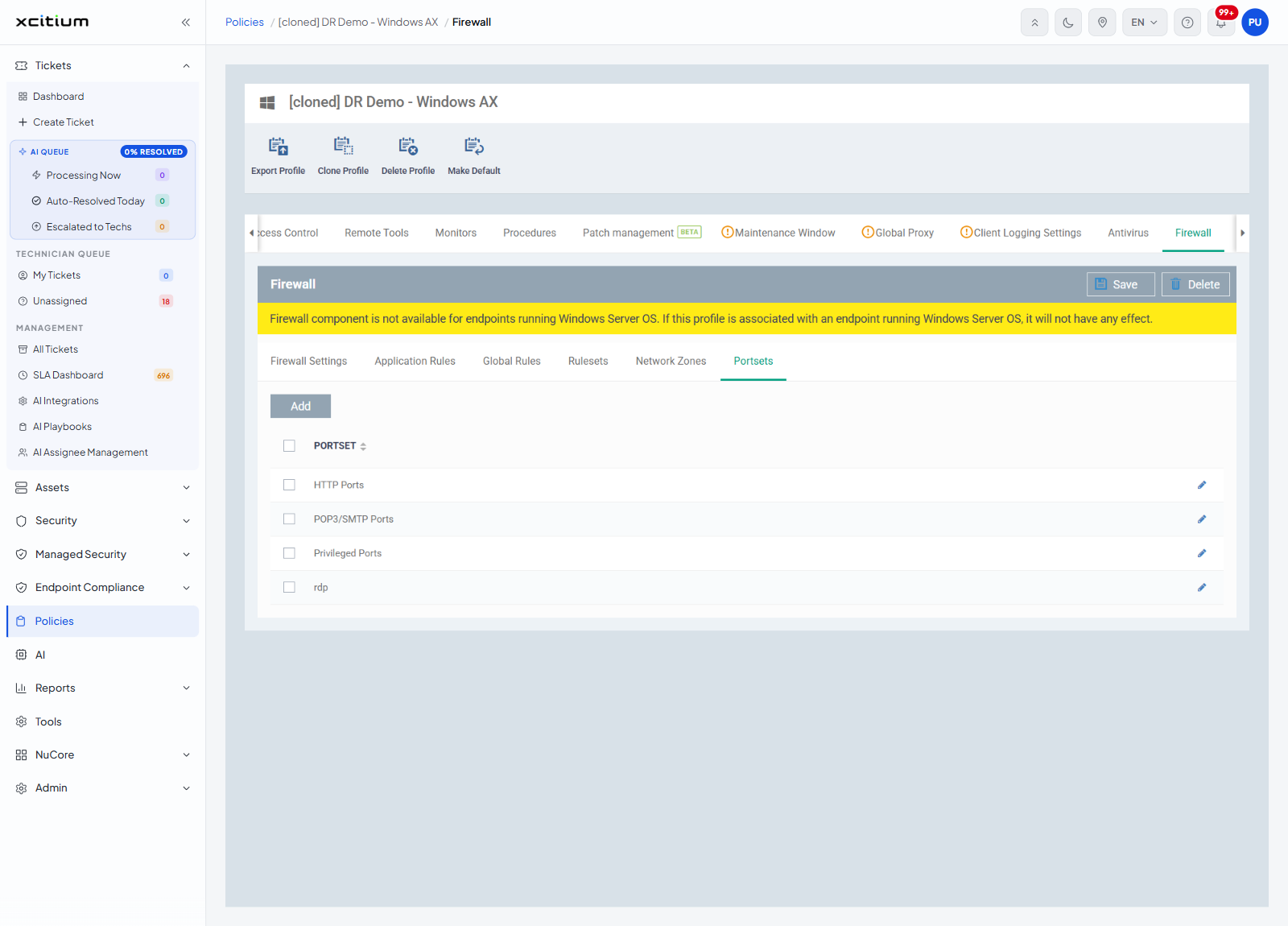
Named groups of ports you can use in a rule. The 'Add' button sits above the list, which has one column, 'PORTSET'. The list includes portsets such as 'HTTP Ports', 'POP3/SMTP Ports' and 'Privileged Ports'.
Add a portset
'Add' opens the 'Portset' dialog.
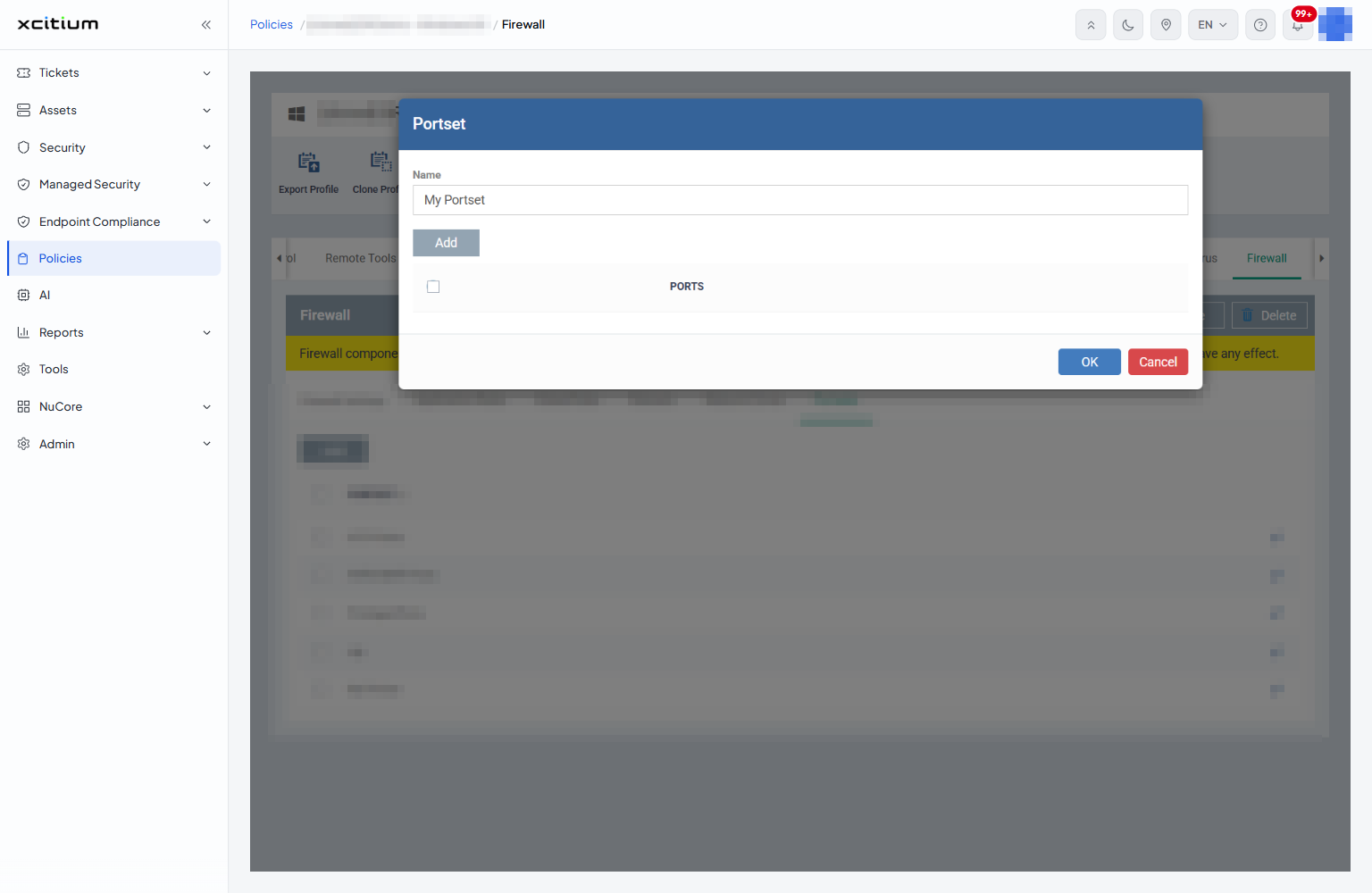
| Field | Description |
| Name | The name of the set, as it appears in the 'PORTSET' list and in the 'A set of ports' choice on a firewall rule. |
| PORTS | The ports the set covers. 'Add' adds a row to the list. |
- Click 'Policies' in the left navigation bar and open the profile.
- Click the 'Firewall' tab, then click 'Portsets'.
- Click 'Add' and give the set a name.
- Click 'Add' in the dialog for each port or port range.
- Click 'OK', then click 'Save'.
Set up the firewall
- Click 'Policies' in the left navigation bar and open the profile.
- Click the 'Firewall' tab.
- On 'Firewall Settings', turn on 'Enable Firewall (recommended)' and choose 'Custom ruleset', 'Safe mode' or 'Training mode'.
- Set the alert behaviour and the traffic filters.
- Use 'Application Rules' and 'Global Rules' to say what is allowed.
- Use 'Rulesets', 'Network Zones' and 'Portsets' to build the pieces those rules refer to.
- Click 'Save'.
Note: the banner at the top of the panel means this section has no effect on Windows Server devices. Use a different profile for servers.