


Filter the Monitors List
- Click 'Assets' > 'Monitoring & Management' > 'Monitors', then click the filter icon at the right of the toolbar.
The filter panel opens down the right of the screen and narrows the list to the monitors that match every value you set.
You can filter on the name, the type, the operating system, how many policies use the monitor, and who created or last changed it.
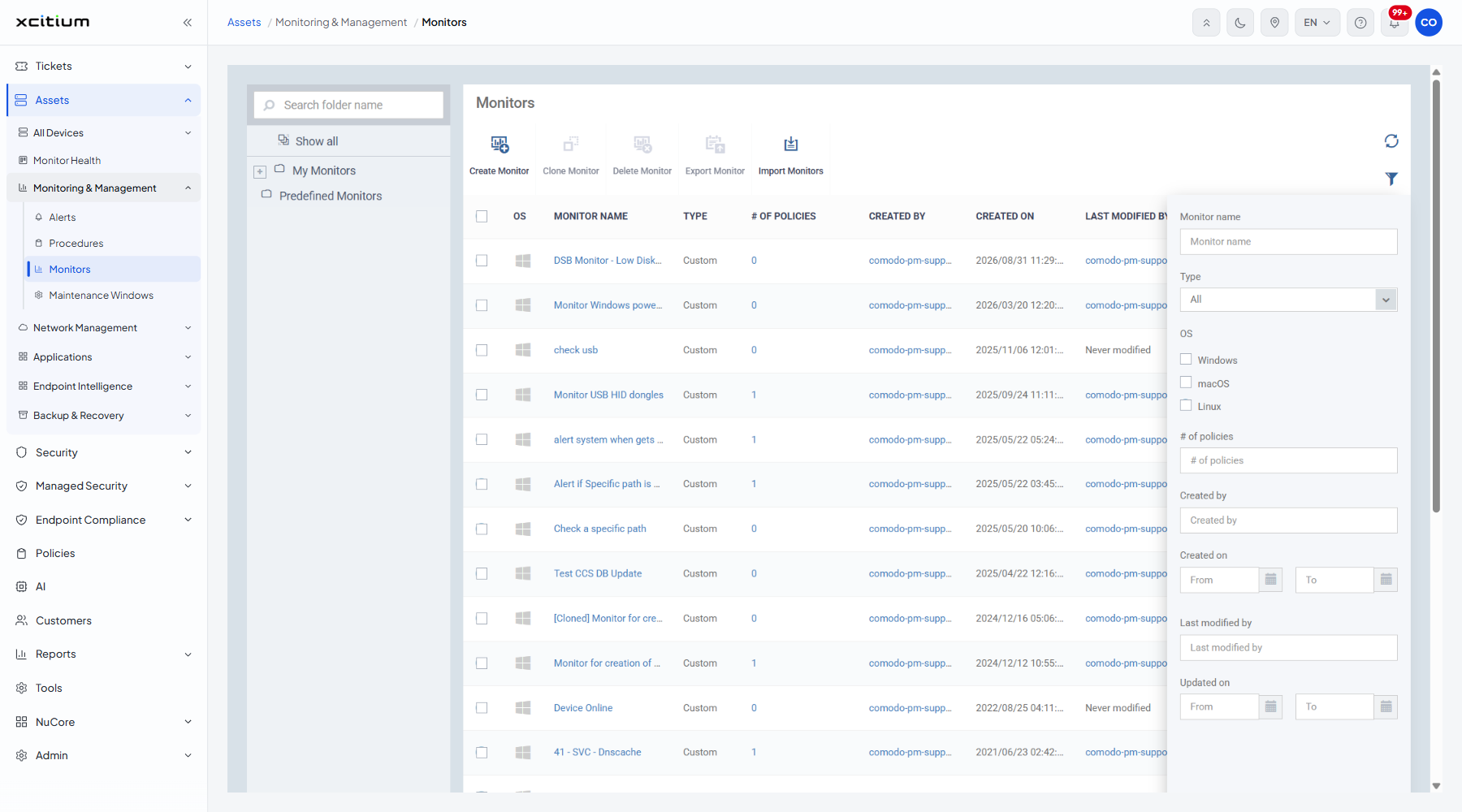
| Field | Type | Options / default | Required |
| Monitor name | Text box | Empty by default. Matches part of a monitor name. | No |
| Type | Dropdown | 'All' (default), 'Predefined', 'Custom'. | No |
| OS | Checkboxes | 'Windows', 'macOS', 'Linux'. All clear by default. | No |
| # of policies | Text box | Empty by default. Matches the number of policies using the monitor. | No |
| Created by | Text box | Empty by default. | No |
| Created on | Date range | A 'From' box and a 'To' box. | No |
| Last modified by | Text box | Empty by default. | No |
| Updated on | Date range | A 'From' box and a 'To' box. | No |
Find the monitors no policy uses
- Click 'Assets' > 'Monitoring & Management' > 'Monitors'.
- Click the filter icon at the right of the toolbar.
- Type 0 into '# of policies'.
- Click 'Apply'.