


Count and Group Results
Use 'Summarize' to combine rows into totals, such as the number of installs per vendor.
Count and Group
- Click 'Summarize'.
- 'Summarize by' starts as 'Count'. Click '+' to add another measure, or x to remove one.
- Under 'Group by', click one or more fields, or type in 'Find...' to search.
- Click 'Done'. The report title updates itself, for example 'Count by Software Vendor'.
Tip: For number and date fields, click the group-by chip to change how values are bucketed (for example 'Auto binned').
Add More Measures
- Click 'Summarize', then the '+' next to 'Count'.
- In 'Basic Metrics', choose one: 'Count of rows', 'Number of distinct values of...', 'Cumulative count of rows', 'Minimum of...', 'Maximum of...' and others further down the list. The '?' beside each one explains it.
- For measures that apply to a field, pick the field (for example 'Software Name').
- Click 'Done'. Each measure becomes its own column or series, and the title updates, for example 'Count and Distinct values of Software Name by Software Vendor'.
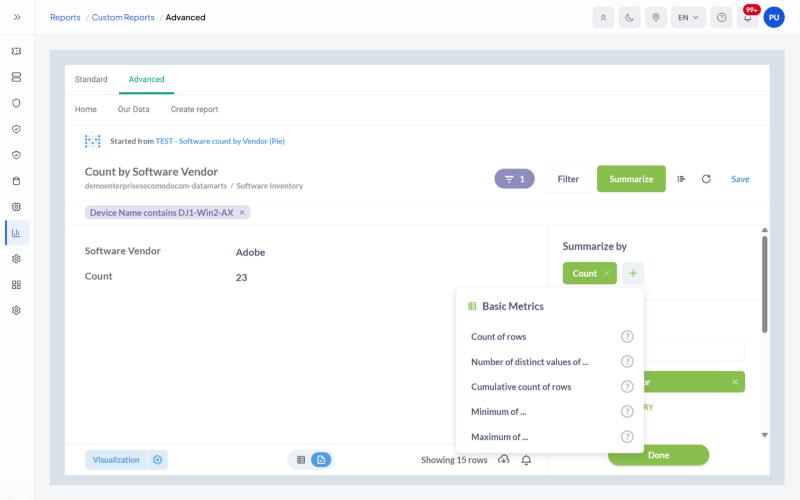
The 'Basic Metrics' list after clicking '+' next to 'Count'.
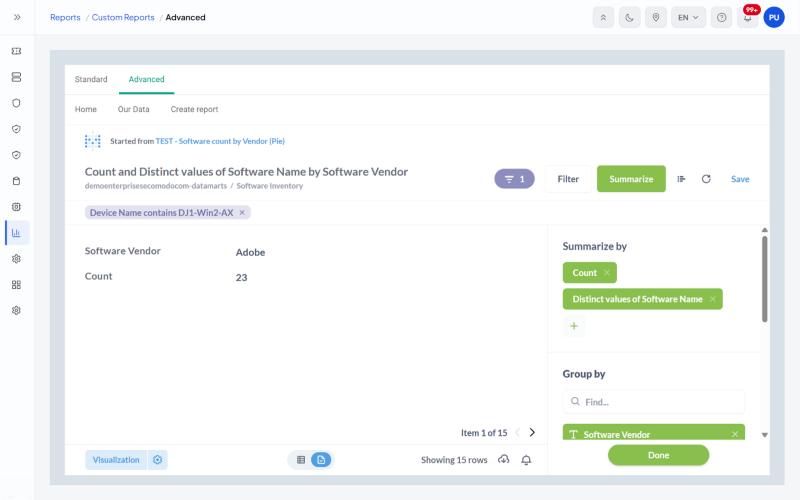
Two measures in one summary. The title updates automatically.
Use the x on a measure chip to remove it. Add more than one 'Group by' field to split the summary further.
Example: How Many Different Programs Does Each Vendor Have?
- Click 'Create report' > 'Software Inventory' > 'Summarize'.
- Click '+' next to 'Count' and add 'Number of distinct values of...' > 'Software Name'.
- Group by 'Software Vendor', then click 'Done'.
- Add a 'Filter' if you only want certain devices, then click 'Save'.
The result is one row per vendor with two numbers: total installs and the number of different programs.
Example: How Many Devices Are in Each Status?
- Click 'Create report' > 'Hardware Inventory'.
- Click 'Summarize' and group by 'Online Status'.
- Check the bar chart, then save the report.