


Add a TCP Condition
- Click 'Assets' > 'Monitoring & Management' > 'Monitors', open a monitor, click 'Edit', open the 'Conditions' tab, then click 'Add Condition' > 'TCP'.
The condition opens a TCP connection from the device to an address and port and triggers on whether that port answers.
You can confirm a service is reachable, or confirm a port you have closed has stayed closed.
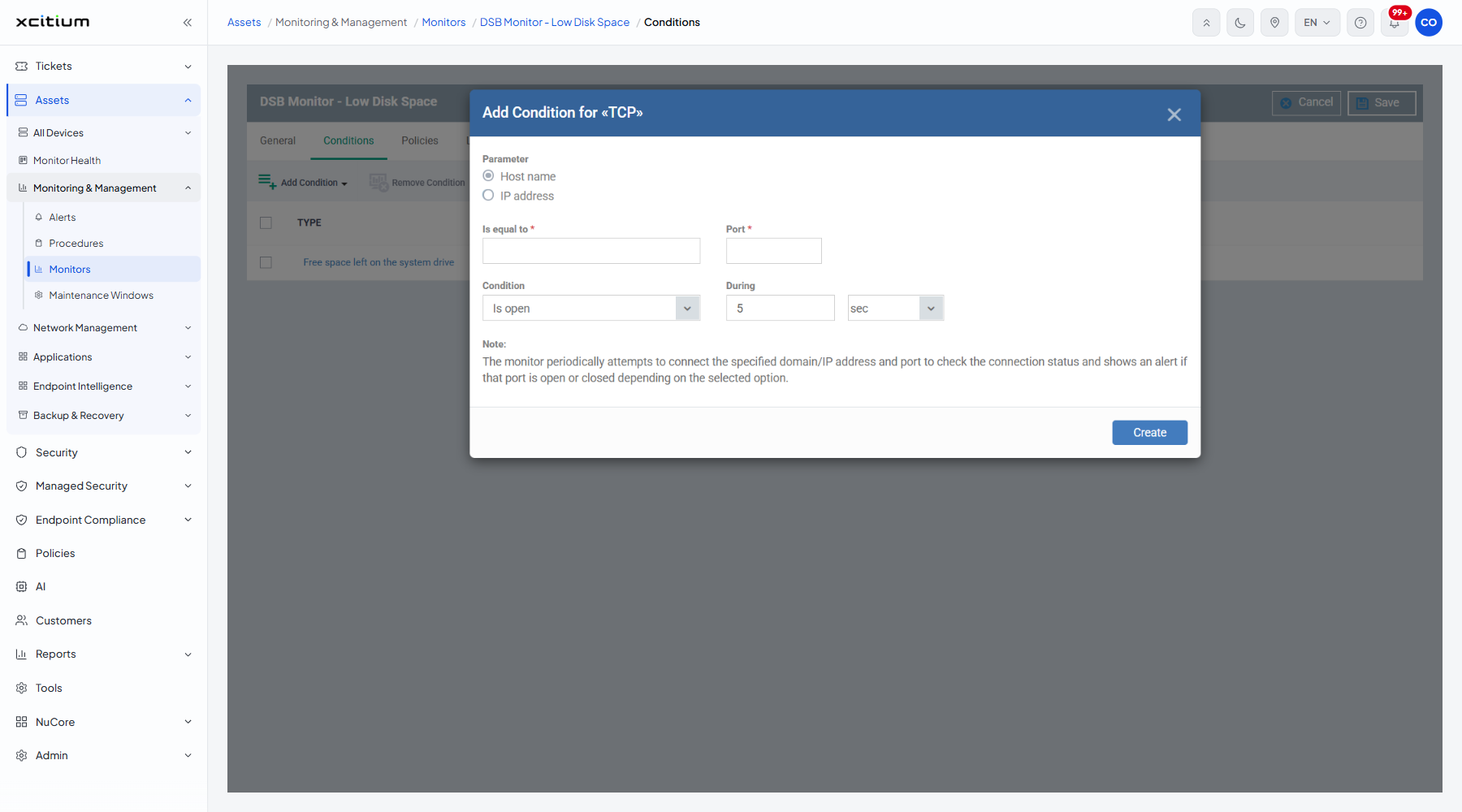
The fields
| Field | Type | Options / default | Required |
| Parameter | Radio group | 'Host name' (default) or 'IP address'. Decides what you type in the next box. | Yes |
| Is equal to | Text box | Empty by default. The host name or IP address to connect to. | Yes |
| Port | Text box | Empty by default. The TCP port number. | Yes |
| Condition | Dropdown | 'Is open' (default), 'Is closed'. | Yes |
| During | Number box and unit | Pre-filled '5', with a unit dropdown offering 'sec' (selected) and 'min'. | No |
The dialog's own note: 'The monitor periodically attempts to connect the specified domain/IP address and port to check the connection status and shows an alert if that port is open or closed depending on the selected option.'
Add the condition
- Choose 'Host name' or 'IP address' under 'Parameter'.
- Type the address into 'Is equal to'.
- Type the port number into 'Port'.
- Choose 'Is open' or 'Is closed' in 'Condition'.
- Set how long the state must hold in 'During'.
- Click 'Create'.
- Click 'Save' on the monitor header to store the change.
Note: the connection is made from the endpoint, not from the console, so the test reflects what that device can actually reach.