


Device Details
- Open the Device List and click a device name in the 'NAME' column to open this interface.
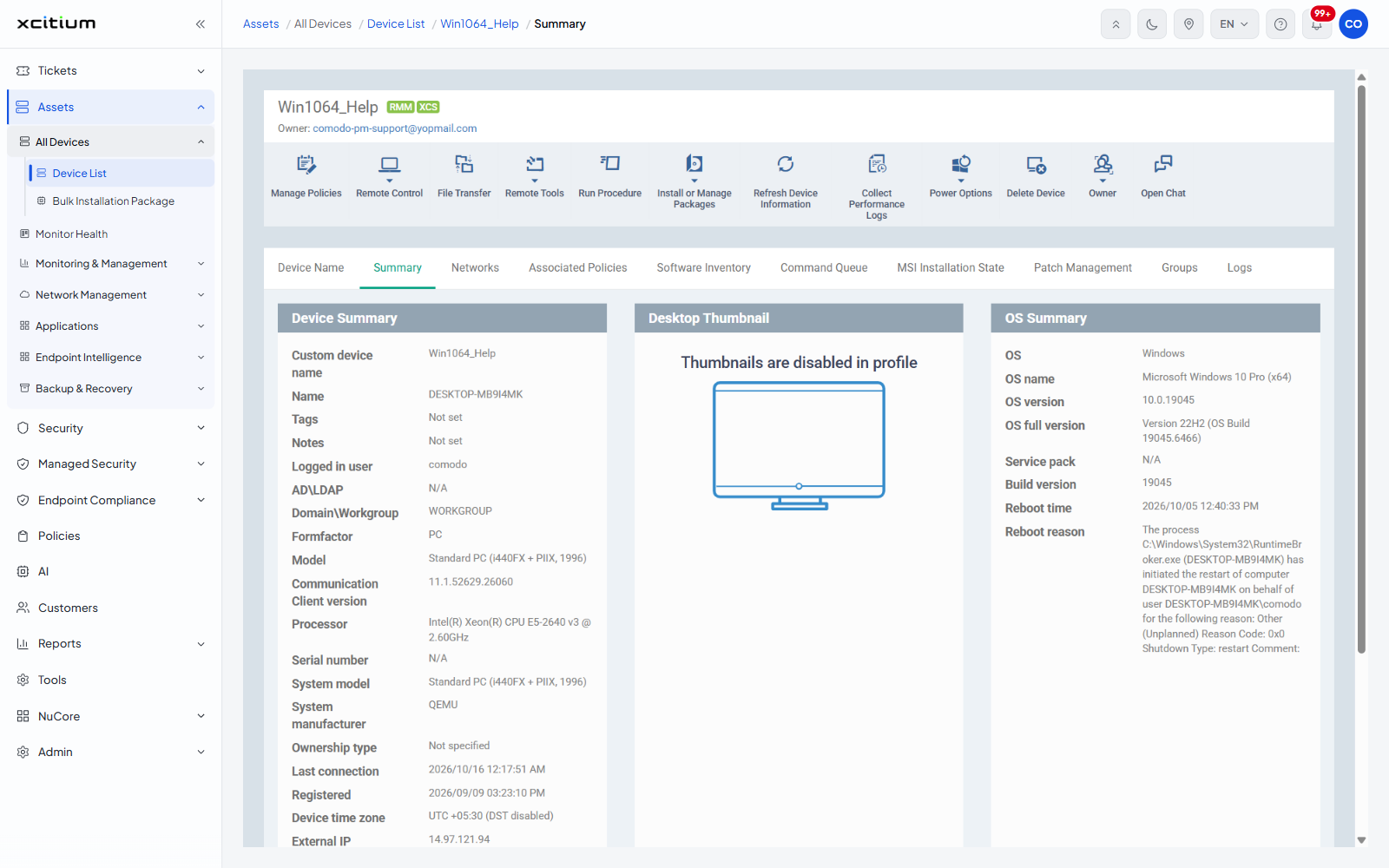
The device page is everything the server knows about one device, together with every action you can take against it. It opens on the Summary tab and carries its own toolbar above a strip of ten tabs.
You can read the hardware, operating system, network and performance detail, see which policies and applications are on the device, inspect its patch state and its logs, and run any device action from the toolbar.
The header
The header shows the device name, the policy-kind badges that apply to it, and an 'Owner:' line naming the owner, as a link.
The toolbar
| Button | Description |
| Manage Policies | Adds or removes the policies applied to this device. See Manage a Device's Policies. |
| Remote Control | Opens a remote session. Offers 'With Xcitium Remote Control' and 'With Web Remote Control'. |
| File Transfer | Opens a file-transfer session with the device. |
| Remote Tools | Offers 'File Explorer', 'Process Explorer', 'Service Explorer', 'Commands Interface' and 'Events'. |
| Run Procedure | Runs a procedure on this device. See Run a Procedure on a Device. |
| Install or Manage Packages | Offers 'Install Additional Xcitium Packages', 'Install Custom MSI/Packages', 'Update Additional Packages' and 'Uninstall Additional Packages'. See Install and Manage Packages on a Device. |
| Refresh Device Information | Asks the device to send fresh inventory data. |
| Collect Performance Logs | Gathers performance telemetry from the device. See Collect Performance Logs. |
| Power Options | Offers 'Reboot', 'Shutdown' and 'Wake'. See Reboot or Shut Down a Device. |
| Export Security Configuration | Asks the device for its current security configuration. This action runs as soon as it is clicked. |
| Delete Device | Removes the device from management. See Delete a Device. |
| Owner | Offers 'Change Owner' and 'Change Ownership Type'. See Change a Device's Owner. |
| Open Chat | Opens a chat session with the device user. |
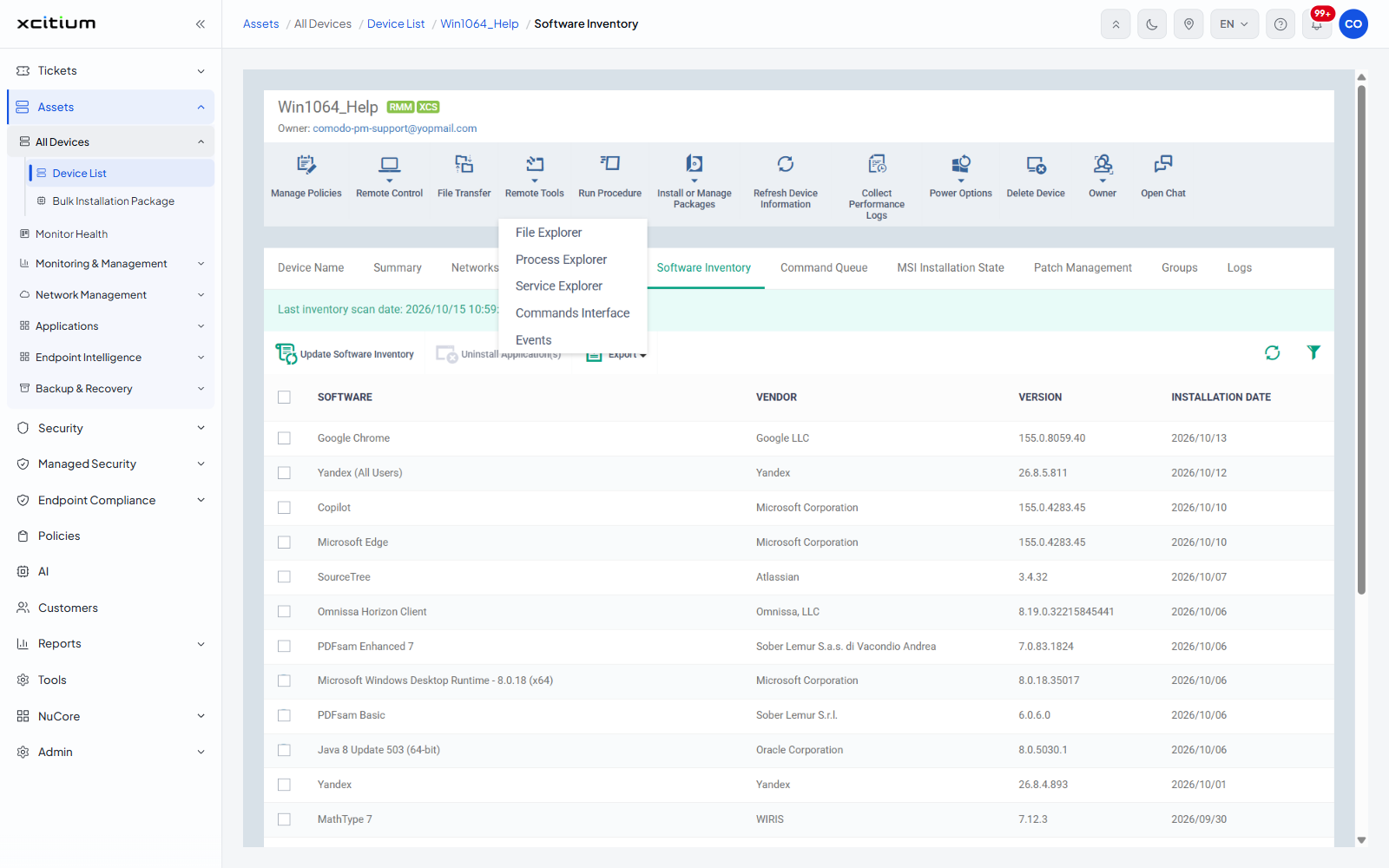
The tabs
| Tab | Description |
| Device Name | The display name, tags and notes held against the device. See View and Edit the Device Name. |
| Summary | Hardware, operating system and live performance. This is the default. See View Device Summary Information. |
| Networks | One panel per network adapter. See View Network Information. |
| Associated Policies | The policies on the device and the configuration its clients are running. See View Policies Associated With a Device. |
| Software Inventory | Every application installed on the device. See View Applications Installed on a Device. |
| Command Queue | Commands waiting to reach the device. See View the Command Queue. |
| MSI Installation State | The progress of custom package installs. See View MSI Installation State. |
| Patch Management | Operating-system and third-party patches for the device. See View and Manage Patches on a Device. |
| Groups | The device groups the device belongs to. See View a Device's Groups. |
| Logs | Eight log views covering alerts, monitors, scripts, patches, installs and discovery. See View Device Logs. |
Open a device
- Click 'Assets' > 'All Devices' > 'Device List'.
- Find the device with the group tree, the search box or the filter panel.
- Click the device name.
- Click a tab to move between the views.
Note: the tabs a device shows depend on its operating system. The set described here is the Windows set.