


Reboot or Shut Down a Device
Open a device, then click 'Power Options' on its toolbar. The same button appears on the Device List toolbar and acts on every ticked device.
Power Options restarts, shuts down or wakes a device from the console. A restart warns the user first, and you choose how long they get.
You can reboot a device after a delay or with a warning the user can postpone, shut it down, and wake it.
The menu
| Item | Description |
| Reboot | Restarts the device. Opens the dialog below. |
| Shutdown | Powers the device off. |
| Wake | Wakes a sleeping device. |
The Reboot dialog
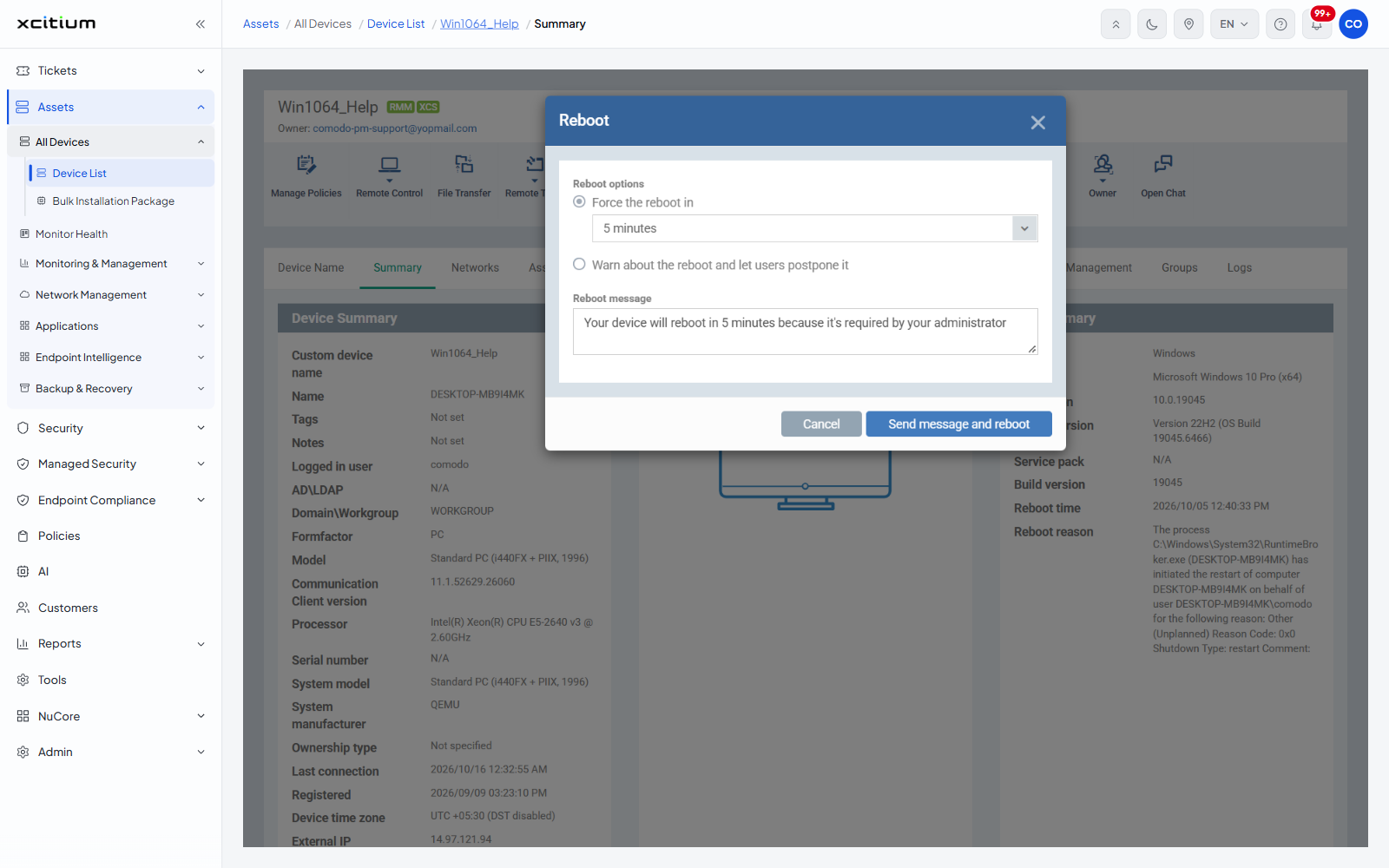
| Field | Type | Options / default |
| Force the reboot in | Radio with dropdown | The default. The dropdown offers '5 minutes' (the default), '10 minutes', '20 minutes', '30 minutes', '60 minutes', '120 minutes', '240 minutes', '300 minutes'. |
| Warn about the reboot and let users postpone it | Radio | Warns the user and lets them delay the restart. |
| Reboot message | Textarea | Pre-filled with the message the device owner sees before the restart. |
Reboot a device
- Open the device and click 'Power Options'.
- Click 'Reboot'.
- Choose 'Force the reboot in' and a delay, or 'Warn about the reboot and let users postpone it'.
- Edit the reboot message if you want to explain why.
- Click 'Send message and reboot'.
Note: the 'Suppress the reboot' option offered in the package dialogs is not available here, because a reboot is the whole point of this action.