


Clone, Import, Export and Delete Monitors
- Click 'Assets' > 'Monitoring & Management' > 'Monitors', tick a monitor, then use the toolbar.
Cloning copies a monitor so you can change the copy; exporting writes it to a file you can load into another account; deleting removes it.
You can clone any monitor, including a predefined one, which is how you adapt a shipped monitor to your own thresholds.
The Clone monitor dialog
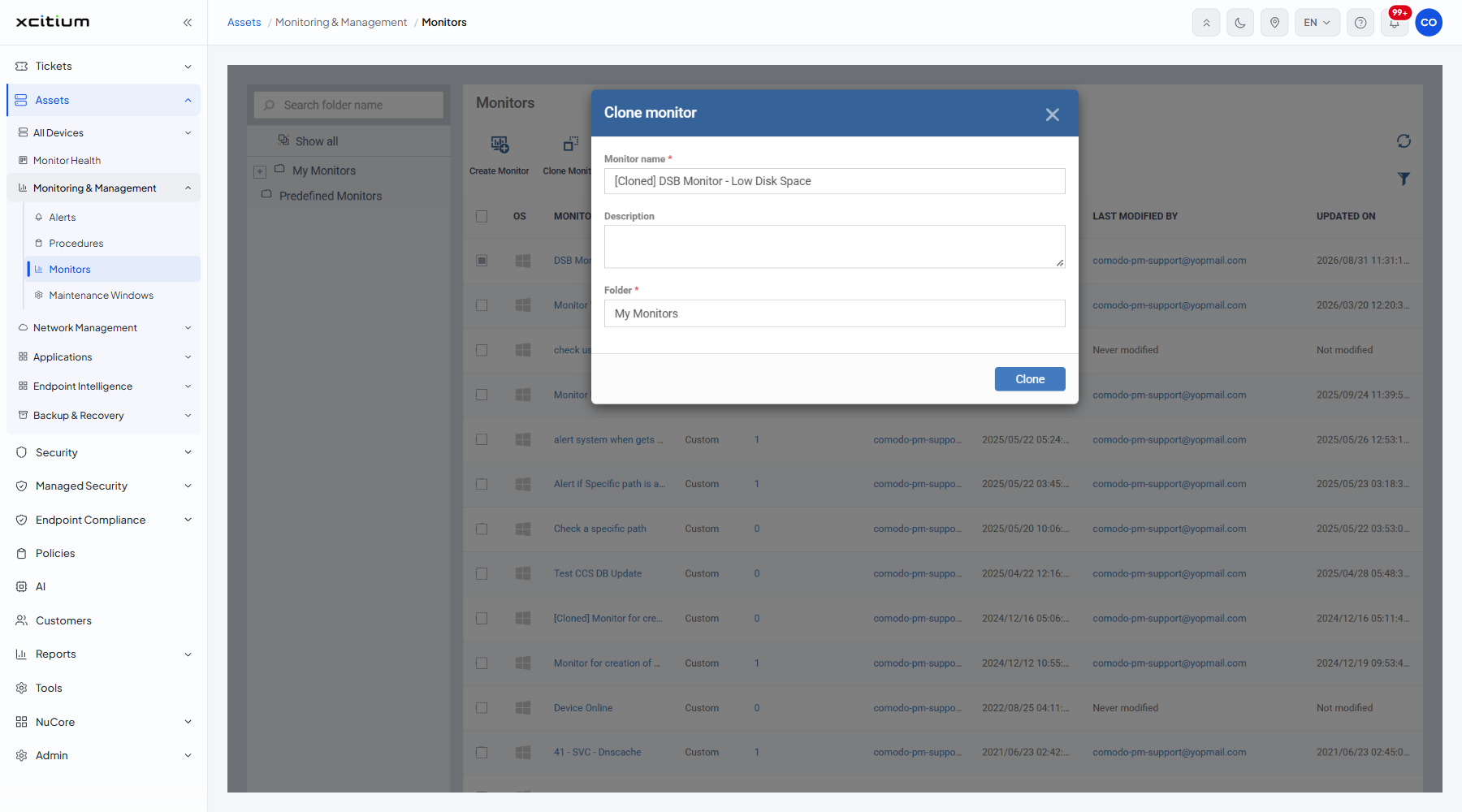
| Field | Type | Options / default | Required |
| Monitor name | Text box | Pre-filled '[Cloned] <original name>'. | Yes |
| Description | Textarea | Empty by default. | No |
| Folder | Lookup | 'My Monitors' by default. | Yes |
The Delete Monitor(s) dialog
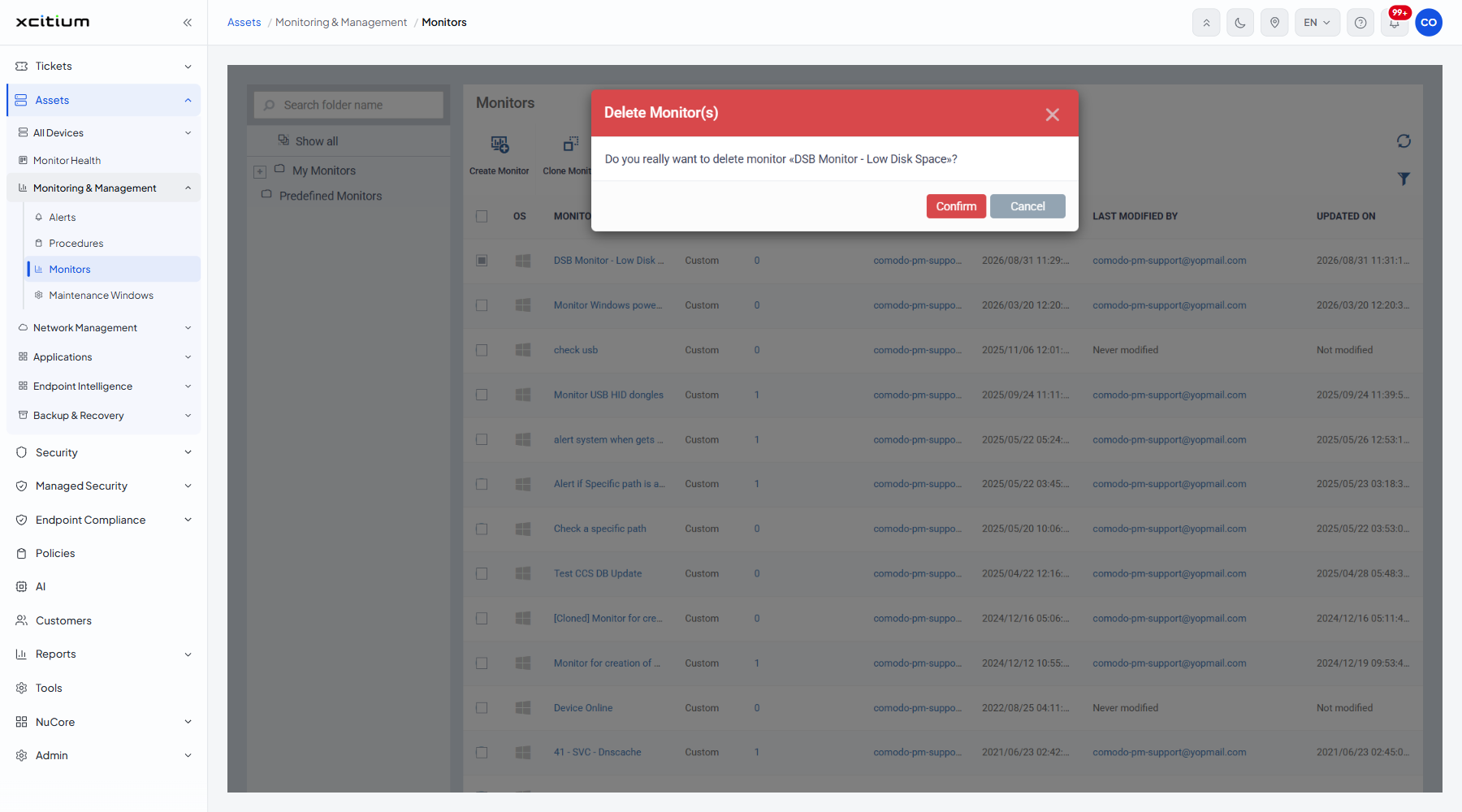
The dialog asks 'Do you really want to delete monitor «<name>»?' and offers two buttons:
| Button | Description |
| Confirm | Deletes the monitor. |
| Cancel | Closes the dialog and leaves the monitor alone. |
Import and export
| Button | Description |
| Export Monitor | Writes the ticked monitor to a file. Greyed out until a row is ticked. |
| Import Monitors | Loads monitors from such a file. Opens your operating system file picker; always available. |
Adapt a predefined monitor
- Click 'Assets' > 'Monitoring & Management' > 'Monitors'.
- Click 'Predefined Monitors' in the left pane.
- Tick the monitor you want to base yours on.
- Click 'Clone Monitor'.
- Name the copy, choose a folder under 'My Monitors' and click 'Clone'.
- Open the copy, click 'Edit' and change its conditions and thresholds.
Note: deleting a monitor removes it from every policy that uses it. Check the ‘# of policies’ column before you delete.