


Licenses
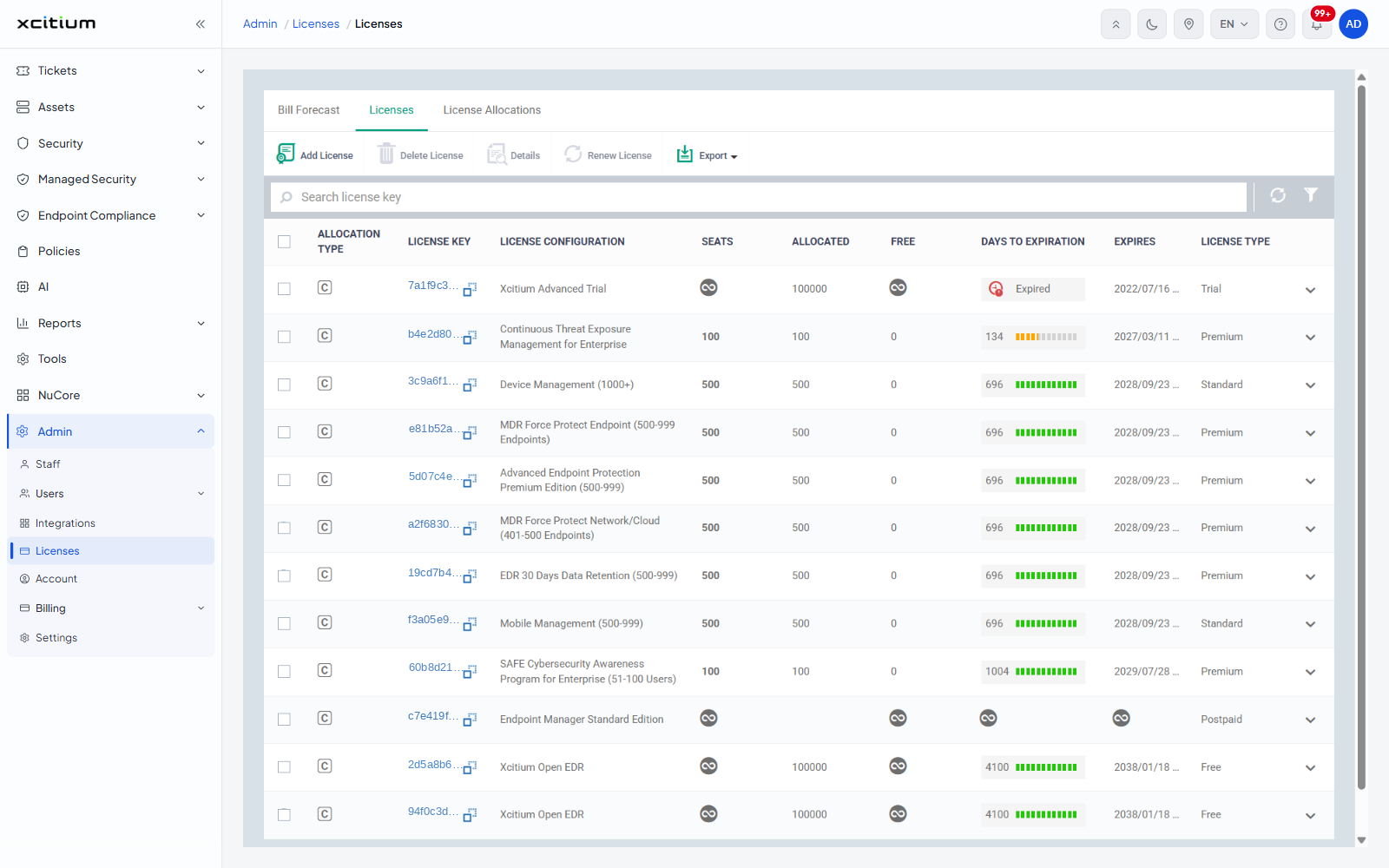
Licenses shows the licence keys on your account — how many seats each one carries, how many are in use, and when it expires. The page has three tabs: Bill Forecast, Licenses and License Allocations. It opens on Licenses.
Getting there
- Click Admin in the left navigation.
- Click Licenses.
What the list shows
- Allocation type — whether the licence is held globally or against one customer
- License key — click it to open the licence
- License configuration — the product the licence covers
- Seats — how many the licence carries
- Allocated — how many are in use
- Free — how many are left
- Days to expiration
- Expires
- License type
Every column sorts. Use the Search license key box to find one licence, and Table refresh to reload the list.
Toolbar actions
Tick a licence to enable the actions that work on a selection.
- Add License — add a key to the account
- Delete License
- Details — open the ticked licence
- Renew License
- Export
Add a licence
- Click Add License.
- Paste your key into the License key field.
- Click Add.
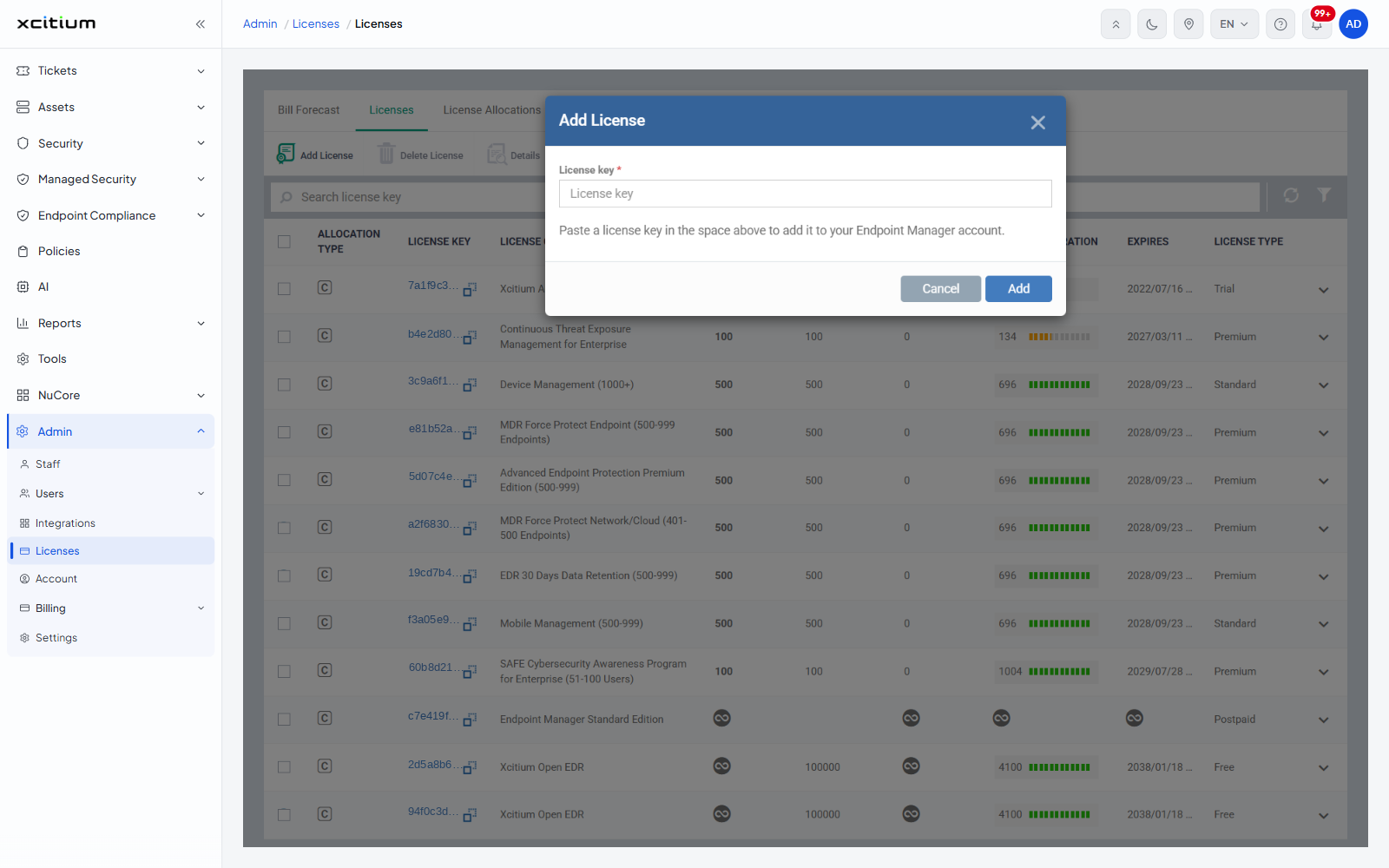
License key is required, and the dialog explains what to do: "Paste a license key in the space above to add it to your Endpoint Manager account." Click Cancel to close it without adding anything.
Filtering the list
Click Table filter to open a panel beside the list. The list narrows as you type, so there is no Apply button; click the icon again to close the panel.
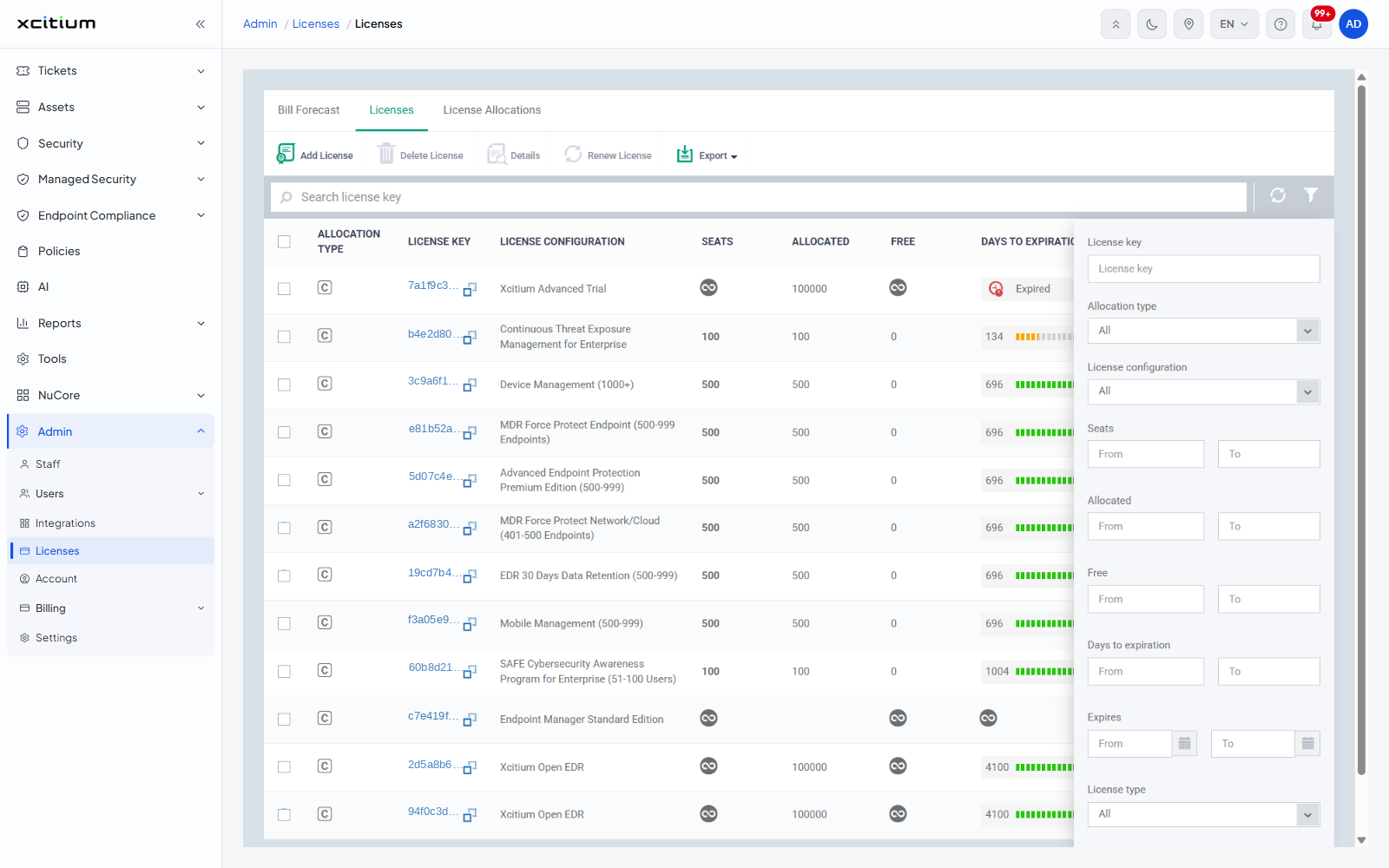
- License key — text
- Allocation type — All, Global or Customer
- License configuration — the full product catalogue, set to All
- Seats — a From and To pair
- Allocated — a From and To pair
- Free — a From and To pair
- Days to expiration — a From and To pair
- Expires — a From and To date pair, each with a calendar picker
- License type — All, Trial, Free, Premium, Postpaid or Standard