


Device Control
- Click 'Security' > 'Endpoint Security' > 'Device Control' to open this interface.
Device Control lists the external hardware the client has detected on your enrolled devices — drives, controllers, input devices and so on — and whether each one is enabled.
You can filter the list by hardware class, host device and status, and export it.
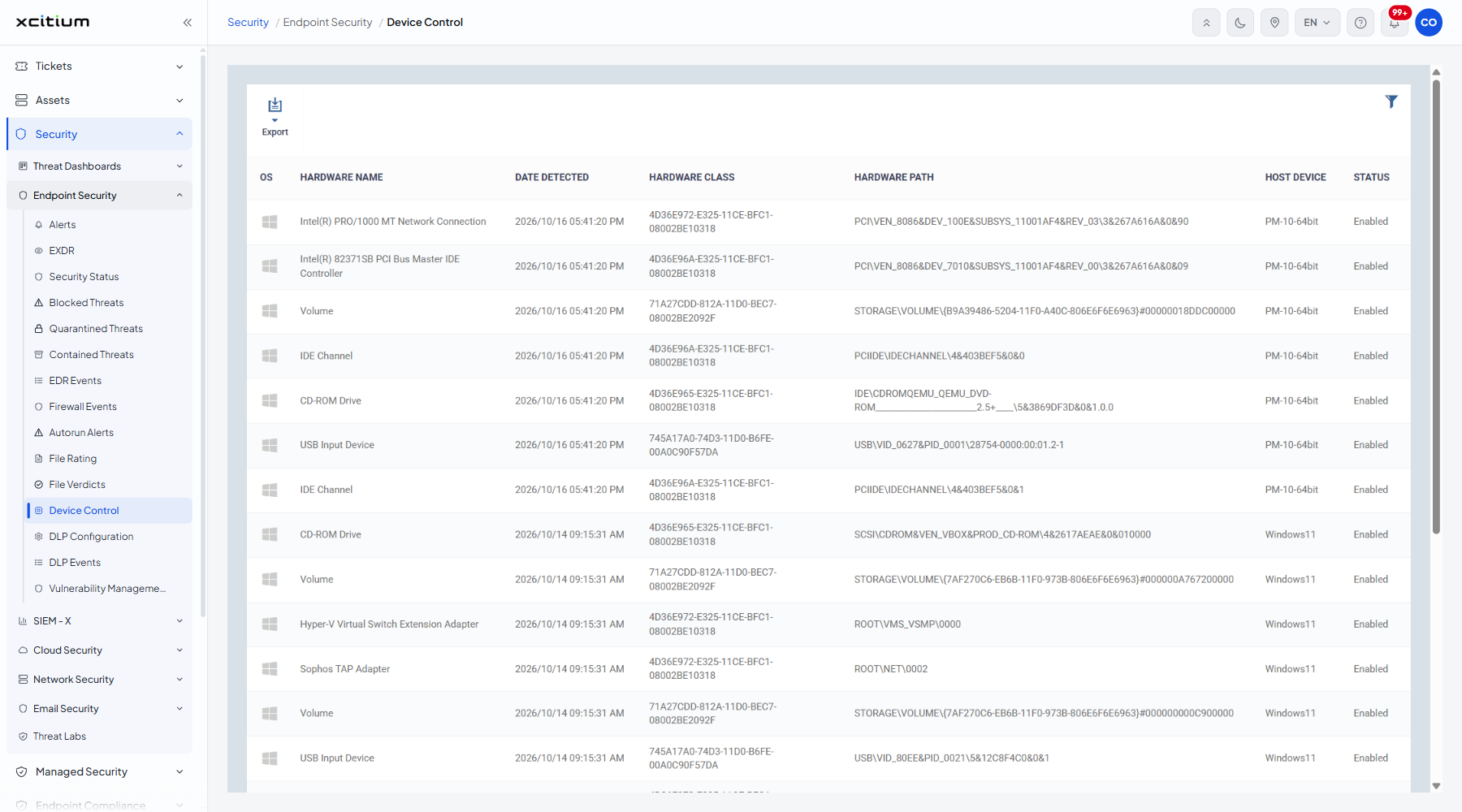
The columns
| Column | Description |
| OS | The operating system of the host device. |
| HARDWARE NAME | The name of the detected hardware, for example 'CD-ROM Drive' or 'USB Input Device'. |
| DATE DETECTED | When the hardware was first seen. |
| HARDWARE CLASS | The device class identifier. |
| HARDWARE PATH | The full hardware path on the device. |
| HOST DEVICE | The enrolled device the hardware is attached to. |
| STATUS | Whether the hardware is allowed. Values seen include 'Enabled'. |
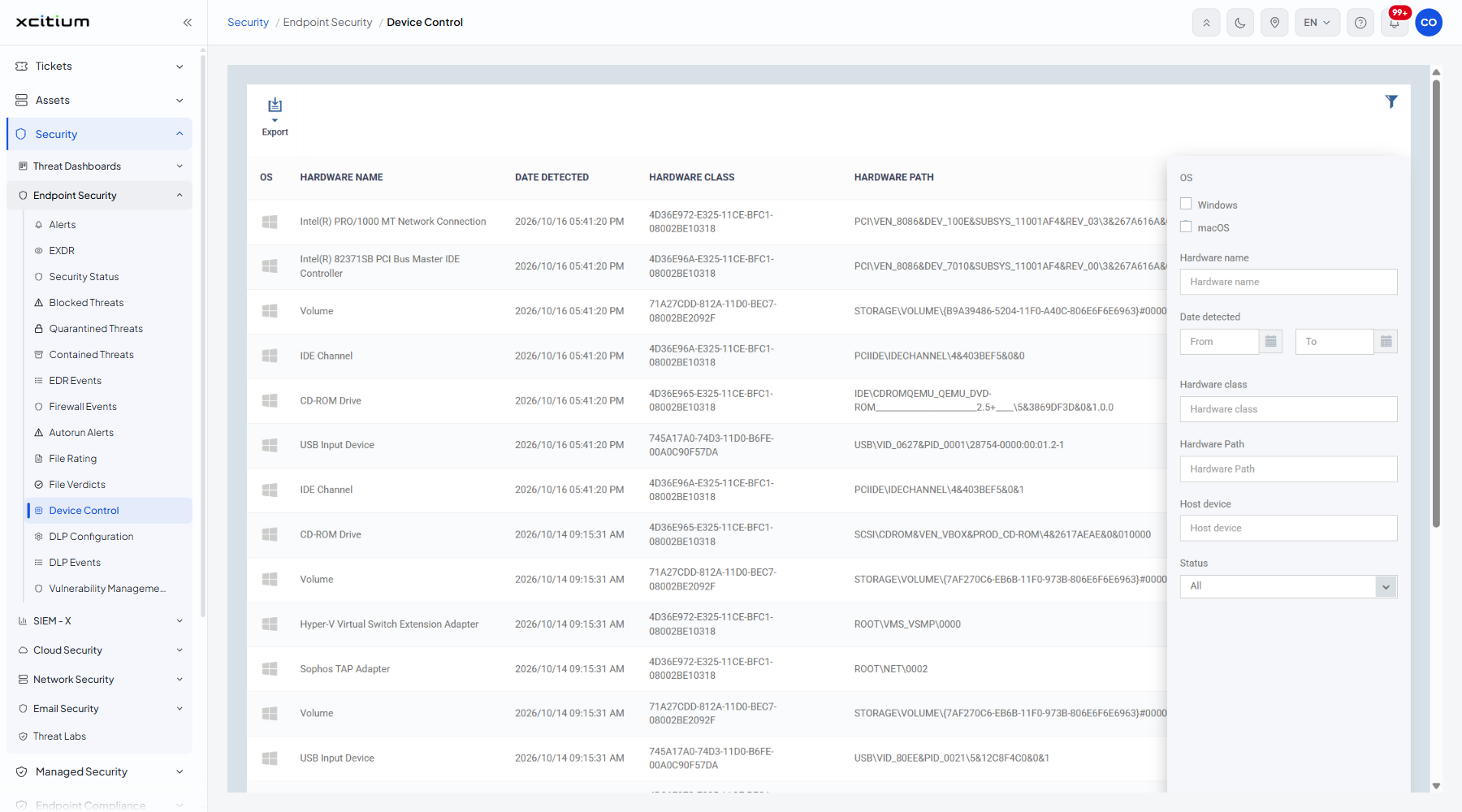
Filter the list
- Click the funnel icon at the top right of the table.
- Set the criteria you want.
| Filter | Description |
| OS | Tick boxes for 'Windows' and 'macOS'. |
| Hardware name | Free text. |
| Date detected | A date range. |
| Hardware class | Free text. |
| Hardware Path | Free text. |
| Host device | Free text. |
| Status | 'All' (the default), 'Disabled' and 'Enabled'. |
Note: this screen reports what has been detected. Which classes of hardware are allowed is set in the device control section of a profile, in the Policies module.