


AI Cache
- Click 'AI' > 'AI Agent' > 'Manage Your AI Agent' > 'AI Cache' on a Sales Engineer agent to open this interface.
The cache keeps answers the agent has already worked out, so a repeated question is answered straight away. The tab has four panels.
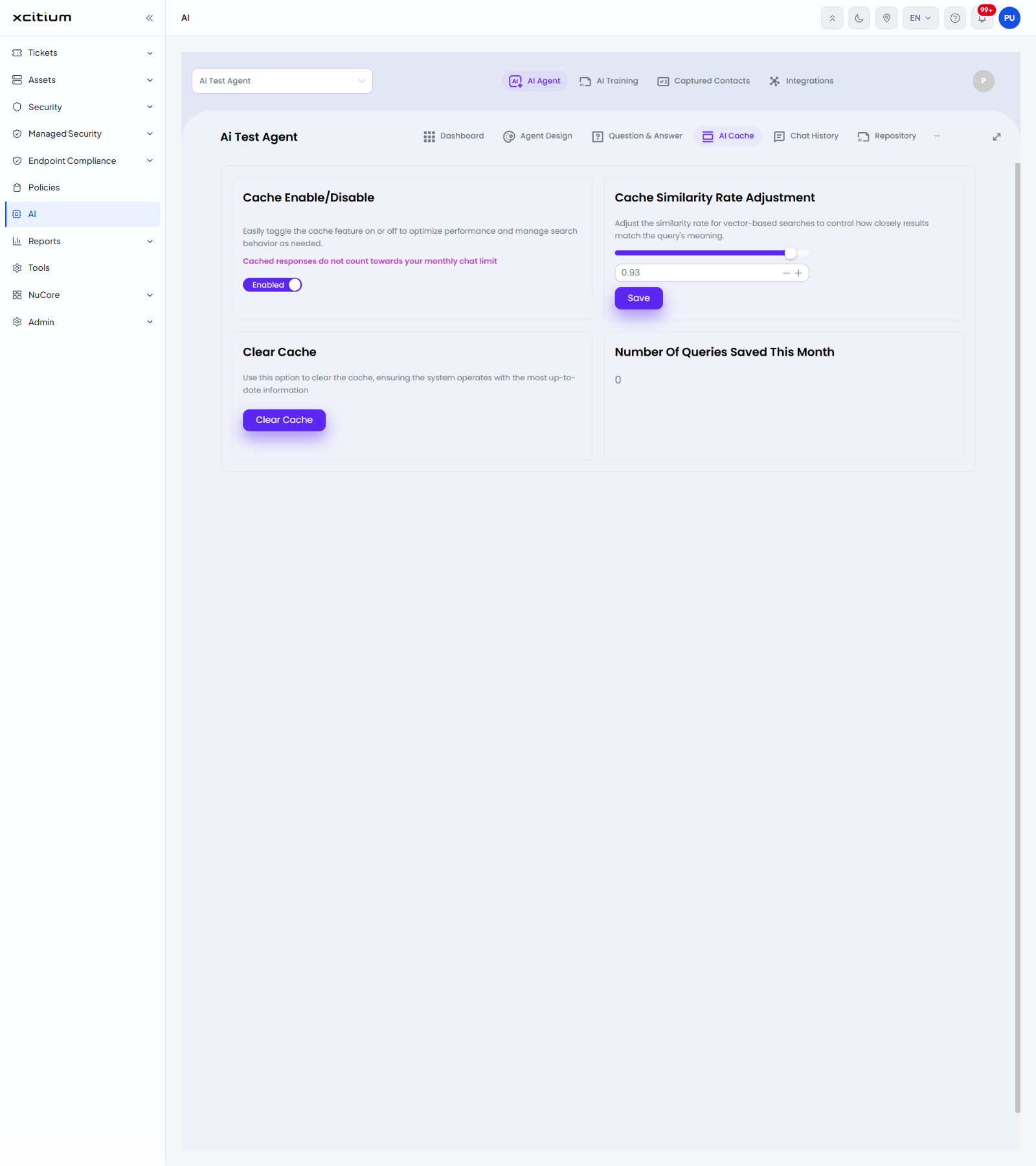
Cache Enable/Disable
'Easily toggle the cache feature on or off to optimize performance and manage search behavior as needed.' A note in red reads 'Cached responses do not count towards your monthly chat limit'. The toggle shows 'Enabled' when the cache is on.
Cache Similarity Rate Adjustment
'Adjust the similarity rate for vector-based searches to control how closely results match the query's meaning.'
| Control | Description |
| Slider | Drag to set the rate. |
| Value box | The rate as a number, with minus and plus buttons for small steps. The example value is 0.93. |
| Save | Applies the new rate. |
Clear Cache
'Use this option to clear the cache, ensuring the system operates with the most up-to-date information'. The 'Clear Cache' button empties the cache.
Number Of Queries Saved This Month
How many answers the cache has served this month instead of asking the model again.
Tune the cache
- Click 'AI' > 'AI Agent' > 'Manage Your AI Agent' > 'AI Cache'.
- Turn the cache on or off with the toggle in 'Cache Enable/Disable'.
- Drag the slider, or use the minus and plus buttons, to set the similarity rate. A higher rate means the question must match more closely before a cached answer is used.
- Click 'Save'.
- Click 'Clear Cache' after you change the agent's training material, so the cached answers are rebuilt.
Note: 'Clear Cache' empties the cache as soon as you click it.