


Change a Device's Owner
Open a device, then click 'Owner' on its toolbar. The same menu appears under 'More' on the Device List toolbar.
Every device has an owner and an ownership type. The owner decides who the device is billed and reported against; the type records whether it is company property or the user's own.
You can move a device to a different customer and user, and set whether it is corporate or personal.
The menu
- Change Owner — moves the device to a different customer and user.
- Change Ownership Type — sets whether the device is corporate or personal.
The Change Owner dialog
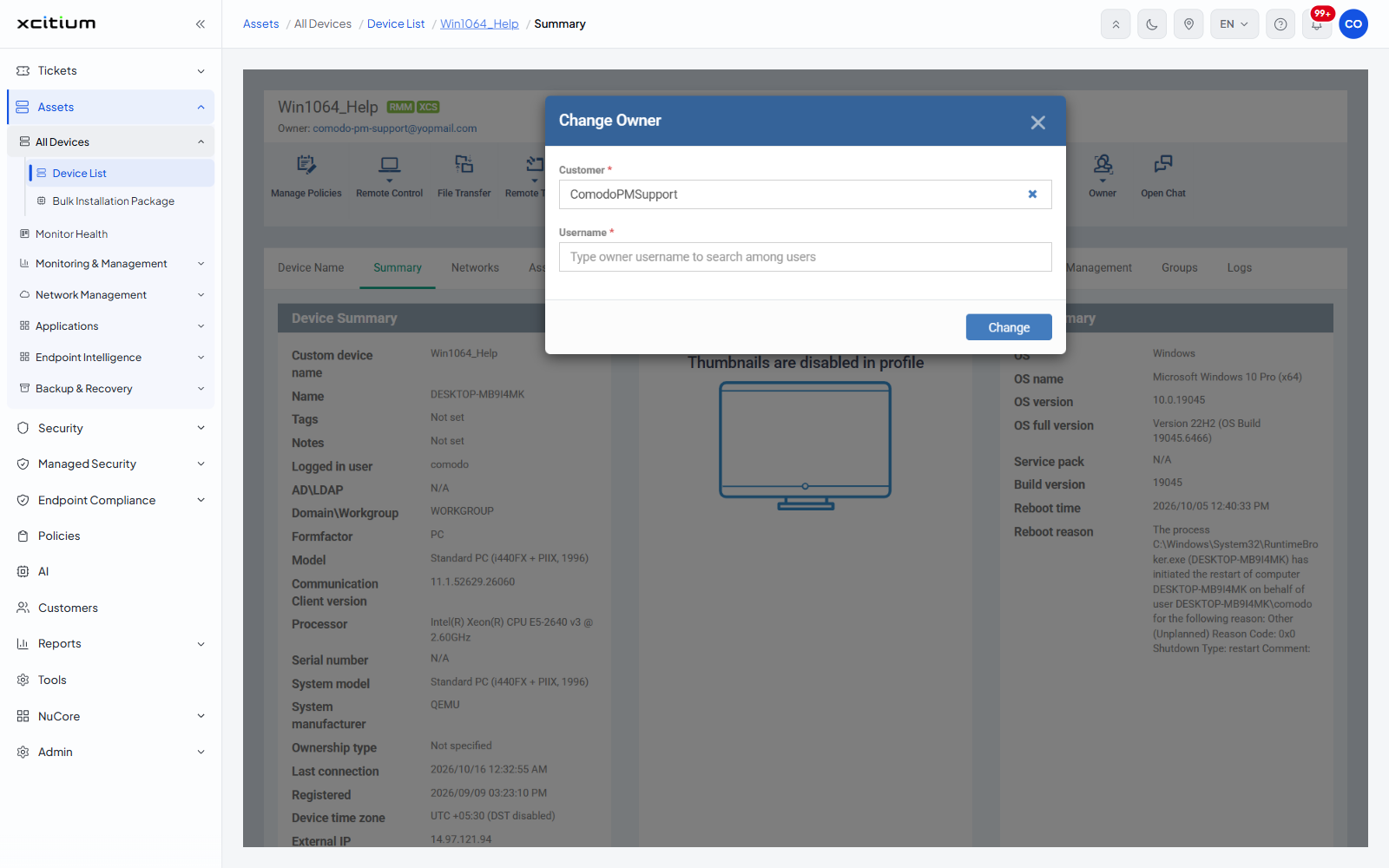
| Field | Type | Options / default | Required |
| Customer | Lookup | Pre-filled with the device's current customer. Clear it with the x to pick another. | Yes |
| Username | Search box | Placeholder 'Type owner username to search among users'. Type to find the new owner. | Yes |
The Change Ownership Type dialog
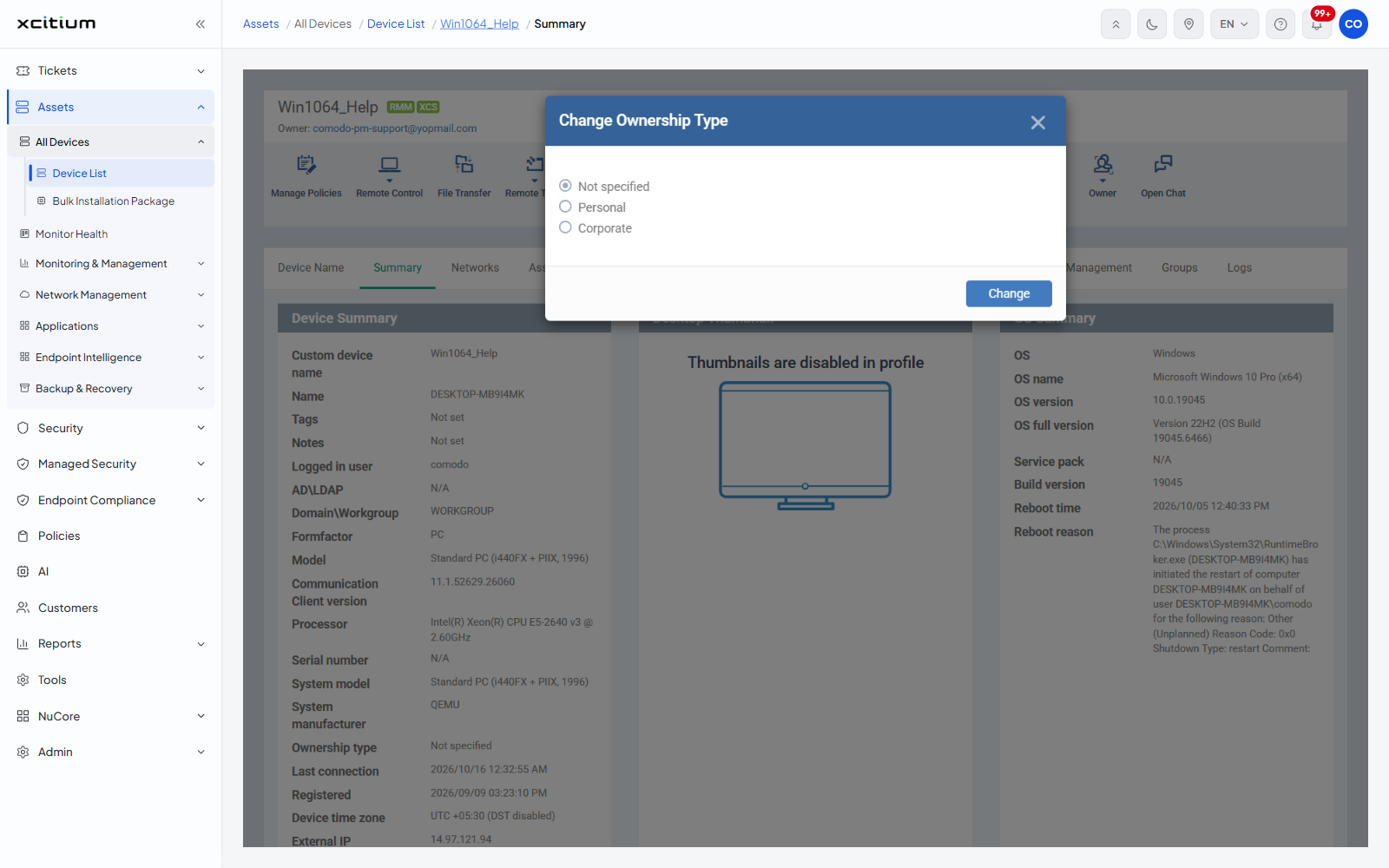
| Option | Description |
| Not specified | No ownership type recorded. This is what a newly enrolled device shows. |
| Personal | The device belongs to the user. |
| Corporate | The device belongs to the company. |
Move a device to another owner
- Open the device and click 'Owner' > 'Change Owner'.
- Set 'Customer' to the customer the device should belong to.
- Type into 'Username' and pick the new owner.
- Click 'Change'.
Note: the ownership type also appears on the device's Summary tab, and can be filtered on from the Device List filter panel.