


Procedures
- Click 'Assets' > 'Monitoring & Management' > 'Procedures' to open this interface.
A procedure is a script, an operating-system patch job or a third-party patch job that you run on managed devices. The Procedures screen lists every procedure available to your account, both the ones you have written and the predefined ones that ship with the product.
You can create, import, export, clone, run and delete procedures from this interface, and organise them into folders.
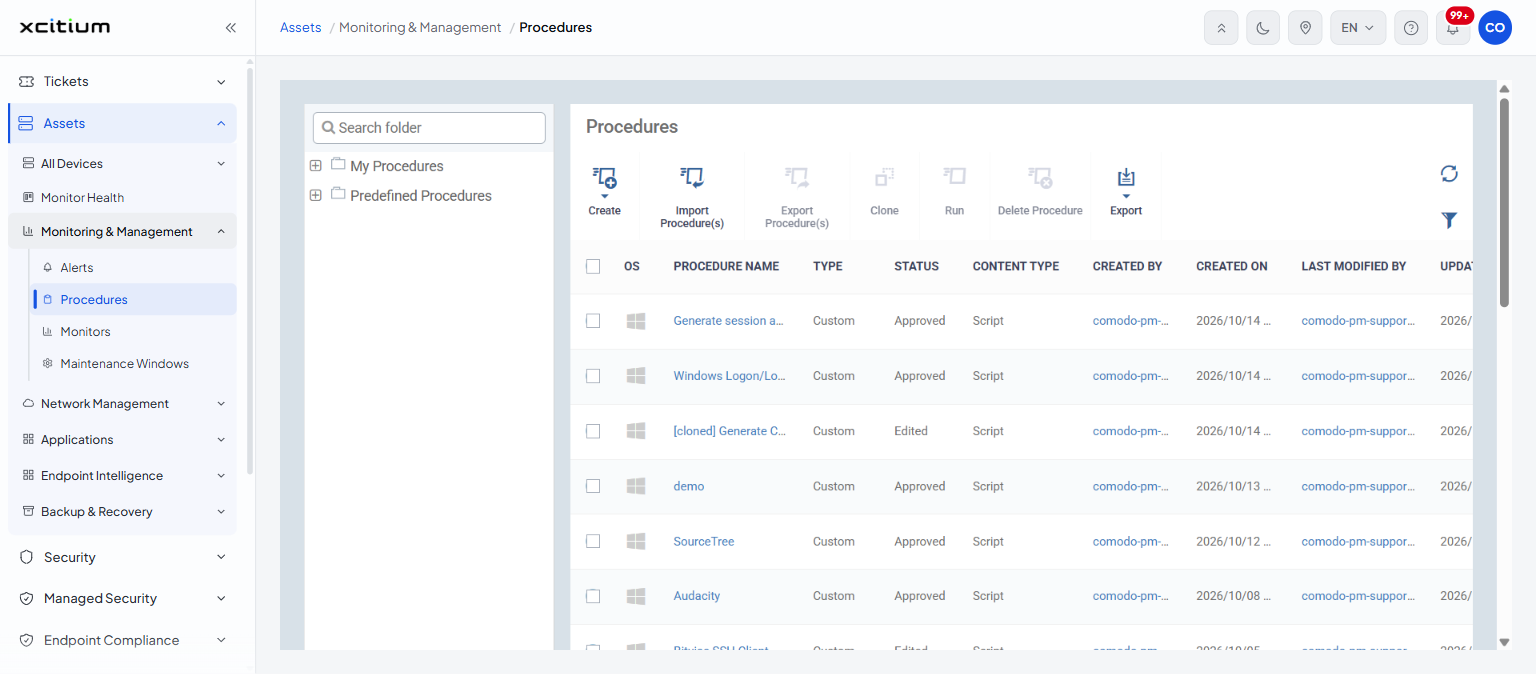
The screen has two panes. The left pane is a folder tree; the right pane lists the procedures in the selected folder. See Manage Procedure Folders for the tree.
The toolbar
'Export Procedure(s)', 'Clone', 'Run' and 'Delete Procedure' stay greyed out until you tick a row. 'Create', 'Import Procedure(s)' and 'Export' are always available.
| Button | Description |
| Create | Opens a menu of the five procedure types you can create. See Create a Procedure. |
| Import Procedure(s) | Loads procedures from a file you have exported earlier. Opens your operating system file picker. |
| Export Procedure(s) | Saves the ticked procedures to a file you can import into another account. |
| Clone | Makes a copy of the ticked procedure. See Clone, Export and Delete Procedures. |
| Run | Runs the ticked procedure on devices you choose. See Run a Procedure. |
| Delete Procedure | Removes the ticked procedure after a confirmation. |
| Export | Exports the list itself. The menu holds one entry, 'Export to CSV'. |
A refresh icon and a filter icon sit at the right of the toolbar. The footer carries a 'Results per page:' selector offering 20, 50, 100 and 200, and a 'Displaying m-n of N results' counter.
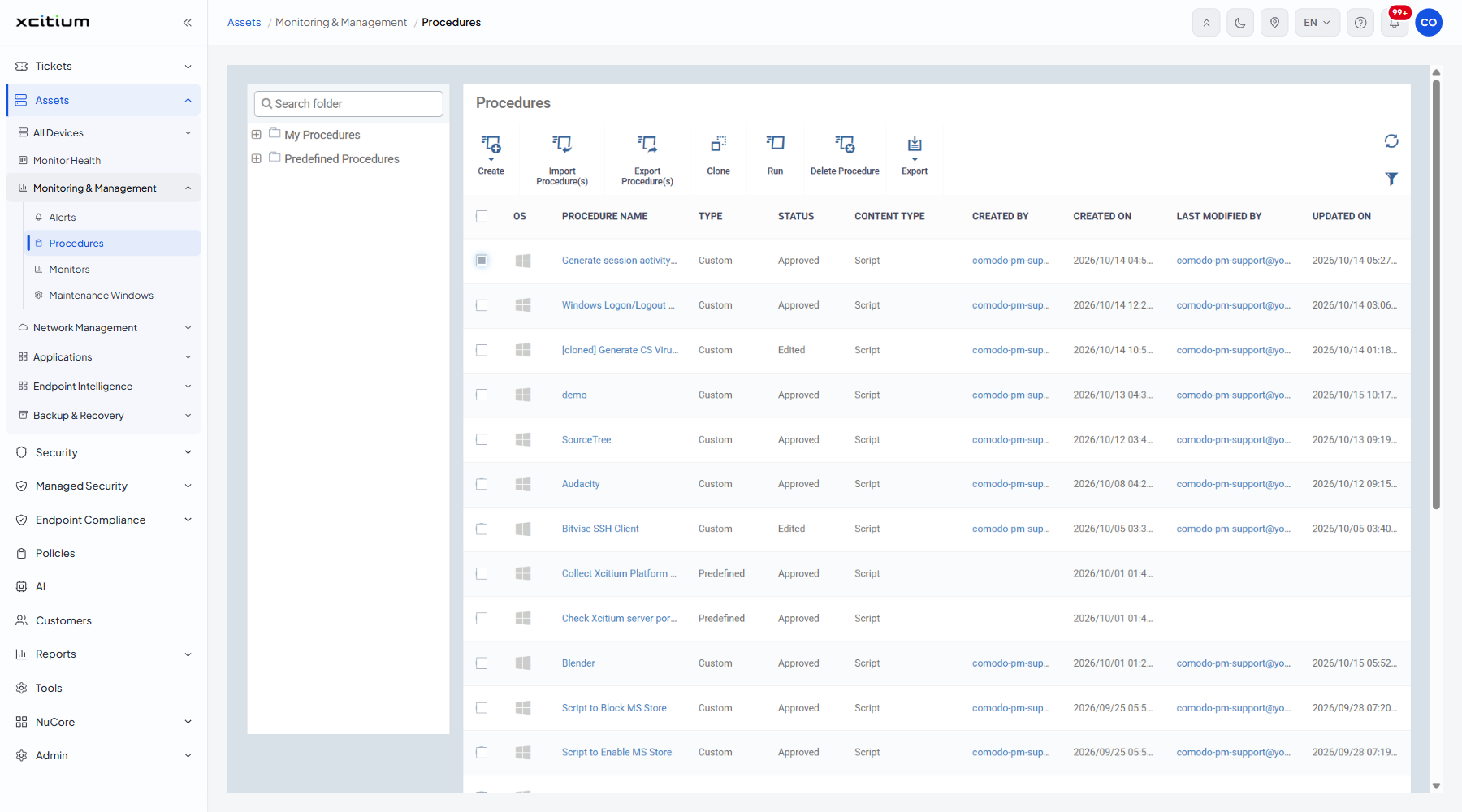
The columns
Every column header is a sort link.
| Column | Description |
| (checkbox) | Ticks the row so the toolbar buttons that act on a procedure become available. The header checkbox ticks every row on the page. |
| OS | An icon showing the operating system the procedure targets. |
| Procedure name | The label of the procedure. Click it to open the procedure. |
| Type | Whether the procedure ships with the product or was added by your account. Values: 'Custom', 'Predefined'. |
| Status | Where the procedure stands in the approval workflow. Values seen: 'Approved', 'Edited'. The filter panel shows the full set: Created, Edited, Ready to review, Approved, Declined. |
| Content type | What the procedure does. Values: 'Script', 'Patch', '3rd Party Patch'. |
| Created by | The administrator who added the procedure, as a link to their account. Predefined procedures have no value here. |
| Created on | The date and time the procedure was added. |
| Last modified by | The administrator who last changed the procedure, as a link to their account. Predefined procedures have no value here. |
| Updated on | The date and time of the last change. |
Open the Procedures screen
- Click 'Assets' on the left.
- Click 'Monitoring & Management' > 'Procedures'.
- Click a folder in the left pane to list only its procedures, or leave the selection alone to list them all.
- Click a procedure name to open it.
Note: a procedure must be approved before it will run. A procedure you have just edited shows the status 'Edited' and must be sent for review with 'Ready to Review' on the procedure's own toolbar.