Customize a Bulk Package
Open 'Bulk Installation Package' and click 'Customize Bulk Package', or select 'macOS' or 'Linux', to open this form.
The customise form exposes every setting baked into the installer: who the devices are enrolled against, which clients and versions go on, the configuration profile they get, how the reboot is handled, what the user sees, and any proxy the client must use.
You can set the customer, group and user, pick the platform and clients, choose the profile, control the reboot and the on-screen messages, and download either the installer or an MST file for deployment through a proxy.
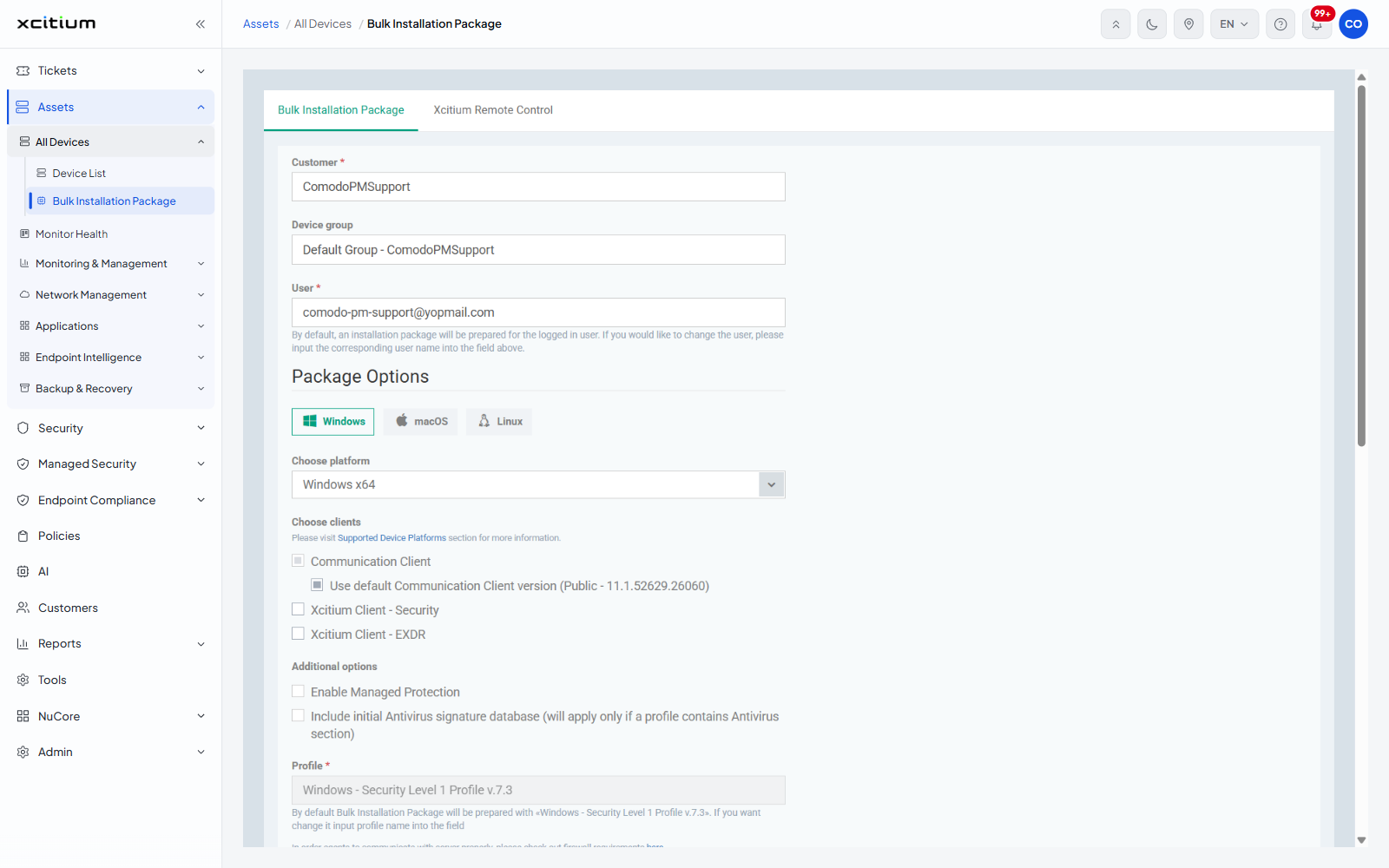
Who the package enrolls
| Field |
Type |
Options / default |
Required |
| Customer |
Lookup |
Pre-filled with your current customer. |
Yes |
| Device group |
Lookup |
Pre-filled with that customer's default group. |
No |
| User |
Lookup |
Pre-filled with the signed-in user. The helper line reads 'By default, an installation package will be prepared for the logged in user. If you would like to change the user, please input the corresponding user name into the field above.' |
Yes |
Package Options
An operating-system selector offers 'Windows', 'macOS' and 'Linux'. The 'Choose platform' dropdown beneath it changes with the selection.
| Operating system |
Choose platform options |
| Windows |
'Windows x64' (the default), 'Windows x86', 'Windows x86&x64 (Hybrid Package)', 'Windows ARM64'. |
| macOS |
'macOS (Recommended)' (the default) and 'macOS without MDM', with the helper line 'Requires a valid APNs certificate'. |
| Linux |
'Ubuntu (18.x+) / Debian (10.x+) with GUI' (the default), 'Ubuntu (18.x+) / Debian (10.x+) without GUI', 'RHEL (7.x+) / CentOS (7.x+) with GUI', 'RHEL (7.x+) / CentOS (7.x+) without GUI'. |
Choose clients
| Checkbox |
Description |
| Communication Client |
Ticked and disabled on every platform. On Windows it carries the sub-checkbox 'Use default Communication Client version', ticked by default; clearing it reveals a version dropdown. |
| Xcitium Client - Security |
Offered on Windows, macOS and Linux. On macOS a highlighted notice warns that the latest build does not support versions installed before macOS 12.x. |
| Xcitium Client - EXDR |
Offered on Windows only. |
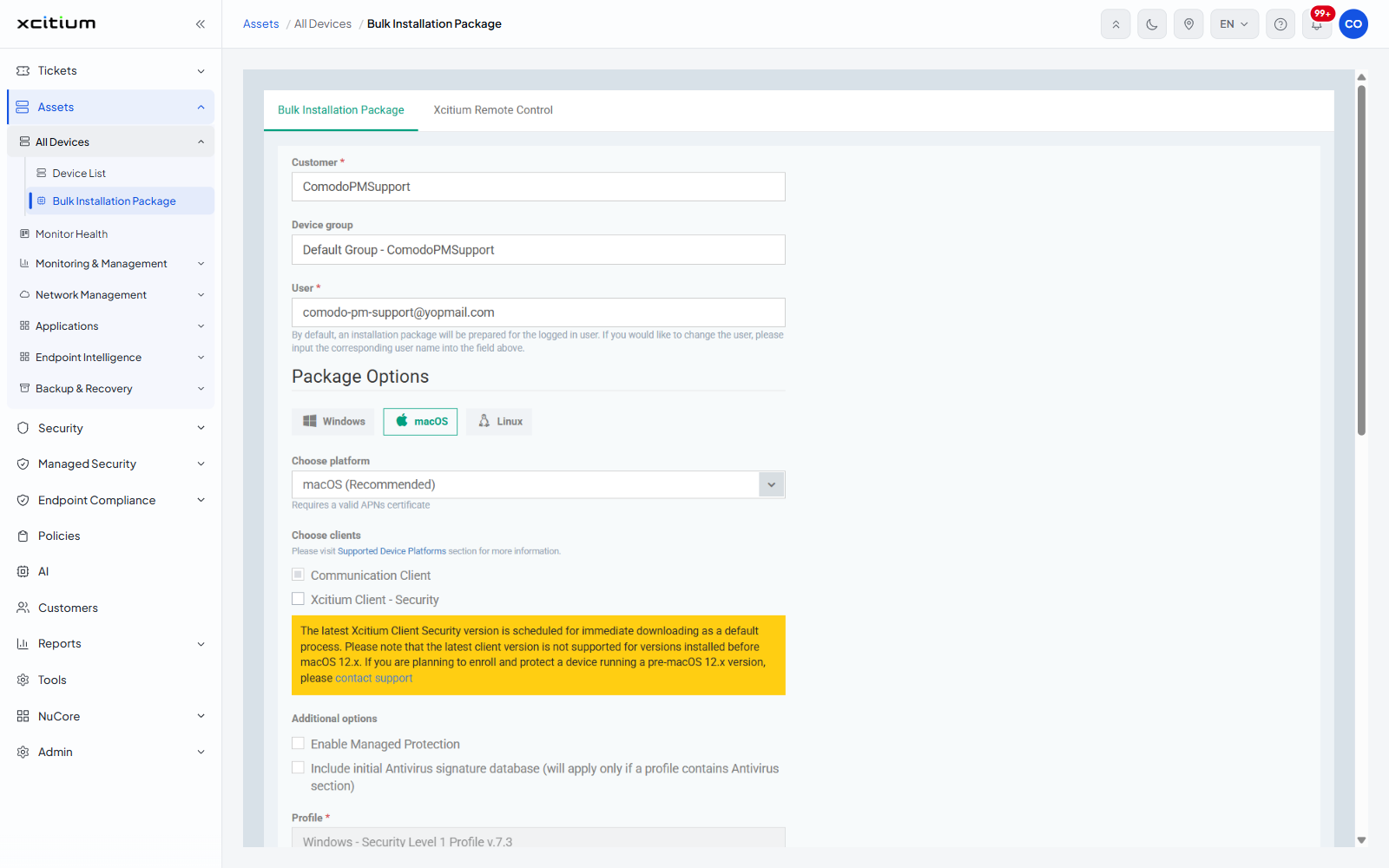
Additional options and Profile
| Field |
Type |
Options / default |
Required |
| Enable Managed Protection |
Checkbox |
Clear by default. |
No |
| Include initial Antivirus signature database |
Checkbox |
Clear by default. The full label adds '(will apply only if a profile contains Antivirus section)'. |
No |
| Profile |
Text |
Pre-filled with the default profile. The helper line explains you can type another profile name instead. |
Yes |
A line beneath links to the firewall requirements the agent needs to reach the server.
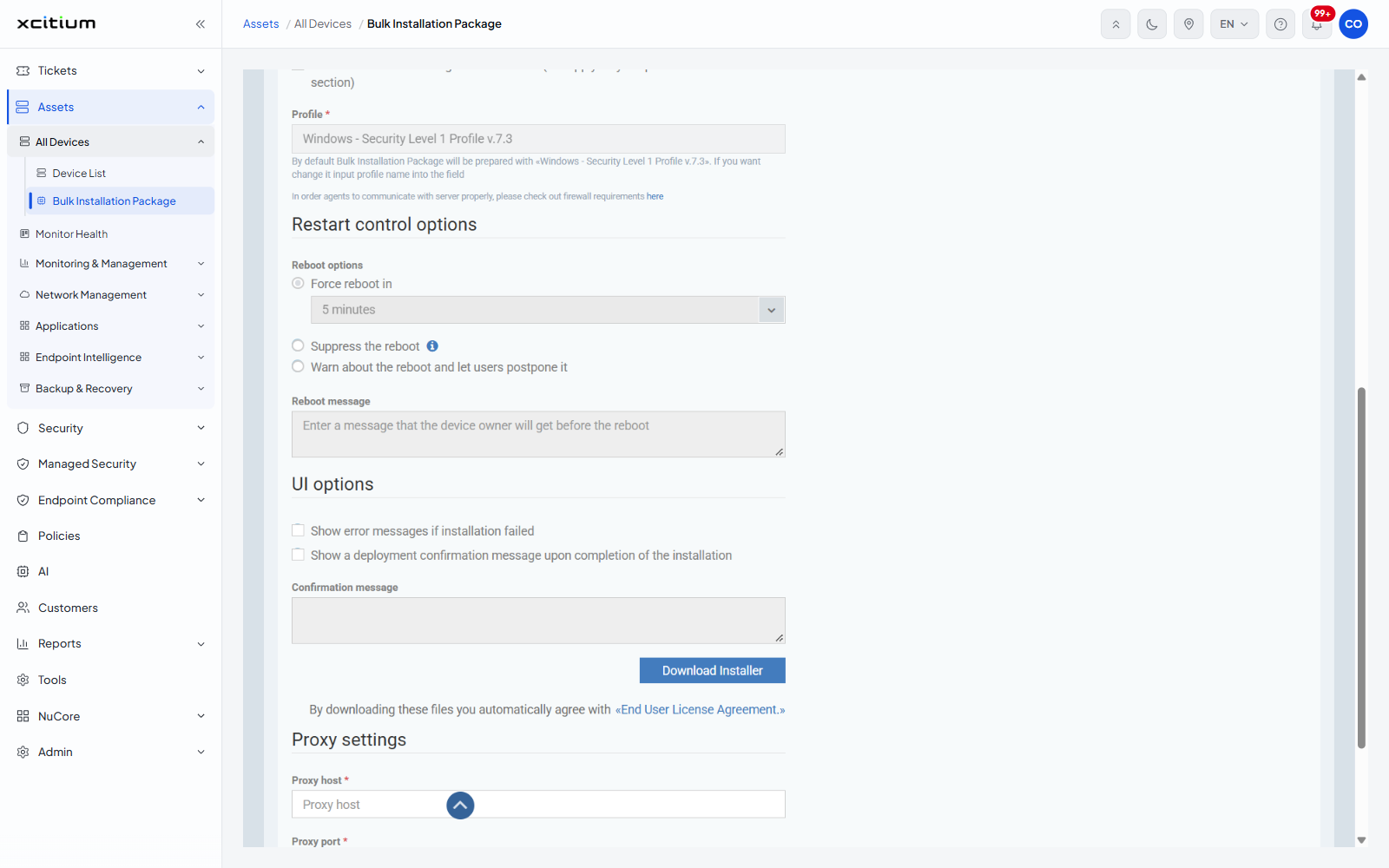
Restart control options
| Option |
Description |
| Force reboot in |
Reboots after the delay set in the dropdown beside it. This is the default. Options: '5 minutes' (the default), '10 minutes', '20 minutes', '30 minutes', '60 minutes', '120 minutes', '240 minutes', '300 minutes'. |
| Suppress the reboot |
Does not reboot. Carries an information icon. |
| Warn about the reboot and let users postpone it |
Warns the user and lets them delay it. |
| Reboot message |
A textarea with the placeholder 'Enter a message that the device owner will get before the reboot'. |
UI options
| Option |
Description |
| Show error messages if installation failed |
Checkbox. Shows the user an error if the install does not complete. |
| Show a deployment confirmation message upon completion of the installation |
Checkbox. Enables the 'Confirmation message' textarea beneath it. |
| Confirmation message |
Textarea. Disabled until the confirmation checkbox is ticked. |
Proxy settings
| Field |
Type |
Required |
| Proxy host |
Text |
Yes |
| Proxy port |
Text |
Yes |
| Proxy login |
Text |
No |
| Proxy password |
Text |
No |
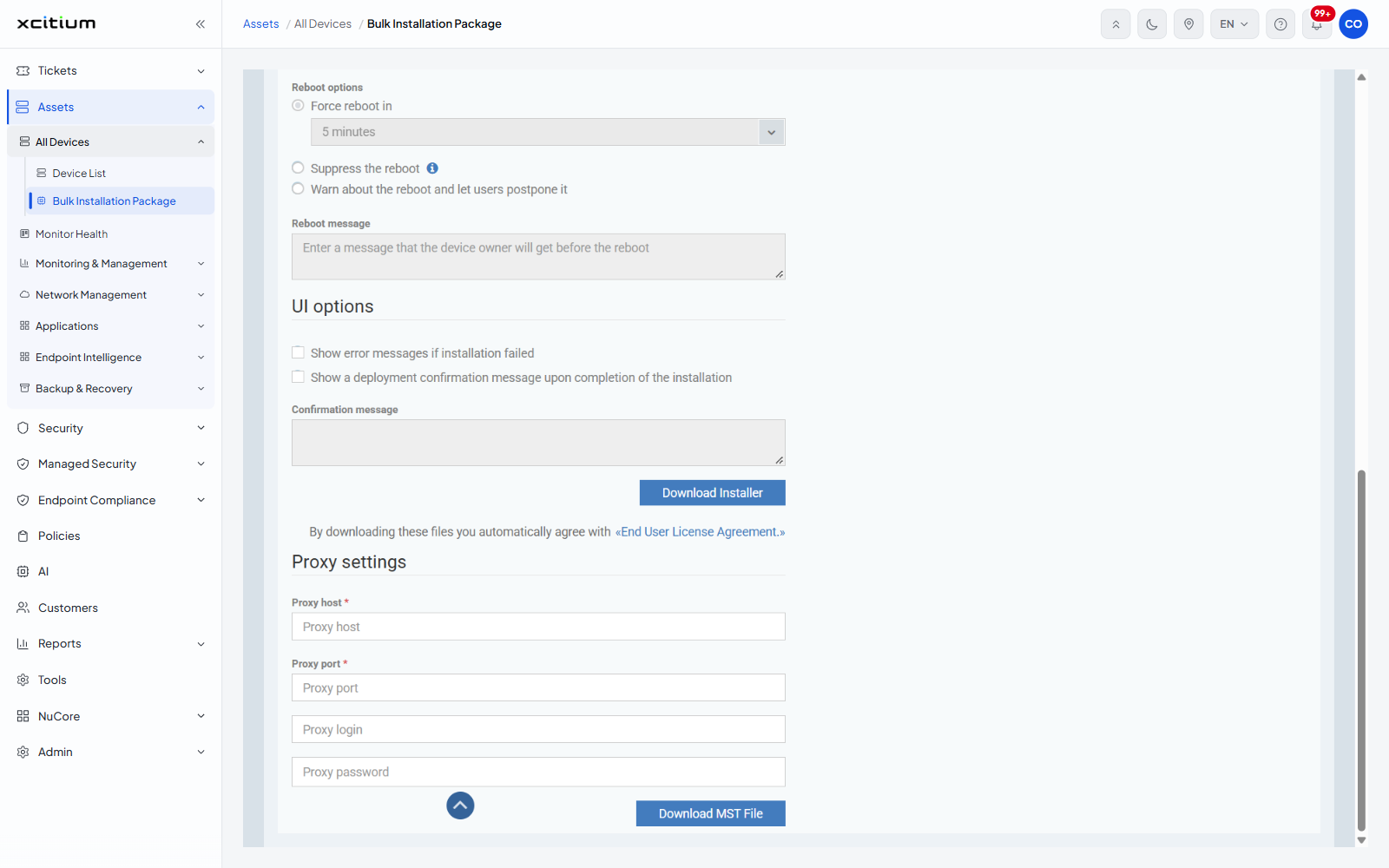
The download buttons
| Button |
Description |
| Download Installer |
Downloads the customised installer. The End User License Agreement line sits beneath it. |
| Download MST File |
Downloads a transform file carrying the proxy settings, for deployment alongside the installer. |
Build a customised package
- Open 'Bulk Installation Package' and click 'Customize Bulk Package'.
- Set 'Customer', 'Device group' and 'User'.
- Pick the operating system, then the platform from 'Choose platform'.
- Tick the clients to include, and clear the 'Use default ... version' checkboxes if you need a specific build.
- Set 'Profile' if the default is not the one you want.
- Choose a reboot option and type a reboot message.
- Set the UI options you want the user to see.
- Click 'Download Installer'. If the devices reach the server through a proxy, fill in the proxy settings and also click 'Download MST File'.
Note: the package carries these settings permanently. To enroll against a different customer or group, build a second package.


