


Discoveries
- Click 'Assets' > 'Network Management' > 'Discoveries' to open this interface.
A discovery is a saved scan. It names the probe device that does the scanning, what it should look at, and what happens to what it finds.
You can create, clone, run, export and delete discoveries from this interface.
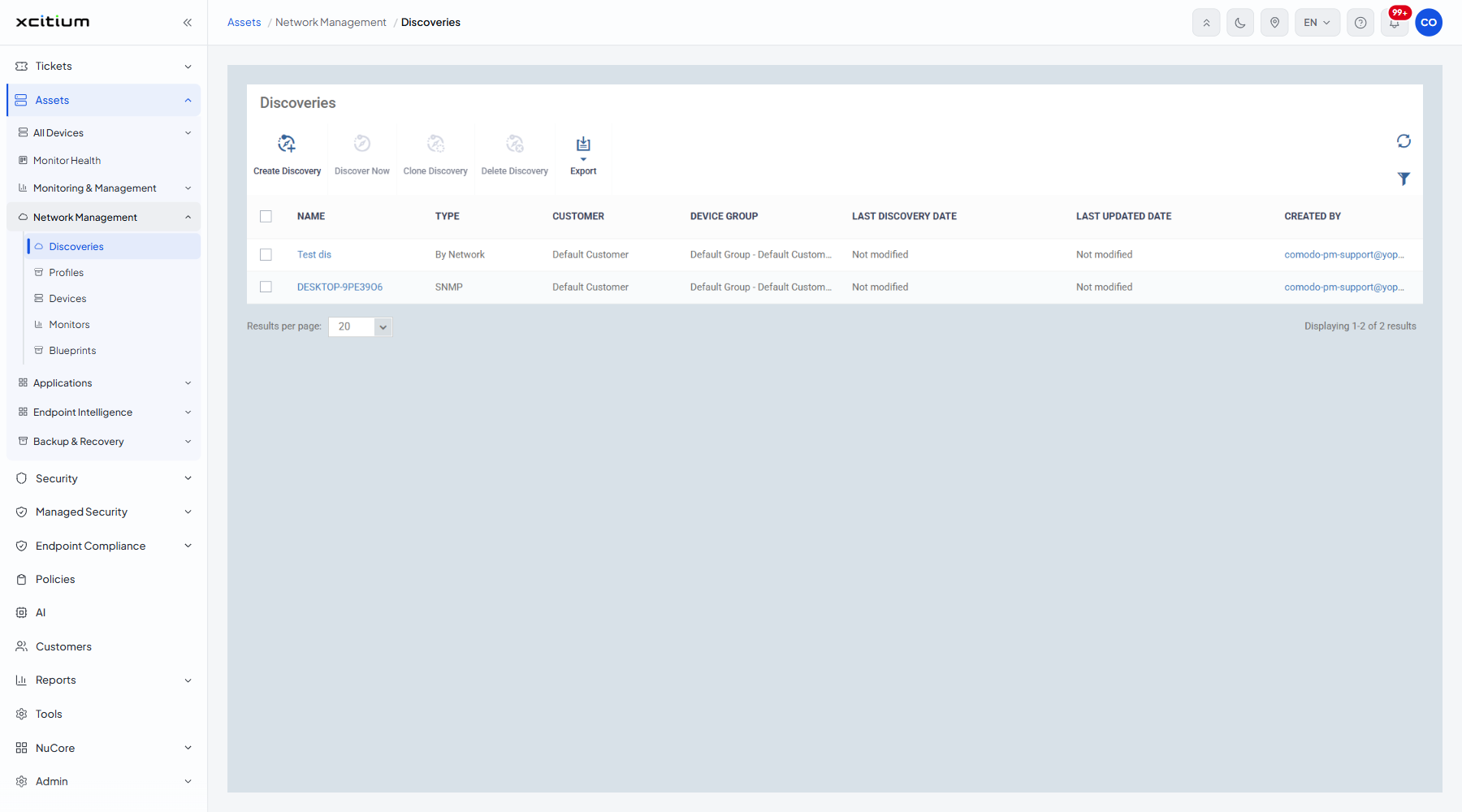
The toolbar
'Discover Now', 'Clone Discovery' and 'Delete Discovery' stay greyed out until you tick a row. A refresh icon and a filter icon sit at the right.
| Button | Description |
| Create Discovery | Opens the two-step create wizard. See Create a Discovery. |
| Discover Now | Runs the ticked discovery immediately against the live network. |
| Clone Discovery | Makes a copy of the ticked discovery. |
| Delete Discovery | Removes the ticked discovery after a confirmation. |
| Export | Writes the list to a spreadsheet. |
The columns
| Column | Description |
| (checkbox) | Ticks the row so the toolbar buttons that act on a discovery become available. |
| Name | The label of the discovery. Click it to open it. |
| Type | How the discovery finds devices. Values: 'By Network', 'SNMP', 'Active Directory'. |
| Customer | The customer the discovered devices are filed under. |
| Device group | The group the discovered devices are filed into. |
| Last discovery date | When the discovery last ran. Reads 'Not modified' when it has never run. |
| Last updated date | When the discovery was last changed. Reads 'Not modified' when it has not been changed. |
| Created by | The administrator who added the discovery. |
Run a discovery
- Click 'Assets' > 'Network Management' > 'Discoveries'.
- Tick the discovery you want to run.
- Click 'Discover Now'.
- Watch its progress on the discovery's 'Discovery Logs' tab.
- Open 'Assets' > 'Network Management' > 'Devices' to see what it found.
Note: 'Discover Now' scans the live network from the probe device. Run it in a maintenance window if the range is large.