


Autorun Alerts
- Click 'Security' > 'Endpoint Security' > 'Autorun Alerts' to open this interface.
An autorun is anything set to start by itself on a device - a Windows service, a scheduled task, an autostart entry or a WMI autorun. When the security client acts on one, it is logged here, so you can see what was disabled or quarantined and put it back if the client was wrong.
You can narrow the list to a device group, filter it, restore an autorun on the devices it was disabled on, change a file's rating and export the list.
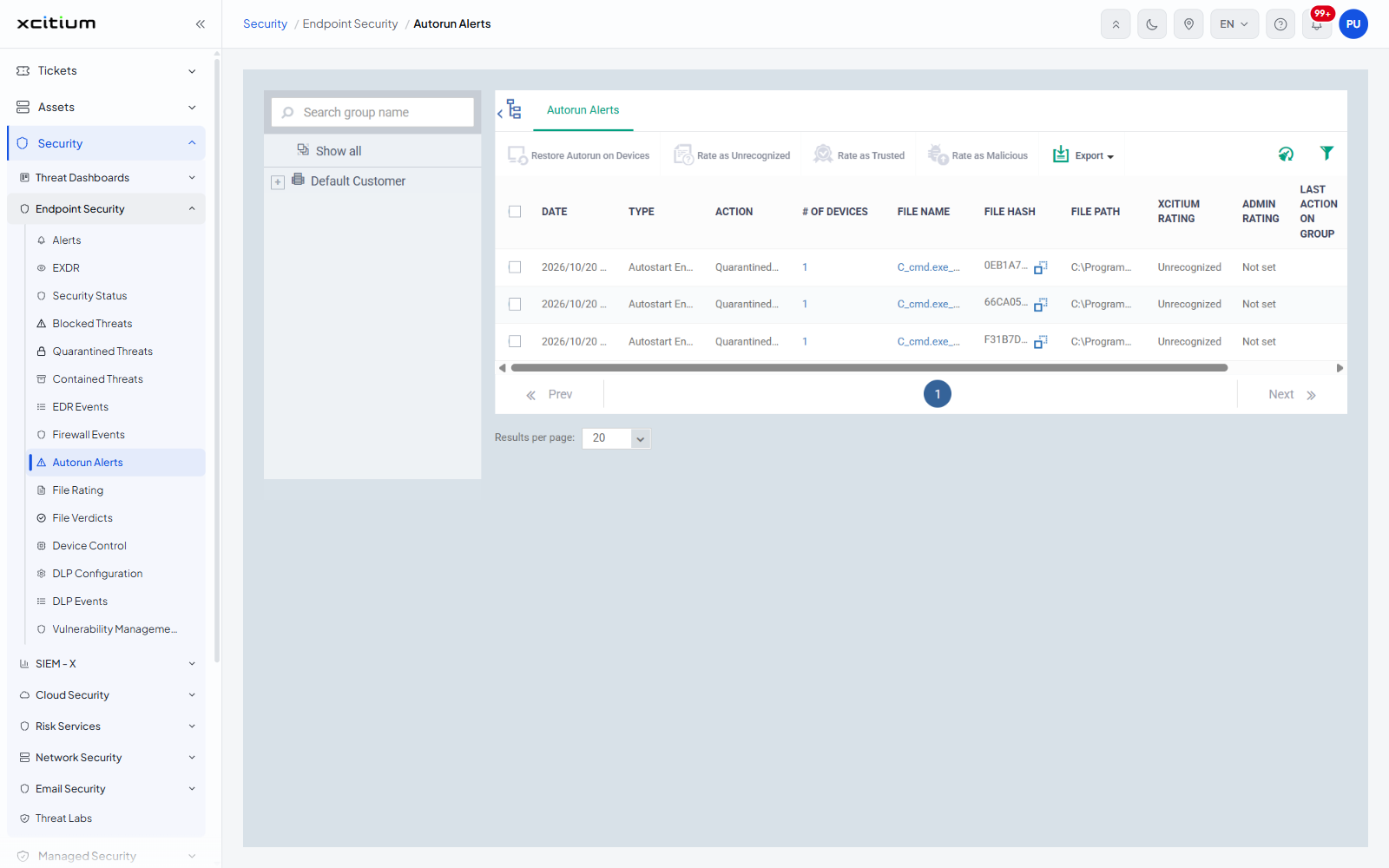
The interface
The group tree sits on the left with its 'Search group name' box, a 'Show all' entry and the customer's device groups beneath it. The toolbar and the alert table fill the rest of the screen. A select-all check box sits in the header row and a check box on each row.
Column descriptions
| Column | Description |
| DATE | When the client acted on the autorun. |
| TYPE | The kind of autorun. Value seen: 'Autostart Entry'. |
| ACTION | What the client did, for example 'Quarantined and Disabled'. |
| # OF DEVICES | How many devices the entry was found on, shown as a link. |
| FILE NAME | The file the autorun points at, shown as a link. |
| FILE HASH | The SHA-1 of that file, with a copy button. |
| FILE PATH | Where the file sits on the device. |
| XCITIUM RATING | The verdict service's rating, for example 'Unrecognized'. |
| ADMIN RATING | The rating an administrator has set, for example 'Not set'. |
| LAST ACTION ON GROUP | The last action taken across the whole group of devices holding this file. |
| AUTORUN STATUS | Whether the autorun is enabled or disabled now. Value seen: 'Disabled'. |
The toolbar
| Button | Description |
| Restore Autorun on Devices | Re-enables the selected autorun on the devices it was disabled on. |
| Rate as Unrecognized | Sets the admin rating of the selected file to unrecognized. |
| Rate as Trusted | Sets the admin rating of the selected file to trusted. |
| Rate as Malicious | Sets the admin rating of the selected file to malicious. |
| Export | A menu leading to 'Export to CSV'. |
Two icons sit at the right of the toolbar: 'Clear data cache' and 'Table filter'. The first four buttons are greyed out until a row is selected.
Filter the list
- Click the funnel icon ('Table filter') at the right of the toolbar.
- Set the fields you want. The panel offers 'Date', 'Type', 'Action', '# of devices', 'File name', 'File hash', 'File path' and 'Autorun status'.
- Click the funnel again to close the panel.