


Discovery Auto Enrollment
- Click 'Assets' > 'Network Management' > 'Discoveries', click a discovery name, then open the 'Auto Enrollment' tab.
Auto enrollment installs the agent on the Windows devices a discovery finds, without anyone visiting the machine. The tab holds the credentials it uses and the profile and group the new devices land in.
You can turn auto enrollment on, give it an account that may install software, and choose where the new devices are filed.
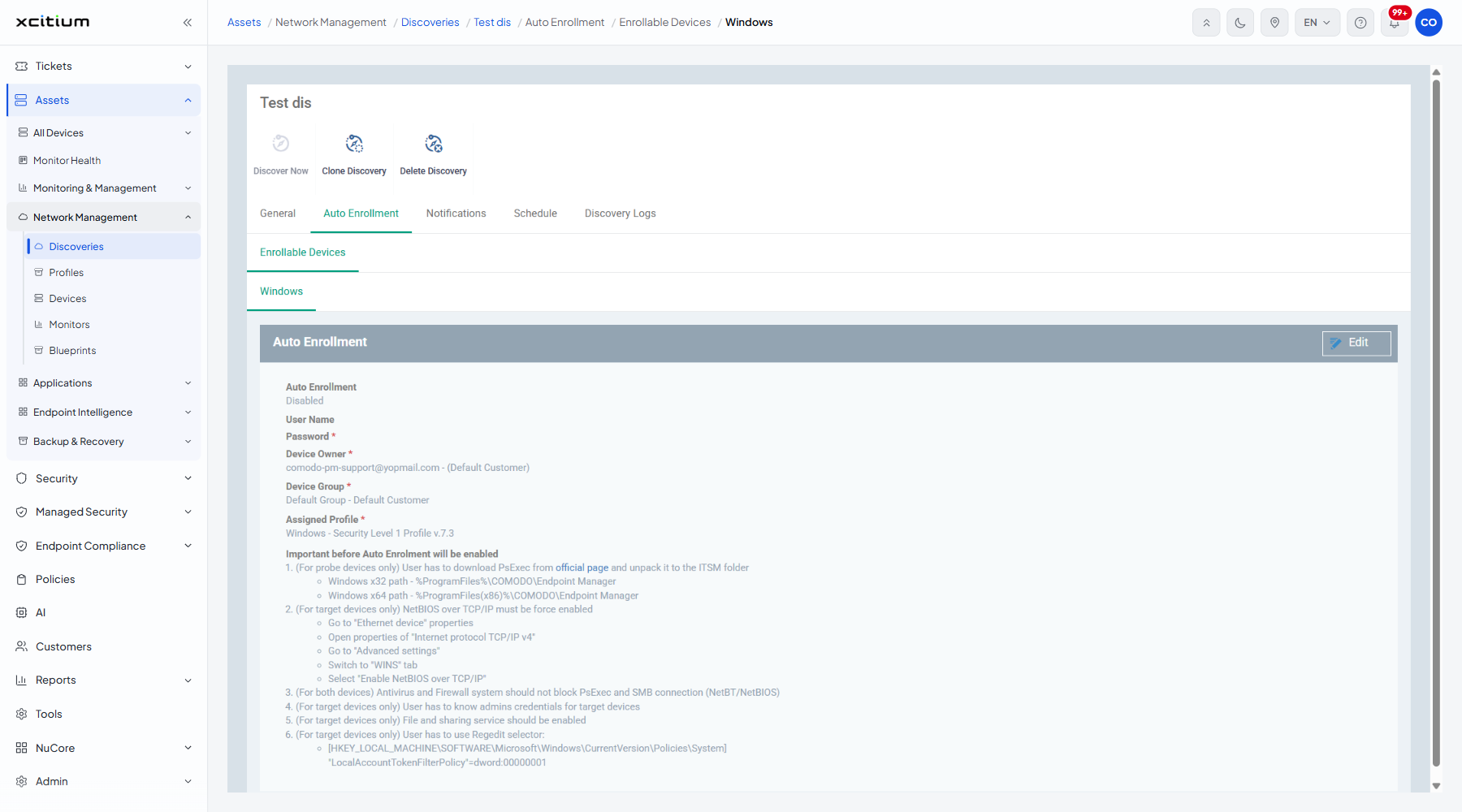
The tab opens with a sub-heading 'Enrollable Devices' and a platform tab, 'Windows'.
The settings
| Field | Type | Options / default | Required |
| Auto Enrollment | On / off setting | 'Disabled' by default. | No |
| User Name | Text box | An account on the target devices that may install software. | No |
| Password | Password box | The password for that account. | Yes |
| Device Owner | Lookup | The user the new devices are assigned to, shown with their customer. | Yes |
| Device Group | Lookup | The group the new devices are filed into. | Yes |
| Assigned Profile | Lookup | The profile applied to the new devices as soon as they enrol. | Yes |
What must be true first
The tab closes with a block headed 'Important before Auto Enrolment will be enabled':
- (For probe devices only) The PsExec tool must be downloaded from its official page and unpacked into the agent folder: Windows x32 %ProgramFiles%COMODOEndpoint Manager, Windows x64 %ProgramFiles(x86)%COMODOEndpoint Manager.
- (For target devices only) NetBIOS over TCP/IP must be force enabled: go to the Ethernet device properties, open the properties of Internet protocol TCP/IP v4, go to 'Advanced settings', switch to the 'WINS' tab and select 'Enable NetBIOS over TCP/IP'.
- (For both devices) The antivirus and firewall must not block PsExec or the SMB connection (NetBT/NetBIOS).
- (For target devices only) You must know an administrator account for the target devices.
- (For target devices only) File and printer sharing must be enabled.
- (For target devices only) The registry value [HKEY_LOCAL_MACHINESOFTWAREMicrosoftWindowsCurrentVersionPoliciesSystem] "LocalAccountTokenFilterPolicy"=dword:00000001 must be set.
Turn on auto enrollment
- Click 'Assets' > 'Network Management' > 'Discoveries' and click the discovery name.
- Open the 'Auto Enrollment' tab.
- Click 'Edit'.
- Turn ‘Auto Enrollment’ on.
- Type an account that may install software on the target devices into ‘User Name’ and ‘Password’.
- Choose the owner, group and profile the new devices should get.
- Click 'Save'.
Note: work through the prerequisite list before turning this on. Auto enrollment fails silently on a device that is missing any one of them.