


Alert Detail
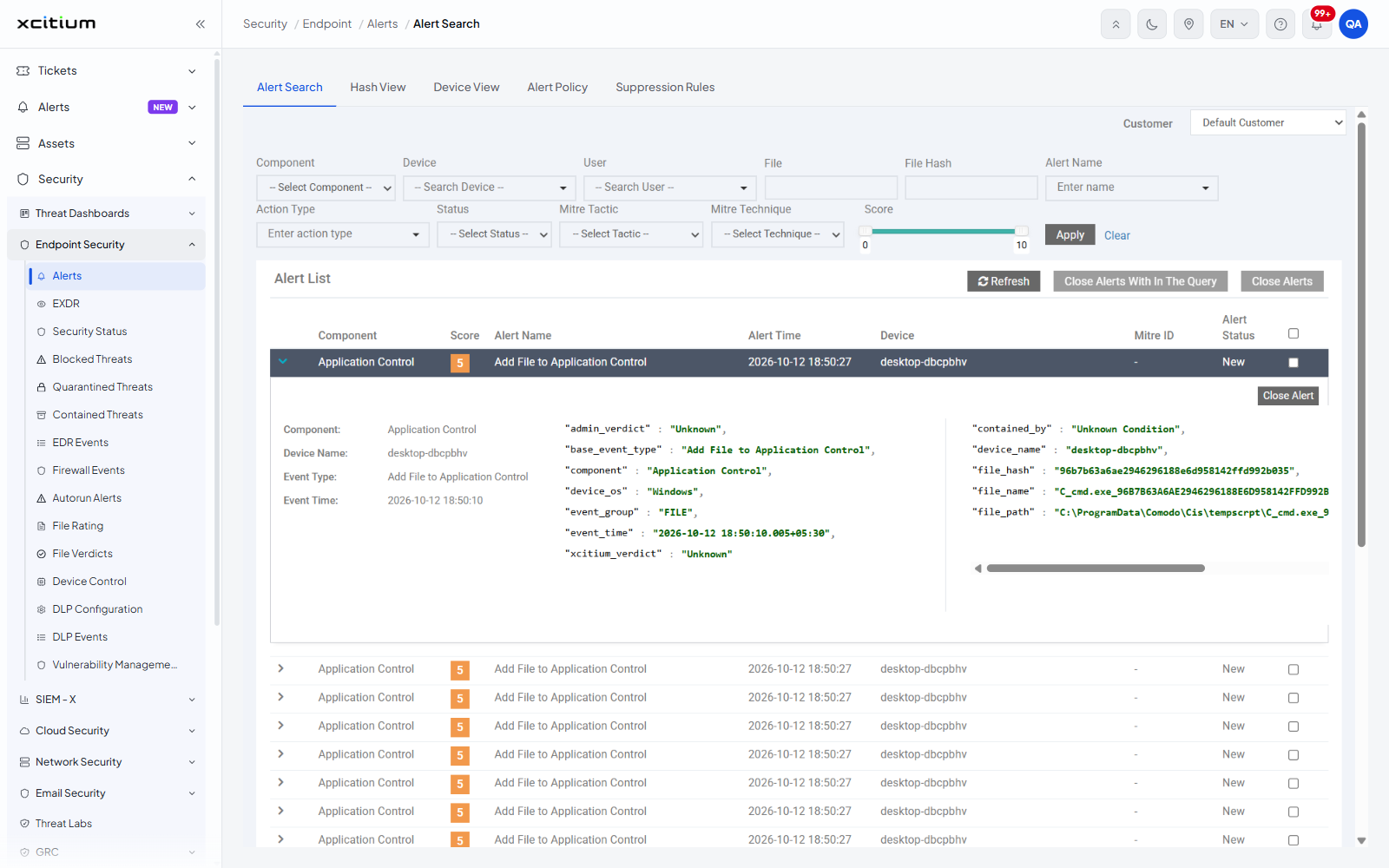
- Click 'Security' > 'Endpoint Security' > 'Alerts' > 'Alert Search', then click the arrow at the start of any row in the 'Alert List'.
The row expands into a detail panel that shows the event behind the alert. The row itself is highlighted while the panel is open and the arrow points down. Click the arrow again to close the panel.
You can read the summary of the alert, read every field of the underlying event, pivot from a file value into a hash search or an event query, and close the alert from here.
The summary
The left-hand column of the panel is a short summary of the alert.
| Field | Description |
| Component: | The security component that raised the alert. |
| Device Name: | The managed device the event happened on. |
| Event Type: | The kind of event that triggered the alert. |
| Event Time: | The date and time of the event itself. This can be a few seconds earlier than the 'Alert Time' in the row. |
The event fields
The rest of the panel lists the fields of the underlying event, in two columns, as name and value pairs. The exact set of fields depends on the component and the event type. For an 'Application Control' file event the fields are:
| Field | Description |
| admin_verdict | The verdict an administrator has given the file, for example 'Unknown'. |
| base_event_type | The underlying event type, for example 'Add File to Application Control'. |
| component | The component that produced the event. |
| device_os | The operating system of the device, for example 'Windows'. |
| event_group | The family the event belongs to, for example 'FILE'. |
| event_time | The time of the event, with milliseconds and the time-zone offset. |
| xcitium_verdict | The verdict the file-rating service has given the file, for example 'Unknown'. |
| contained_by | The containment condition that applied, for example 'Unknown Condition'. |
| device_name | The name of the device. |
| file_hash | The hash of the file the event is about. |
| file_name | The name of the file. |
| file_path | The full path of the file on the device. |
Pivot from a file value
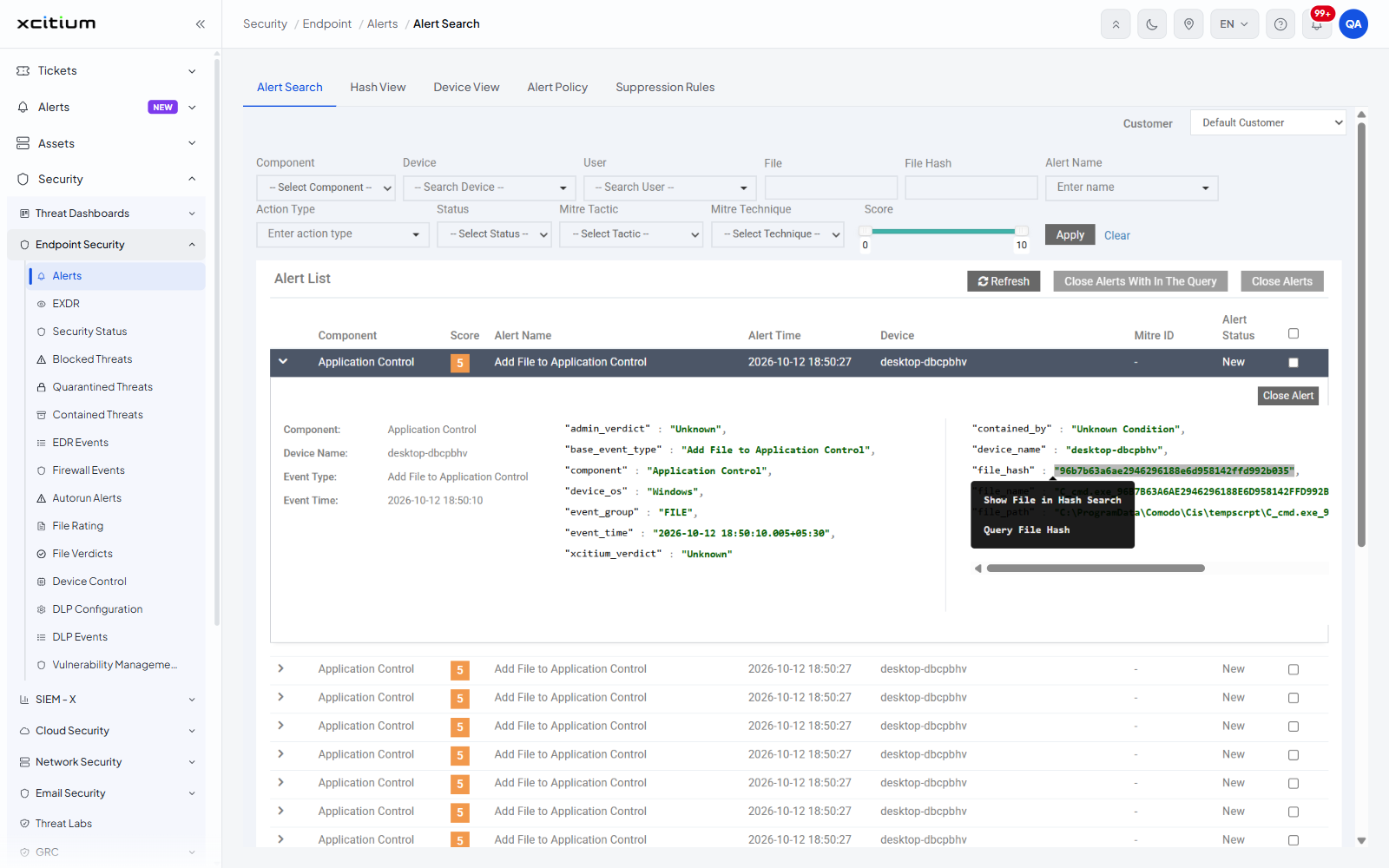
The 'file_hash', 'file_name' and 'file_path' values are clickable. Clicking one opens a short menu of places you can take that value.
| Value | Menu entries |
| file_hash | 'Show File in Hash Search' opens the hash search for that hash. 'Query File Hash' opens an event search for that hash. |
| file_name | 'Query File Name' opens an event search for that file name. |
| file_path | 'Query File Path' opens an event search for that path. |
- Click the value you want to pivot on. The menu opens directly under it.
- Click the entry you want. The matching search opens.
- To close the menu without leaving the page, click the value again or click anywhere else on the tab.
Close the alert from the detail panel
A 'Close Alert' button sits at the top right of the detail panel. It is only shown while the alert status is not 'Closed'.
- Expand the alert row.
- Click 'Close Alert'. The status of that alert changes to 'Closed'.
Note: 'Close Alert' acts on the one alert whose row you expanded, and takes effect immediately.