


Add an Assignee
- Click 'Tickets' > 'Management' > 'AI Assignee Management', then click 'Add Assignee'.
Adding an assignee tells the AI who to hand a ticket to when it cannot resolve it itself. The form has two parts: the person, and the description of what they handle — and it is the description the AI matches on.
You can choose an existing person or create a new user, describe their responsibilities and expertise, and add them to the fallback list.
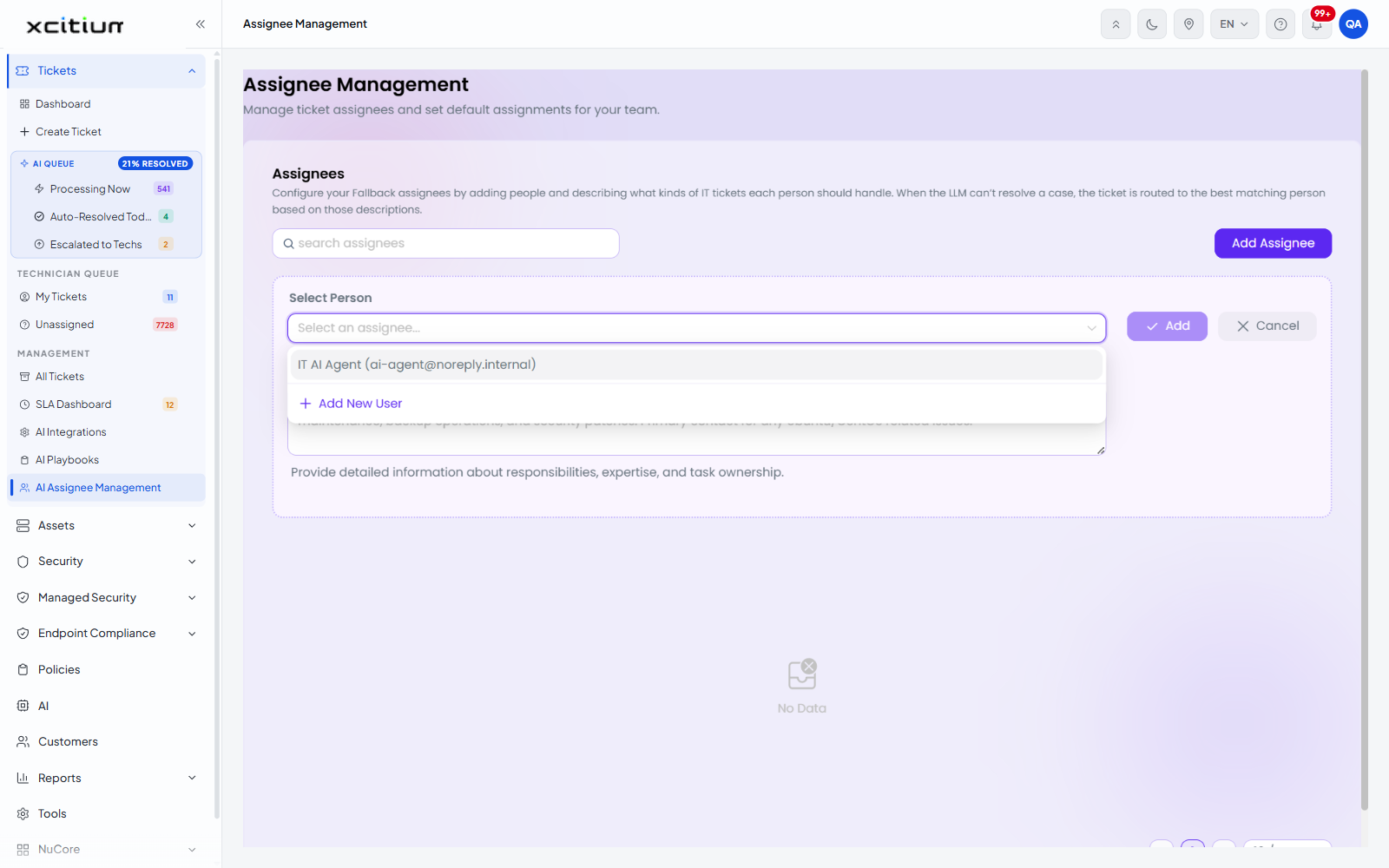
The form
| Field | Type | Options / default | Required |
| Select Person | Searchable dropdown | Placeholder 'Select an assignee...'. Lists the people available in the account, each shown as a name with their email in brackets. A '+ Add New User' action sits at the foot of the list. | Yes |
| Description / Role | Textarea | Empty. Placeholder: "Describe the assignee's responsibilities, expertise areas, and which types of tasks they should handle. 'Responsible for all Linux server maintenance, backup operations, and security patches. Primary contact for any Ubuntu/CentOS related issues.'" Helper text: 'Provide detailed information about responsibilities, expertise, and task ownership.' | Yes |
The buttons
| Button | Description |
| Add | Adds the assignee. Disabled until the required fields are filled in. |
| Cancel | Closes the form without adding anyone. |
Add a fallback assignee
- Click 'Tickets' > 'Management' > 'AI Assignee Management'.
- Click 'Add Assignee'. The form opens above the list.
- Click the 'Select Person' box and pick the person from the list. Type to search it.
- If the person does not appear, click '+ Add New User' at the foot of the list and create them.
- In 'Description / Role', write what they are responsible for — the systems they own, their areas of expertise and the kinds of ticket they should receive.
- Click 'Add'.
Note: write the description the way the example does — naming the platforms and task types explicitly. The AI routes on this text, so a vague description produces vague routing.