


Patch Management
- Click 'Assets' > 'Applications' > 'Patch Management' to open this interface.
The screen lists the patches available for the devices you manage, on two tabs: operating-system patches, and updates to third-party applications.
You can approve or decline patches, hide the ones you never want to see, install and uninstall them, and build procedures that apply them on a schedule.
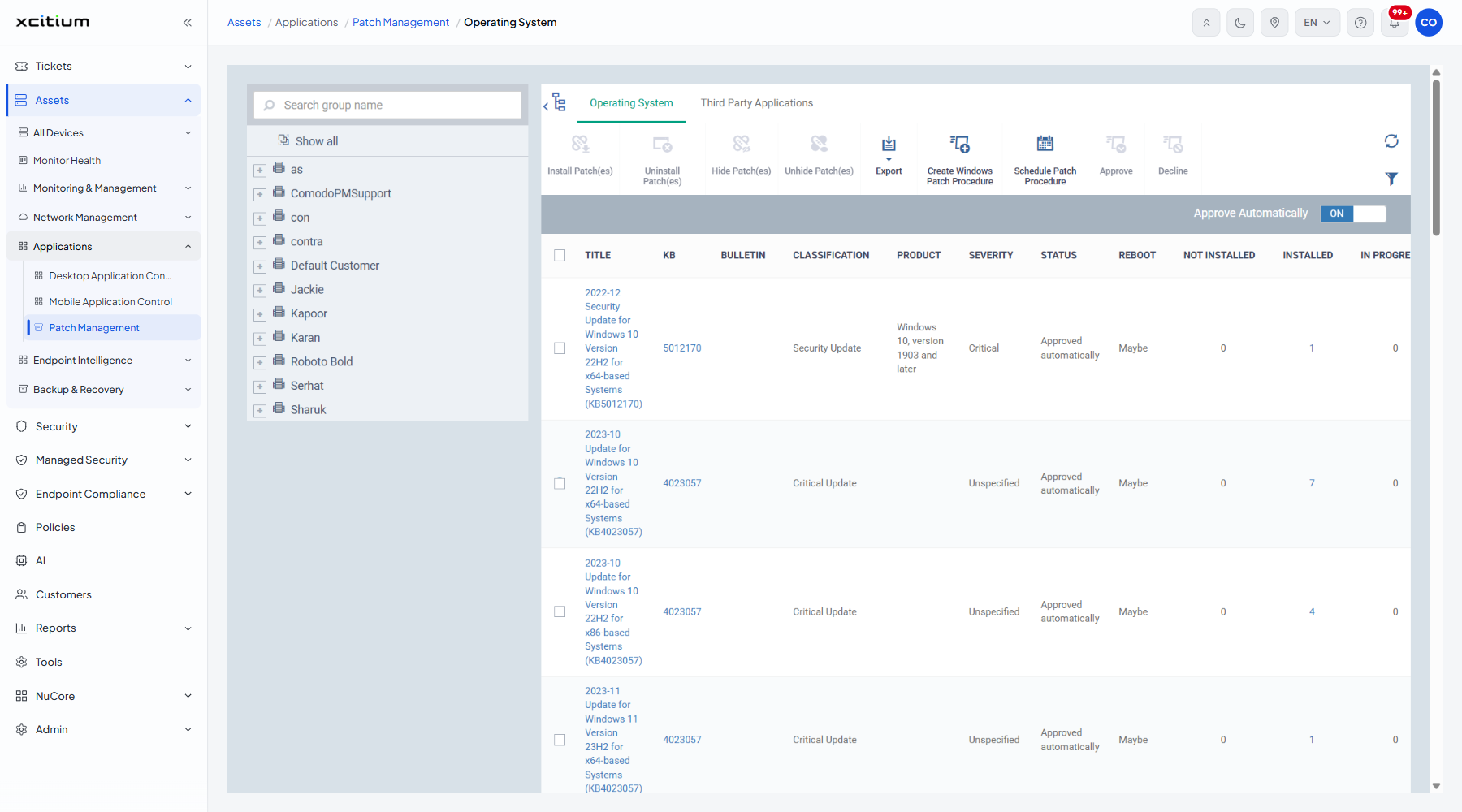
The left pane holds the customer and device-group tree with a 'Search group name' box and a 'Show all' button.
The two tabs
- Operating System — patches for Windows itself. This is the default.
- Third Party Applications — updates for the applications on your devices.
The Approve Automatically toggle
A grey bar under the toolbar carries an 'Approve Automatically' ON / OFF toggle. It decides whether newly published patches are approved without anyone reviewing them. The toggle appears on both tabs and applies to the whole account.
The toolbar
| Button | Description |
| Install Patch(es) | Installs the ticked patches on the devices that need them. |
| Uninstall Patch(es) | Removes the ticked patches from the devices that carry them. |
| Hide Patch(es) | Hides the ticked patches from the list. Show them again with 'Show hidden patch(es)' in the filter panel. |
| Unhide Patch(es) | Brings hidden patches back into the list. |
| Export | Writes the list to a spreadsheet. The menu holds one entry, 'Export to CSV'. |
| Create Windows Patch Procedure | Builds a procedure that installs patches. |
| Schedule Patch Procedure | Schedules a patch procedure against the ticked patches. |
| Approve | Approves the ticked patches so they may be installed. |
| Decline | Declines the ticked patches so they are not offered. |
A refresh icon and a filter icon sit at the right. 'Install Patch(es)', 'Create Windows Patch Procedure' and 'Schedule Patch Procedure' each carry an extra tooltip pointing at a how-to video.
The columns
| Column | Description |
| (checkbox) | Ticks the row so the toolbar buttons become available. |
| Title | The name of the patch. Click it to open it. |
| KB | The knowledge base number, as a link out to the vendor article for that patch. |
| Bulletin | The security bulletin the patch belongs to, where it has one. |
| Classification | What kind of patch it is, for example 'Security Update' or 'Critical Update'. |
| Product | The product the patch applies to. |
| Severity | How serious the issue is. Values seen: 'Critical', 'Unspecified'. |
| Status | Where the patch stands in the approval workflow. Values seen: 'Approved automatically'. |
| Reboot | Whether applying the patch restarts the device. Values seen: 'Maybe'. |
| Not installed | How many of your devices still need the patch. |
| Installed | How many already have it, as a count and a link to the patch info page. |
| In progress | How many are installing it now. |
| Release date | When the vendor published the patch. |
| Download size | How large the patch is. |
Approve a patch and install it
- Click 'Assets' > 'Applications' > 'Patch Management'.
- Click a group in the left pane to narrow the list to one customer or group.
- Click the filter icon, choose 'Waiting for approval' in 'Status' and click 'Apply'.
- Tick the patches you want to allow.
- Click 'Approve'.
- Tick them again and click 'Install Patch(es)' to push them out now, or 'Schedule Patch Procedure' to apply them in a maintenance window.
Note: installing, uninstalling, approving and declining all act on live devices or on the approval state for the whole account. The maintenance-window rules decide whether an on-demand patch installation is warned about or blocked outright.