


Tools
- Click 'Tools' in the left navigation bar to open this interface.
The 'Tools' page is the download catalogue for the stand-alone utilities that go with the platform. Each item on it is a program you download and run on a computer, not something that runs inside the portal. The page tells you what each tool does, which version is current, when it was released and how many times it has been downloaded.
You can read a description of any tool and download its installer from this interface.
The Interface
'Tools' is a single page. Unlike most items in the left navigation bar it does not expand into a list of sub-pages — clicking 'Tools' opens the page straight away, and no child items appear under it. The breadcrumb at the top of the window reads 'Tools', and the page itself is headed 'Tools'. Below the heading is a grid of six cards, four across the first row and two on the second.
'Tools' sits between 'Reports' and 'NuCore' in the left navigation bar. It stays highlighted while you are on the page.
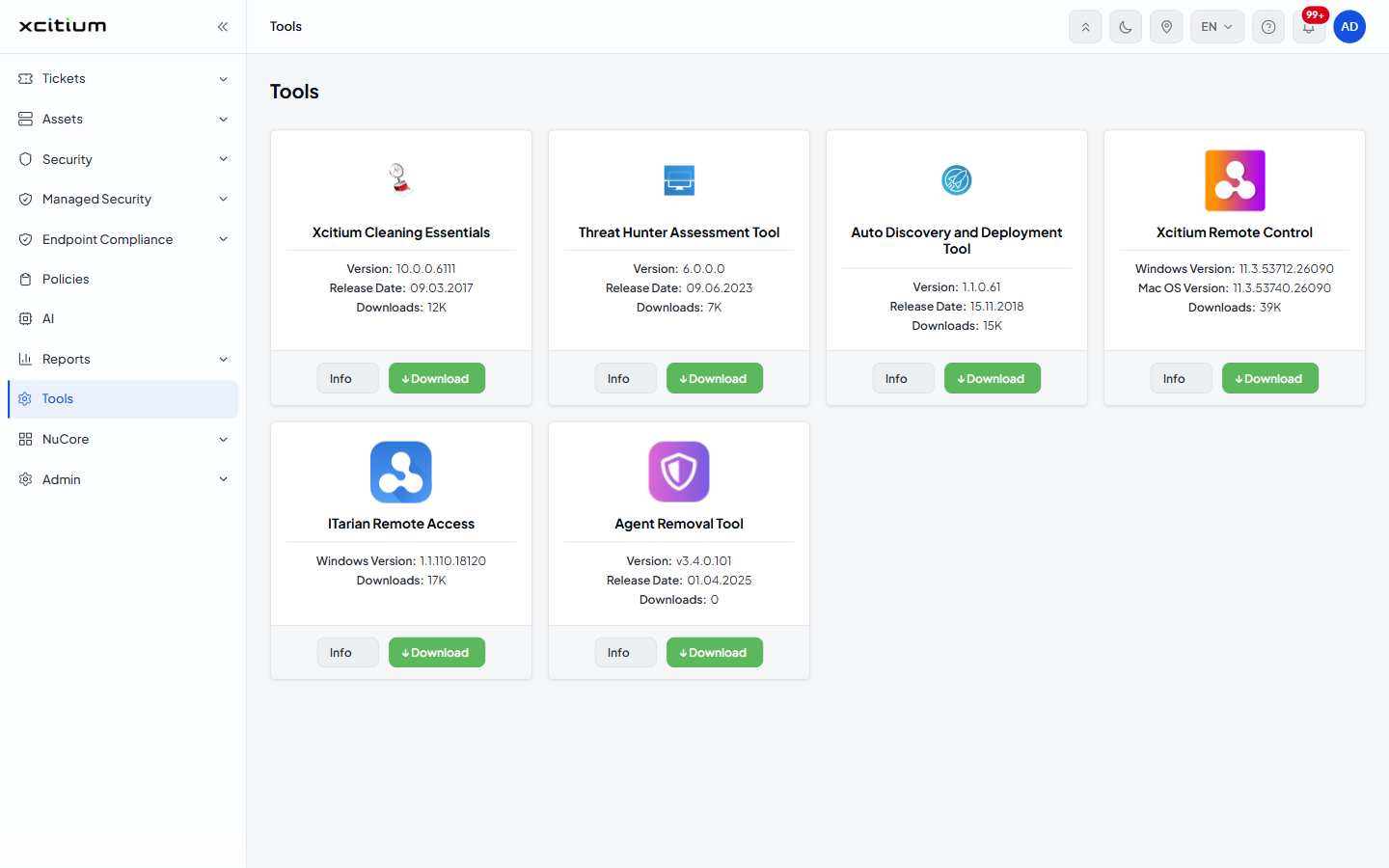
The Tools in the Catalogue
Six tools are offered. The description in each row below is the one the tool gives for itself in its own 'Details' panel.
| Tool | What it is for |
| Xcitium Cleaning Essentials | A set of security tools that find and remove malware and unsafe processes from Windows computers. It is a portable application, so it needs no installation and can be run from a USB key. It contains KillSwitch, a process monitor, and a malware scanner. |
| Threat Hunter Assessment Tool | A lightweight scanner that looks across your network for 'Unknown' files — advanced persistent threats, zero-day threats and ransomware that carry no known signature or hash — and reports a risk and trust level for every file it finds. |
| Auto Discovery and Deployment Tool | A portable discovery and deployment tool. It finds endpoints on a network through Active Directory, a Workgroup or an address range, then installs .exe, .msi or .mst packages on them remotely and in the background. |
| Xcitium Remote Control | A desktop application for taking control of a managed endpoint, so that you can troubleshoot it, install updates and run maintenance without a third-party remote-desktop product. Builds are listed for Windows and for Mac OS. |
| ITarian Remote Access | A free remote-access tool for connecting to a device that is not under management, or for temporary access to any device. The card lists a Windows build. |
| Agent Removal Tool | A removal utility. Its 'Details' panel carries no description — only a link to a help-portal page. |
What Each Card Shows
Every card is built the same way, from top to bottom:
| Element | Description |
| Icon | The tool's own product logo, at the top of the card. |
| Name | The tool's name, as a heading under the icon. This is the name used everywhere else in this section. |
| Version lines | One, two or three lines giving the build you will get if you download now. Which lines appear depends on the tool — see the table below. |
| Release Date | The date that build was published, written day.month.year, for example '09.03.2017'. Four of the six cards show it. |
| Downloads | How many times the tool has been downloaded, rounded to thousands with a 'K', for example '12K'. A tool that has never been downloaded shows '0'. |
| Info | The left-hand button in the card footer. Opens the 'Details' panel for that tool. |
| ↓ Download | The right-hand button in the card footer, in green. Downloads the tool. |
Read About a Tool
- Click 'Tools' in the left navigation bar.
- Find the card for the tool you are interested in.
- Click 'Info' in the card footer. The 'Details' panel opens over the page.
- Read the description, then click the '×' icon at the top right of the panel to close it and go back to the grid.
Download a Tool
- Click 'Tools' in the left navigation bar.
- Find the card for the tool you want.
- Check the version line, and on the two remote-control cards check that a build is listed for the operating system you are going to run it on.
- Click '↓ Download' in the card footer.
Note: these tools run on a computer, not in the portal. Downloading one here does not install anything on a managed endpoint and does not change any device, policy or setting in the platform.