


System Templates
System Templates holds the emails the platform sends, who receives the alert emails, and the variable and tag libraries that configuration profiles draw on. It has seven pages of its own.
Getting there
- Click Admin, then Settings.
- Click the System Templates tab. It opens on Email Templates.
Email Templates
The six emails the platform sends, with the subject line each one uses and the variables it can include. Click a template's Name to edit it.
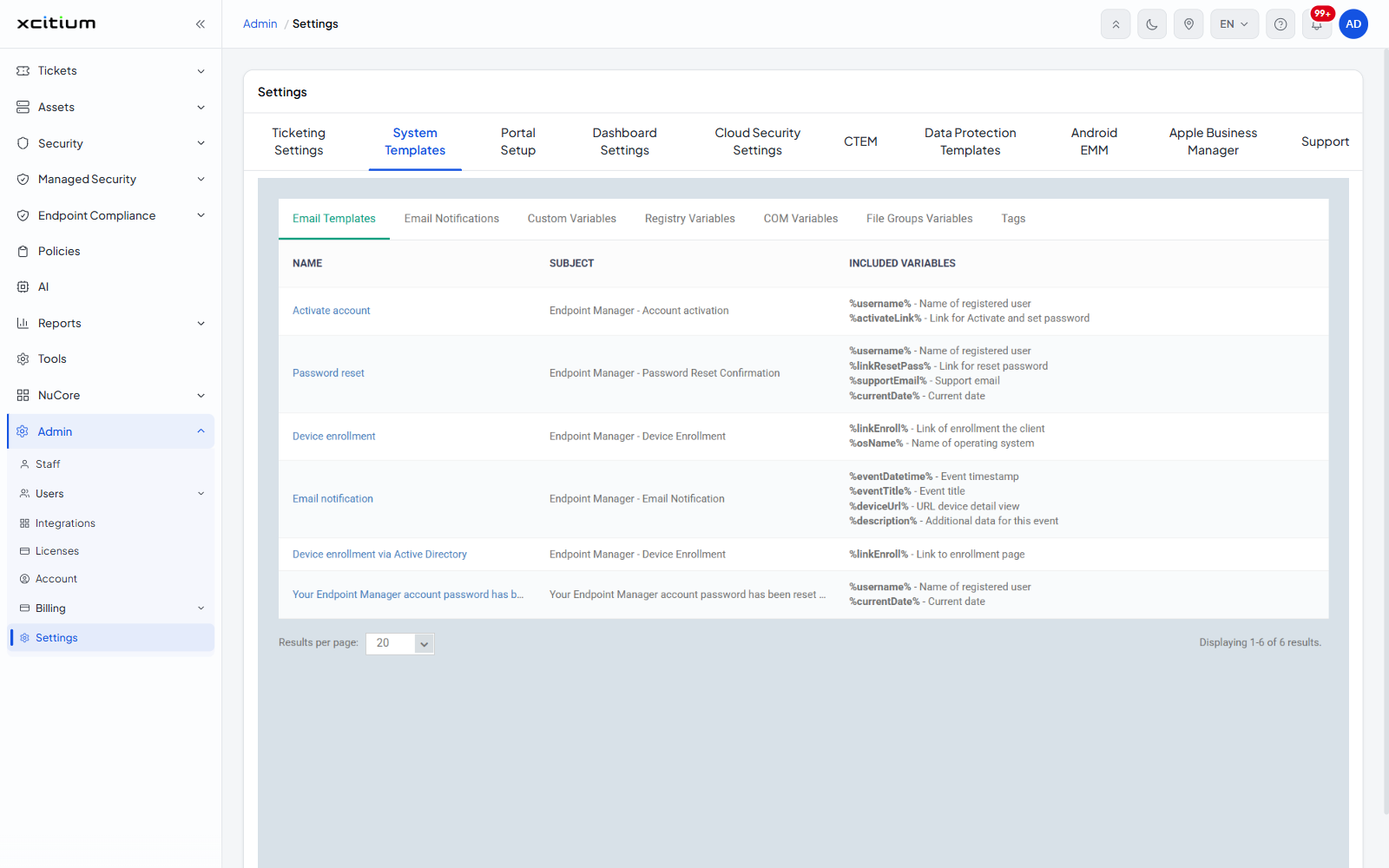
- Activate account — sent when an account is created; carries the user's name and the activation link
- Password reset — confirms a password reset; carries the user's name, the reset link, the support email and the date
- Device enrollment — carries the enrolment link and the device's operating system
- Email notification — carries an event's date, title, device link and description
- Device enrollment via Active Directory — carries the enrolment link
- Your Endpoint Manager account password has been reset by your administrator. — carries the user's name and the date
Variables are written between percent signs, for example %username%, and are replaced with the real value when the email goes out. The Included Variables column tells you which ones each template accepts.
Email Notifications
Who receives notification emails, and which events raise one. There are two pages.
On Send to Settings, click Edit to change who is notified.
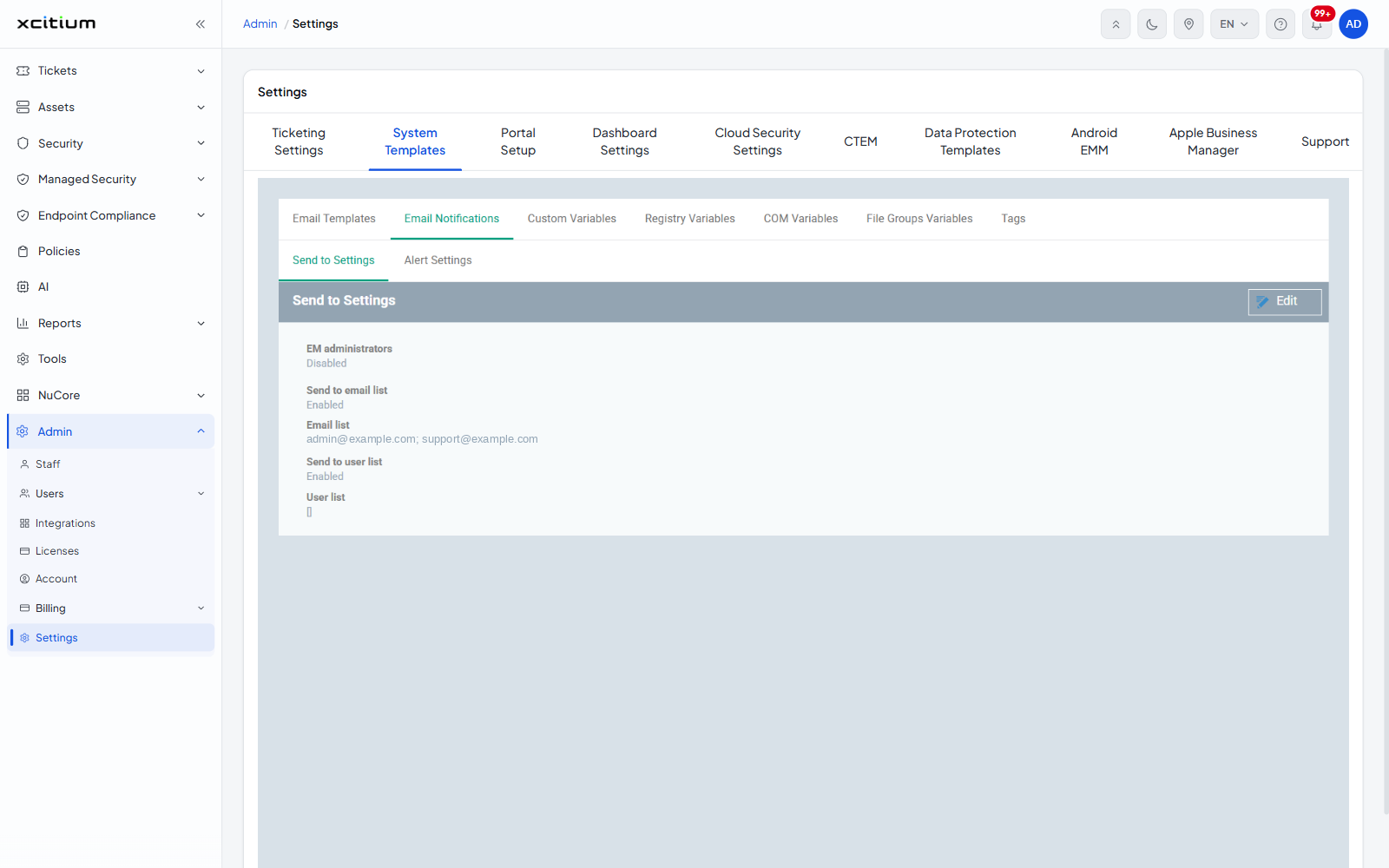
- EM administrators — notify every administrator
- Send to email list — notify the addresses you list
- Email list — the addresses themselves; type an address to add it
- Send to user list — notify named users
- User list — type a username to search for the users to notify
On Alert Settings, click Edit to choose which events raise a notification.
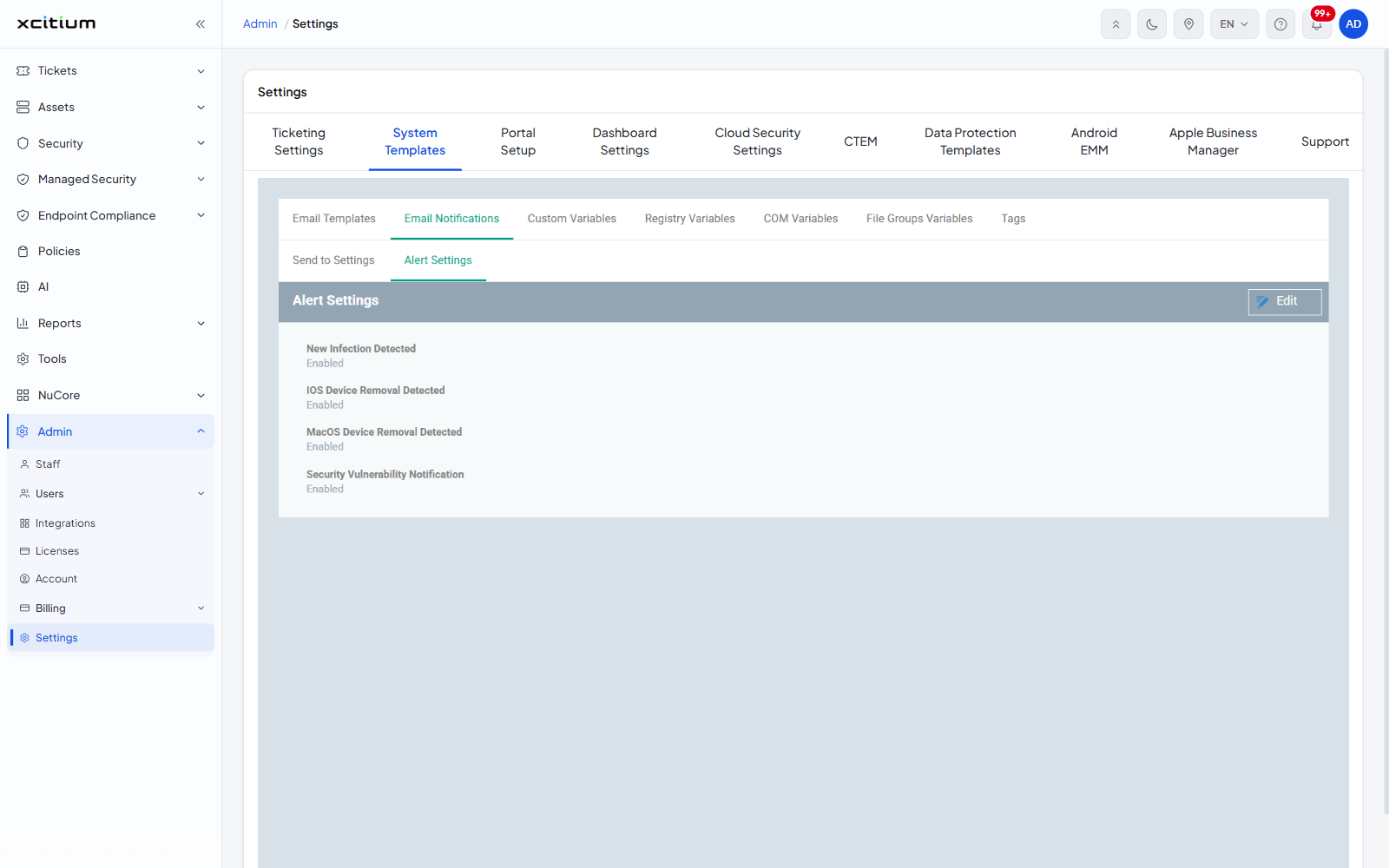
- New Infection Detected
- IOS Device Removal Detected
- MacOS Device Removal Detected
- Security Vulnerability Notification
Custom Variables
Key-and-value pairs you define once and reuse in configuration profiles instead of typing the same value repeatedly. The list shows Key, Value, Author, Last modified by and Created, and reads No results found until you add one.
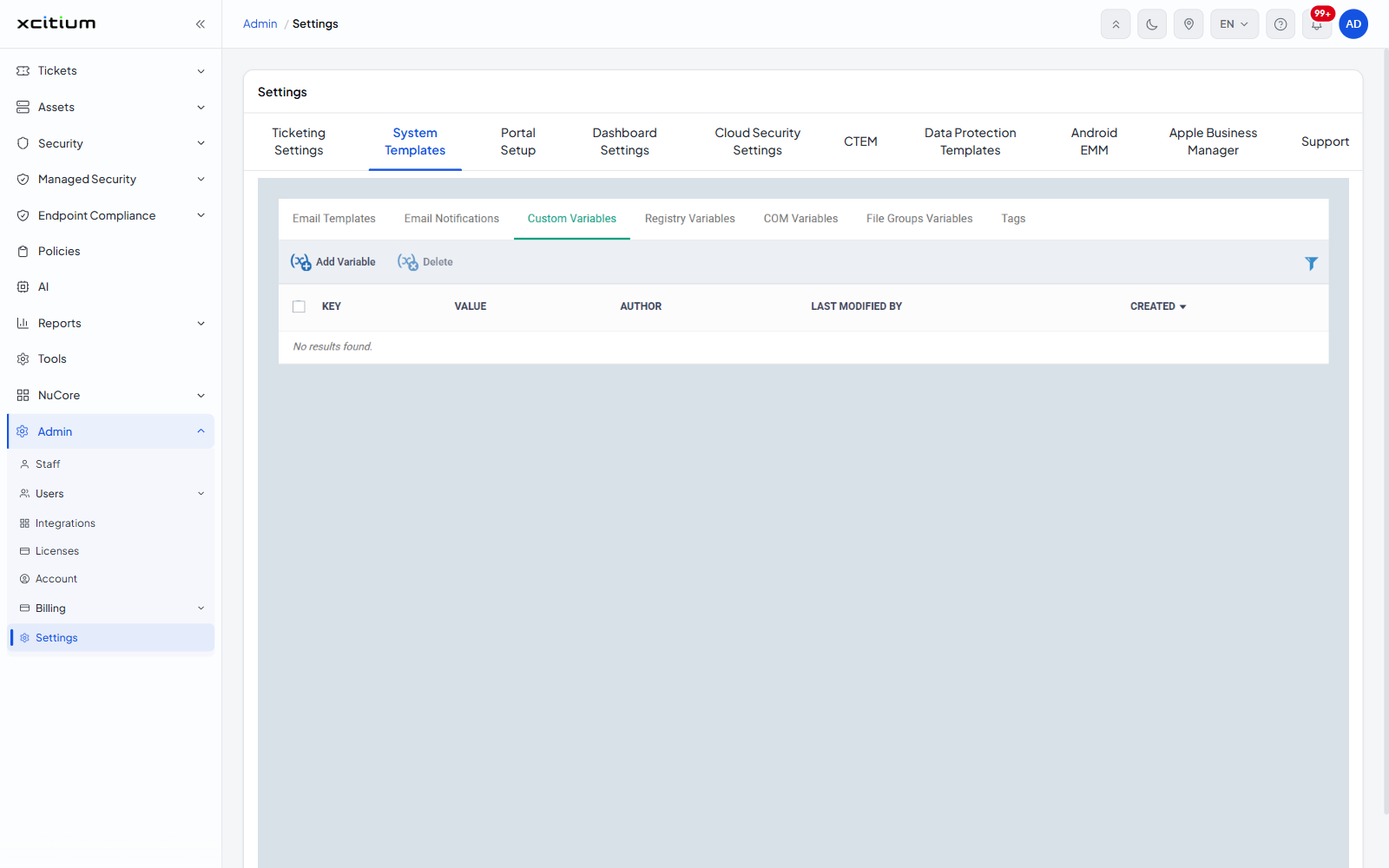
- Click Add Variable.
- Enter the key and the value it should stand for.
Tick a variable and click Delete to remove it, or use Filter to search a long list.
Registry Variables
Named groups of Windows registry keys that profiles can refer to as a set.
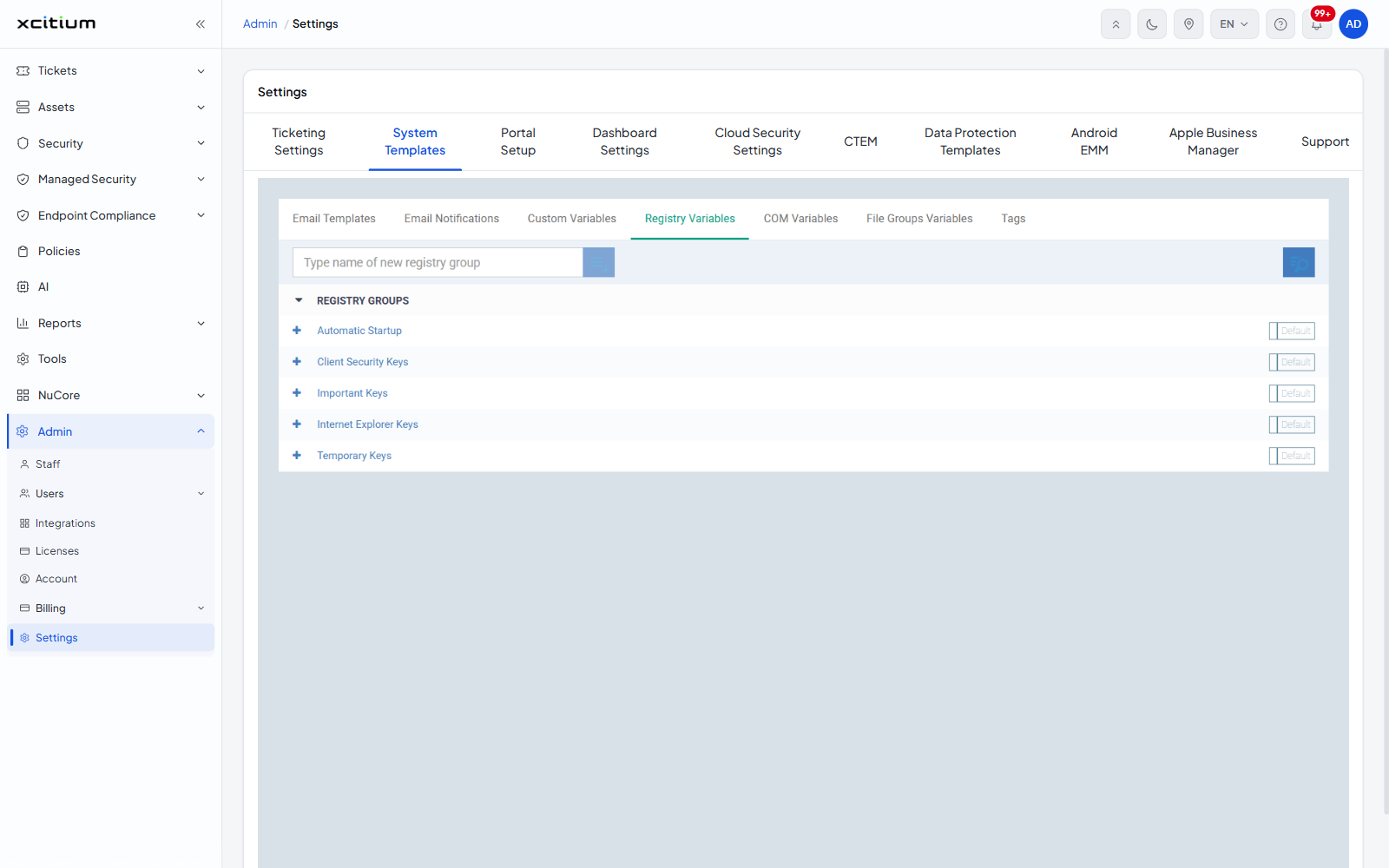
- Type a name into the new registry group box and click the add button to create a group.
- Click a group to see or change the keys inside it.
The groups that ship with the product are badged Default: Automatic Startup, Client Security Keys, Important Keys, Internet Explorer Keys and Temporary Keys.
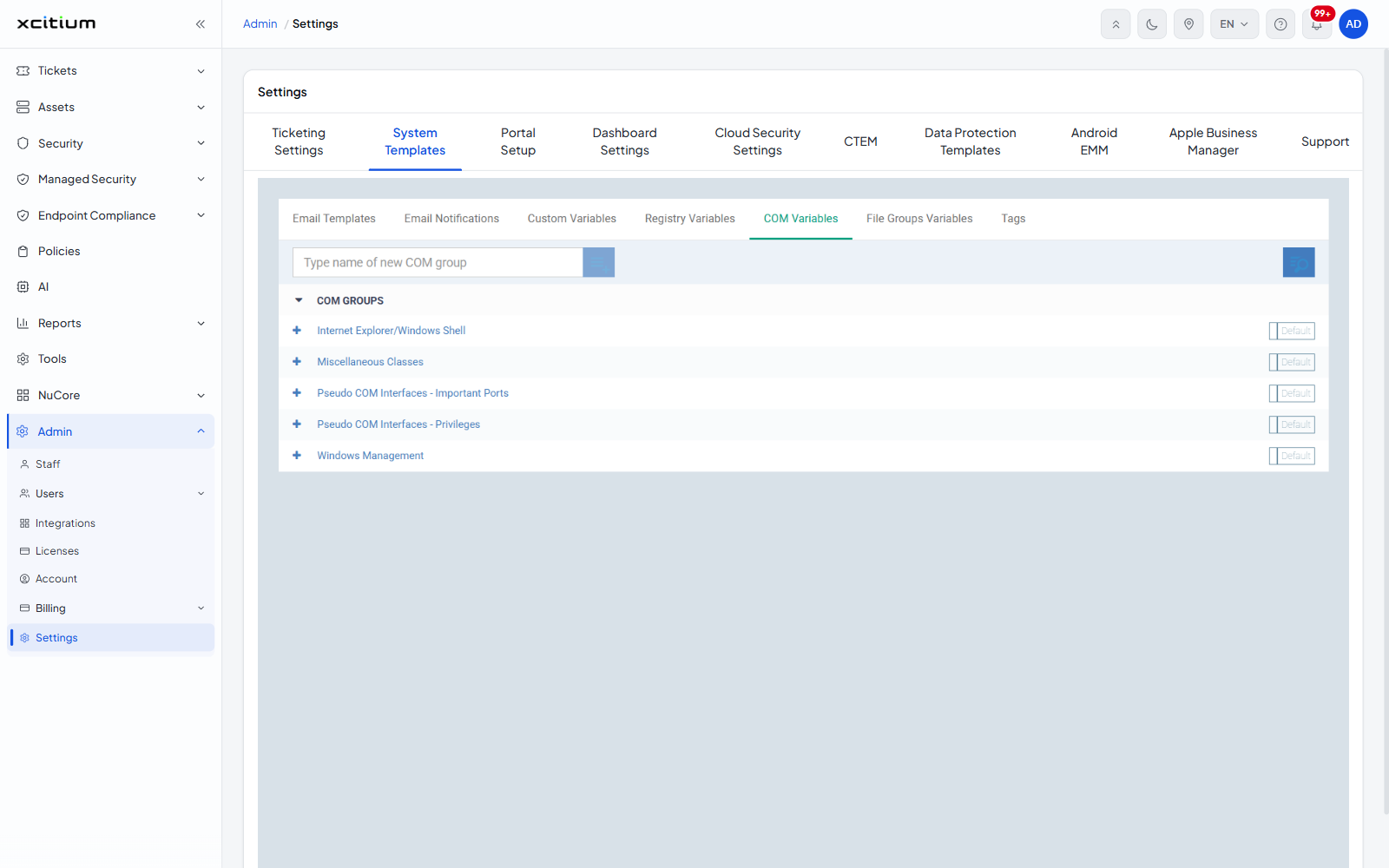
COM Variables
The same idea for COM interfaces, created and opened the same way. The groups badged Default are Internet Explorer/Windows Shell, Miscellaneous Classes, Pseudo COM Interfaces - Important Ports, Pseudo COM Interfaces - Privileges and Windows Management.
File Groups Variables
Named groups of files and folders, used in containment rules, scan exclusions and allow lists. Type a name and click the add button to create one, then click the group to see the paths inside it.
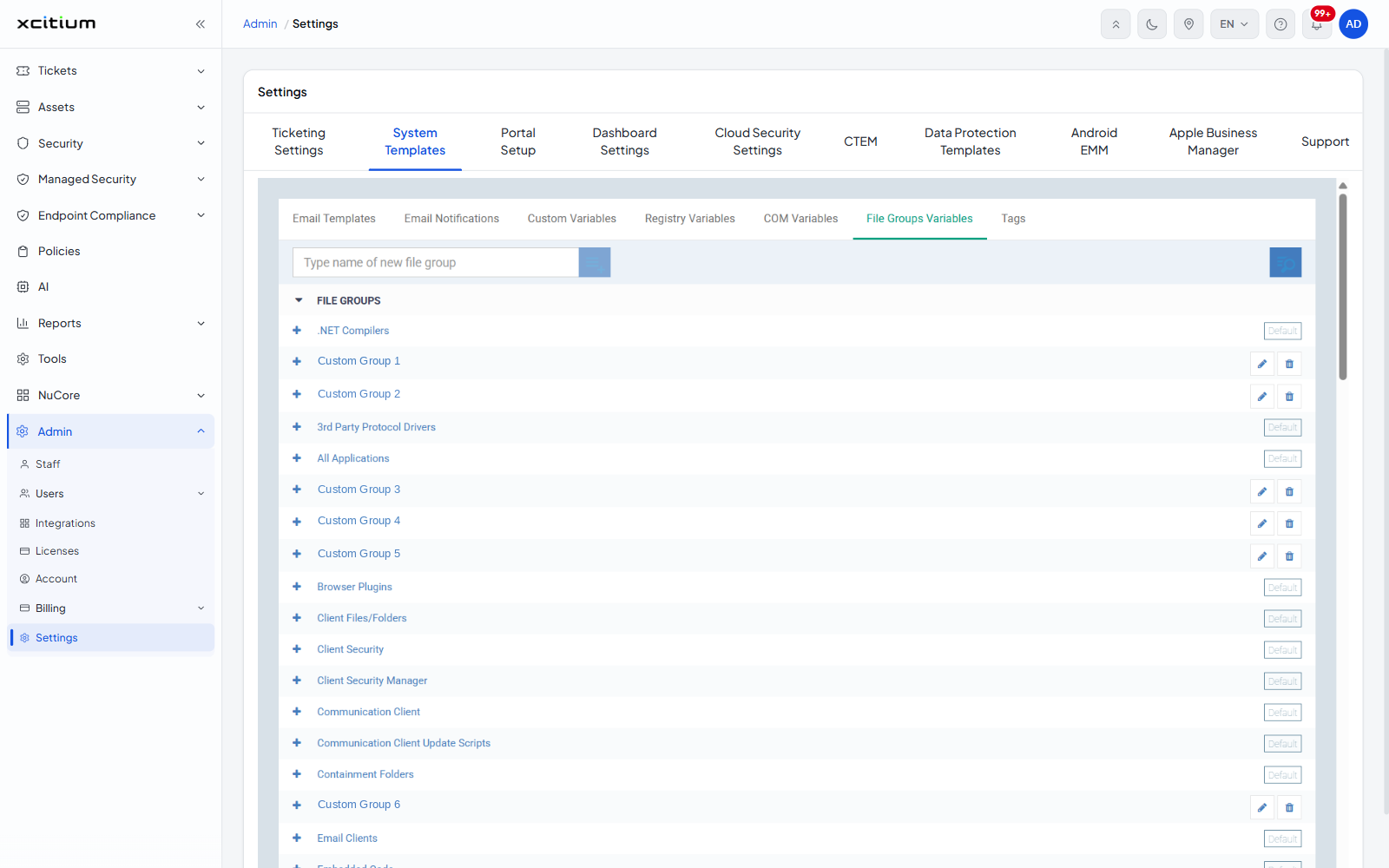
- Groups badged Default ship with the product
- Groups badged SOC-Defined Template are provided for standardised use across configurations
- Groups with no badge were created on your own account, and carry edit and delete icons
Hovering the badge on a Default or SOC-Defined Template group explains the limit: you may edit it but cannot delete it. Only the groups created on your account can be removed.
Tags
Labels you attach to devices so you can group and filter them later. The list shows Name, Device count and Description, and the Name links to the tag's own page.
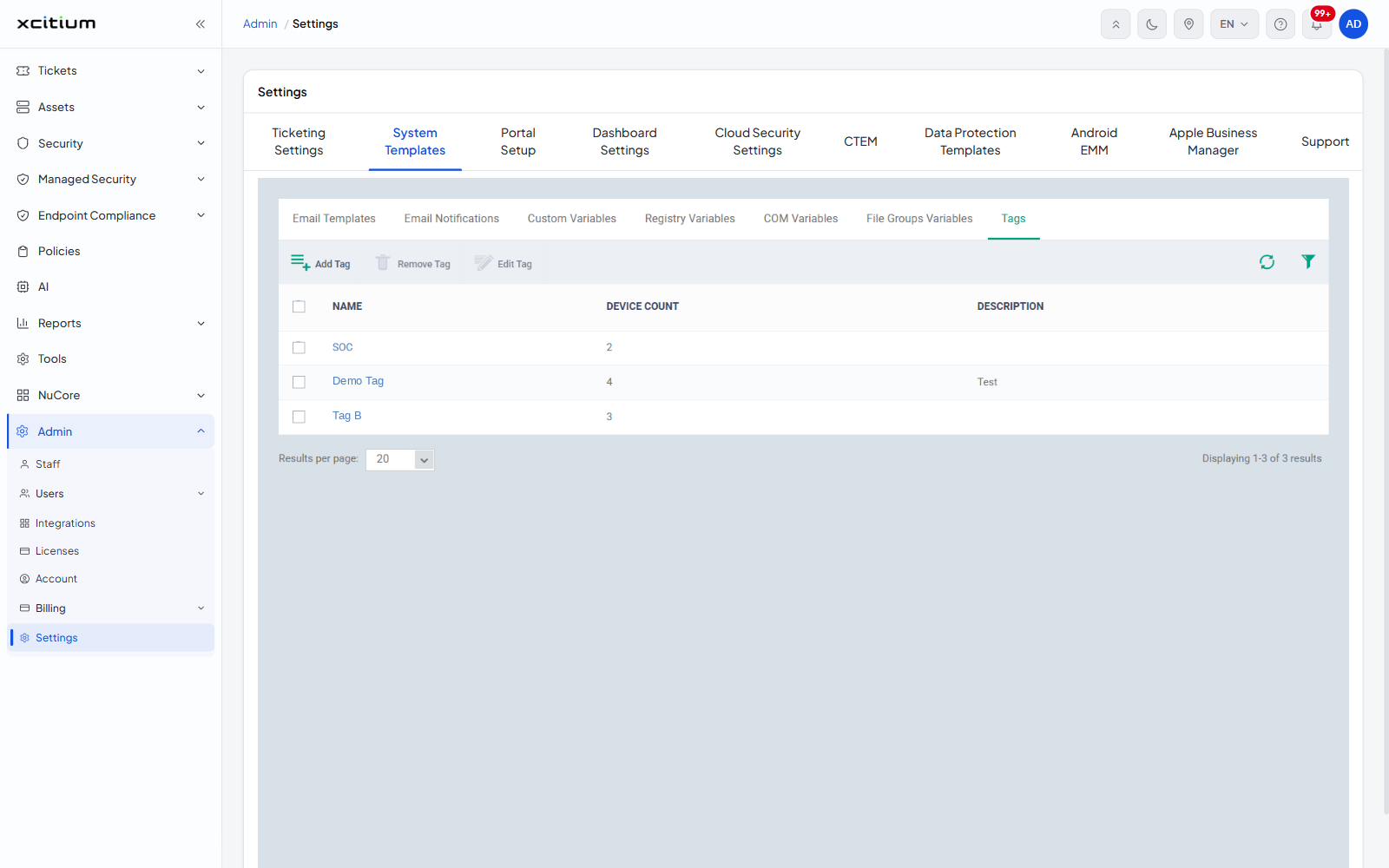
- Add Tag — create a tag
- Edit Tag — rename the ticked tag or change its description
- Remove Tag — delete the ticked tag